At Home with Tech

Unlock the power of all your technology and learn how to master your photography, computers and smartphone.

Tag: iPhone

Try This Time-Lapse Idea with Your iPhone

I’ve found numerous opportunities over the past couple of years to shoot slow motion videos with my iPhone. (My six-year-old boy usually moves so fast… it’s often fun to slow some of that down.) But time lapse? Not so much.

In fact, I’ve rarely attempted time lapse. Part of the challenge is you’ve got to plan for it, and it’s going to take you some time to capture.
(That’s the whole point.)

Imagine my glee when I spontaneously generated a time-lapse sequence over the weekend during one of my more mundane of chores… recycling cans and bottles at my local Stew Leonard’s supermarket.

The new variable this time was my son had accompanied me…

What makes this 28-second movie more than the sum of its parts is the fact that my first grader took over all of the heavy lifting.
(I quickly realized I was just along for the ride.)

Take a look at the top of this post!

DIY Tripod
Being an observer for fifteen minutes allowed me the opportunity to try this time lapse.

The hard part was figuring out where to put my iPhone without a tripod. I ended up propping it up against a two by four near the ground, hoping it wouldn’t fall over.

Repetition is the Key
I think this movie is fun because it magnifies repetition to tell its story…
What is boring in normal time is something entirely different sped up.
(Though it’s clear my son was not particularly bothered by the challenge of popping over 300 cans and bottles into the recycling machines. I suppose it didn’t hurt that I told him he could keep all of the redeemed nickels for his piggy bank.)

My difficulty with time lapse to date has been my limited belief that time lapse is supposed to show something grand that’s playing out very slowly.
(You just can’t do that in the moment without some planning.)

Something like this turns that equation on its head. Now we’re looking for repeating, ‘simple’ moments to capture that are anything but grand.

But by collecting the sum of them, you’re creating more of a ‘point of view.’

Now that’s interesting.
(And if you find this obvious, please cut me some slack. We all learn at our own pace!)

Lots of Cans
You might be wondering…
Why so many cans and bottles?

One word – seltzer.
My family loves the stuff.
(But to be fair, I was long overdue for this recycling trip. This represented all of our summer seltzer fun.)

Find More Time Lapse in Your Life
So keep an open mind as you traverse your day to day.
If you find yourself thankfully sidelined during an otherwise mundane series of moments, that series could have some fun visual value as a time-lapse video.

Try it out!

How to Use Dropbox on Your iPhone to Listen to Podcasts

If you’re not into iTunes to help transfer a podcast from your computer to your iPhone, then you should think about moving that file up to the cloud where your phone can find it.

If you’re not into iTunes to help transfer a podcast from your computer to your iPhone, then you should think about moving that file up to the cloud where your phone can find it.

My wife recently invited me to listen to an hour-long podcast that she was interested in discussing with me. “An hour?!” I wondered. Where would I fit that into my busy day? The obvious choice eventually percolated to the top of my narrowly focused brain…

Listen on my way to work on my iPhone!

Whether I was driving or commuting on the train, I could consume this content on the go.

Great!
Now the question was how…

Stream It
The podcast lived on a website… so I could simply stream it directly from there. Sure… that’s the easiest way. But when I travelled through dead zones in cell coverage, I’d be stuck.

iTunes is Always There for You…
The podcast creator, having already thought through this limitation, invited its Apple listeners to download the audio file onto their respective Macs. From your computer, you can move the audio file to iTunes and then manually sync your iPhone/iPad with iTunes to move the file over.
(And no… this particular podcast can’t be automatically accessed and downloaded online from iTunes. That, of course, would make it easier…)

The whole ‘transfer in… then transfer out’ process with iTunes on your computer seemed like an unnecessary amount of work, since I was intending to listen to this podcast only once.

Look to the Cloud
Hmmm…
It all felt so yesterday. I immediately thought that a cloud solution should be able to better handle the challenge….

And of course it can!
Here’s how I did it…

Four Steps to Easy Podcast Prep

Dropbox is my personal cloud-sharing solution.
(There are many others out there.)

Step 1
So I downloaded the audio file from the website to my iMac and then simply dragged the file to a new folder I created in Dropbox.

Step 2
Then, I picked up my iPhone and opened up the Dropbox app…
(Can you believe it… the audio file was magically right there!)

I was already at the finish line in two steps, but the file would only stream when I tapped on it. I wanted to listen locally…

Step 3
There’s a ‘Make Available Offline’ option in the Dropbox app.
I tapped that, and Bam!
Now, I was ready to listen, regardless of cell coverage…

Step 4
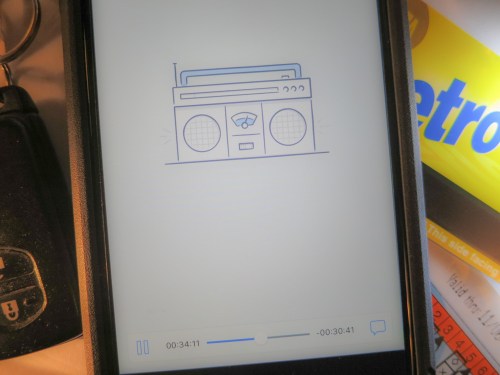
I tapped the ‘downloaded’ file, which I could also access in the ‘Offline’ section, and a Dropbox audio player opened up.

My podcast began to play.

Sweet.

Happy Listening
Again, there’s nothing wrong with moving your podcasts into the iTunes ecosystem. I was just too lazy to take the time to get it there.

Dropping the file into Dropbox was so much quicker.

And that’s more time you can put towards your podcast listening!

Six Reasons to Buy Another Car GPS

This is what happens when you drop your car’s GPS navigation unit on the pavement. The cracked glass is the least of its problems. So now what…?

This is what happens when you drop your car’s GPS navigation unit on the pavement. The cracked glass is the least of its problems. So now what…?

I’m on the record proclaiming that I’d given up on my car’s old Garmin GPS a while back, when smartphone apps developed their own talking directions. With my iPhone Maps app and Google Maps app, why would you need anything else?

Truth be told, I secretly kept using my Garmin Nuvi, which my wife and I spontaneously named “Jane” quite a few years ago. Sure we’ve more recently also been using our smartphone map apps, but our GPS Jane remained a constant presence while we were driving in my RAV4.

I found it helpful to see the digital road ahead, and Jane often offered a second opinion on the best way to go.
(I’m not saying it ended up being the faster way.)

So I didn’t actually retire Jane like I said I would. Instead, I left the Nuvi on my car’s dash with an upgraded Garmin friction mount that magically prevented it from sliding about.

Jane still worked well enough…

Until fate finally intervened.
Last week, I somehow pulled Jane’s power cable with my briefcase as I stepped out of my car. Jane went flying out of my driver door and… smash… onto the pavement.

Yep. And that finally ended the relationship.
(A big crack was now front and center.)

When I plugged Jane back in, her typing interface no longer worked. Sure, the navigation was still functional, but I could no longer set a destination.
(And that’s no way to travel through life.)

So now what?
It was time to replace Jane with something newer. But with what….?

Time to Buy Another GPS
Can you believe I’ve decided to go with another GPS navigation unit?
I bet you’re thinking that doesn’t make any sense at all.
I didn’t think so either.

But here are six reasons why…

#1
It Takes Too Long to Power and Mount Your Phone
No, I’m not ready to go it alone with just my iPhone and it’s native Maps app or the Google Maps app. Sure, both of these apps work great in the car, and for many are GPS killers. But the truth is I’ve realized I prefer having a dedicated device set up in the car.
(Assuming your car doesn’t have its own built-in GPS)

Otherwise, you’ve got to take out your smartphone… Plug it in for power… (unless you’re okay draining the battery) Attach it to its dash mount… and then open up the appropriate app.

That probably ends up taking only about a minute to do… But several times a day? Then multiply that by a week… you’re at close to thirty minutes now. Now look at the monthly commitment… two hours.

Annually, that becomes a whopping 24 hours.
(Seriously)

Yes, you’d spend a whole day of your life over the next year plugging in your smartphone into your car to handle GPS duty.

No, thank you.

#2
Multitasking between Different Dialogues is Confusing
I say just let your phone be your phone. It’s already working hard for you in the car. Don’t give it too much to do.

When you’re paying attention to which exit to take on the highway, you don’t want the same device to handle a phone call from your spouse regarding what to pick up for dinner that night. The audio exchange can get a little confusing as the app interrupts your conversation with its audible directions.
(Then who knows what dinner’s going to look like!)

The same dynamic occurs if you’re playing music on your smartphone and your Maps app is trying to talk to you. While that doesn’t create the same confusion, it can really mess up the best parts of any song you’re trying to enjoy…

#3
Multitasking between Different Visuals is Usually Impossible
A similar problem occurs with you’re sharing your GPS’ screen real estate. When a call comes in, that ‘next turn’ prompt disappears!
(And so may your chance to get to that meeting on time!)

#4
Your Smartphone Can’t Tell You Where to Go if You Lose Your Signal Bars
So if you venture out into the middle of nowhere, you might find yourself stuck in the middle of nowhere scrambling to find that old map you threw in the trunk years ago.

GPS units that use satellite reception are more reliable in this regard. Period.

#5
Using Your Smartphone to Navigate Eats into Your Data Plan
While that’s not a problem for me, (I’ve held onto an old all-you-can-eat plan from AT&T) most folks have to worry about that.

I say why not use your precious data elsewhere…?

#6
Available HUD displays are More Fiction than Fact
I really thought this was my next step…
Head Up Displays (HUDs) project driving directions
right onto your windshield.

How cool is that?

But when I started shopping around, there really wasn’t anything out there other than glorified reflector systems for your smartphone. And I really wasn’t into mounting my iPhone onto the back of my dash. (See reason #1.)

Garmin came out with a HUD device a few years back, but the interface just isn’t as robust as a typical GPS unit.

Navdy is a HUD in development that looks really cool. But as far as I can tell, it’s not on the market yet.

If someone knows of a real-life Head Up Display unit that’s out there, please let me know…

Assuming you can actually find a HUD (at an affordable price point), yes, it’s cool that the display shows up on your windshield. That can certainly help maintain your focus on the road ahead. But driving with a dedicated car GPS mounted in front of you also approximates the same experience.

The Shopping Begins
So as I’ve already suggested, I’ve come full circle. It’s time to buy another GPS navigation unit.

Which way to go?

I’ll let you know… Next time on At Home with Tech