At Home with Tech

Unlock the power of all your technology and learn how to master your photography, computers and smartphone.

Tag: Nest

Avoid this Surprise When Installing Your Google Nest Learning Thermostat Gen 4
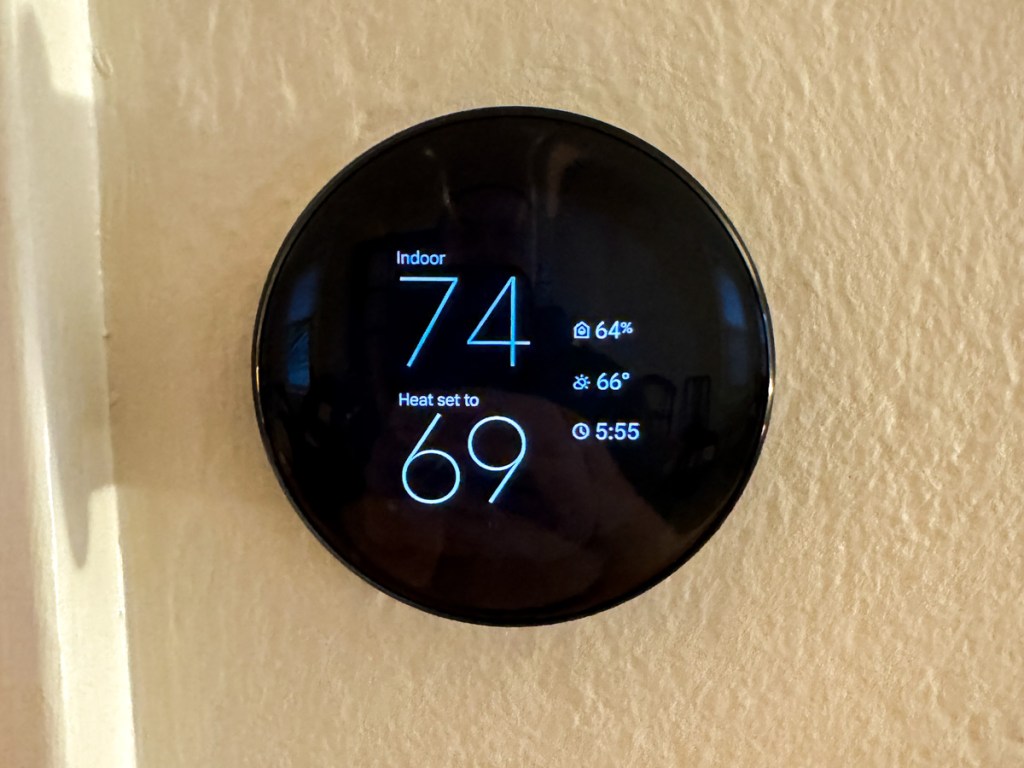
Getting 12 years out of any piece of tech is more than anyone should expect. That said, if it’s still working and doing the job, why would you want to replace it? (Unless you simply need the latest and greatest.) 

Well, you’d pull the plug when the manufacturer forces you to. If the old unit’s tech is so obsolete, it can’t be maintained by the manufacturer’s current standards. And that’s what’s happened to my trusty Nest Learning Thermostat (2nd gen) from 2013.

Goodbye Nest Learning Thermostat Gen 2
In tech years, it’s like a century old. A lot’s happened, including Google buying Nest to enter the smart home market. 

So yes, Google has walked away from its older Nest Learning Thermostat population. The official Google language is “end of support.” What that means is 1st and 2nd-generation models can no longer be reached remotely via the app on your phone as of October 25, 2025. (They’ve been “unpaired and removed” from the Nest app or Home app.) 

Poof.

It’s Time to Buy Gen 4
Yes, you can still operate these ‘relics’ manually, but I’ve always spent more time interfacing with my Nest Learning Thermostat through the app on my iPhone.

Most significantly, these units are no longer supported, which according to Google “may lead to decreased performance with continued use.” So that’s code for… it’s just a matter of time till they stop working altogether.

Look, I get it. No web-connected piece of tech is going to last forever.

So, if you want your Google Nest Learning Thermostat ecosystem to remain reliable and fully operational, you have no choice but to upgrade to the current 4th generation model, which costs $279.99.

Ouch!

Fortunately, Google has softened the blow by offering a $130 discount for current 1st and 2nd gen owners. So that effectively drops the price point to $149.99 plus tax. (Shipping is free.)

Registered owners should have received an emailed discount code towards the purchase of the current 4th gen model.

Three Color Choices
So Barrett went ahead and bought himself an early holiday present with his discount code. (Thank you, Google.) 

My hardest decision was deciding which color to get. I decided on Obsidian with a black base. (I felt it would present a cleaner, unified aesthetic in our living room. (The other choices are silver and gold with a white base.)

My Installation Surprise
Happily, installing my new 4th gen unit was the essentially the same as my old 2nd gen model. 

The only relevant difference was the size of the circular base plate, which you screw onto the wall. (The thermostat clicks onto the base plate.)

Here’s the problem: 

The new base plate is slightly smaller than the old one. And that tiny footprint difference can be a really big deal.
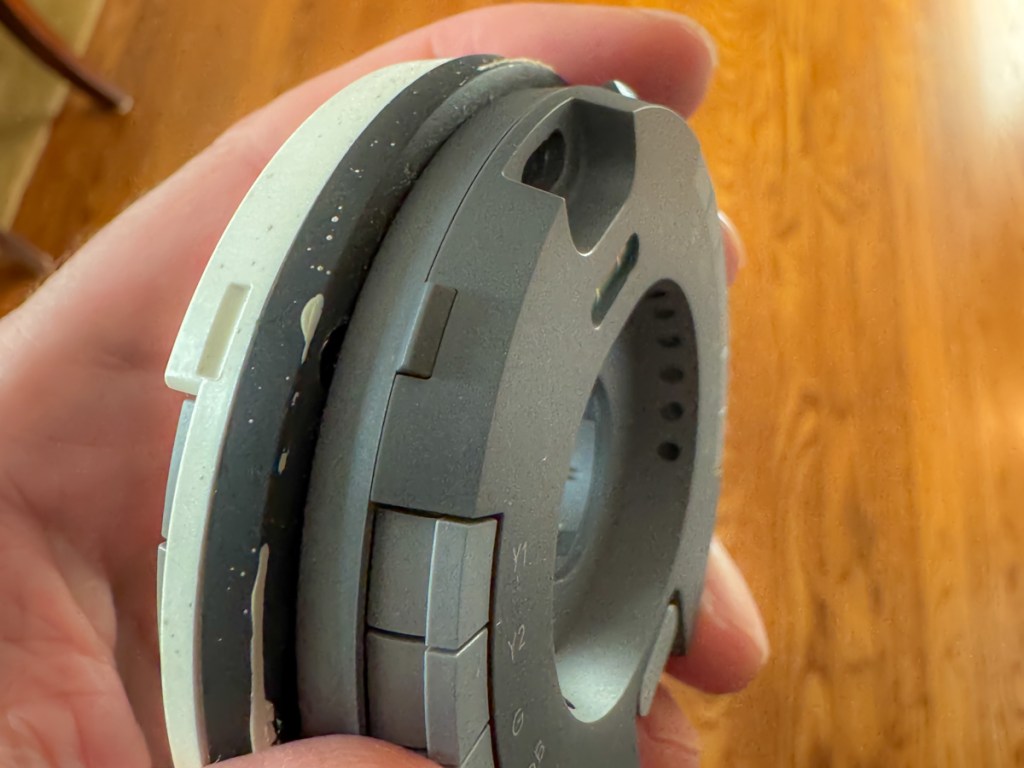
Why? Well, the new base plate will reveal a little more of your wall… 
that might be unpainted!
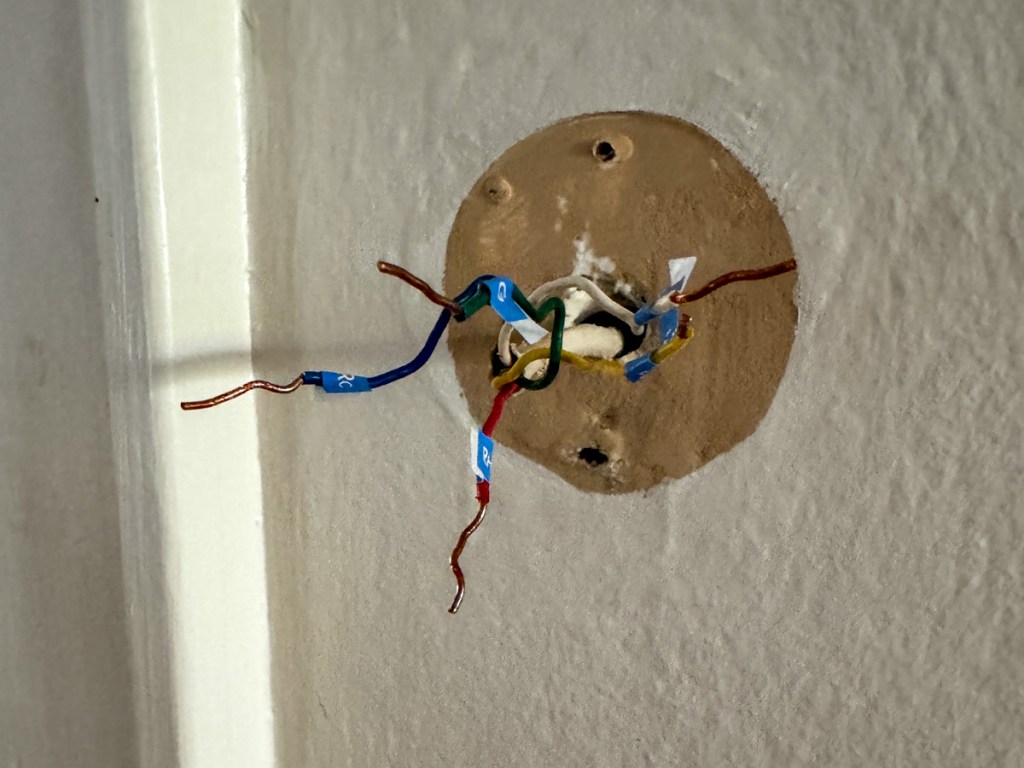
Surprise!

Yes, that’s exactly what happened to me. I realized there would be dark, thin paint ring behind my new, gleaming Google Nest Learning Thermostat that revealed our living room’s paint color from years ago.

Granted, the 4th gen thermostat’s beautiful face is bigger than my gen 2’s screen. It’s plenty big to effectively block the view where the thermostat’s smaller circular ‘neck’ touches the wall.

But I would know, and if you looked from an angle, you’d definitely see the old paint. Ugh! 

Sure, Google has thought of this and provided a white trim plate to use that would cover up this kind of problem.

But I didn’t want to use the trim plate. I liked the clean look of the black, circular orb perfectly protruding from my wall like a futuristic Cylon interface.

I just need to get rid of that thin ring of old paint.

I Had to Put on My Painter’s Hat
So, I hurried downstairs and rummaged through my basement to see if I still had a little bit of our living room’s current paint in a can somewhere. I eventually found it, picked up a brush and performed the paint fix.

This of course delayed my installation process, as I had to wait for the paint to dry before continuing. But it was clearly a step worth taking.

So just remember that you might need to bake that extra time into your own installation plan. 

Cool New Sensor Pucks
If you’ve been living with a 1st or 2nd generation model, you may not know about Google’s little wireless ‘satellite’ temperature-sensing pucks to pair with your main thermostat. (I didn’t.)

These “Nest Temperature Sensors” (now 2nd generation) can be placed throughout your home to help create a more even temperature throughout your rooms (effectively simulating some of the benefits of a multi-zone HVAC system).

When you buy a 4th gen Google Nest Learning Thermostat, it also comes with one Nest Temperature Sensor. (You can purchase more separately.)

With multiple sensors, you can schedule which sensor controls your thermostat at different times of the day. You can always default to the sensor in your base unit. And you can also average between your sensors.

I placed my temperature sensor in our sunroom, which tends to be cooler during the winter months than the rest of our house. Hopefully, the sensor will convince my base unit (in our living room) to keep providing a little more warmth in the early evening when my family tends to hang out in our sunroom. (That’s how I programmed it.)

Upgrade Complete!
I’ve always enjoyed my old Nest Learning Thermostat as the center of my smart home experience. And now that I’ve upgraded, I’m pleased that I’ve refreshed my relationship with Google’s gen 4 model.

I hope it takes me all the way to 2037. But with the pace of change these days, something tells me we may be discussing this again a tad sooner…

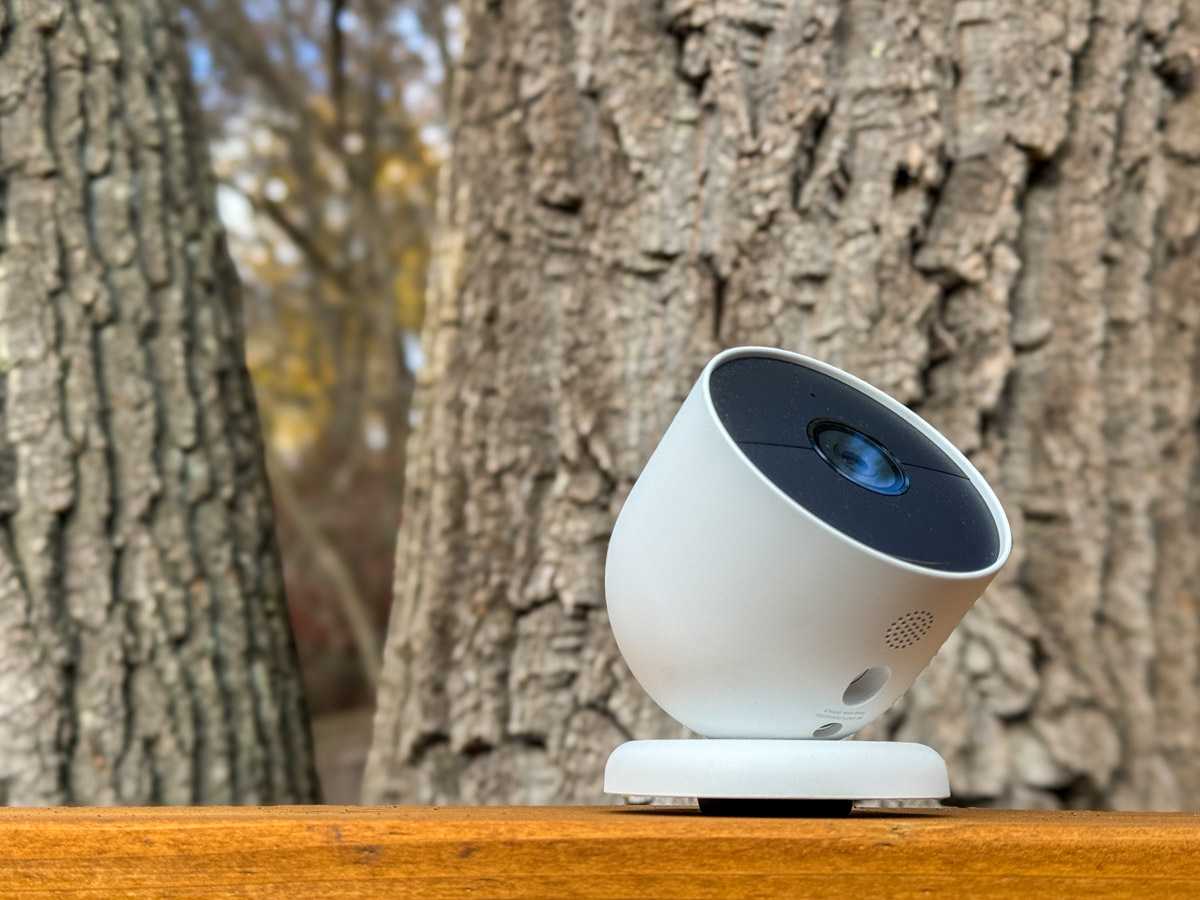
Placing a Google Nest Cam in the Wild May Not be that Smart

Here’s my cautionary tale when I tried to add a battery-powered Google Nest Cam into my existing Nest ecosystem and then position it in my backyard.

I maintain several Nests in our home. These different smart home devices have worked great together across the years with my Nest iPhone app.

  • I can peer in from afar using my Nest Cam.
  • I control the temperature with my Nest Learning Thermostat.
  • And my Nest Protect monitors my home and updates me with any smoke or carbon monoxide detection. (Fortunately, it’s my least-used device.)

Google bought the Nest product line a decade ago and began integrating it into the Google Home ecosystem. Yes, all my Wi-Fi Nest gear still worked fine with my old Nest app. But every so often my app nudged me to migrate to the Google Home app. I’d be stalling, simply because I didn’t want to mess with a good thing.

Then, a new variable entered the equation.

Adding a Google Nest Cam to my Nest
I decided to add an outdoor, battery-powered Google Nest Cam into my Nest world. I wanted to put it in my backyard to track occasional wildlife that meanders by.

Buying a battery-driven device is both a blessing and a curse. You can’t quite set it and forget it, as it will need to occasionally be recharged. But you also don’t have to run an electrical line into your backyard.

So, there’s amazing flexibility with a wire-free, battery-powered security camera that you can pop most anywhere (indoor or out). What’s not to like?

Mandatory Upgrade to Google Home
So, I bought my Google Nest Cam, opened the box and eagerly pulled out the gleaming white orb. I then plugged it in to juice it up. But when I started the installation process using my Nest app, I immediately ran into trouble. A message popped up that said this Nest Cam will only work with the Google Home app.

Okay. Sorry Nest app. It was great working with you. Now, I finally had to download Google Home onto my iPhone and migrate my Nest account over to Google.

The process went smoothly, and I was welcomed into the Google Smart Home world. I scanned a QR code with my iPhone, and the app did the rest.

So, I was quickly back on track.

Two Apps Instead of One
Yes, my new Google Nest Cam was ready for action. But what about the rest of my Nest ecosystem? Everything showed up on my Google Home app except my Nest Protect. Where did that go?!

I did a bit of online research and found the unfortunate answer. The Nest Protect hasn’t yet been integrated into Google Home.

What?

I would still have to use my old Nest app to stay connected with my Nest Protect. (I’m not saying goodbye to my Nest app after all.) So now, I’ve got two apps to use instead of one.

  • The Google Home app for my two Nest Cams and my Nest Learning Thermostat
  • My old Nest app for my Nest Protect

I don’t think that’s fabulous integration.

But it’s a minor inconvenience. You can’t get distracted by the little things. I’m sure it’ll eventually get sorted. Time to move on.

Installation Fantasy
You may consider my installation plan a bit outside of normal parameters. I planned to attach it to a tree pointed at our deck to better observe the occasional wildlife that passes through our backyard.

I’ve spotted deer a few times as well as a red fox. I sometimes observe the neighborhood hedgehog, and I even saw a racoon once peering at me from the edge of our deck at night.

I know this can be normal stuff in the burbs. But remember, I’m a city boy from Manhattan. I’m not wired for this.

But I figured with a little more surveillance, I’d feel somehow happier.
(Please don’t push my theory too hard.)

A Tree is Not a Wall
I tried my tree installation plan several times, until I realized it was half-baked. The circular mount wasn’t going to sit properly on the uneven bark surface. And I wasn’t keen to wait to eventually find a dead Nest Cam cracked open on the deck or ground below.

On the other hand, I knew there were likely other solutions for a backyard installation… There must be something else I could attach it to.

But first there was another problem to consider.

How Waterproof is Water Resistant?
According to Google, “the Nest Cam is water resistant in accordance with its IP54 rating, but it is not waterproof.”

What does that mean? Can it be outdoors and uncovered, or can’t it? Does it require some sort of overhang for protection, like a porch ceiling?

I originally didn’t even consider the issue… it’s an outdoor camera, right? On the front of the Nest Cam box, there’s a photo of the camera dripping with rain while attached to the side of a house. And the words printed next to the picture… “Security, rain or shine.”

Well, maybe not too much rain.

I found some questions online about this, and yes there are stories from owners with malfunctioning Nest Cams after one too many rainstorms.

Hmmm… another rabbit hole to dig out from.

Another House For my Camera to Live In?
So back to my installation quandary. I had been thinking about screwing my Nest Cam onto a tree. Well, what about screwing it into something instead? Like a bird house.

That would offer some protection from the rain. I Googled “Nest Cam bird house,” and happily, yes, I saw some solutions out there.

But now, my project had morphed from a tech installation challenge into a backyard decoration project that will require a little more thought and my better half’s involvement. And that’s going to take a bit more time.

This is where my Google Nest Cam story pauses for now.

The Animals are Laughing at Me
I’m confident I’ll find a good installation solution. But it’ll probably require a bit more DIY thinking.

My uneven experience so far has taught me that a smart home is not the same as a smart backyard. And a Nest is not exactly the same as a Google Nest.

If you’re considering a similar expansion into the wild using a Google Nest Cam, it’s probably a good idea to think this all through first.

Why You Should Bring Home a Nest Cam

Setting up your ‘android eye’ in the house when you’re not around certainly has its advantages. But getting your own personal HAL hooked into your smart-home’s ecosystem can sometimes be a challenge. Unless we’re talking about tech from the Nest family…

Setting up your ‘android eye’ in the house when you’re not around certainly has its advantages. But getting your own personal HAL hooked into your smart-home’s ecosystem can sometimes be a challenge. Unless we’re talking about tech from the Nest family…

My Foscam wireless IP babycam pooped out the other day. I think it was actually the power supply that blew. The Foscam had been working great for almost four years, and (disclaimer) I think the culprit was an AC surge caused by an electrician trying to replace a ceiling fan in my son’s bedroom.

Okay, he wasn’t officially an electrician…

Cutting Corners
This guy was a general handyman who was doing few other jobs around the house, and said he could handle the fan.

By the time it was clear he couldn’t, we no longer had power in half of the electrical outlets in the upstairs section of our house.
(And no, it wasn’t a popped circuit breaker.)

A few days later, an actual electrician came by to clean up my mess.
(I should thank him for not smirking even once after I told him my embarrassing story.)

Some of the old wiring in my house had been ‘fried’ due to ‘the incident,’ and he ended up having to replace all of the ruined wiring and then the electrical box in the ceiling to bring it all up to code.
(So yes, this homeowner’s original staffing ‘shortcut’ ultimately created quite the expensive repair.)

Lesson learned.
This cautionary tale has made me a true believer in the idea of not cutting corners to save a few bucks when it comes to home maintenance.
(That said, the original handyman was really nice and super apologetic.)

So there was however, one remaining problem….
Our babycam wouldn’t boot up.
Heck, it wouldn’t even blink at me.
It was now just a hockey puck.
(Coincidence? I think not.)

Time to Upgrade
I no longer had a working babycam, which when you think about wasn’t such a problem… My baby boy is now six years old.

Its only use over the past couple of years had allowed my wife and me to check in on him as he slept while we were out on one of our ‘date nights.’

Beyond that, I had used it more as a security cam when my family and I were on vacation to make sure everything appeared normal while we were away.
(Although a view into my son’s room isn’t exactly the best location for a general security cam)

I had actually been thinking of moving it downstairs to improve its view before the power surge…

And now the tech gods, after their big chuckle had given me the opportunity to start all over again.

Hello, Nest Cam
Should I get another Foscam?

Nah…

As much as I had enjoyed it over the years,
my Foscam was actually kind of complicated to set up.

Sure, maybe the newer models would be easier to work with. But I was already leaning in a different direction…

Wouldn’t it be great to simply add onto my growing smart home-by-Nest ecosystem?

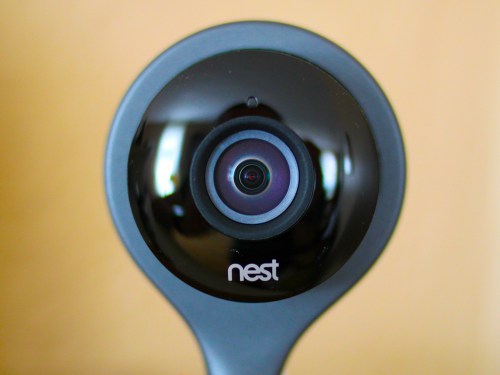
That’s right… I’m talking about the cute, 4 ½” tall Nest Cam security camera.

I already owned the Nest Learning Thermostat.
Installation was a cinch.
It’s been great for past three years, although
it did glitch out on me one time eighteen months ago.

Then came my Nest Protect in early 2015 to handle smoke and carbon monoxide detection.
(So far, so good.)

So why not add this little Nest security camera to my Nest family?
It seemed like the logical next step.

Plus, Nest happened to be running a Father’s Day promotion deal for its $199 Nest Cam.
(Nest’s marketing folks were kind enough to let me know via a well-timed email.)

Click.
(Amazon still has it at the slight discount of $193.)

Welcome Home
Installation was incredibly easy using the Nest app I already had on my iPhone:

  • In Settings, tap ‘Add product’
  • Scan the QR code (The app is already set up to do this.)
  • Name the location where your camera will live
  • Plug in the camera
  • Then connect it to your Wi-Fi network as you would with any device

Full directions are posted online at Nest Support.
But that’s pretty much it.

The camera took about 30 seconds to activate and boom!
There it was… fully functioning. I could both see and hear into my living room.

Plus it was both visible and controllable on my Nest app right next to its two Nest cousins.

The whole install took less than five minutes.
Seriously.

How great is that?

Setting Up Your Nest Cam

Once you’ve got your Nest Cam up and running, you’ve got a few more choices to think about…

-Placement
One consideration when deciding where to position your new Nest Cam is there’s no pan/tilt functionality like my old Foscam. For me, that’s not really a problem, because the Nest Cam offers a much wider field of view.

Also, you don’t have to worry about limited night vision. The whole room lights up via infrared when it gets dark.

-Motion Alerts
If your Nest Cam senses motion or sound, it can send you a push notification on your smartphone via the Nest app or an email alert… or both.

So if something happens that’s of interest to the camera, you literally know within seconds.
(As long as you’ve got your smartphone with you!)

-Do You Need Nest Aware?
This is Nest’s cloud-based video recording subscription that captures either the last ten or thirty days of your Nest Cam’s recordings.

You can review a moment that just happened or go back days in time with this little time machine trick.

Nest’s ten-day video history subscription costs $100/year or $10/month.
The thirty-day video history subscription goes for $300/year or $30/month.
(Ten days would be plenty for me.)

A really cool feature is you’re able to select a specific video section, save it, and then download it to your computer.
(You can also share it.)

While I initially thought I wouldn’t want/need Nest Aware, after spending a couple of weeks with the free month-long trial subscription, I was a believer.

Click.

I think the extra hundred bucks a year is a real value add. Plus, you’ve got to remember that most (hopefully all) of the moments you’re going to capture will be happy ones that are family or pet-based. Some of them will likely be worth saving.
(I’ve already downloaded a spontaneous family pillow fight.)

So your Nest Cam security camera will likely serve you more often as a family documentary device. Just don’t go overboard.
(I don’t think you want to start producing your very own, life-long TV series like in “The Truman Show.”)

-Video Quality
You can go with either 1080 or 720 HD video. While whopping 1080 HD sounds great, you don’t want to unnecessarily suck away too much bandwidth if you’re using Nest Aware and constantly uploading your video history to Nest’s cloud.
(Apparently 720p is the most commonly used format by subscribers.
It requires about 200 Kbps to upload, averaging about 60 GB of data per month.)

-Home/Away Assist
This is a feature that can identify when you’re around the house or not through your smartphone’s location tracker.
(So many other apps you’re using already know where you are. Is it really that big a leap to let Nest know too?)

Then, you can set up your Nest Cam to automatically stop recording when you and your smartphone come home.
(Unless you’ve got your own Truman Show going on.)

-Family Account
Of course, the Home/Away feature isn’t going to fully work like I’ve described above if you’ve got several family members coming and going all day long. The good news is you can also set up their smartphones on the Nest app using the ‘Family Account’ feature.
(You just have to invite them through your Nest app.)

So now, not only will your Nest Cam be able to know when everyone has headed out for the day, but they’ll also be able to have the same access to all of your cool Nest products as you do.
(Don’t worry… You still remain the ‘owner’ of the account and retain certain ‘admin’ powers.)

-Better Together
Another benefit to Home/Away Assist is it helps your other Nest gear know what’s going on.

The Nest folks really brag about how Nest Cam, Nest Learning Thermostat, and Nest Protect all work better together.

For me, the obvious upgrade is when my Nest Cam nudges my Nest Learning Thermostat to get with it and better recognize when I’ve left for the day.
(And that will save you a bit on home heating and air conditioning dollars.)

Smarter Home
So there you have it!
My Nest Cam security camera has joined the family.

Is it a total solution for home security?
Of course not.
That’s not why I got one.

But does it significantly add to my ability to remotely monitor and control the health of my home?

Absolutely.

Okay…Here comes the visual-
Light bulb pops on above my head.
And cue the sound effect-
“Ding!”

My house is now smarter.
(My cognitive status remains open for discussion.)

Sure, I needed a little zapping to get me there, but the silver lining was worth it.

Nest Cam… welcome home!