At Home with Tech

Unlock the power of all your technology and learn how to master your photography, computers and smartphone.

Tag: technology

10 New Tech Terms to Learn

Prepare to be mystified… I don’t think you’ve heard of these words before. That’s because I’ve made them up. But before you immediately lunge to evaporate this web window, you might find something here you can use…

Prepare to be mystified… I don’t think you’ve heard of these words before. That’s because I’ve made them up. But before you immediately lunge to evaporate this web window, you might find something here you can use…

While writing this blog over the past few years, I’ve taken certain liberties with the English language. Along the way, I’ve manipulated, repurposed or fused together words, acronyms and phrases to boil down the essence of what I’m talking about as a user of technology.
(Or if these words already exist, I’ve warped their meaning for my own Frankensteinian delight.)

I’ve picked ten to offer up for your own use.

Clever, corny or worse?
You decide…

#1
Transitionals
Analog folks who grew up without the Web, but have successfully made the digital transition to social media.
(Source: Laptop Time Machine)

#2
Preapplenary Era
Our lives before Apple and the iPhone.
(Source: I Am a Road Warrior)

#3
Quadrotriticale Paradox*
The more vacation pictures you bring home that clog up your computer, the smaller the chance is you’ll actually share your best photos.
(Source: Five Tips to Rescue your Best Summer Family Photos)

#4
Tronalicious**
That dopamine high that comes from owning cutting-edge tech.
(Source: I Don’t Know Why I Want Ultra HD)

#5
C.D.I. = Core Digital Integrity
Your moral code that limits how much you’ll touch up pictures with your photo-editing software. My bottom line: “Don’t mess with the core integrity of someone’s ongoing image.”
(Source: With Great Power Comes Great Responsibility)

#6
E.R.S. = Extreme-Reconnect Syndrome
Baby boomers’ unique experience of reconnecting with long lost childhood friends through Facebook.
(Source: Open Letter to My Generation – Social Media is Good)

#7
B.T.B. = Beware the Blips
Consumers who feel frustrated and ignored when they want convenience and simplicity when watching purchased media on their home tech. My message to the media moguls: “There are a lot more of us ‘blips’ than you think…”
(Source: Blinded by the UltraViolet Promise in Your New Blu-ray Movie)

#8
Tech Group Think
The search for informational conformity*** when researching new tech to purchase.
(Source: Please Rate This Product…or Else)

#9
Techdentity
Your tech identity index… or how you self identify via different forms of technology.
(Source: My New Area Code Twists my Techdentity)

#10
Techtastrophe
(Isn’t this self evident?****)
(Source: I Don’t Know How to Install my Wireless IP Camera, Part 1)


*If you’re not a “Star Trek” geek, it’s a reference to “The Trouble with Tribbles” episode.

**Yes, I’m referring to “Tron” or “Tron Legacy.”
***You’ll never find unanimous opinion on anything online.
****Perhaps ‘Techtastrophe’ is what I should have titled this blog post!

Three Websites to Create and Mail a Card from Your Computer

This photo card I created at Paper Culture represents the end of a tech quest I’ve been on for my father: Type a card. Put it in the mail. Don’t get out of your chair.

This photo card I created at Paper Culture represents the end of a tech quest I’ve been on for my father: Type a card. Put it in the mail. Don’t get out of your chair.

My father asked me a couple years ago how to send out a letter from his computer directly to the mail.

I told him that was a service called email.

He gave me an annoyed look.
(My eighty-year-old dad is quite tech savvy for his generation.)

He politely replied that an email can get lost in the deluge people receive.
Plus they don’t carry the gravity of a physical piece of mail.
(He had a point.)

Dad is still quite focused on the golden days when telegrams ruled the world of instant communication!

The idea of creating and sending out a physical piece of mail through your computer may seem more quaint than critical, but it’s not an unreasonable request.

At the time, Apple’s Cards iOS app had just launched.
The service was designed to mail out customized cards with your photos via your iPhone/iPad as opposed to using a desk-bound computer.
Cards was a great idea and a nifty time saver, since you didn’t have to schlep to the post office. Apple did all the heavy lifting.

Suddenly ‘quaint’ became ‘cool.’
But it wasn’t quite right for my father, as he didn’t have an iPhone

So Cards was a near miss.

I think I then got consumed with my life as a new parent.
And I never did come up with an answer for my dad.

Fast-forward two years…

Cards… We Hardly Knew You!
Guess what?
Cards wasn’t that cool after all.

Amidst all the recent fanfare of the iPhone 5S and 5C launch,
Apple also killed off Cards.
What?!

Yes, On September 10, Apple quietly acknowledged its Cards service had been discontinued, pushing customers towards iPhoto instead.
…And also pushing people to get off their tushies to find a mailbox!
(iPhoto won’t mail out your cards for you.)

Three Choices Take Center Stage
Apple’s Cards obit got me thinking back to the unfinished project for my dad.

Today, there are plenty of ways to send out a greeting card online, even using photos you’ve uploaded.
The problem is the massive overload of design options and targeted ‘themes’ for your card.

You’ve got hundreds… sometimes thousands of choices.

My father is looking for something simple:

  • No anniversary
  • No graduation
  • No congratulations
  • No happy retirement
  • There’s no event to celebrate!

He wants to avoid all the fanfare and just write and send out his own little notes.

So I began my research again…

And with the vacuum created by Card’s departure, the competition was happy to remind everyone they’re out there…

Sifting though them to find the ones that still stuck to the basics wasn’t easy…
But I found three choices I think my father will like….

Shutterfly

So of course, I started with Shutterfly, because it’s such a well-known brand.

That said, I realized it’s become quite the sprawling mall of photo-related products.
Believe me, finding the right page to create and mail out a singular card wasn’t easy.

Shutterfly Photo Cards
Shutterfly doesn’t offer the option to mail out old-school post cards or individual single-sided photo cards.
(They only sell single-sided photo cards in bulk.)

Shutterfly Flat Stationary Cards
But wait… you’re suddenly in luck if you morph the aforementioned photo card into a ‘flat stationery card.’
Yes, Shutterfly will mail out individual flat stationery cards that you can customize with your photos:
(5 x 7, 5 x 5, 6 x 8, and 4 x 8…but not 4 x 5!)

The price:

  • $2.47 for most of the sizes (They’ve got a sale running.)
  • $2.44 for the 6 x 8 (They’ve got a bigger sale running.)
  • Plus 99¢ to mail ($1.49 for international)

The only downside, and it’s a big one is all of these cards are tied to a theme.
So you may have trouble making your simple message fit if its not tied to some big ‘event.’

Are you getting a headache yet?

Shuddering with Shutterfly
I’ve got to tell you all my Shutterfly research was exhausting.
I could have driven back and forth to the post office five times by now.

Touchnote

Touchnote comes closer to hitting the sweet spot.
Most importantly, it’s so simple by comparison.

  • You can quickly send out a postcard or greeting card
  • They also offer a mobile app for Android and iOS, so you can do all your work with your smartphone (like Apple’s former Cards app)
  • You can send your postcard anywhere in the world

And you can’t beat Touchnote’s pricing:

  • You pay in ‘Credits.’
  • It costs 1 credit to create and send a postcard
  • 2 credits for a greeting card
  • A credit costs $1.49
  • But it’s cheaper if you buy in bulk…
  • If you buy a pack of 5 credits, you get the 6th for free
  • If you go crazy and get the 50-credit pack, they give you 25 more for free, which brings the price down to the low/low price of 99¢/credit

I picked up the 5-credit pack, which meant I would be sending out my postcards for $1.25.

Not bad…

I only encountered one problem:
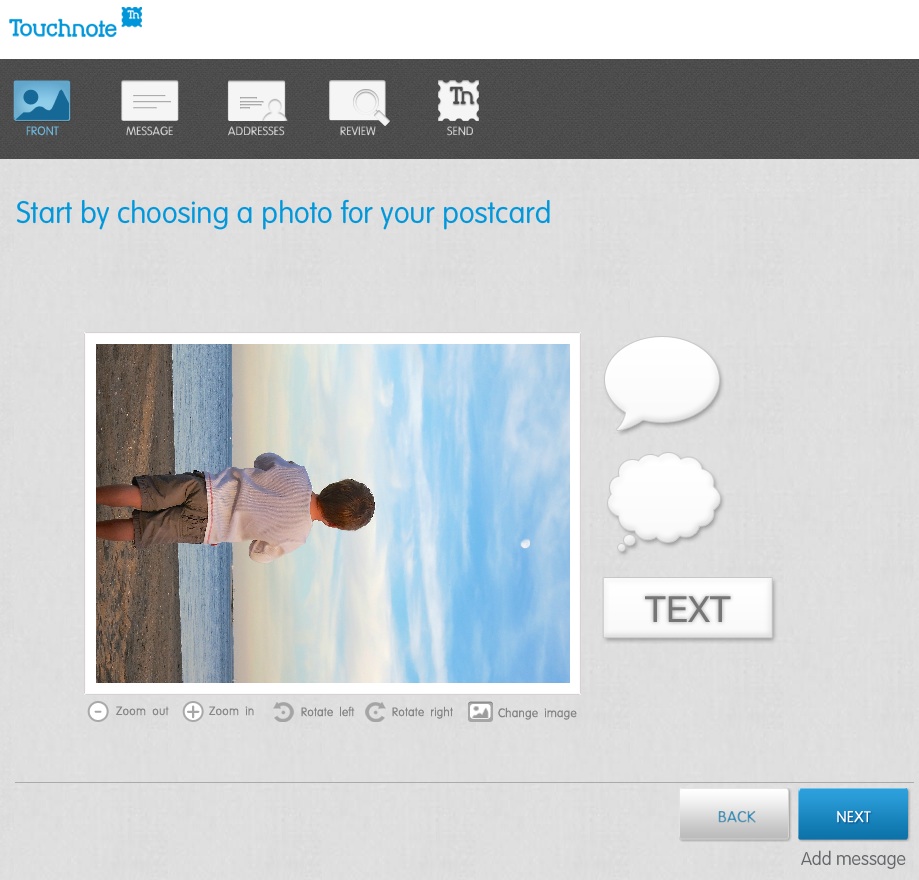
Touchnote 1
When I first loaded up my vertically oriented image, I rotated it into portrait mode from the default landscape setting.
But unfortunately, I realized you can’t use the clever text and thought bubbles they offer in portrait mode.
(disappointing)

Otherwise, it was a snap.

The postcard goes out the next working day, and they say it will arrive in 1 to 4 working days (within country).

Paper Culture

These guys are the green alternative.
They also promote the quality of their paper stock. But you’re not killing trees when you use Paper Culture.
In fact, quite the opposite…
All of their products are printed on 100% post consumer recycled paper.
Plus, a part of every order placed goes towards planting a tree.
(They’ve got a goal of planting 1 million trees, and they’re almost a third of the way there!)

Pricing:

  • $2.59 for a standard card (6 x 4.3)
  • $3.19 for a larger card

After that, they just charge the cost of the stamp to mail your card for you.

So all in, that’s $3.05.
(though I got a 15% discount on a deal that’s ending soon)

For your 3 bucks, they also provide free designer assistance and offer you up to 2 proofs for free.

And they’ve got a line of personal stationery that allows you to send out a classy-looking note (with a photo if you like), just like my father asked about!

What’s not to like?

Well I did run into one disappointing detail in the fine print on the final order page:

“If you approve your proof today, we will ship your card(s) no earlier than 6 calendar days before and no later than the date you select below.”

The earliest date I was allowed to select was a whole week out.

So that means they can take their time being all green.
And delay up to a week putting my card in the mail.

Hmmmm….

I just had a flashback to the old Orson Welles commercial.
“We will sell no wine before its time…”

Hallmark

Of course I checked out the grandfather of all greeting cards.
Hallmark offers a similar online card service that pops your card in the mail…

Their pricing structure is more complicated:

  • $1.29 for a 3.9 x 5.3 flat stationery photo card
  • $1.99 for a 3.9 x 5.3 folded stationery premium paper card
  • $3.49 for a 5 x 7 folded photo card
  • $5.99 for 5.5 x 5.8 folded song card
    Yes, the one with the little music chip and speaker
    (And yes, you can choose a song from their relatively extensive though super clichéd song library)

Like Paper Culture, they’ll mail out your card for the price of a stamp.
But they only mail to the U.S. and its territories.

I went with their simple flat stationery photo card for $1.75 all in.

Again, I ran into one little snag…

I first uploaded a photo of my father and me enjoying a Vietnamese coffee at an outside café in New York City.

Then, Hallmark’s spell check program went into Red Alert mode.
Something about ‘Anytown’ not being spelled correctly.
(That was strange, as I had not typed in any text!)

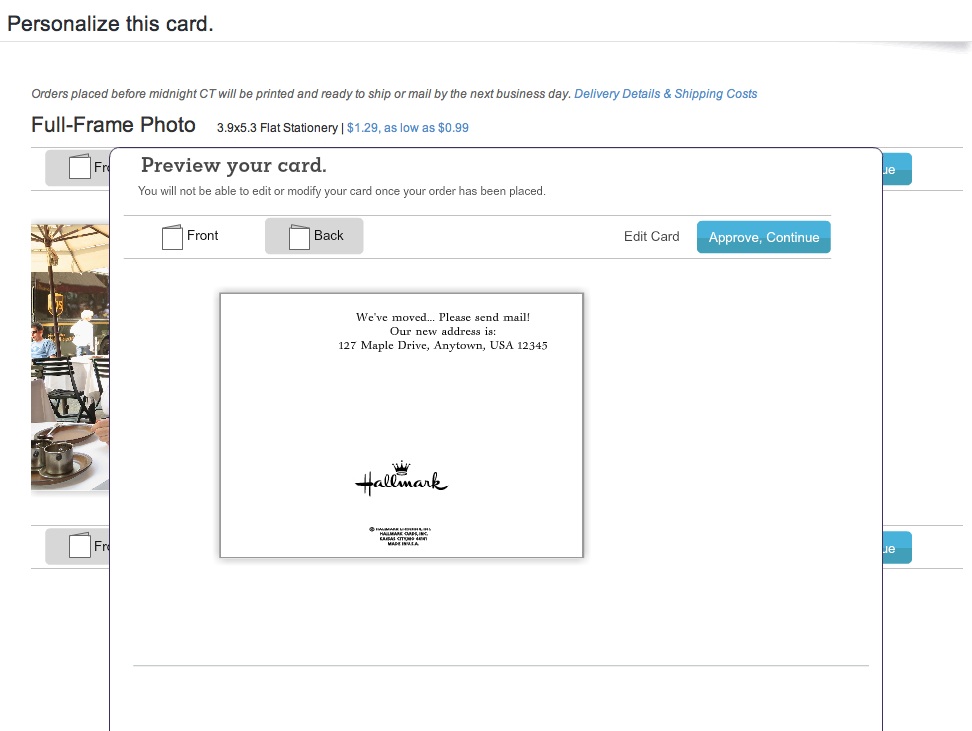
But then I realized the spell check was referring to the back of the card, which I hadn’t gotten to yet!
It had populated a default ‘Anytown’ address.

Hallmark
(How ironic Hallmark was questioning the spelling of its own default ‘Anytown’ word!)

The earliest mailing date Hallmark offered was two days off, which wasn’t bad compared to Paper Culture, but not as fast as Touchnote.

Survey Says…

So how do these competitors stack up?

I’d call it a relative draw.

All three online card services did a solid job.
Yes, they all had their own minor hiccups, but only deserving a minor ding.

Other points to consider:

Touchnote:

  • Easiest to use, but the others aren’t far behind

Paper Culture:

  • If you’re interested in helping Mother Nature

Hallmark:

  • You still can’t go wrong with a Hallmark card

Price (including stamp):

  • Touchnote: $1.25 (postcard)
  • Hallmark: $1.75 (flat stationery photo card)
  • Paper Culture: $3.05 (note card)

(Note: These aren’t entirely apples-to-apples comparisons, but they’re close.)

Dad- you really can’t go wrong with any of these services.
Just stay away from Shutterfly for this particular use.

Happy letter writing…

You’re welcome.

Follow my blog with Bloglovin

Roses Are Red. Violets Are Blue. My Tech Needs to Know… What Are You Up To?

Are your smartphones humming together? These days, a couple can maintain healthy communication with a little support from their home tech.

Are your smartphones humming together? These days, a couple can maintain healthy communication with a little support from their home tech.

Allow me to state the obvious:
Good communication is key to any relationship.

But that also goes for digital communication.
And if you’re in a committed relationship, you’d better be sharing some of your data!

The Sit-Down
My wife’s MacBook Pro laptop and my iMac weren’t really talking to each other.
Not acting like they were part of our family unit.

It was like they didn’t even know the other one existed!
My wife and I were maintaining separate digital calendars.
We couldn’t even share a document or photo without first emailing it or using the Cloud.

And all this was making our digital lives together relatively uncoordinated.

I immediately realized this was all so unnecessary.
The technology solutions to alleviate these problems have existed for years.

My face brightened, and I suddenly started to channel my son’s favorite cartoon, “Bob the Builder.”

I proclaimed,
“Can we fix it? Yes we can!”

Four Tech Tips Everybody’s Already Using

Before I go any further, I feel compelled to disclaim that nothing that follows is either new or cutting edge.

You’d probably be embarrassed to admit you haven’t been working these tips.

But if you decide to read on, I won’t say anything!
(You don’t ever have to admit this was helpful…)

1. Create a Shared Calendar on your iPhone
I apologize if this shocks you, but I am about to describe how my wife and I have been coordinating our family’s schedule for the past three years since our little boy was born.

At dinner, we take out our iPhones and open up our calendar apps for the upcoming week.
We discuss our upcoming family events to ensure we’re both on the same page.
Each of us then adds in the requisite events into our personal calendars.

Tap, tap, tap.
Tap, tap, tap, tap.
Tap, tap, tap, tap, delete, delete, tap, tap.

(This can really ruin dessert.)

While this antiquated process facilitates a nice conversation about what’s going on in our busy lives, it’s totally unnecessary from a calendar-syncing perspective.

To upgrade this analog technique, all you need to do is simply create a new family ‘shared calendar’ and then invite your partner to join it via email.

When you create a new event for the family, the key difference is making sure you assign it to this new calendar category.

Once she accepts your invitation to the shared calendar, the new event will immediately populate in her own calendar.

And she can do the same for your calendar!

Remember, you can view multiple calendars together on one screen.

Perfect two-way flow of scheduling your lives together!
Total compatibility!!

Another great feature is you don’t have to change or give up anything about your existing calendar.

This is all additive.

So let’s say you’re also maintaining your work schedule in your calendar.
Those events stay just with your calendar and won’t be shared.

Brilliant!

But remember, I didn’t just tell you this.
And I didn’t just activate this feature for my own family yesterday before breakfast.
(But my wife did give me a huge smile.)

Let’s move on…

2. File Sharing between Apple Computers
So my wife has asked the IT Guy on more than one occasion why we can’t ‘share’ some of our docs, so we can both contribute to and edit them.

Well, of course you can.

The easiest way you can give someone access to a file on your Mac is to simply drop it into your Public Folder.
(everyone’s got one)

You can also assign different levels of access to your Public Folder:

  • Read Only (open a file)
  • Write Only (add a file)
  • Read and Write
  • No Access

So sure, I could simply give my wife the full set of keys to my Public Folder.
But that didn’t really feel like a personal-enough arrangement.
(nor that private)

Not that there are other co-habitants on our network who can take a peek at these files in my Public Folder.
(not that I know of!)

But I wanted to create a shared folder that was specifically designated for access by my wife’s computer.

How romantic!

3. Create a Sharing-Only User
You can make any existing folder on your Mac available to someone else working on another computer on your network.
They can access the contents of that folder, but that’s it.
(No pulling a Borg on you and assimilating everything else!)

You just have to create a new ‘sharing only’ user profile:

From System Preferences, create a new sharing-only user via either

  • Users and Groups or
  • Sharing

Then, in ‘Users and Groups’ assign a password for your special guest to access the specific folder(s).

Finally, return to ‘Sharing’ in System Preferences and choose that special shared folder by clicking on the ‘+’ and selecting that folder.

Q.E.D.
(quite easily done)

I presented our new ‘only for your eyes’ folder to my wife this morning.
And there was much rejoicing!

But I will absolutely deny to the rest of the world I ever mentioned this.
(I’ve erased all the evidence, but don’t forget to clear the cache on your browser. You can’t be too careful!)

4.  AirDrop
This little trick is staring right at you every time you open up a new finder window.
It’s got a little parachute icon in front of it.

So if you want to transfer a file to your wife’s computer, please don’t ever admit you would put it on a flash drive and walk it over.

That is worse than scratching your nails down a ten-mile-long blackboard.
(super-shudder)

(And emailing it isn’t much better!)

Instead, all you have to do is make sure both computers have AirDrop running on your Wi-Fi network.
Then just drag and drop the file onto the other computer’s icon in AirDrop.

Once she accepts the transfer request message, the file downloads just like that!

So as long as you have a relatively new Mac that supports AirDrop,
it really couldn’t get any easier!

Plausible Deniability
All these little tricks are so easy to activate.

Take it from me!
It always feels great to be better connected to your pumpkin-angel!

Oh yes, one more thing…

This post will self-destruct in 10 seconds.
Have a nice day.