At Home with Tech

Unlock the power of all your technology and learn how to master your photography, computers and smartphone.

Blinded by the UltraViolet Promise in Your New Blu-ray Movie

That bonus UltraViolet digital copy in the Blu-ray Disk or DVD isn’t all it’s stacked up to be.

That bonus UltraViolet digital copy in the Blu-ray Disc or DVD isn’t all it’s stacked up to be.

You look at your holiday shopping list and have miles to go before you sleep.
Tick tock.

You start to panic, and your brain defaults to A.G.M. Syndrome (average gift mode):

  • Tie.
  • Bottle of wine
  • Scented candle
  • Pair of gloves
  • Inflatable turkey

If you find yourself caring more about the gift receipt than the gift, you know you’re in trouble.

You start to sweat.
And then you have a momentary flash of genius. (low wattage)
How about gifting a movie?
Everyone likes a good movie!
Bingo. Buy the DVD!

(Add this shopping strategy to my Holiday Gift Guide for Home Tech.)

And while you’re at it, you can do the
“One for you/One for me” chant to catch up on all the recent blockbuster flicks.

A few suggestions:

  • “The Dark Knight Rises”- Satisfactorily completes the trilogy
  • “Marvel’s The Avengers”- #1 at the box office this year. How can you go wrong?
  • “Thor”- Shakespeare meets Marvel Comics, and it works big time!
  • “Sherlock Holmes: A Game of Shadows”- not as good as the first, but a lot of great sequences.

But before you whip out your credit card, a word of warning…
(All right… maybe a few words)

The Ball and Chain of Blu-ray
When I say DVD, I’m really talking about Blu-ray Discs.

So I married into the Blu-ray promise (Singing the Blu-ray Blues) a few years back when I bought an LG Blu-ray Disc player for my 42” Panasonic plasma screen, and in a moment of tech insanity also procured a Panasonic portable Blu-ray Disc player for my train commute.

I know. I know-
What’s the point of watching a glorious Blu-ray image on a tiny screen?
(I still got a great deal on Amazon.)

The ball and chain of Blu-ray was securely fastened when I switched my Netflix settings to all Blu-ray all the time.

So I guess I’m committed to Blu-ray for the time being.

Living the Dream with Blu-ray?
But these days, it’s hard stick with one technology for long.
And I’ve found I’ve already wandered.
Like others, I enjoy the simplicity of having movies to watch on my iPhone or iPad.
The digital copy’s the thing.

Digital downloading via iTunes, right?
Lots folks do the movie deal with iTunes, and they’re happy.

Not so fast, partner.

Call me old-fashioned, but I prefer having the physical Blu-ray Disc to come home to every day. It feels like it will always be there for me.
Media on a hard drive always has the potential to evaporate when the drive decides to stop spinning.

Plus I want all those Blu-ray extras.

Sure, there’s iTunes Extra with bonus content for some of the movies you download, but that doesn’t seem to be as beefy as all the bonus content available on discs.

Having my Cake and Eating it too
So when I buy my Blu-ray Discs, I also look for the version that contains the bonus digital copy as well.
Then I’m covered for all possibilities-
I can watch my movies on my Plasma TV on the weekends and on my iPhone during the weekday train commute.

Usually the digital file isn’t physically on the disc.
Instead, you get an iTunes code for a free download.
How civilized.

If I dare say, it nears perfection.

Of course when humanity nears that condition, someone’s got to mess things up.

UltraViolet’s the Bomb
The movie industry got a bright idea back in 2010.
Hey, what if you didn’t have to download your movies anymore?
That’s such a pain. Right?
Plus we hate Apple getting all that business.
And we’d really prefer you not have that digital copy that you could suddenly decide to use illegally.

What if you could simply go to the Cloud and stream all of your movies up in that happy place we control?

Yeah, baby.
This is gonna change everything!

And UltraViolet was born.

UVVU Redemption StickerThe Promise of UltraViolet
The promise is this…
When you buy your DVD or Blu-ray movie, instead of also having a digital copy or a free iTunes movie download code, you get an UltraViolet (UVVU) digital copy!

You used to get a digital copy.
Now you can stream an UltraViolet digital copy.
That sounds better, right?

Conceptionally, UVVU is a digital locker in the Cloud where your movies are stored.
In reality, you’re simply accessing your licensing rights to stream a movie.
You’re actually getting nothing.

Once you do the UVVU deal, you can ‘always’ access the movie in the Cloud and stream it on any of your connected screens.
(Up to 12 registered devices, which should be plenty!)

Boo Hoo with UVVU
There are a few big reasons why a lot of users are unhappy with UVVU.

It’s Complicated
Different movie studios have their own UltraViolet login sites to authorize your movie purchase. It’s not one-stop shopping.
Plus, you’ve then got to use a separate delivery service like
Flixter or Vudu to play your movies.

The overall experience is not as elegant as simply using iTunes.

Owning vs. Licensing
Your rights to streaming your movies don’t expire… or do they?

Here’s the fine print on UVVU:
“Streaming of a given title from the selling UltraViolet Retailer more than a year after its purchase, or at any time via Streaming Services other than the selling UltraViolet Retailer, may incur fees and if so any such fees would be presented to the consumer in advance of streaming titles, with the consumer having the option to accept the fees or not use that Streaming Service.”

Translation:
Guaranteed free streaming for only one year!

Uhhh… isn’t that a deal breaker right there?
Would you rather own a digital file forever for no additional cost or license it for free for just a year?

Exactly.

Streaming Limits
The whole UltraViolet deck of cards relies on a healthy web connection.
You need to be tethered to a cable or strong Wi-Fi link to actually stream anything.

That’s fine when you’re at home, but what about when you’re on the go?
Sure you can stream through your smart phone’s data plan, but if you have a plan with limits, that can quickly become expensive.

And what if you’re on a plane or a commuter train travelling through spotty coverage?

Sorry Charlie.

Can you Download?
Yes, there is a download option for Apple and Android devices, which you can then watch on a Flixter app, but
UltraViolet really doesn’t integrate with iTunes and the Apple ecosystem.
(What an inconvenient coincidence.)

UltraViolet is Killing my Joy
I’m not alone. UltraViolet’s reviews are mixed at best.

Personally, I’ve really got no interest in slogging through the UltraViolet setup workflow.
But an increasing number of studios have switched to UltraViolet for their digital copy solution.

What’s a movie lover to do?

For now, I’ll continue to seek out non-UltraViolet packaging with my Blu-ray purchases, but I expect to be disappointed.

UltraViolet Combo PackCase in point-
Both “Sherlock Holmes: A Game of Shadows” and “The Dark Knight Rises” are currently on my Blu-ray shopping list to add to my tool kit
as a Road Warrior on Metro North.
But, of course, these Blu-ray Discs are only available with the UltraViolet option.
Oh-No!!!!

Good Bye Blu-ray too?
So unhappily, I’ve got a choice in front of me.
I’m already on the fence with Blu-ray, because of my current priorities leaning towards portable viewing.
This UltraViolet debacle has only further destabilized my commitment to disc.

Maybe it’s time to say goodbye to Blu-ray and embrace an all-digital HD media library.
One that lives happily on home soil.
Not only up in the Cloud.

And for me, that still means with iTunes.
(I’m sure the movie studios’ market research didn’t predict this reaction!)

The Blip
But hey, I guess I’m just an atypical consumer who illogically wants convenience and simplicity when using purchased media with my home tech.
(and legally, I might add)

A statistical aberration I am.
A blip.

But seriously, this does eliminate the option of gifting DVD/Blu-ray Discs for Barrett.
Sorry, Loving Wife.

The good news is I’ve got a three-word solution.
iTunes gift card.

As a favorite high-school math teacher of mine was fond of saying-
Q.E.D.
(Quite Easily Done!)

And while I’m thinking of acronyms, I’ve got another one for our movie studios-
B.T.B.
Beware the Blips.

There are a lot more of us than you think…
Holiday Gift Guide for Home Tech

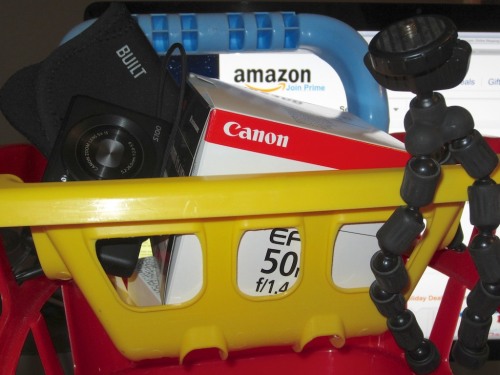
What home tech do you have in your shopping cart? Here are nine winners that can get you to the finish line!

What home tech do you have in your shopping cart? Here are nine winners that can get you to the finish line!

Let’s face it. If you’re like me, you’re hard to buy gifts for.

Not to stereotype, but I think we likely share certain similarities:

  • We handle the home IT problems.
  • We manage the family’s photo and movie archive.
  • In general, we’re the senior geek in the relationship.

How is someone supposed to know how to get you a great tech gift when they are blissfully unaware what it is you actually do to keep your happy little home tech bubble operating day in and day out?

Exactly.

So I thought I’d share a few items on my own home tech wish list, and perhaps along the way provide a few useful suggestions for our “better halves” to use as a gift guide.

Think of it as a kinder and gentler form of “Inception.”

ACCESSORIZE

It’s hard enough figuring out the right tech to buy.
It ends up being a very personal decision.
In fact, you never want someone else making your big tech purchasing decisions… right?

But if you stick to that logic, you’re getting a lump of coal in your stocking.

The good news is there are plenty of supporting accessories people can get for your existing tech…

Camera Case for Your Pocket Camera
Point-and-shoots never come with one, and every camera needs some protection.

So this could be a really easy choice for you.
There’s nothing wrong with heading right for the case made by the camera’s manufacturer.

You may recall I bought the Canon PowerShot S100.
Canon’s case is their PSC-900 Deluxe Semi-Hard Leather Case –
$25.49 at Adorama.

Going this route is always more expensive, but it’s a sure bet to fit the camera correctly.

Or you can go off-brand, especially if you want a softer case, but it’s sometimes hard to know the fit.

I’ve had success buying cases from these two manufacturers:

As you shop around for cases, you’ll come across a myriad of styles with an assortment of options for size/zippers/velcro/pockets.
That’s great news for the gift giver, because there’s nothing wrong with having more than one case in a camera’s tool kit.

Mini Tripod for Your Pocket Camera
It’s amazing how one of these can really help out a little camera.
(especially during a spontaneous group self-portrait)

There are seemingly dozens of these on the market.
Here’s a starter list from B&H Photo.

And I’m pretty excited about the Tiltpod Camera Stand- $15.00
This mini tripod breaks all the rules by not having any feet at all!
It clips onto your keychain for the ultimate in portability.

Extra Battery Power When You’re on the Go
Who hasn’t had their mobile devices run low on power during a busy day?
It would be great to have a portable charging station always available to keep your tech alive while you’re on the go:
Here are two choices:

-Anker Astro E1 5200mAh Portable Charger – $15.99 on Amazon.
-Anker PowerCore 10,000mAh Portable Charger – $31.99 on Amazon

Sweet!

Portable Storage
Some people can never have enough shoes.
Others like to collect sports memorabilia.
I like lots of storage choices for my media, and there’s always a use for another portable drive.

G-Technology makes awesome drives.
I own a few of these cool little portable drives:
G-Technology 1TB G-Drive Mobile USB-C – $78.95 on Amazon

It’s a no brainer. Let’s move on.

Multiply your USB Port Capacity
If you need extra USB capacity, and really, what self-respecting geek doesn’t, here’s a nice aluminum chasis to match your Apple gear:
Satechi USB 3.0 Hub and Card Reader – $29.99 on Amazon

Done.

NEW TWIST ON TERRIBLE GIFTS

If you’re falling into a generic gift-giving vortex and are resigned to giving something as uninspired as gloves or a winter hat, don’t despair.
180s has their own clever tech spin on these typical gift clunkers:

Gloves that work with touch technology!
You’ll feel positively James Bond-like with this!

The 180s Glove with Tec Touch Technology allows you to use your smart phone while your finger stay toasty inside the glove:
180s QuantumHeat Foundation glove – $30

Ear warmers with built-in headphones?!
You can listen to your tunes or make a call while visiting Ice Station Zebra without freezing off your ears:
180s Degrees Men’s Bluetooth Ear Warmer with Mic and Speakers – $40 on Amazon

TAKE A CHANCE

Wi-Fi Connected Digital Photo Frame
I know I said earlier that big tech decisions should be left to the senior geek in the house. But that doesn’t mean you can’t do a little research on your own and just go for it!

Today, let’s discuss the digital photo frame, which really isn’t so cutting edge.
This tech has been out for years. But the Wi-Fi option still isn’t widespread.

Wi-Fi connected units are cool, because you can add and manage photos remotely within the digital frame in someone else’s home, no matter where they are in the world.

You’d think this would be a no brainer by now, but this advanced functionality hasn’t really caught on. Maybe it’s too complicated for the average bear to figure out.
But this year, I’m hoping to be smarter than the average bear.
(We’ll see.)

According to CNET’s Rick Broida, Kodak had the best Wi-Fi digital photo frame- the Kodak Pulse,
But, of course, Kodak has gone belly-up.

Ceiva makes two good models, but if you want to use their PicturePlan photo delivery tool for the frame, you’ve got to pony up $9.95/month (or $99.95/year) for a subscription after the first year.
(Yuck.)

After doing a little more research, I found a company named Pix-Star.
They make three web-connected frames with good reviews.
However, Pix-Star isn’t really a household name.
(I’ve heard of Pixar.)

And I’m not a big fan of buying products directly from companies online I don’t know.
But Pix-Star conveniently has one of their digital frames selling on Amazon.
(Ahhh…cozy Amazon.)

It’s the Pix-Star PXT510WR02 10.4 Inch FotoConnect XD Digital Picture Frame.

Sure, $157 is steep for a digital photo frame, though it’s 10.4” screen is relatively large.
(It’s the Wi-Fi that jacks up the cost.)

While I could definitely use this digital frame to help me rescue the glut of trapped family photos in my computer, I have another use in mind for it right now.

I’m referring to my father.

Now I’ll deny this if you say anything to my dad, but I’ve been planning to buy him a Wi-Fi picture frame, so I can regularly get him fresh photos of his grandson.
(There are so many!)

How convenient.
Click.
(Let us speak no more of this.)

TAKE CARE OF YOURSELF

Caffeinate with Great Coffee
Finally, before you find yourself staying up late past midnight making your last- minute holiday purchases, (and doesn’t it always come down to this?)

Go to:
counterculturecoffee.com

And buy some amazing coffee for yourself. (really)
You won’t be disappointed.

Don’t Give Up
I know time is short, but remember, the web made 24/7 shopping possible.
Use it to your advantage.
(Especially now that you’ve got your coffee to keep you awake!)

For other tech gift ideas, here are a few unique websites you’ll enjoy checking out:

thinkgeek.com

uncommongoods.com

coolmomtech.com

So there you have it.
Remember, none of this was your idea.
They came up with it on their own.
Inception!

What’s on your home tech holiday gift wish list?
And if you’ve made some of your own cool tech gifting discoveries, please let me know!

The Beginner’s Guide to Editing Your Camera’s Video Clips

This memory card holds your precious family videos.  Now what?   Make a finished home movie in 8 steps in one day.  Impossible?  I took the challenge.

This memory card holds your precious family videos. Now what? Make a finished home movie in 8 steps in 1 day. Impossible? I took the challenge.

Recently, I attended a party with my wife.
There were balloons. Streamers. Mac and cheese. And lots of juice boxes.
Yes, it was a party for toddlers.

And my son was having a blast.
The only problem was his swift consumption of three juice boxes right before lunch.

When I later commented to a few mothers that he was strangely not hungry during lunch, I let the juice box statistic slip.
They looked knowingly to each other at my obvious parental gaff.
My wife was unable to rescue me, as she was on the other side of the room with our son.
I was on my own.

I immediately redirected the conversation…
One of the mothers was holding a Nikon DSLR camera. I commented on all the pictures she must be taking.
The diversion worked.

She acknowledged the massive volume of pictures that she’d been shooting of her three children. She confessed she’d snapped 1,800 photos the month before.

She sighed and admitted all she could do was to stuff the photos into a basic organizational structure on her computer.
She had not found the time to implement a more advanced plan,
like my photo organization 101 tips.

Then she said, “And I’ve been shooting a lot of videos too.”
I started nodding.
Suddenly I felt like a doctor, doing an initial consult.
(My mother would have been so proud.)

Much like my wife and me, this mom shoots short video clips along with the photos on her Nikon. Today, all digital cameras perform this trick… in HD no less.

I actually don’t own a standalone camcorder.
Since my son was born, the simplicity of shooting short clips with the same camera that handles my photos has been a no brainer.
(My iPhone does the same trick, but the quality isn’t nearly as good.)

So the mom said she’s been shooting dozens of these short video clips for the past three years.

“What am I supposed to do with them?!” she asked.
Her frustration was clear.

THE BEGINNER’S GUIDE TO MAKING YOUR HOME VIDEOS:

For some, the rest of this post may be intuitive.
For the rest of you, keeping reading!

Here are 8 steps to easily create short family movies and then share them-

Step 1
Shoot Your Video Clips in Short 1-3 Minute Segments

Unless you’re recording a longer event, you can usually capture the moment or activity in just a few minutes.
Much like the problem of shooting too many photos, you’ll quickly get overwhelmed with hours of unnecessary footage.

Step 2
Organize Your Clips or Else

The next step, of course, is to get those video clips off your camera’s memory card and downloaded onto your computer, much like your photos.
I prefer to organize the movie files into monthly folders.

But if you wait too long and allow these video clips to pile up unwatched,
you’ll soon realize your videos have an expiration date.

No, they won’t self-destruct.
(as long as you keep them on a working hard drive or use a reliable back up solution)
And sure, they theoretically have an unending archival value for your family or until your grandchildren convert them into holographic copies at CVS or Walgreens in 2043.

But if you have a toddler, and you don’t share his/her videos in a couple months or within the year at the latest, these videos will simply become… outdated.
Why?

Your toddler looks different from month to month.
Everyone wants to see your current videos!
What does he look like now?!
What is she doing NOW?!

Not last month, let alone last year.

Step 3
Label Each Video Clip and Rate It

Next, you’ve got to sit down and watch each clip and label it.
I use a three star rating system.

  • 3 stars mean it’s great.
    You’ll definitely want to include them in your final edit.
  • 2 stars say it’s good.
    These files might just cut it.
  • 1 star is just okay.
    They will definitely end up on the cutting room floor.
    (But I can’t bring myself to delete them yet.)
  • And then there are the ‘0’ star clips.
    Delete. Delete. Delete.
    You’re already wasting enough hard drive space.

Step 4
Accept the Inevitable: You’re the Family News Editor

Today, everyone is spoiled with the deluge of instant digital communication and 24/7 news updates from around the world.
Your family and friends expect you to come up with something a little more current than last year’s video clip.
It may still be cute, but it’s yesterday’s news.

Like it or not, if you’re the Family IT Guy, you’re also now expected to manage your own micro family news outlet.

And the eternal news challenge has always been getting the news out on time.
Success relies on a little word called a “deadline.”
With deadlines, things get done.

So it’s time to edit your clips and start sharing!
Here are a few different strategies and self-imposed deadlines you can use to eliminate the log jam.

Step 5
Create Videos on a Schedule

Make One Video a Month
This concept worked pretty well for me during my son’s first year.
I quickly determined a 3-4 minute collage of 15-20 second clips was the longest people could reasonably be expected to watch.

But as he got older and became mobile, I found myself taking lots more video.
One month I tried to cram everything in, and that video ended up at 8 minutes. When I proudly sat down to show it to my wife, even I didn’t have the attention span to stick through it all.
I realized my monthly video distribution schedule would need to be updated with a series of more targeted approaches.

Group Event-Connected Clips
Simply organize your videos based on his activities and events. That’s the ticket!

  • Trip to the beach
  • Playground fun
  • Strawberry picking
  • Halloween trick or treating

Your videos will almost edit themselves!

Sure, you’re going to be creating a lot more videos this way, but in the long run you’ll find it easier working through your clips this way.

This strategy doesn’t cover the quiet but precious à la carte ‘first words’ moment, but it puts the vast majority of your clips into content buckets you can use.

Celebrate One-Clip Wonders
So what do you do with that one amazing 15-second clip that doesn’t fit with anything else?
It’s too short to make for a final video.
Or is it?

If it’s really good, it doesn’t matter how short it is.
People love watching short videos.
(trust me)

Follow the Passage of Time
Everyone tells me how quickly my son will grow up.
(I know. I’m seeing it already!)
This is also a theme that’s made for the movies.
You’ll have fun editing clips together spanning months and years.
(And you’ll probably also shed a few tears as you travel down memory lane.)

Step 6
Remember – Keep it Simple

If you follow any or all of the above strategies, you’ll have a ‘script’ pointing to how your little movies will play out.

But if you try to cover too much content, each opus will never see the light of day.

Shoot for creating 2-4 simple videos per month.
With this schedule, you should be able to move a lot of your clips off your plate.

Now you know how to structure your videos.
Congratulations.

Step 7
Put on Your Editor’s Hat and Get to Work

There’s one little detail left to discuss.
Just do it!

So how do you actually make and distribute your finished movies?
There are a few consumer-friendly editing tools out there that can assist you through your gauntlet without forcing you into a filmmaker’s apocalypse.

In the Apple world, the usual suspects are iMovie and Final Cut Pro X.

iMovie ‘11
iMovie ’11 comes bundled with new Macs as part of iLife.
Or you can download iMovie ’11 for $14.99 at Apple’s App Store.
It’s an easy program to learn, and you’re up and running with little or no investment.

Final Cut Pro X
I use Final Cut Pro X, which you can download for $299 in Apple’s App Store.
Yes, it’s expensive. (though it’s a lot less than it used to be)
But it’s more powerful than iMovie, and was the standard for many professional editors for years.
Today, a lot of FCP editors scoff at this newer/consumer friendly/
iMovie ‘On Steroids’ version, which came out last year.

But my experience with FCP X hasn’t been that bad.
So don’t worry. I think you’ll do just fine with it, especially if you’re just looking for a more advanced tool than iMovie.

Adobe Premiere and Avid
Speaking of advanced editing, Adobe Premiere Pro CS6 and Avid are the other major editing platform Apple editors use, but they’re’ even more pricey than FCP X.

That said, there’s also a consumer version called Adobe Premiere Elements 11 for just $99.
As the price suggests, its functionality falls between iMovie and FCP X.

Adobe Premiere is also available on the PC platform.

Step 8
Time to Share

Once you’ve finished editing, it’s time for others to take a look!
There are numerous ways to share your cinema verite, ranging from Facebook, YouTube and Vimeo, to simply emailing out your finished videos.

The only problem with using email is the large size of video files, especially if they’re HD.
Nobody wants to download a 300 MB file.
(You should try to stick to something under 15 MB.)

So you’ll need to compress your final videos into a smaller frame size and frame rate, which will compromise quality.
The good news is most people will be pretty flexible when watching your masterpieces online.
(Remember what other videos on YouTube look like.)

High Standards vs. Output
Many people simply shoot their video clips and quickly upload them, untouched for the world to see.
No fuss. No muss.

I certainly wouldn’t do that, but the advantage to this strategy is the clips quickly see the light of day. And there’s a certain raw freshness to this approach.
You may scoff at sharing something that may not be ready for prime time.
But if a more advanced workflow weighs you down, what good is it?

No one will appreciate your high standards if your slicker-looking videos never get finished.

The goal is to move your content through your production process to your viewers.
Do whatever works for you!

Deadlines Work!
As I mentioned earlier, there’s nothing like a deadline to get you motivated.

I happened to shoot a few video clips this morning of my son while we were having some fun visiting Stepping Stones Museum for Children.
(using my new Canon PowerShot S100 camera)

To validate my 8 steps and take a little bit of my own medicine, I decided to create my own video-editing deadline.

I would create a little video from my father-and-son outing this morning and send it out with this post tonight.

Go!

And here it is!


Believe me, I know this quiet 1:15 exercise isn’t going viral any time soon.

But I shot some video.
Edited it.
And distributed it.
All in one day.
Success!

And as my son likes to say when he shows me how to use a straw to blow bubbles in his milk,
“Now, that’s how we do it!”

Happy editing…