At Home with Tech

Unlock the power of all your technology and learn how to master your photography, computers and smartphone.

Best Digital Cameras to Capture Your Speedy Toddler
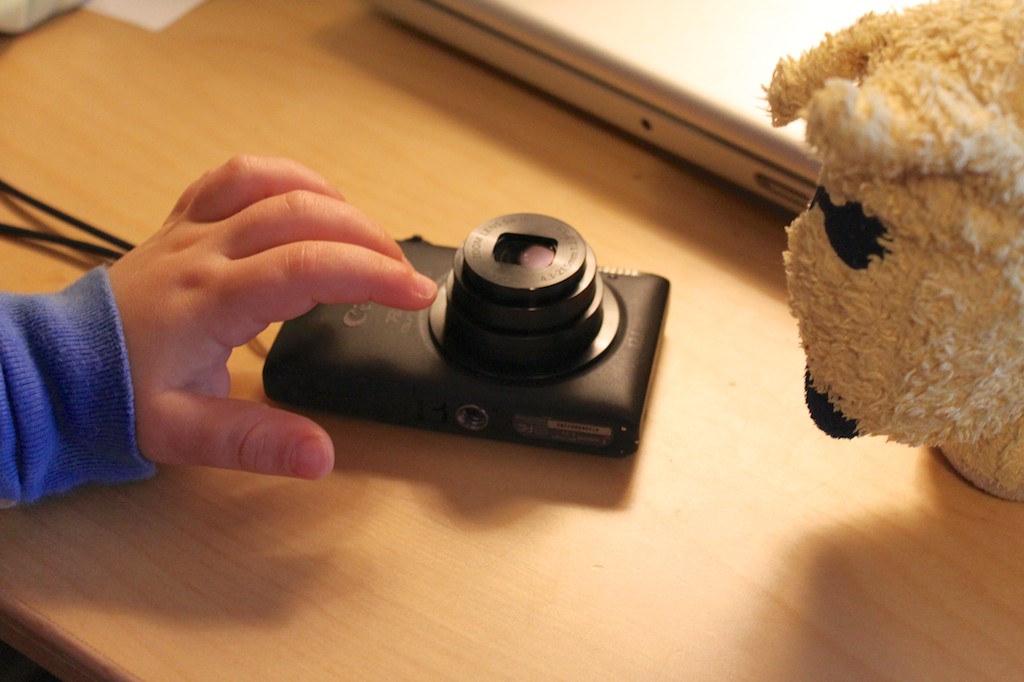
My Canon PowerShot Elph 300 is no longer up to the task of keeping pace with my action-packed son. Time to upgrade and look for holiday shopping deals.

My two-year-old son moves fast.
He runs everywhere.
Unless he’s marching.

Sometimes he’s not moving forward.
But then he’s bouncing.

The good news is I can still keep up.
The bad news is my digital camera gear can’t.

Why Your Camera Isn’t Good Enough
Any of your child’s various activities present you the opportunity to take amazing photographs. But the action is often hard to capture.
Here are two reasons why:

  • If you’re trying to use natural light at home, your pictures can end up looking blurry. Unless you’re shooting outdoors, most pocket cameras don’t have lenses that let in enough light or big enough CCD (charge-coupled device) image sensors to freeze the action.
  • And if you use your camera’s flash, then you’ve only got one shot at the shot. (unless you’ve got a DSLR)
    In the few seconds it takes for your pocket camera to prep for the next photo, your child is already in the next room.

Look, I’m no pro photographer, but I know enough that one camera cannot possibly meet the needs of all situations. So I’ve got more than one.
The problem is I feel I’m still not getting it done.
Sure, people tell me what great shots I take of my son, and I do get some.
But only I see the many shots I still can’t get right.

And as we pass through Black Friday and Cyber Monday and all the other ‘shopping deals’ through the end of the year, I got the itch to upgrade my camera arsenal, which covers three main categories:

Point-and-Shoot Pocket Cameras
Those magic photo moments present themselves when you least expect it.
You need a camera you can whip out, quickly turn on and snap.
The pocket camera I’m currently using is a
2011 Canon PowerShot Elph 300 HS.
(The new model on the market is the Elph 320 HS.)

I like my tiny Elph.
It takes great pictures and has a nice 24mm wide-angle lens, which lets me capture more of my son, when he’s playing right next to me.
(It’s also great for group self portraits of up to four by simply stretching your arm out while holding the camera in reverse.)

But it can’t handle that action moment unless you’re outdoors.

The Camera in Your Smartphone
Sure, like much of the planet, you’ve also got a smartphone in your pocket that can take pictures. So you may feel like you don’t need another bulge in your pocket, but your phone is even less capable at capturing action shots.

It’s good for taking a posed photo, and that’s about it.

DSLR Cameras
I know. I know.
Doesn’t everyone understand if you’re serious about getting great photos of your kids, you’re going to need a Digital SLR with a big CCD sensor and a decent lens?

Sure it’s going to cost you some coin, but the price of entry into the DSLR world isn’t as high as it used to be.
Consumer DSLRs these days start at only a few hundred dollars more than their point-and-shoot cousins.
(Prosumer models still live in the $1-2K range.)

I’m currently using a 2009 Canon EOS Rebel T1i.
(The new model out there is the T41)

But the big problem with a big DSLR is…
It’s big!

It’s tough to carry around all the time.
And when you’re schlepping the diaper bag, the toy bag and the stroller, you end up leaving your DSLR behind more often than you’d like.

But it remains your only hope to consistently capturing great low-light action photos.
Except…

The Bundled Kit Lens
One reason why entry-level DSLRs are so affordable is they typically come bundled with inexpensive kit lenses that are simply not that great.
Still, these lenses are better than the lenses in your little pocket camera.

So it’s still a decent choice for the price-conscious consumer who wants to take better pictures, right?

Up to a point.

Any article you read about these bundled kit lenses say they’re good to learn with. After a while, some photographers see the limitations and find themselves wanting more.

And I’ve reached that point.

Married to Canon
I’ve been using Canon cameras for years and have been generally happy with my compact point-and-shoot cameras and my DSLR.
My frustrations have surrounded the elusive toddler photo, and as I documented above, this problem simply lies with the limitations of the tools I’ve chosen.

And as I look to expand my photographic capabilities, it’s a hard move to choose another partner.

There’s a certain coziness that has set in by using a common Canon user interface. Each camera generally operates the same way.

Plus, it’s just about the only camera maker that’s using QuickTime H.264 files for capturing movie clips. (which I also shoot a lot of!)
I like H.264 movie files, because they are better to edit with in Final Cut Pro.
And in Final Cut Pro X, you don’t have to first transcode these movies to a friendlier codec like ProRes to edit with.
FCP X will work natively with the H.264 files, saving me tons of time, duplicated media and extra file storage.

You can’t go wrong sticking with Canon.

Sony Rocks Your World
But in studying recent reviews of Canon’s non-DSLR camera line up, Canon has slipped from grace a bit against the competition.

Currently, The Sony Cyber-shot DSC-RX100 is universally regarded as the best compact point and shoot out there.
A major reason for that is the large, one-inch DSLR sensor they’ve somehow crammed into it.

Yes, it’s really expensive at $650, but everyone is absolutely crazy about it:
CNET loves it.
Gizmodo says it’s a “significant achievement.”
David Pogue calls it “the best pocket camera ever made.”

I would leave Canon in a heartbeat for this.
Except…
The RX100 shoots movies with the silly HVCHD codec, which won’t work with Final Cut Pro.
So I would have to return to transcoding my movie files, which I simply can’t bear, now that I’ve tasted freedom from that unspoken tech burden.

Sony- please call me when your movie codec starts to play nice with Apple.
I’m be waiting…

The Choice in Canon Cameras
So what’s a demanding amateur photographer to do if he wants to go with a Canon?
There are thirty-five options, which can quickly get confusing.
One way to sort through all the choices is on sortable.com, which allows you to compare the specs and reviews between two cameras.

But by my count, there are really only five ways to go in attempting to
capture your child’s elusive low-light highlights.
(And they’re not inexpensive!)

#1
Canon PowerShot G15 ($500)

The G series is a tank of a camera. (I used to use the G9.)
Reviews agree that this camera is a solid choice and does well in low light.
But tanks are big. You’re never going to stuff this one in your pants pocket. Maybe your jacket…
However, it’s no longer the darling it once was with Sony’s RX100 out there.

#2
Canon PowerShot S110 ($450)

This is a newer version of the S95 and S100, both of which are still on the market.
It’s the best pocket camera Canon has, but it’s not as good as the G15.
So you’ve got a dilemma. Should you go with the better, bulkier camera you’re not going to take with you all the time, or keep something not quite as good with you all the time in your pocket?

#3
Canon PowerShot SX260 HS ($200)

This has a 20x super zoom lens, which I once thought would solve all my problems.
I bought the Canon PowerShot SX230 during the summer of 2011, and quickly realized that zooming into the action from far away doesn’t necessarily make the action any clearer.
Then, the flash stopped working, and the battery wouldn’t hold a charge.
Maybe it didn’t help that the camera took a nasty four-foot spill onto a cement sidewalk on its maiden voyage.
(Let’s speak no more of this.)

I haven’t repaired the SX230, because I’d rather put that money towards my toddler action-shot solution.
And the SX260 probably isn’t going to help there.

#4
Canon EF 50mm f/1.4 USM Lens ($339)

So none of the above choices really attack my problem sufficiently.
(And by the way, if you’re thinking about Canon’s new PowerShot G1 X for a whopping $800, put your wallet away.
All the reviews agree it’s not worth it. That’s DSLR pricing!)

And speaking of DSLRs, my older Canon T1i can’t even do the job the way I want.  Is it time to buy the brand new model- EOS T4i? (drool)

Nope. That’s just putting money in the wrong place.
I need to graduate to the prosumer camera world, and just buy a better lens for my old T1i.

I have a friend I work with who is also a professional still photographer.
When I told him my story, he suggested I buy the Canon EF 50mm f/1.4 USM lens.
This professional 50mm lens would be a good first glass purchase outside the kit lens world.
(‘Glass’ is what the pros call their lenses.)

It’s a prime lens, which means it doesn’t zoom.
But prime lenses generally give you a better picture for the price.
He said this 50mm lens would give me a little bit of reach… so I wouldn’t have to be on top of my toddler. My feet would have to do the rest.

Glass Isn’t Cheap
This lens costs $339, including a $60 Canon discount as I write this.
(Really.)
Good zoom lenses easily go into the thousands!

Do professional photographers spend more money on their glass than their cameras sometimes?
Yup.

At these price points, you can see why the typical amateur photographer isn’t playing in this sandbox.

All I know is when my toddler is happily playing in his sandbox, I just want to take a good picture!

#5
Buy Last Year’s Model!

By now, digital camera technology has reached a certain maturity. Buying last year’s model of a good camera is a great idea, because by now it’s heavily discounted.

Don’t feel like spending $820 on the new Canon T4i DSLR, with 18-55mm kit lens? (drool)
Buy the Canon T3i. (some drool)
Amazon had it on sale over Black Friday weekend for $500 with the 18-55mm lens. And don’t fret on missed discounts. There’s always another Amazon or other web deal waiting in the wings. Just keep looking…

My Decision
So there’s really no perfect solution.
The G15 is too big for your pocket.
The S110 isn’t as good as the G15.
The big zoom of the SX260 isn’t going to make the blurs go away.
Buying last year’s DSLR at a discount is a deal, but I need glass.
And good glass is expensive!

So what did I do?

I pulled the trigger and bought the Canon 50mm lens.
I bought it online from Adorama, because they threw in a lens UV filter and cleaning kit for the same price.

But I wasn’t done…
Option #5 came in particularly handy on Black Friday at the Lester household.

It just so happens that Amazon was offering the Canon PowerShot S100 as a ‘Gold Box’ daily deal for only $229. (That’s almost half the price of the slightly newer S110.)

The S100 would do a much better job in my pocket than my still decent Elph 300.
I couldn’t resist.

Click.

I know it seems like an indulgence, since the new glass is my solution.
But I quickly created a bulletproof rationale to back up my impulse purchase-

After replacing my Elph 300 with the new S100 in my pocket, I would move the Elph into the kitchen for the rest of my family to use, replacing our old Canon SD960 from 2009.

This retiring PowerShot is the Dorean Grey of my camera fleet.
It’s really taken a beating over the years and has kept on ticking, although its photos now look kind of muddy.
Plus, its faceplate is being held on with duct tape!
(My son has taken a few self-portraits with it.)

Ready for Action!
So there you have it.
I bought some glass and upgraded my pocket camera.
It’s a win-win. Yes?

Now, there’s always a sharp picture around the corner…
No matter how fast he’s moving!
Problem solved.

But I’ve clearly blown my holiday shopping budget on tech gear for myself.
Oops.

Time to focus on my son, and the rest of my family!

I Got Lost While on Safari 6.0.2

After I upgraded to the newest version of Apple’s Safari web browser, I felt like I had taken a wrong turn in the wild.

When you wake up in the morning, you expect your iPhone to be where you left it the night before. Right?

Similarly, your sleeping computer in your home office downstairs should be waiting, ready to go where you left off the night before.

That expectation can be somewhat muted by a toddler running about the house.
But if you set your alarm early enough and get yourself up before he does, you can usually beat his cyclone effect.

Barring a CPU meltdown, I expect things to operate more or less the way they did the day before.

My Safari Wasn’t What I Expected
So when my electrician came to my house this week to talk about installing a portable generator in the wake of Hurricane Sandy, and I reviewed a few options with him online, I expected my Safari web browser to behave.

But it didn’t.

We sat down, and he suggested I check out norwall.com.
After we reviewed a few generator options, I wanted to show him another website I’d found, but I forgot the exact URL and needed to google it to locate it again.

My eyes gazed upward to the top right of my screen to place the curser in the Google search bar… and suddenly it was gone!

Yes, the Google search bar was gone!!
(You can imagine my embarrassment.)

I quickly changed the subject and said I’d do more research another time.
We shook hands as he left with the promise that my house would one day have some level of energy independence, even though I was clearly chained to my fickle tech!

I walked back into my home office and sat down at my desk.
I stared at my computer. Was it mad at me?
(It would certainly benefit from a little electricity during the next blackout.)

What happened to Safari?
And then I remembered…

I had just performed an Apple software update the day before, and yes, it included what seemed like a minor Safari update…

Coincidence?
At Home with Tech, there are no coincidences.

Be Careful What You Let in the Front Door
I took a look at my latest version of Safari –
6.0.2.

I haven’t been paying attention lately to Apple’s software tweaks, and I hadn’t even taken the time a few months back to upgrade my operating system from Lion to Mountain Lion.
(Still on Lion Version 10.7.5)

So I did a little research and quickly realized Safari has been undergoing some significant ‘upgrades.’

These enhancements had first shown up through Mountain Lion over the summer.
And now it was filtering down to Lion through the Safari V6 updates.

Time to Yell at your Computer
If you’re like me and have been innocently going about your software update schedule without paying much attention, you may to be in for a big surprise with Safari.

And here are the three questions you will probably be yelling at your screen in the near future:

  • Where did the Google search bar go?!
  • Why won’t a link open in a new window anymore?!!
  • Why are parts of URLs grayed out?

The good new is Safari isn’t broken.
It’s just ‘better.’
So don’t panic.

You’re supposed to know ALL of this by now,
but if you’ve been distracted, here’s the scoop:

The Google Search Bar is Missing!
Yes, Apple eliminated it.
Instead, you can use the new URL ‘omnibar,’ which has been upgraded to handle Google searches. It’s now a unified search and address bar.

Apple calls it the Unified Smart Search Field.
In fact, Apple isn’t the first to make this switch.
(Google Chrome has had it for a while…)

The ‘USSF’ takes a little getting used to, but it works just fine.

Tabs, Tabs, TABS!!!
Once upon a time, if you clicked on a link, it usually opened up in a new window.
Now, it opens in the same window, but listed under a new tab.
In Mountain Lion, you can easily move from tab to tab, but in Lion, it’s a little harder. (Hint, hint…time to upgrade to Mountain Lion.)

But don’t despair.

There’s a setting, buried in Safari’s preferences, which returns Safari to its old way of opening up new windows:

  • Go to Safari ‘Preferences’
  • Go to ‘Tabs’
  • You’ll see the pop up menu- ‘Open Pages in Tabs Instead of Windows’
  • Select ‘Never’ (instead of ‘Automatically’ or ‘Always’)

Apple has more info in this support article.

(Again, when you get to Mountain Lion, all this tab-mania apparently makes more sense…)

Why is Some of my URL Gray Now?
Yes, the tail end of URLs are now gray, instead of black. That color shift allows you to more easily view the main URL name in black.
(Well… I didn’t think it was that hard to see in the first place. Anyway…)

And So You’re not Surprised…
While we’re at it, here are a couple more changes:

No More “HTTP”
The “http://” prefix doesn’t show up anymore in the Unified Smart Search Field.
(When was the last time you even typed it, anyway? No loss there.)

Private Browsing
You can turn on ‘Private Browsing’ as a security measure in the drop-down menu under ‘Safari’ on the top left.
According to Apple, that step not only stops your computer from recording your web traffic, searches and cookies, Safari “also sends a request to websites not to track you.”
(I hope they’re polite.)

In addition, you can activate ‘Do Not Track,’ (DNT) which according to Apple is “an emerging privacy standard.”

To do this, go to:

  • Safari ‘Preferences.’
  • ‘Privacy’
  • Next to Website tracking, check ‘Ask websites not to track me.’

A quick note about DNT technology:
DNT still seems to be a work in progress.
(Take note of the descriptive word- ‘emerging.’)

Enjoy Your Safari!
So there you have it.

Next time you do a software update and Safari 6.0.2 shows up, you shouldn’t feel lost in the wild.

And with Cyber Monday just around the corner, you don’t want a lion on safari to slow you down.

How to Lose your Email while Upgrading from Entourage to Outlook

If you’re still using Microsoft Entourage, it’s really time to make the jump to Outlook for Mac 2011. But watch out! You can end up with double or none of your email!

I’ve been meaning to upgrade my email program from Entourage
(Microsoft’s old email program for Macs)
to Outlook for Mac 2011.

But I’ve been delaying, because any tech upgrade usually comes with risks.
And you know what they say:
“If it ain’t broke, why fix it?”

Well, my old Entourage has been acting a bit glitchy lately.
It’s from Office 2008, before Outlook ran on Macs, but it mimics Outlook’s functionality.
I originally used Entourage back in 2004 on my first iMac to migrate my email when I used a PC at home.
(Please don’t share this secret from my younger days. I’m still a little sensitive.)

So over the past year, Entourage has occasionally crashed on me while sending out emails.
And that’s been kind of frustrating.
‘Cause you’ve got wonder whether the email actually got out or not.

You could pick up the phone to confirm, but that defeats the point of email, don’t you think?
(I hear my father chuckling. He still talks about the glory days of telegrams.)

Don’t Reach out and Touch Someone
Like it or not, email has become an essential communications tool in today’s digital-based society. Without it, you really can’t participate.

You certainly can’t do your job if it involves interacting with people.
Sure, you could make a phone call, but email is so much easier.
I think people actually prefer not using the phone at work if they can avoid it.
Why?

It takes too much time.
And it involves interacting with another individual.
How messy is that?
It’s so 20th century.

On the other hand, emails are simple.
More direct.
Plus they leave a record of what you said.
And you don’t have worry about developing or maintaining your interpersonal skills.
(Really, who needed them anyway?)

At home, email has also caused the phone’s popularity to slip.
(Though texting is also a culprit.)

When I’m on the 5:48pm Metro North train out of Grand Central Terminal, a simple text to my wife reporting my ETA is sufficient, don’t you think?

After I get home and boot up the iMac, my email engine is front and center to handle my communications with our global village.
So it had better work!

All Those Wonderful Marketing Deals I Requested
One problem is my email in-box has become a train wreck.
Over the years, it’s filled up with tons of communiqués I really don’t want.

Most of them are marketing emails from companies I’ve volunteered my email address to.
And why have I done that?
At the time, it seemed like an innocuous gesture with the promise of special insider ‘deals’ that would come my way.

These aren’t spam emails, mind you. I’ve asked for them.
It’s time to do some significant unsubscribing.
But that’s another project for another day.

And really, I shouldn’t slough off the blame.
The truth is much of my email is simply a mess of disorganization resulting from years of minimal email maintenance. I should have been slimming things down along the way.

Protecting your Digital Diary
Like going to a long overdue dentist appointment, I knew my email in-box needed serious work, but I always had better things to do.

Finally I decided it was time.
But I was concerned that the upgrade might not go as planned.
I might corrupt the archive and risk losing some of my old emails.

That’s not much a loss for all the marketing muck, but there are plenty of valuable emails to protect for the long term.

Like letters we used to keep.
Remember when people stored their old letters in shoeboxes?
The fact is your old emails represent a sort of organic digital diary for your life.

The Upgrade Begins
To prepare for the migration, I decided I would do a little tidying up and ‘thin out’ the marketing flirtations along with some old emails I didn’t need anymore.
(Why clog up the transfer with useless messages?)

So I sat down and got to work.
In my first pass, I quickly got rid of 1,024 emails.
A third of them had never even been read.

Exactly.

It was a start, but believe me, that barely created a dent.

Then, I loaded Outlook for Mac 2011 onto my iMac.
The new program lives separately from Entourage on your desktop, and there’s no magical merging.
You’ve got to copy all your email over.

What?!

There’s a lot online regarding the best way to do this, and believe me there are many hard paths to the finish line.

I chose the easy way.
(Actually, it’s all I could really understand!)

So when you first launch Outlook:

  • Click Import
  • Click Entourage
  • Select all of the boxes regarding the items to import
  • Select Main Identity

That’s it!
The transfer process swiftly began.
I watched as my 5,713 emails imported effortlessly into Outlook.

Within minutes, the process was complete.

I stared in near disbelief at the simplicity of my experience.
Something was clearly not right.

And I was correct.

Attack of the Clones
I looked about the new interface and noticed that Outlook was in the middle of another import process.

What?!!

I thought we were all done.

I looked closer, and it was downloading a few more messages…
This time from the mail server.
About 4,000 more.

What?!!!

For some reason, Outlook was now downloading all of my messages from my Optimum Online mail server, creating duplicates of most of my emails living locally on my iMac.

There didn’t seem to be a way to stop it.
So I buckled up and went along for the ride…
An hour later, I was the proud owner of almost 10,000 emails.
(Nice.)

And how was I to rid myself of these unwelcome clones?

The good news is they all showed up bolded as unread and received within the past hour.
So I resorted the list by ‘Date Received.’
Then, I highlighted them and simply pressed ‘Delete.’

And I watched my iMac reverse course and purge the duplicate
‘History of Barrett.’

(I’m sure the computer was thinking, “silly human.”)

Delete from Server?
I felt like I had dodged a bullet.
Or at least many hours of manually deleting 4,000 emails.
But I was curious. So I went online and did a little research.

My problem seemed to be related to the fact that my Optimum Online email was a POP account instead of IMAP.

But before I tried to figure out what that really meant, I saw that
other users had also experienced similar problems when migrating their messages to Outlook for Mac 2011 for the first time.

I felt vindicated.
Then I got nauseous…

Someone also reported that once you delete the duplicate messages, the server wants to purge both versions.

WHAT?!!!!

As long as your Outlook preferences are set to-
‘Never’ Delete Messages off the Server, you’re okay.

So I took a look at my Outlook’s preferences, and, of course, they were different.
These were my default settings, imported from Entourage:

  • ‘Leave a Copy of Each Message on Server’
  • Delete Copies from the Server ‘After Deleting From This Computer’

Bad news.
All my email on the mail server was now-
GONE!

They only existed locally on my computer.

If I had wanted my messages backed up on the mail server to access remotely through a web interface, I was out of luck.

Oops… I Just Blew Up my Email!
Yes, by upgrading my email to the latest and greatest platform,
I had deleted my entire email archive on the mail server.
(This is why I’m never to eager to tinker with upgrades I don’t have to make.)

The good news is I rarely access my Optimum Online email via web interface, because I always have access to them on my iPhone.

So this loss was largely a meaningless forfeiture.
Except that it served as a Cloud back-up I no longer have access to.
(And you know how much I love back-ups.)

Tech Tip to Avoid Losing all your Email on the Mail Server
Here’s the fix to avoid my sad story and prevent the deletion of your email on your mail server:

Change the ‘Delete Copies from the Server’ option to-
‘Never’
BEFORE you delete your unwanted cloned emails in Outlook.

Only AFTER you purge the duplicates should you change the server’s delete settings back.

See, isn’t that easy?

Today’s Outlook is no longer Cloudy
I suppose the silver lining is my error resulted in some long overdue spring cleaning on the mail server.
Did I really need to save all these emails up in the Cloud?
Is each of them so critical to my future memoirs?
(currently not in development)

I should thank Microsoft and Apple for helping me to purge all this unnecessary content!

Wait, I’ve got go. My father needs me.
My doorbell just rang.
“Telegram!”