At Home with Tech

Unlock the power of all your technology and learn how to master your photography, computers and smartphone.

Category: Tech Fixes

How I Listen to SiriusXM at Home
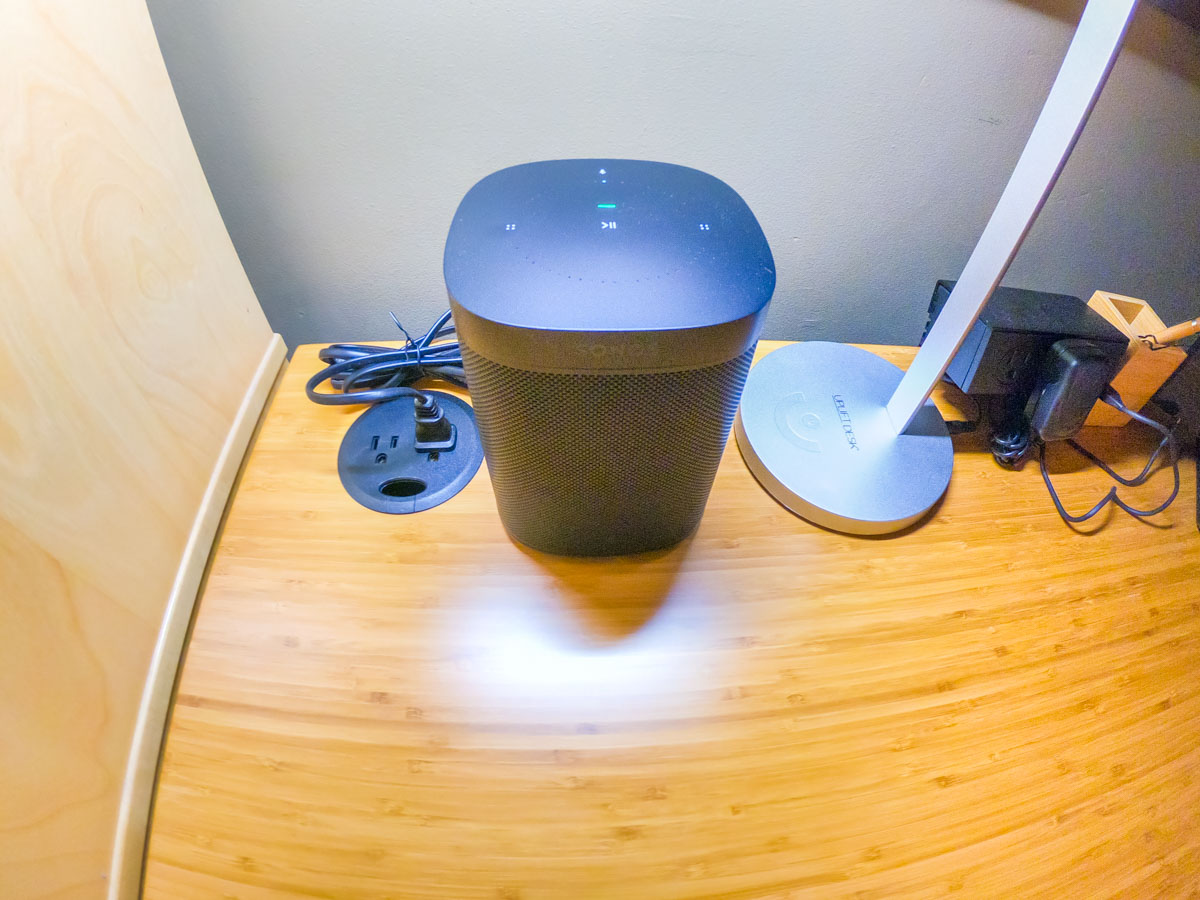
The sounds of your SiriusXM Satellite Radio subscription don’t have to be silenced, because you’re stuck at home. Here’s how I moved my SiriusXM stations from my car to my Sonos speakers…

I’m not driving nearly as much these days, because I’m fortunate to be able to work at home during these challenging times. While I don’t miss all of that traffic on I-95, I must admit that I actually do miss the visceral experience of driving.

  • That sensation of movement
  • Acceleration
  • Controlling the machine

I also miss listening to my SiriusXM Satellite Radio stations while driving
my Toyota RAV4.

I always considered my satellite radio subscription a luxury. But I rationalized its relatively expensive cost through daily use. When my car began hanging out next to my garage as a new norm, my SiriusXM value equation disintegrated.

Bringing SiriusXM Home
But of course, SiriusXM does offer the opportunity to stream its channels in your home. So, I decided it was time to do exactly that. But I didn’t want to spend more money on additional hardware.

The good news is there are a variety of ways to bring your SiriusXM subscription to your existing devices. The most direct approach is to listen on your computer, or through SiriusXM’s smartphone app.

Instead, my preference was to connect via my Wi-Fi speakers. (You may recall that I’ve been enjoying my Sonos devices.)

So here’s how I connected my SiriusXM stations to my Sonos wireless speakers at home.

SiriusXM on Sonos Play:1
First, I brought my SiriusXM world into my iPhone’s Sonos app, which controls my older Play:1 Sonos speakers. (They’re not voice-enabled.)

Here’s how to do that:

  • Open your Sonos app
  • Tap ‘Settings’ on the bottom right
  • Under ‘Music & Content’ tap ‘Add a Service’
  • Search and choose ‘SiriusXM’
  • Log in

You’re done!

SiriusXM on Sonos One Using Alexa
Next, I focused on connecting my Alexa-enabled Sonos One smart speaker.

To empower Alexa to play SiriusXM via voice command, you have to ‘enable the skill’ and link to your SiriusXM account.

Alexa sent me easy instructions via my Alexa iOS app.
(She’s so helpful.)

Keeping Up with the Times
While researching this little audio project, I realized there are actually numerous ways to bring SiriusXM into other devices in your home, including Apple TV, Google Nest speakers and Roku.

The SiriusXM value equation can easily be restored. It’s just about adjusting your mindset that SiriusXM is not only for car use.

That said, do I actually need satellite radio at home? There are already plenty of ways to stream other radio and music sources.

(pause)

Well, I hope that one day in the not too distant future, I’ll be spending at least a little more time in my car. Until then, I feel so much better knowing that I’m not burning money by entirely ignoring my SiriusXM subscription.

Control Restored
As I write this, I’ve got the sounds of SiriusXM gently playing in the background on my Sonos One speaker. Alexa awaits my next voice request for a station change.

I’m at home. And now, so is my SiriusXM subscription.

One more component in my life I’ve got back under control.

I’ll take it.

How to Find iCloud Email Folders that Disappear in Outlook for Mac

Do you sometimes feel like you need a magic wand to handle your computer glitches? Here’s my story about how I fixed my subfolder syncing problems in Outlook for Mac.

“Shall we play a game?”

Remember that line from the 1983 movie, “WarGames,” starring Matthew Broderick? That playful computer certainly caused a lot of trouble!

Recently I had what felt like a similar experience with my own computer. No, there weren’t any global implications. That said, I did feel like my world was at risk of imploding.

Why?

I thought I had lost all of my iCloud email subfolders I had created under my ‘Inbox’ to help keep my email organized…

Well, these subfolders weren’t exactly gone. They just weren’t showing up in my Microsoft Outlook for Mac. I could see them on my iPhone’s native Mail app, but not in Outlook on my iMac. (I’ve been using Outlook for Mac on my iMacs for years.)

Game Over?
So, I knew I had some kind of sync issue that my computer or the software had thrown at me.

Ha Ha.

Ha.

(Not funny)

I immediately thought of the nightmare of having to delete Outlook for Mac and then rebuild my email all over again on my iMac.

Instead I took a deep breath and put on my Tech Zen hat. I decided to do some Googling for a less dramatic solution. And happily, I didn’t have to go too far down the rabbit hole.

IMAP Syncing
The answer has to do with syncing your IMAP Folders. You need to make sure each of your iCloud email subfolders are properly synced in Outlook for Mac for them to show up. Here’s how you do that:

  • On the top bar of Outlook for Mac, click on the “Tools” dropdown.
  • Click on “IMAP Folders.”
    There, you’ll see all of your iCloud email folders, including the ones that are missing in your email display.
  • Click on each folder that you want to (re)sync and then click on the green ‘Subscribe’ button on the top left. As soon as your subscribe a particular folder, the name turns bold.
  • And then, voilà! Your missing email folders will magically reappear in your Outlook for Mac.

Human Error?
Why my disappearing email subfolder crisis suddenly showed up in the first place, I have no idea. Sure, it’s easy to blame the human. We’ll never really know.

What’s important is I’ve got all of my email back in place on my iMac. (It wasn’t difficult. You just need to remember the IMAP Folders ‘Subscribe’ trick.)

Now, I’m simply back to my general state of détente with my computers and software.

Why You’ve Got to Show Up for your Close Up

Our COVID-19 reality has created this unprecedented chapter of social experience driven by webcams. Here is why it’s more important than ever to fight your Zoom fatigue…

I have this crazy idea for a science fiction movie… One day, in the not-so-distant future, society’s social norms evolve in response to some deadly threat that forces everyone to stay at home for the next fifty years. Nobody is allowed to be in the same room with someone else other than existing family, and so all human interaction is restricted to video and voice communication.

The story focuses on how humanity adapts and how two young people find each other, fall in love and start a life together… physically separated.

All right, maybe I’m taking things a little too far. (It’s just a first draft.) But you get where I’m going.

Zooming is Here to Stay
As we all know, our interactions have suddenly required the increased dependence on Zoom and other video conferencing apps due to COVID-19. And as this situation continues, social connections, both at work and elsewhere will begin and develop… only virtually.

Sure, previously there have been many opportunities to work and interact with people in other locations via webcam or phone. But in-person moments have usually been more typical.

Now, regardless of geographic proximity, we have all been instantly separated…. and tethered together by the thin digital strands of webcam communication.

And when we eventually return to some new normal, I expect that much of the Zoom revolution will remain intact and continue on. That means our future calendars will always include some number of webcam meetings, both for work and family life.

If that prospect feels exhausting, you might want to carefully consider your next steps.

Fight your Zoom Fatigue
I think it’s fair to say that few of us enjoy sitting in front of our computer’s webcam all day. It takes a clear effort to be present for all of those virtual meetings. But I would say it’s no harder than being fully engaged with a room of people. That takes focus too.

During an in-person meeting, people will read any number of non-verbal cues that you’re projecting. They will likely glean more from those elements than from your words.

The same is true for Zoom meetings. People typically want to feel some connection to you, and to do that, they really need to see you.

That’s why you can’t let Zoom fatigue prompt you to turn off your webcam or worse still… leave your camera on but pay no attention to how you’re coming across in your shot.

Don’t be a Distant Voice
Now, consider this same equation when interacting with people you’ve just met for the first time via Zoom. A disembodied voice can feel surreal and so far away. Staring at someone’s headshot is better, but video will always come closest to an in-person interaction.

I think a hidden voice isn’t so disconcerting if you’ve already met someone and have a baseline connection. But moving forward, we’re all going to have to deal with a variety of virtual introductions.

Our webcams are going to be representing us… pretty much forever.

Welcome to the Future
The pandemic will eventually end, but many of the disruptive ways we’re using to stay connected will remain as new norms.

This all points to my favorite phrase of late… “You’ve got to show up for your close up!”

So, remember my video production tips for your next Zoom meeting:

And most importantly, don’t forget to smile every so often. Your virtual audience will always appreciate your positive energy, especially in times like these.