At Home with Tech

Unlock the power of all your technology and learn how to master your photography, computers and smartphone.

Category: Tech Fixes

Here’s a Trick to Quickly Share a Camera’s Best Vacation Photos
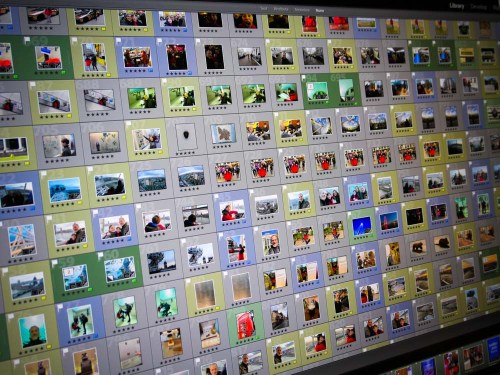
If you’re not using your smartphone to take your vacation pictures, you may quickly get the feeling that they’re trapped on your camera’s memory card. Here’s how to quickly get them ready to share with family and friends…

So my family and I were visiting friends across town and catching up, since they had just returned from their vacation visiting relatives in Italy.

Of course, the major topic of conversation during dinner was their big trip. And what’s a good story without a few accompanying photos?

Inevitably, an iPhone XS materialized, and the Lesters were transported to the streets of Pompeii. My wife and I leaned in and our nine-year-old son ran around the table to see the images of our friends standing in an ancient city, frozen in time by the brutal force of Mount Vesuvius.

The impromptu presentation was effortlessly supported by the mom’s index finger flicking through her photos’ app on her iPhone. Some of the photos were absolutely amazing. And this raw collection completely captured their experience.

Several times, I turned my gaze to the dad who was sitting on the other side of the table.

He peered at me and said with a smile, “I’ve got better pictures.”

I nodded and returned the smile.
(But I wondered if he was experiencing a feeling of slight betrayal by technology that hadn’t quite lived up to expectations.)

And then we all turned our gaze back to the glow of his wife’s iPhone.

Time is Your Enemy
Here’s the backstory… The dad had traveled to Italy equipped with a brand-new Sony RX-100 VA camera as well as a GoPro HERO7 Black. I believe those are among the best tools available to visually capture a family’s vacation.

And I had complete faith that he had, in fact, captured a collection of outstanding photos that would have humbled any iPhone’s camera.

But in that moment at the dinner table, I knew that my friend had fallen victim to one of the classic limitations of the strategy I usually follow on how to handle a fresh crop of vacation photos…

  • Take loads of photos with a high-quality camera
  • Download them onto your computer at home
  • Choose the best ones
  • Tweak them to make them even better with software like Adobe Lightroom
  • Then share your winners with your family and friends to enjoy

The crippling limitation to this plan is that it takes time.
(Depending on your post-trip availability, that could take days or weeks.)

The Unbeatable Smartphone Experience
The mom’s iPhone (which arguably took pretty good pictures) effortlessly made mincemeat of the dad’s superior photo gear due to the immediate shareability of its photos.

Sure, I guess you could try to whip out the RX100 VA or GoPro and flick through your photos, but it’s always easier to use a smartphone that’s right next to you.

So, how can a noble family photographer with all of the right gear and best intentions beat the instant satisfaction that smartphone photography provides today?

Tick Tock
First off, I think it’s okay to say that this is not only about immediate gratification. Amazing photos not born from smartphones can still find their moments to shine… in photo frames…. in photo books…
and in cloud family photo archives.

And if you work fast enough, you can still get them ready for prime time in time to ensure they’re still relevant for your social media feeds and even, dare I say… your next dinner party.

But it’s always going to be an uphill battle fighting time…

Don’t Fight It
All of this said, there’s a solution that will mostly solve this conundrum.

The trick is to willingly give into the power of your smartphone. For a moment, think of it not as a device that takes instantly-sharable photos, but only as a tool that can instantly share any photo file. If you could wirelessly add photos from other cameras into your smartphone, then you’d be able to instantly share those as well…
(Do you see where I’m going?)

Yes, you may feel like a young Jedi giving into the ‘Dark Side’ or a misguided sorcerer drawing power from the Dark Dimension like the Ancient One did. But hey, you’re not in the Marvel universe… you’re just trying to share some vacation photos!

I say ditch all of your post-vacation photo organization plans and do this instead while you’re still on your trip…

Transfer Your Photos Wirelessly to Your Smartphone
Many of today’s standalone cameras have Bluetooth or Wi-Fi capabilities that allow you to tether them to your smartphone. Once you activate that feature, you can easily transfer some of your key photos from your camera’s card onto your smartphone.

The key word here is ‘some.’
(I don’t think you want to be transferring hundreds of photos over.)

And once they’re on your smartphone, it’s a game changer, baby!

Now, just find a few opportunities during your vacation to quickly review your photos and simply pick out a few winners. Then send them over to your smartphone, and BAM! you’re in business…

If you miss a few winning photos, it doesn’t matter… You’ll find them later when you ‘officially’ go through them.
(Warning: May require weeks of work)

When you get home, you’ll already have a few of your best photos ready to share at the dinner table with your smartphone simply serving as your projection device.

A Solution Forged from the Power of Your Phone and Camera
So really, it boils down to simply taking a few minutes while on vacation to move a few photos from your camera over to your smartphone’s ecosystem.

And by doing that, you’re marrying the power of your superior camera with the unbeatable convenience that any smartphone provides.

I imagine there’s a day coming when one device will be powerful enough to do both…

Until then, just remember this trick, and you’ll always be ready to show off some of your best vacation photos at a moment’s notice!


How to Build a Cloud Family Photo Archive for your Smartphone

It’s time to release the power of your best family photos! Here are four steps to help you create a family photo archive that you can carry around in your pocket.

Remember how your parents and grandparents liked to carry around wallet-sized photos of you when you were a kid? I think some folks still do that. How quaint… how silly…how unnecessary!

With smartphone tech that can house thousands of photos, why would anyone want to carry around a tattered physical family photo in a wallet?

Well, for one reason… you know exactly where that photo is. And when someone asks you about your family, you can pull it out on demand and show it off.

Can you boast that same super power?
…Right now?

Stop Looking for a Needle in your Visual Haystack
Yes, this topic may fall under the category of ‘super obvious,’ but you can’t simply hope to swipe through a mess of photos in your smartphone representing years of moments and successfully pull the desired image out of a hat whenever you need to.

You’ve got to tuck away a few of the really important ones in a place where you can easily access them (beyond your wallet).

And I’d say the best way to do that is to create a family archive photo album in the cloud that you can access from anywhere, including your smartphone.

Here are four easy steps to help get you going…

Step 1:  Create a Shared Cloud Photo Album
In the Apple ecosystem, of course that’s really simple to do…

You can create a ‘Shared Album’ either on your iPhone or in ‘Photos’ on your Mac and then simply pop in your top 50-100 pics that represent the entirety of your family and your life to date.
(Keeping the number down is much easier said than done, because you’ll find so many choices that you’ll want to include!)

The trick here is to only choose a small number of pics among the thousands you’ve got. Remember, you’re trying to essentially simulate the tattered wallet photo experience… with some obvious improvements. Simplicity and easy access are paramount.

Then after the heavy lifting of curating your little photo collection, simply share the album with your partner and whoever else you’d like…
How considerate of you!

Step 2:  Choose only a Few Photos
So which photos are you going to include?
Well, think about which pics best represent your family’s ‘story.’

Yes, that may take you some time to figure out…
(Our ancestors had it easy with only having to manage through a shoebox of disorganized photos.)

But once you go through your digital collection and pull together this new group of archive-worthy gems, you’ll realize the awesomeness of your accomplishment.

Step 3:  Include the Major Moments
I don’t think there’s one particular recipe to follow… you just need to take a little time to decide what those exact photos are…

For me, I wanted to include some of the obvious milestone family moments…

  • Our wedding
  • Our son’s birth and first days


Then show off a little of the ‘where…’


And then I realized, beyond the several landmark moments in life and fun places that anyone might want to display a picture from, there’s a blur of countless other experiences over the years that you really don’t need to consider.
(That’s sobering, right?)

So, what’s left…?

Step 4:  Focus Mostly on the ‘Who’
Well, it’s the people in your life… your family and friends.

The “who.”

Yes, we’re back to essence of the wallet photo phenomenon.

You’re going to want to carry around the pictures of the people in your life who have mattered most.

Those images are what I immediately felt the need to collect into my own cloud family photo archive…

And so I put those photos in a cloud folder titled ‘Family Portraits.’

Some were candid pics, but most were posed group shots taken at family events. The organic organization of the people in these photos nicely framed much of my family’s history.

Carry Your Family History in Your Pocket
Remember when I said that your photos have expiration dates and that your family and friends only care to see the most recent pics from your life?

While that’s certainly true at one level, some of your pics will defy that phenomenon and retain their long-term value as foundational explainers for your family’s history.

Just make sure you don’t lose them in the endless mass of digital freeze frames from your life.

Sure, they might be properly archived in a portable hard drive somewhere, but if you can’t immediately access them when you want to on your smartphone, you’re going to miss most of the opportunities to share them throughout your life!

A cloud family photo archive that lives on your smartphone is a strategy lightyears ahead of using those tiny wallet photos.

You’ve just got to build it!

How to Fix Your Piper Computer Kit’s Corrupted Software

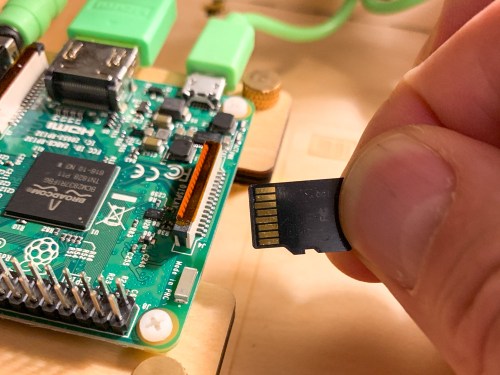
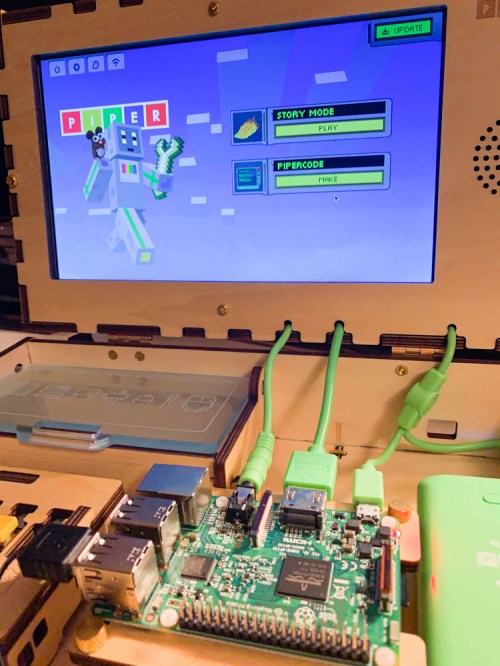
My son brought his new Piper to life, but its software quickly began glitching. So, it was time to help keep the learning experience on track. That means figuring out how to reflash the Raspberry Pi’s OS onto the MicroSD Card. (what?) Here’s what I did…

A few weeks back I proudly bought my nine year old a Piper Computer Kit for his birthday. I was so excited for him… He would build his very own computer, powered by a Raspberry Pi and then learn programming and other computer skills through a Piper-specific Minecraft StoryMode interface…

I felt it was the best birthday gift a dad could give his kid… ever!
(Okay, maybe I got a little too excited.)

The truth is all my boy really wanted was a big stack of Pokémon cards.

Pokémon cards!?

Come on… I was about to give the young Lester the tools to create a virtual universe if he desired… and all he wanted… were some glittery cards.
(Clearly, I don’t understand the Pokémon phenomenon.)

So, of course, we got him the cards… too. And during the next few days, our boy was fully immersed in his Pokémon world.

The Piper Computer Kit sat unopened in the corner.
(Sniff)

…Cue the tumbleweed shot.

Then…

The next Saturday morning at breakfast, he turned to me and said with a big smile,
“Let’s build my computer!”

Finally!
We were on…

The Piper’s Stormy Maiden Voyage
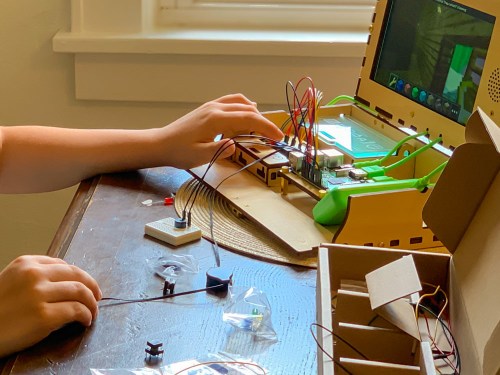
He opened up the massive blueprints, spread them out on the floor, and began constructing the Piper with the intensity of engineers racing to build the spaceship in the 1951 sci-fi movie, “When Worlds Collide.”

In little more than a couple of hours, we had a heartbeat.

He activated the Piper’s Minecraft ‘Story Mode’, and before I knew it, he was testing circuits faster than you can say, “Scotty, I need warp speed!”

It was just glorious.

And then suddenly, it all just… stopped. Minecraft had crashed, and we were just staring at the desktop.

My son turned and looked at me.

Frack.

I suggested he double click on the icon to get back into the teaching game.
Nothing.

Hmmm….

Then, I took the next logical step… I checked for any software updates and downloaded those.
Still nothing.

The computer itself was still seemingly working okay… but we couldn’t get back into the Piper Minecraft teaching program…

Piper, we have a problem!

Time to Reinstall the Software
My son was still feeling pretty pumped about building his Piper, but understandably a bit deflated by this glitch. He powered down his creation, and I pledged to do some research to find a fix…

The next day, I emailed Piper customer service asking for a little support…

After sharing my details, the prognosis came back that somehow the software on the Piper’s microSD card had gotten corrupted, and I needed to “reflash” the SD card.

Huh?
(Reflashing the card means reinstalling the Raspberry Pi’s operating system image back onto the card.)

Okay… So how do you do that…?

How to Reflash the SD Card
Taylor, from Piper Customer Care emailed me links to the Raspberry Pi software and instructions on how to reflash the SD card.

Beyond the obvious need to first download the image of the operating system, there were three other key steps…

  1. I also had to download Etcher, which is a graphical SD card writing app that flashes OS images onto SD cards.
  2. I needed to remove the MicroSD card from its Raspberry Pi slot, slip it into a larger SD card adapter (which I happen to have from my GoPro kit) and then insert that into my iMac’s SD card reader.
  3. When it was time to find the downloaded Raspberry Pi operating system image in the Etcher interface, I first needed to drag it from my ‘Downloads’ to my iMac’s desktop. After that, it was easy to locate.

Then, you click on ‘Flash,’ and you’re on your way!

Within five minutes, the operation was compete, and I reinserted the MicroSD card back into the Raspberry Pi.

I powered up the Piper, and BAM!

It was all working again…!

A Computer Kit May Require Some Hands-On Maintenance
So, even though the Piper was now fully functional, part of me still wondered how much of a problem it was that I had to reinstall the operating system.

Shouldn’t a new computer not crash after 20 minutes of use?

On the other hand, I had to remind myself that I was working with a $300 computer kit centered around a $40 Raspberry Pi motherboard… not a $2,000 iMac. The rules are a little different!

And isn’t the entire idea behind a build-your-own computer that sometimes you’re going to have to roll up your sleeves and get your hands dirty?

At the end of the day, reflashing the SD card was super simple, and our Piper works like new again.

If my son were a little older, I would have had him do all the reflashing work. That would have been an excellent project for him!
(I just wanted to make sure I flashed the SD card and not my iMac’s hard drive.)

Taylor from Customer Care was super responsive and even offered to mail me a replacement SD card. I’ve got to say that’s pretty good support…

Thank You, Piper!
So, what have we learned from all of this…?

There’s often a fine line between worrying that you’ve made a bad technology purchase and feeling helpless to fix the problem… and taking control to find a solution and making the repair yourself.

It just takes the right point of view…

That’s a lesson children of all ages can learn… and one that I’m really happy my Piper experience has reinforced in my own life.

Play on!