At Home with Tech

Unlock the power of all your technology and learn how to master your photography, computers and smartphone.

Category: Tech Fixes

How to Choose the Best TV for Your Aging Parent

Taking my father out to dinner on his birthday was easy. Helping him buy a new TV was considerably harder. That’s because they don’t make TVs like they used to. And that’s exactly why you’ve got to pay close attention when selecting a replacement TV for a member of the Greatest Generation. Here are my shopping tips…

My 86-year-old father needed some help replacing his old analog bedroom TV, which had finally sputtered out years past the digital revolution. So my dad picked up his iPhone and asked me for a recommendation on a replacement. If you ever find yourself in a similar situation, here are the factors to consider…

Select the Right TV Size
My dad’s old TV was this tube-based hulking box with a massive body and 27” screen in the ‘classic’ 4×3 orientation. A slender 16×9 32” LED HDTV would be the likely replacement, though that feels small by today’s standards. The 40”-43” is the next jump up in size.

While that’s considered normal for a ‘small’ TV today (seriously), you’ve got to make sure it fits in the bedroom space. Plus, you’ll likely need to buy a new TV stand.

Why…?

HDTV Legs Require More Surface Space
Well, somewhere over the last few years, TV manufacturers have seemingly switched from the center-stand mount design to upside-down V-shaped legs near each screen edge. This design change effectively increases the surface area required for any HDTV to sit on….

My father’s existing TV stand is only 29” wide. That would barely cut it for a 32” HDTV, let alone anything larger…

And even if you could balance your new HDTV onto an old stand, you’d have to worry about the risk of accidentally bumping the TV, causing one of its legs to slip off the stand… and then crash!

Yep, that could easily happen, now that HDTVs weigh so much less than their analog ancestors.

So, you’re probably going to have to also consider a new furniture solution…

Don’t Need to Go with 4K Picture Quality
I centered my research on a 40”-43” screen size for my dad. All I wanted was a straightforward, non-smart, non-4K, easy-to-use model that would quickly connect to my father’s cable box.

And let me simply say… you can’t buy that TV anymore.

Most TVs out there today come with a 4K resolution. But for a smaller screen size, you really don’t need all of those pixels. 1080p ‘full HD’ is just fine. That’s already a huge jump in quality compared to my dad’s analog dinosaur.

I’m sure any number of you would say you can see the 4K difference on a 43” screen.
But do you have the eyes of an 86-year-old?
(I’m just working the right solution for my particular user!)

If Possible, Avoid Smart TVs
Most TVs today are smart TVs with Wi-Fi and on-screen apps containing all of those marvelous and now-standard streaming options. But quite honestly, I didn’t really want to introduce my dad to the streaming world. He’s quite happy with how he used his old TV.

And more importantly, I don’t think he needs the added complexity, because that will just create more calls to… you guessed it… the IT Guy!

Not that I don’t enjoy talking with my dad on the phone. But there’s only so much I can remotely do to help him with his tech.

Yes, I do try to get into New York City to visit him every week. But he’s the kind of octogenarian who needs more immediate solutions to his tech challenges.
(We’ll just say he’s a little impatient.)

Would you like me to tell you about the time when my father’s iPhone’s ringer volume was turned down all of the way? …or the day my dad’s
iPhone wouldn’t charge anymore?
(Don’t get me started.)

But get this…

I actually couldn’t find a non-smart TV made by a manufacturer I trusted.
(Spoiler alert: My dad ended up getting a smart TV after all!)

Look for Absurdly Low Prices
Okay.. so I zeroed in on the market for 40”-43” Full HD (1080) televisions, which were also inevitably ‘smart.’ And I was shocked at how inexpensive TVs have become in this ‘smaller’ size category.

Sure, you can spend $650 on Samsung’s well regarded Q60 Series 43” 4K QLED TV.
($648 on Amazon Prime)

But for what we’ve been talking about, the price point is less than half of that. Here are two great choices I found…

Breaking the $200 Barrier
Vizio D-Series 40” Class Full HD Smart LED TV (D40F-G9)

Breaking the $300 Barrier
Samsung 5 Series N5300 43” Class HDR Full HD Smart LED TV

Really.

Both Samsung and Vizio have strong reputations for TVs although Samsung often sets the gold standard. Vizio is usually seen as a lower-cost alternative with good value.

But I especially liked the 40” Vizio for its smaller size. Most manufacturers are now only putting out 43” models in this range.
(Remember, I don’t want my dad’s new TV to overwhelm his bedroom.)

So I went with the Vizio.
Click.

Keep It Simple
If you’d like, here are my consolidated shopping notes:

  • 40”-43” screen size
  • Full 1080p HD, but not 4K
  • Smart functionality is unavoidable
  • $200-$300 price point
  • Vizio or Samsung are good TV brands
  • Don’t forget you’ll need a wider TV stand to fit the LED feet

Ultimately, I think less is more when buying technology for the elderly. Keep it simple… Spending twice as much doesn’t necessarily mean a better experience.

My father loves his new television… His first words were, “It’s much brighter!”
(Mission accomplished.)

No, he hasn’t figured out there’s a ‘smart’ interface with it yet. But he will…

And yes, now there will be the inevitable training and trouble-shooting calls
in my future!
(Easy problems for #AdultChildofAgingParent)
Green Bubble Texting Fix if You Use the Messages App on a Mac

The color of your texting bubbles may not matter so much when using your iPhone, but it can be a big problem if you’re using the Messages app on your Mac. Here’s how to erase this pesky issue…

Lately, I’ve been trying to fix a little flaw in my ongoing role as the family photographer. It has to do with what happens after I take my photos…

I bring them back to my iMac, import them into Adobe Lightroom, choose the best ones, tweak and color balance, and then finally I share the few gems with family and friends. Of course, the big problem with my process is it takes time… sometimes lots of time to get to the finish line. It can be a week… sometimes two.

These days, everyone expects almost instantaneous sharing of pics.
Clearly, I need to keep up.

And I’m happy to report that I’m doing better, and here’s why…

Emailing Vs. Texting Photos
Now, I force myself to quickly find the best few pics in a batch and singularly focus on them to get them ready to share. And if I never get to the rest… well, maybe that’s okay, because perhaps all that really matters are those few best photos anyway.
(Are you feeling a disturbance in the Force?)

One other important detail to my evolving photo-management process is how I’m sharing my pics… Usually, I email them about. If I have more than a few to share, I create a Dropbox folder to house them. And then I forward along the Dropbox link in my email.

How easy is that?!

Well, not easy enough…
Because it still requires folks to click on the link and then download the photos.
And that’s takes time.

I’ve noticed that some of my friends prefer to text their photos, and I’ve experienced the simplicity of saving a photo that’s been texted to me directly to my iPhone.

Hmmm…

And while I didn’t want to move my photo sharing process to my iPhone (like the rest of the world), I realized I could take advantage of a texting workflow while still using my iMac…

…by using the ‘Messages’ app.

A Problem with Using the Messages App on Your Mac
You may recall, I’ve recently focused on my son’s 9th birthday and what to get him…
(My gift was a build-your-own computer kit!)

Immediately after his birthday party, I wanted to send out some party pics to our friends, and I figured this was the perfect opportunity to try out my iMac’s Messages app as my distribution method…

But I immediately ran into a roadblock with one of the phone numbers I used…
The photo just didn’t go through!

Huh.

After a moment, I realized my friend wasn’t part of the Apple ecosystem (no iPhone or Mac). So he didn’t have iMessage functionality…
(The blue bubble type)

And my Mac isn’t as clever as my iPhone which can simply convert an iMessage with a photo to a MMS text with a photo.
(The green bubble type)

So now what???

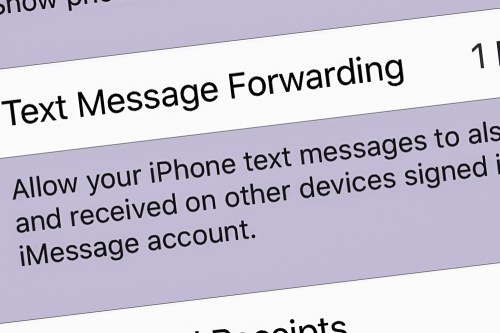
Text Message Forwarding
Well, the fix was to change a buried iPhone setting to better use Messages on my iMac. You simply turn on the ‘Text Message Forwarding’ feature…

Here’s how you do that on an iPhone:

  • Go to ‘Settings’
  • Tap on ‘Messages’
  • Tap on ‘Text Message Forwarding’
  • Then select the device you want to connect (iMac)

And as soon as I made this adjustment, I resent the photo, and it immediately went through.

Problem solved!

Green-Bubble Fix
With my iMac and iPhone now teamed up in this particular way, the path had been cleared for me to freely share my photos without worry using the Messages app on my iMac.

And the result…?

I received almost instant feedback that my pics had been received and were appreciated.
Now that’s satisfaction!

Text Message Forwarding is an easy fix for your green-bubble moments.

I highly recommend activating it…

Why You Need to Create Your Own Cloud Photo Archive

If you crave instant access your best family photos from yesteryear, here’s how to create your own portable archive…

My family and I attended a little party the other day… a reunion of sorts. It consisted of four families with kids of the same age who spent time together at playdates a few years back. One family then moved to New York City, and we really hadn’t seen them for a while. So, they were the special guests at the party.

Joining the Time Warp
Of course, everyone commented on how big all of the third graders had become. Inevitably, one of the parents whipped out her iPhone and began searching for old playdate photos when the kids were three. I watched her two-fingered gesture slide upwards again her smartphone’s surface as she commanded her iPhone’s photo library to speed backwards in time.

And then another parent activated her iPhone and began her own photo time-warp search. And then my wife did the same…

And before I knew it, the group was excitedly sharing shots and reminiscing about the good old days.

Experiencing Photo Failure
And I just stood there, happy that these iPhones had provided instant gratification, but stunned that mine hadn’t contributed. In fact, I didn’t even try to look for any photos. I knew I didn’t have one to share… not in that moment.

Sure, I could go home and easily find whole bunches of old playdate photos in the appropriate folders organized in Adobe Lightroom on my iMac. But I had no cloud access to any of them from my iPhone. My cloud photo folders through Dropbox and Apple’s Photos all contained more recent groupings of pics. I figured when would I possibly want instant access to photos from five years back? (Cough)

My iPhone’s onboard memory didn’t house photos that old either. I thought I was doing the ‘smart’ thing by not wanting to bog down my device with really old photos.

I stared into space and pondered the absurdity of it all…

If at First You Don’t Succeed…
I’d spent years and countless hours organizing tens of thousands of family photos into folders on my iMac. My focus had been to share relevant photos with family and friends while the pictures were still “fresh.”
(Old photos are old news, right?)

But now, I had encountered a huge flaw in my plan as I watched others suddenly require instant access to photos buried deep in time. Sure, the old photos were hiding in their iPhones and entirely disorganized. But the images were still there in the order they were taken, and a few finger swipes could still access them by simply warping back to 2013.

Huh.

By doing nothing with all of the old photos on their smartphones, these parents had succeeded where I had hopelessly failed.
(So, disorganization does have its benefits.)

I thought a bit more about the irony of my experience. I finally resolved to create another layer of organization on top of my current photo management plan…

If successful, I would give myself easy, mobile access to a percentage of my archival photo content to properly handle this kind of moment next time.
(We’ll get to how much in a moment…)

Create Portable Access
I’d been focused for so long on creating physical photo books as the endgame for archiving all of my best family photos. But that strategy assumed that I’d only want to access these photos from a bookshelf in my living room. That was the problem right there.

Clearly, I also needed ongoing access to some of these photos from my iPhone’s screen.

Sure, that could be accomplished by simply leaving all of my photos on my iPhone. But this limited ‘clutter’ strategy assumes I’m not taking pictures with other devices.

In fact, I’m also shooting pics with…

So, all of my digital photos, including those from my iPhone, need to flow through Adobe Lightroom on my iMac for organization, quality improvements and file backup.

And then some of these photos flow back to my iPhone via cloud folders so I can display what’s been going on in my family’s life. And when a particular cloud photo folder of a family event gets old enough that it’s yesterday’s news, I simply delete the folder.

The only necessary upgrade to this workflow is to leave some of these pics behind in long-term cloud folders as part of a portable and permanent archive of my family’s life.

Build Your Cloud Photo Archive
But I think the trick here is not to move photos out of short-term cloud photo folders into long-term folders. That’s not so simple. It’s an extra step that first requires you to review all of the photos again before you delete the folder. That’s a lot of work right there.

The moment to feed an archival cloud photo folder comes when you’re first picking out your best pics at the beginning of your entire process… not months or years later.

When you first create a short-term cloud photo folder with the pics that you want to show off, also ask yourself if there are one or two that are so great or so relevant to your family’s history that they should always be available in an archival cloud photo folder.

If so, then simply drag and drop them into the archival folder right then and there. That will take you another fifteen seconds. Maybe less.

Done.

Don’t Cut Corners
The next big hurdle to overcome is to resist the urge to simply throw these photos into one big archival cloud folder. Even though you’re only feeding it with a couple pics at a time, it will eventually become massive and difficult to navigate.

So, you have to create a number of permanent cloud folders where you can better organize your best pics.

With all of this in place, you will created a cloud photo archive of your best pics that you can easily access from anywhere!
(Plus, you’ll have an additional layer of backup and protection for these valuable images…)

Look for Efficiencies
Chances are… you’ve already done a lot of the work, especially if your cloud folder categories also exist in the photo folders on your local hard drive.
(Like me, you’ll probably still need to create a few new folders in both locations.)

Once you’ve matched up the categories, you’re essentially mirroring your new permanent cloud photo folders against your local photo folders of the same name.

Carry the Past with You
After you activate this ‘enhanced’ photo-organization plan, you’ll essentially have access to the pictures that tell the story of your life, your family and even your ancestors.
(So… not just from yesterday or last week)

And if you need to pull any of them up on your iPhone… for any reason at all… well now, you can!
(I’m sure you’ll still get stumped now and again when the need for a particular photo pops up unexpectedly. But you’ll always be in the game!)

I’ve successfully made my cloud family photo archive upgrade, and it’s a huge step forward.

Having permanent cloud photo folders to turn to is an amazing resource that everyone should carry around in their pocket!