At Home with Tech

Unlock the power of all your technology and learn how to master your photography, computers and smartphone.

Category: Tech Fixes

The Intersection of Human Error, Annoying Tech and Great Customer Service

Your power drill is not an option to remove a missed security tag on a new piece of clothing. But the solution in this story is probably not what you’d expect…

This is not my story. But when I heard it, I absolutely had to share it. I still can’t quite believe that it happened, but I was there to witness it.

It speaks to how irritating technology can sometimes be, how some people will knock your socks off by exceeding all expectations and how brick-and-mortar stores are fighting back…

Here’s what happened…

Uncovering a Major Shopping Glitch
My wife bought a Calvin Klein dress at Lord & Taylor in Stamford, CT for an upcoming trip. She asked me to take a look for a second opinion
(Entirely unnecessary. My wife looked fabulous in the dress.)
Just one problem…

I pointed awkwardly to the plastic security tag still bolted to the bottom of the dress in the back.
(Wow, that’s a bummer, right?)

Of course, the theft deterrent was supposed to come off before she left the store. Perhaps some technology breakdown failed to detect the device on her way out.

Suffice it to say, the store’s check-out system didn’t operate the way it was designed.
But accidents happen.

It’s not the end of the world, even though these security tags are always annoying. But it’s much worse when they come home with you.

The standard solution would be to bring the dress back to extract the security tag. Except there was a problem… She couldn’t get back to Lord & Taylor in time before the trip.

So what would you do?

Exploring the Forgotten Edge of Customer Service
Well, my wife simply picked up the phone and called the store to explain the situation.
I watched from across the room, entirely skeptical. I was certain there would be no magical solution. What kind of out-of-the-box thinking could customer service possibly offer?

Get this…

The store’s employee offered to drive to our house at the end of the day to remove the tag.

What?!!!

“That’s impossible,” I thought. Even though Lord & Taylor clearly messed up by leaving the security tag on the dress, what store would offer this level of response? Maybe a service call with a four-hour window could be set up in a week or two.

But a house call later that day?

Entering Another Dimension?
I simmered with a not insignificant level of cognitive dissonance, trying to identify some rationale to explain this alternate-universe solution.

And then the doorbell rang.
It was the flesh-and-blood employee from Lord & Taylor.
(I needed to see this for myself.)

And, it was all true. The tag was quickly removed, and the whole episode was over within moments.

My wife smiled and moved on the next part of the evening.

I still felt disoriented.
(Had I entered “The Twilight Zone?”)

Deconstructing the Human Factor
What did this all mean? I couldn’t wrap my mind around an employee from the oldest department store chain driving by our house on her way home from work to remove the security tag.

It’s like a story my maternal grandmother would have told me. (I never met my grandmother, but through old photos, I’ve got a sense she would have also initiated this kind of clever solution.)

But this is 2018!
Huge companies can’t offer this level of personal service!
…but Lord & Taylor just did.

It’s hard to know if this moment of outstanding customer service came from a customer-first DNA in the store’s culture. Perhaps it simply pointed to the problem-solving skill of an exceptional employee.

But in this age of brick-and-mortar stores under constant attack by more efficient digital shopping solutions, you can’t deny this momentary resurgence of the human factor.

Until Amazon drones are approved to fly to every doorstep and are outfitted with the capability to remove a security tag, I’d say this is a big win for brick-and-mortar shopping.

It’s also worth pointing out the value of the human spirit in a world rushing towards the promise of AI.

One Customer’s Opinion
Thank you, Lord & Taylor. I know that times are tough for you these days. And I’m sad you’re closing your flagship Fifth Avenue store in New York City that my mother always loved frequenting.

But you have exceeded this customer’s expectations.
Which Mesh WiFi System Should You Choose?

Mesh WiFi usually needs a satellite unit positioned towards the center of your house, like on the corner of your kitchen counter. The big question is which manufacturer should you go with? This is my journey to upgrade my home WiFi…

It was time to replace my old Apple AirPort Extreme WiFi router. Not that it hadn’t been serving me well over these years. In fact, it was still functioning just fine. Plus, I had really enjoyed the ease of an Apple WiFi solution with my Macs. There was just one problem…

It was never able to provide strong WiFi coverage upstairs in my house. Even on the first floor, my family would sometimes experience annoying buffering while streaming video.

Goodbye AirPort Extreme
That’s because my AirPort Extreme was far away in a corner on the first floor tethered to my cable modem. I explored the idea of extending the signal with an additional AirPort, but it was complicated, and all of my research pointed to a degraded signal as a byproduct.

Then, I read that Apple was getting out of the WiFi router business! It’s a brave new world that we can’t live in the comfy bubble of a total Apple ecosystem anymore. Apple provided these few helpful shopping tips, and that was it!

We’re on our own.

So, I decided to roll up my sleeves and find a new WiFi solution that provided whole-house coverage…
(I didn’t want to be the IT Guy in the doghouse… yet again!)

The answer was to go with a Mesh WiFi system that natively deploys multiple nodes to create WiFi coverage you really want.

Google WiFi
My friend recently installed Google WiFi in his house. It’s an easy, bulletproof solution many folks have turned to.

All of the reviews pretty much agree that while Google WiFi may not lead all of the speed specs, it can’t be beat for stability.

So, that choice would be a no-brainer for me except for one variable…
Google WiFi is designed to work in a totally wireless environment.

How to Handle USB Printers
I was still using a Canon Pixma USB printer, which was hardwired to my AirPort Extreme. You might think I shouldn’t choose my new WiFi system based on the needs of an old printer. And you’re right. But because of the space configuration in my home office, I really didn’t want to upgrade to a new printer, because most of them are so large. My old Canon is relatively compact.

If there was another WiFi option out there that could handle my Canon printer and could also compete with Google WiFi, I would happily bring it home.

And in fact, there is…

Netgear Orbi
Netgear makes a whole family of WiFi routers under the ‘Orbi’ brand, and they also get great reviews. The Orbi is a tri-band system as opposed to Google WiFi’s dual-band design. That’s supposed to make the Orbi a little more flexible to generate the fastest WiFi network.

While the Orbi might be faster, some reviews I found suggested it isn’t quite as easy to set up and use as Google WiFi.
(More on this in a moment.)

The other big difference is the Orbi deploys only two units in its standard configuration, while Google WiFi uses three. I’d say that’s another plus for the Orbi.

And yes, you can connect a USB printer to the back of the Orbi.

Which Orbi Model?
There are seemingly dozens of Netgear Orbi models to choose between. While I exaggerate, I think there are way too many options. That said, my research pointed me to the Orbi RBK50 as the best choice. This particular model also includes a USB port for my Canon printer.

The Orbi RBK50 is $298.97 on Amazon.

I was ready to make my move.
Click.

Orbi Installation
To set up my new Orbi, I used the Orbi app which I download to my iPhone. Unfortunately, I wouldn’t say it was exactly a ‘seamless’ experience.
(Cough, cough… Google WiFi)

But after two attempts, I got my Orbi network up and running.

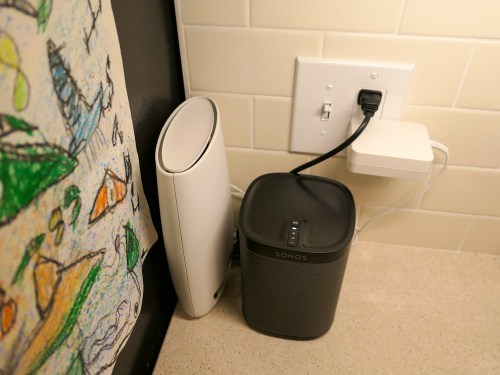
The main router connected directly to my cable modem. I positioned the ‘satellite’ unit on the corner of our kitchen counter by the refrigerator next to an existing Sonos Play:1 speaker.

Both Orbi units are larger than I’d prefer, but positioning them so the thinner side faced forward cut down on the footprint.
(My wife still noticed the satellite immediately. The fact that that a small but growing technology hub is creeping into the kitchen and taking over valuable counter space is a topic for another day.)

The good news is the resulting WiFi signal… is amazing… everywhere in the house! (Problem… solved!)

The Unwritten Last Installation Step
One huge step that nobody talks about when replacing your WiFi system is getting all of your electronics successfully back onto your new network. Sure, that’s an obvious process for some of your tech, like your iMac and Apple TV.

But there’s a whole secondary tier of gear that operates in the background of your smart home, and you may not even remember how to update the WiFi settings.

Case in point, I realized I wasn’t so smart when it came to updating…

I had to relearn how to access all of the WiFi settings. So leave yourself some extra time to handle this inevitable residual WiFi clean up.

The Tail Wags the Dog
One final point on my stick-in-the-mud Canon USB printer… Yes, it’s functioning with my new Orbi system, but I had to first download the Netgear ReadyShare Printer Utility to my iMac. That’s the conduit to bridge a USB printer to the Orbi network.
(Just connecting the printer with the USB cable isn’t enough.)

And moving forward, I still need to ‘reconnect’ my Canon printer using the Netgear app on my iMac every time I want to print. This adds an annoying extra step to my printing workflow.

It’s not at all elegant, but it works.

Happy with My Orbi
So, my new Netgear Orbi is in place, and my WiFi network is now in peak condition throughout my house.

But who knows what future tech ‘enhancements’ will challenge my Orbi’s orbit. If there’s one fundamental truth to living happily with your tech, like anything… it’s never a ‘set it and forget it’ relationship.

For now, this home IT guy is delighted with his Orbi.

How to Prep the Shot for your Next Video Call

Your smartphone suddenly comes to life. It’s an incoming FaceTime request! Are you really ready for your close up?

Remember that innovative ‘PicturePhone’ room on Space Station V from “2001: A Space Odyssey?” Well, it wasn’t long until that crazy sci-fi videophone idea actually became a reality, but you certainly didn’t see many landline videophones in homes over the following decades.

The concept took it’s time gaining wide acceptance. And it required now mainstream computer and mobile apps like FaceTime and Skype to help the general population break through the video barrier on phone calls.

It’s such an obvious ‘upgrade’ to be able to see someone too, and where the bandwidth allows, it feels like many people today freely use their video-calling apps.
(If they’re not texting each other instead)

But let’s face it… lots of other folks still aren’t that excited to be surprised by a sudden video chat request.

And why is that?

The Power of Video
There’s always been a certain anonymity to voice-only calls. Nobody knows where you are, what you’re doing or what you’re wearing… or not wearing.

You can also multitask while on a voice-only call.
…or so I’m told.
😉

Now, you add video into the equation, and BAM… you’re right there in front of someone!

On the upside, mobile video calls can bring the caller right into your surroundings… If you’re walking in a parade or waiting on line at a ski lift, those types of environments can provide rich texture to what you’re up to in that moment. It’s the ‘location’ bonus that makes your video chat that much more interesting.

A Video Chat Isn’t Always a Random Moment
But when you’re at home and those FaceTime tones chime, you may have to scramble to put together an acceptable ‘visual presentation.’

So I think you need a plan for how to appropriately prepare, especially if it’s for business…

No, you don’t need to build a little TV studio set in your living room that you’d run to.
(Like Kramer did on “Seinfeld”)

But it wouldn’t hurt to take a few ‘reasonable’ steps in that direction…

Choose Your Shot
You should definitely decide and test what your ‘shot’ is going to be.
You don’t want to look like you’re in your own hostage video. Nor do you want to reveal that basket of unfolded underwear and socks waiting for your attention.

Think about your background. You may have to stage a few of the items and remove some of the clutter.

Using a desktop computer or even a laptop for your camera probably won’t give you the flexibility you’ll need to create your desired shot. That’s why a more portable device is the way to go, if you have that choice.

But holding a smartphone or tablet in front of your face for a half hour or more is logistically challenging.
(Plus, your unstable shot will likely make the viewer seasick!)

To create a more stable shot, you can certainly pile up a bunch of books for a good height and position for your propped-up device.
(I’ve done it.)

However, that definitely falls into the category of ‘wonky,’ and it’s never perfect.

There’s got to be a better way to more easily mount your smartphone or tablet into an exact position to get the ‘perfect’ shot.

Well, of course there is…

Lock Your Shot with a Flexible Mount
There are a variety of gooseneck smartphone/tablet mounts on the market which will solve the problem. You simply grip and tighten the gooseneck’s base to the edge of your table or desk. And then you move the gooseneck into the exact height and position you need.
(A little higher is usually better for the angle towards your face)

And… voilà! Your hands-free solution is in place!

I decided to go with the Mingo Gooseneck Tablet Holder and Desk Mount for $26.99 on Amazon.

It provides three different mounts that screw onto the end of the gooseneck. Those options will keep you covered for both smartphone and tablet use.


The Mingo is a little more expensive than the competition, but the reviews suggest it’s more durable over time. I also like that its 28.7” gooseneck is longer than most of the choices. That makes it easier to pull it into the perfect position on your desk.

Give Your Face Some Light
You’ll also want to find a little soft lighting to help remove any harsh shadows on your face. One option is to simply position yourself in front of a window.
(As long as you’re not in direct sunlight)

If that doesn’t work with the angle of your planned shot, you can hang a portable light in front of your face. A really inexpensive solution is to use a round, hanging paper lantern.

This 17 ¾” diameter shade made by Ikea is a good choice.
It sells on Amazon for $16.99.

Then, you attach the shade to a bulb mount and power cord.
This one on Amazon costs $9.99. It’s 20 feet long and sports an on/off switch.

It’s a really simple solution, and it’s actually used as a remarkable lighting hack by some professional TV and video lighting gaffers I’ve worked with.

Look at the Camera!
And now that we’ve come this far to create a professional-looking shot, there’s one more thing…

Always focus your eyes on your device’s camera dot… not at your own image. Otherwise, you’ll always appear to be looking somewhere else as opposed to the person you’re video chatting with!

And that just becomes annoying.

Your Smartphone Should Give You the Best Shot Possible
So, the next time you need to do an important FaceTime or Skype session with someone on the Kubrickian ‘Space Station V’ or perhaps with a business contact in a more terrestrial location, now you’ll be prepared to look your best…
Hands-free!