At Home with Tech

Unlock the power of all your technology and learn how to master your photography, computers and smartphone.

Category: Tech How To

How I Listen to SiriusXM at Home
The sounds of your SiriusXM Satellite Radio subscription don’t have to be silenced, because you’re stuck at home. Here’s how I moved my SiriusXM stations from my car to my Sonos speakers…

I’m not driving nearly as much these days, because I’m fortunate to be able to work at home during these challenging times. While I don’t miss all of that traffic on I-95, I must admit that I actually do miss the visceral experience of driving.

  • That sensation of movement
  • Acceleration
  • Controlling the machine

I also miss listening to my SiriusXM Satellite Radio stations while driving
my Toyota RAV4.

I always considered my satellite radio subscription a luxury. But I rationalized its relatively expensive cost through daily use. When my car began hanging out next to my garage as a new norm, my SiriusXM value equation disintegrated.

Bringing SiriusXM Home
But of course, SiriusXM does offer the opportunity to stream its channels in your home. So, I decided it was time to do exactly that. But I didn’t want to spend more money on additional hardware.

The good news is there are a variety of ways to bring your SiriusXM subscription to your existing devices. The most direct approach is to listen on your computer, or through SiriusXM’s smartphone app.

Instead, my preference was to connect via my Wi-Fi speakers. (You may recall that I’ve been enjoying my Sonos devices.)

So here’s how I connected my SiriusXM stations to my Sonos wireless speakers at home.

SiriusXM on Sonos Play:1
First, I brought my SiriusXM world into my iPhone’s Sonos app, which controls my older Play:1 Sonos speakers. (They’re not voice-enabled.)

Here’s how to do that:

  • Open your Sonos app
  • Tap ‘Settings’ on the bottom right
  • Under ‘Music & Content’ tap ‘Add a Service’
  • Search and choose ‘SiriusXM’
  • Log in

You’re done!

SiriusXM on Sonos One Using Alexa
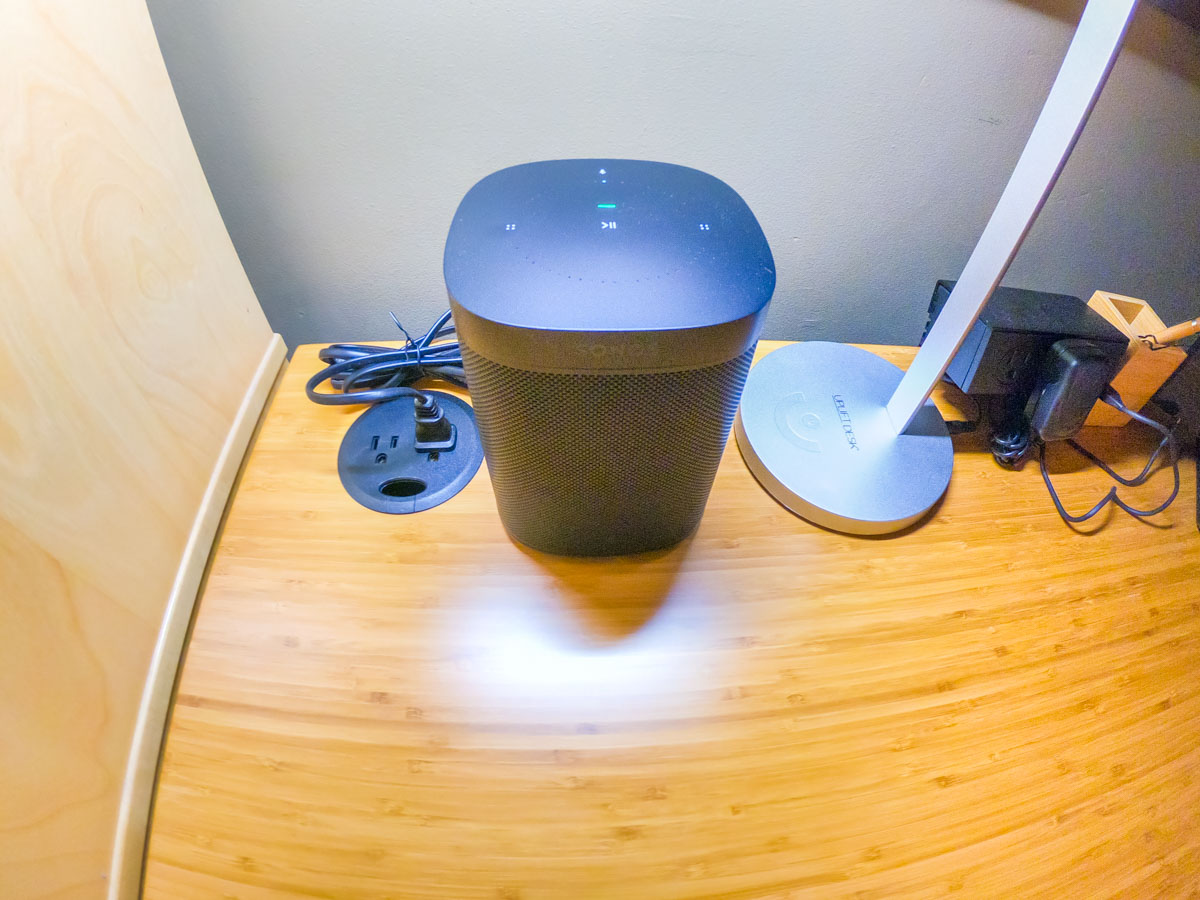
Next, I focused on connecting my Alexa-enabled Sonos One smart speaker.

To empower Alexa to play SiriusXM via voice command, you have to ‘enable the skill’ and link to your SiriusXM account.

Alexa sent me easy instructions via my Alexa iOS app.
(She’s so helpful.)

Keeping Up with the Times
While researching this little audio project, I realized there are actually numerous ways to bring SiriusXM into other devices in your home, including Apple TV, Google Nest speakers and Roku.

The SiriusXM value equation can easily be restored. It’s just about adjusting your mindset that SiriusXM is not only for car use.

That said, do I actually need satellite radio at home? There are already plenty of ways to stream other radio and music sources.

(pause)

Well, I hope that one day in the not too distant future, I’ll be spending at least a little more time in my car. Until then, I feel so much better knowing that I’m not burning money by entirely ignoring my SiriusXM subscription.

Control Restored
As I write this, I’ve got the sounds of SiriusXM gently playing in the background on my Sonos One speaker. Alexa awaits my next voice request for a station change.

I’m at home. And now, so is my SiriusXM subscription.

One more component in my life I’ve got back under control.

I’ll take it.

How to Find iCloud Email Folders that Disappear in Outlook for Mac

Do you sometimes feel like you need a magic wand to handle your computer glitches? Here’s my story about how I fixed my subfolder syncing problems in Outlook for Mac.

“Shall we play a game?”

Remember that line from the 1983 movie, “WarGames,” starring Matthew Broderick? That playful computer certainly caused a lot of trouble!

Recently I had what felt like a similar experience with my own computer. No, there weren’t any global implications. That said, I did feel like my world was at risk of imploding.

Why?

I thought I had lost all of my iCloud email subfolders I had created under my ‘Inbox’ to help keep my email organized…

Well, these subfolders weren’t exactly gone. They just weren’t showing up in my Microsoft Outlook for Mac. I could see them on my iPhone’s native Mail app, but not in Outlook on my iMac. (I’ve been using Outlook for Mac on my iMacs for years.)

Game Over?
So, I knew I had some kind of sync issue that my computer or the software had thrown at me.

Ha Ha.

Ha.

(Not funny)

I immediately thought of the nightmare of having to delete Outlook for Mac and then rebuild my email all over again on my iMac.

Instead I took a deep breath and put on my Tech Zen hat. I decided to do some Googling for a less dramatic solution. And happily, I didn’t have to go too far down the rabbit hole.

IMAP Syncing
The answer has to do with syncing your IMAP Folders. You need to make sure each of your iCloud email subfolders are properly synced in Outlook for Mac for them to show up. Here’s how you do that:

  • On the top bar of Outlook for Mac, click on the “Tools” dropdown.
  • Click on “IMAP Folders.”
    There, you’ll see all of your iCloud email folders, including the ones that are missing in your email display.
  • Click on each folder that you want to (re)sync and then click on the green ‘Subscribe’ button on the top left. As soon as your subscribe a particular folder, the name turns bold.
  • And then, voilà! Your missing email folders will magically reappear in your Outlook for Mac.

Human Error?
Why my disappearing email subfolder crisis suddenly showed up in the first place, I have no idea. Sure, it’s easy to blame the human. We’ll never really know.

What’s important is I’ve got all of my email back in place on my iMac. (It wasn’t difficult. You just need to remember the IMAP Folders ‘Subscribe’ trick.)

Now, I’m simply back to my general state of détente with my computers and software.

At Home with Apples

If you enjoy apple picking and apple cider donuts, you may be interested in what happened during our weekend adventure to Rogers Orchards.

A lot of advice out there talks about spending time outdoors to help manage the everyday stresses caused by the pandemic. If apple picking has previously been part of your annual routine, I think you should move that trip to the front of the line for your next weekend activity. It’s a great way to reconnect yourself to the ‘normal.’ Just be sure to wear your mask and maintain social distancing.

Visiting Rogers Orchards
This past weekend, my family and I visited Rogers Orchards in Southington, CT. We picked apples to our hearts’ content under the bright, warm sun of a cool October day.  The apple orchard was about a two-minute drive down the road from its 336 Long Bottom Road farm store and bakery.

I’ve found that taking pictures of apple trees is similar to picking apples. It’s mostly about the experience. What you bring home isn’t always as amazing as you hope for, but you always feel like the effort was worth it. 

While you’re out there, don’t forget to focus on the colors of fall foliage. That’s always a good bet.

Timelapse of Tree during Fall

Look for the Views
Plus, there’s a good chance that your immersion into nature will reveal an unexpected surprise…

Timelapse of Shuttle Meadow Reservoir

I shot this timelapse of the Shuttle Meadow Reservoir at the edge of the apple orchard with my DJI Osmo Pocket camera. 

Before heading back, we stopped by Sunset Rock State Park to do a short nature walk around part of Crescent Lake. The views were gorgeous.

It was the perfect fall day. Normality restored.

At Home with Pumpkins?
If you’re lucky, you don’t always have to drive an hour away to recenter yourself and rediscover the gifts of nature. Sometimes it’s growing right outside your window.

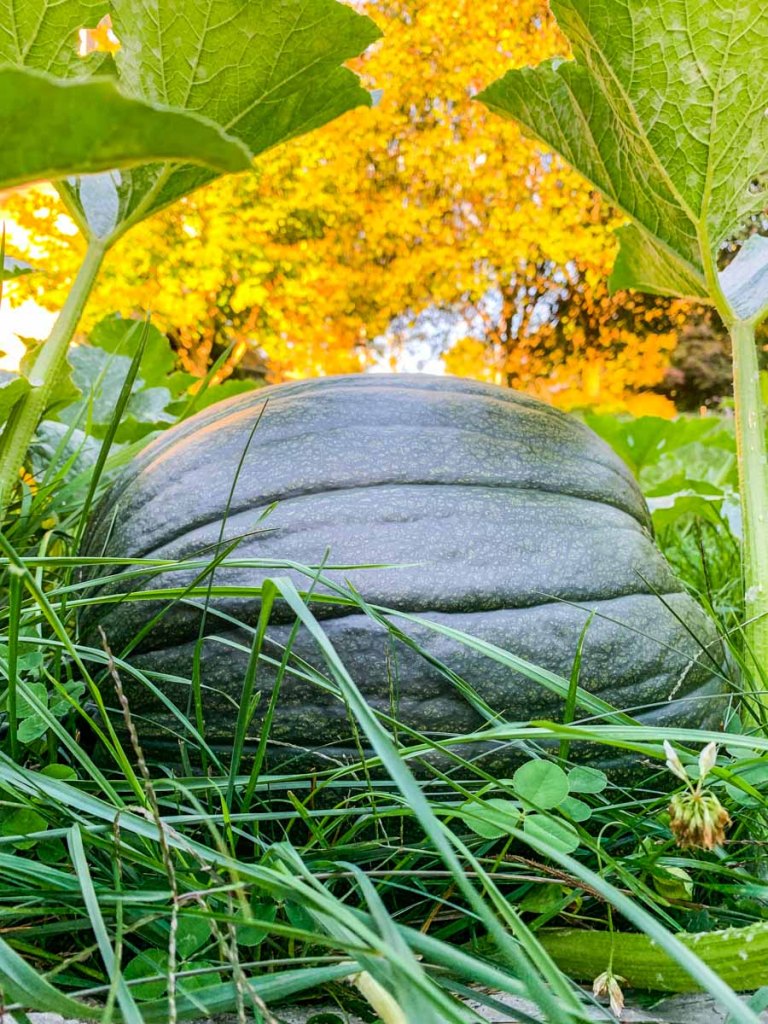
This surprisingly huge Lester pumpkin materialized after its host vine burst outside of the confines of our garden. I think it’s on track to be ready in time for Halloween!

But I’m getting ahead of myself. Now, it’s time to eat the rest of our apple cider donuts from Rogers Orchards.

Did I forget to mention the donuts?

#Comfort