At Home with Tech

Unlock the power of all your technology and learn how to master your photography, computers and smartphone.

Category: Tech How To

How to Record Better Field Audio When Shooting iPhone Videos
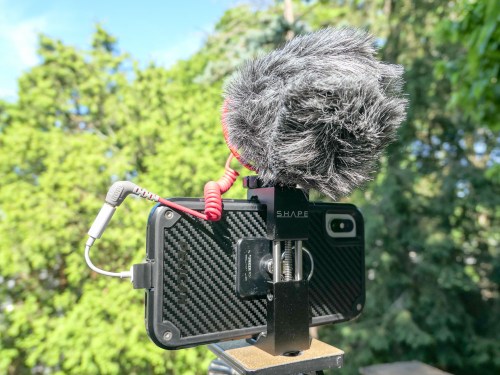
I admit it… I’ve created the Frankenstein iPhone. Why? I simply wanted to enhance its 4K video recording capability with cleaner audio in the field. Here’s how I did it…

Look, I know my iPhone XS Max isn’t a ‘real’ video camera (although it is). And you wouldn’t think it’s supposed to carry the weight of capturing conversation in the not-so-quiet outdoors. But why not?

With the right lighting conditions, an iPhone XS Max can capture beautiful 4K video. And its multiple onboard microphones do an effective job in many situations. Its only real limitation with field audio is handling windy conditions. And that’s the case with any video camera that doesn’t have an attached directional microphone with a windscreen.

So, why wouldn’t the solution be to simply attach a directional mic and windscreen to my iPhone?

And that’s exactly what I set out to do…

The Price for Better Audio in the Field
Audio production is an expensive business, and you can easily spend more on field audio equipment than the price of an iPhone.
(Seriously)

So I gave myself a budget of $100 to see what was possible…

My final ‘creation’ was both hideous and glorious. I’ve truly created a Frankenstein iPhone. I probably should feel ashamed, but I don’t.
Consider yourself warned…

Rode VideoMicro
I zeroed in on the Rode VideoMicro compact on-camera microphone. Rode is well regarded in the audio industry, and this inexpensive cardioid condenser microphone that’s marketed to the DSLR market was a prime candidate for my little project.

Cold-Shoe Clamp
But of course, an iPhone isn’t a DSLR with a cold-shoe mount to easily attach a microphone. So you’ve got to somehow anchor a cold shoe mount to the iPhone…
The Shape Smartphone Aluminum Clamp is one solution.

Lightning Dongle
The VideoMicro uses a 3.5mm plug, which won’t plug directly into an iPhone’s Lightning port. So, the next step is to use an Apple Lightning to 3/5mm Headphone Jack Adapter.

TRS to TRRS Cable
And before you can use the VideoMicro with a smartphone, you also need the TRS to TRRS cable (Rode SC7 Cable). That’s instead of the TRS patch cable that comes in the box… which will not work with the iPhone.

Included Accessories
Perhaps most importantly, the VideoMicro comes with a furry windshield (sometimes called a “dead cat”) to handle the outdoors. It also has a nice little shock mount to suspend it in the cold shoe.

Final Price Tag
Altogether, my Frankenstein plan totaled $104.54. There’s nothing simple or elegant about it, but the Rode should immediately come to life when paired with an iPhone…
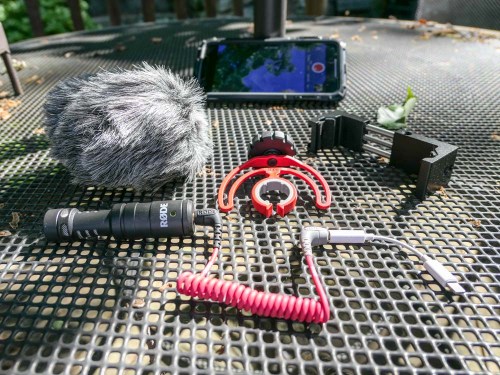
Click.

Rode Video Mic Me-L is the Runner-Up
I chose the VideoMicro over Rode’s Video Mic Me-L, which plugs directly into the lightning port of a smartphone. Yes, Rode’s design engineers have actually created the exact product I needed, but I didn’t bite…

The deal breaker was the snug fit required by the Video Mic Me-L that most iPhone cases would prevent. I just couldn’t handle the prospect of having to take my iPhone XS Max out of its cozy Pelican case every time to pop on a microphone.

And even though my VideoMicro is a more cumbersome (and expensive) solution with all of its necessary ‘adapters,’ the fact that it lets me keep my iPhone in its case is the more important feature.

Test Results
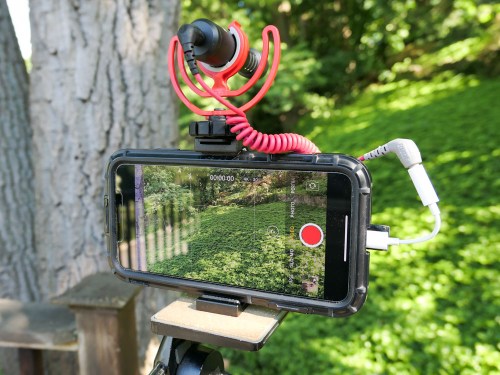
First off, my Rode VideoMicro works just fine with my iPhone XS Max. I saw some online chatter that it’s incompatible…
NOT TRUE.

I also read an online comment that there’s a slight audio delay when using the Rode VideoMicro and an iPhone…
TRUE!

Many people may not notice the two-frame lag, but if you’re a video editor, it’s pretty obvious.
(I’m not surprised with all the necessary cable Macgyvering.)

But it’s not a deal breaker, as long as you intend to edit your video footage. All you have to do is separate (unlock) the audio track from the video and then slip the audio track forward a couple frames.

It’s a straightforward step when using standard editing software like Final Cut Pro X, though an admittedly unnecessary step if there wasn’t an audio lag to begin with.

The VideoMicro provides clean, crisp sound… though it is a bit thin compared to what the iPhone’s onboard microphones capture in otherwise perfect conditions. So, you might also want to add in a little bass while you’re working with it in your editing software.

Perfection Not Required?
At this point, you should be wondering why anyone would want to use this Rode and go through all of these extra steps.

Well, don’t forget why I Frankensteined my iPhone in the first place… It’s to capture more directional audio that’s not as affected by the windy outdoors.

And it does successfully deliver on that value proposition at a decent price point.
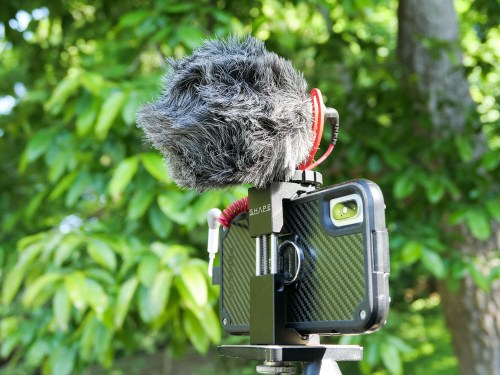
I also must admit that using my iPhone XS Max with the VideoMicro is a still completely imperfect audio upgrade solution, because it doesn’t provide one additional key feature…

You can’t monitor the audio as you’re recording it!
(Don’t forget that the iPhone’s lightning port is already occupied as the microphone input.)

So, if you want to be sure you’ve captured good sound, you need to review your video clips in the moment. And depending on how much time you have, that can be a real drag…

And let’s face it, as much as the VideoMicro can give you better field audio, it’s never going to do the same job of a more expensive shotgun microphone or a lavalier microphone.

Still…

Better iPhone Audio in the Field for $100
When the need presents itself, using the Rode VideoMicro is a clear step in the right direction.
(And if nothing else, the monster you’ve created that was once a sleek iPhone is sure to be a head turner.)

Recording audio has always been the forgotten cousin of video production… and often the Achilles’ heel of any video shoot.

If you’re serious about putting your smartphone to use recording people talking outdoors, you’ll eventually want to invest in some additional audio muscle, especially if you’re shooting in the field with noisy air flow.

For a hundred bucks, Rode’s VideoMicro along with a team of cables and small clamp is a solution that will help get the job done!
Green Bubble Texting Fix if You Use the Messages App on a Mac

The color of your texting bubbles may not matter so much when using your iPhone, but it can be a big problem if you’re using the Messages app on your Mac. Here’s how to erase this pesky issue…

Lately, I’ve been trying to fix a little flaw in my ongoing role as the family photographer. It has to do with what happens after I take my photos…

I bring them back to my iMac, import them into Adobe Lightroom, choose the best ones, tweak and color balance, and then finally I share the few gems with family and friends. Of course, the big problem with my process is it takes time… sometimes lots of time to get to the finish line. It can be a week… sometimes two.

These days, everyone expects almost instantaneous sharing of pics.
Clearly, I need to keep up.

And I’m happy to report that I’m doing better, and here’s why…

Emailing Vs. Texting Photos
Now, I force myself to quickly find the best few pics in a batch and singularly focus on them to get them ready to share. And if I never get to the rest… well, maybe that’s okay, because perhaps all that really matters are those few best photos anyway.
(Are you feeling a disturbance in the Force?)

One other important detail to my evolving photo-management process is how I’m sharing my pics… Usually, I email them about. If I have more than a few to share, I create a Dropbox folder to house them. And then I forward along the Dropbox link in my email.

How easy is that?!

Well, not easy enough…
Because it still requires folks to click on the link and then download the photos.
And that’s takes time.

I’ve noticed that some of my friends prefer to text their photos, and I’ve experienced the simplicity of saving a photo that’s been texted to me directly to my iPhone.

Hmmm…

And while I didn’t want to move my photo sharing process to my iPhone (like the rest of the world), I realized I could take advantage of a texting workflow while still using my iMac…

…by using the ‘Messages’ app.

A Problem with Using the Messages App on Your Mac
You may recall, I’ve recently focused on my son’s 9th birthday and what to get him…
(My gift was a build-your-own computer kit!)

Immediately after his birthday party, I wanted to send out some party pics to our friends, and I figured this was the perfect opportunity to try out my iMac’s Messages app as my distribution method…

But I immediately ran into a roadblock with one of the phone numbers I used…
The photo just didn’t go through!

Huh.

After a moment, I realized my friend wasn’t part of the Apple ecosystem (no iPhone or Mac). So he didn’t have iMessage functionality…
(The blue bubble type)

And my Mac isn’t as clever as my iPhone which can simply convert an iMessage with a photo to a MMS text with a photo.
(The green bubble type)

So now what???

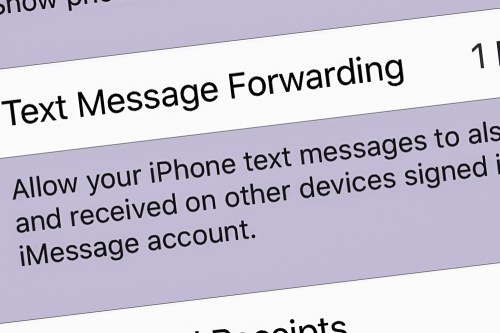
Text Message Forwarding
Well, the fix was to change a buried iPhone setting to better use Messages on my iMac. You simply turn on the ‘Text Message Forwarding’ feature…

Here’s how you do that on an iPhone:

  • Go to ‘Settings’
  • Tap on ‘Messages’
  • Tap on ‘Text Message Forwarding’
  • Then select the device you want to connect (iMac)

And as soon as I made this adjustment, I resent the photo, and it immediately went through.

Problem solved!

Green-Bubble Fix
With my iMac and iPhone now teamed up in this particular way, the path had been cleared for me to freely share my photos without worry using the Messages app on my iMac.

And the result…?

I received almost instant feedback that my pics had been received and were appreciated.
Now that’s satisfaction!

Text Message Forwarding is an easy fix for your green-bubble moments.

I highly recommend activating it…

5 Packing Tips for Your Tech When Traveling Overseas

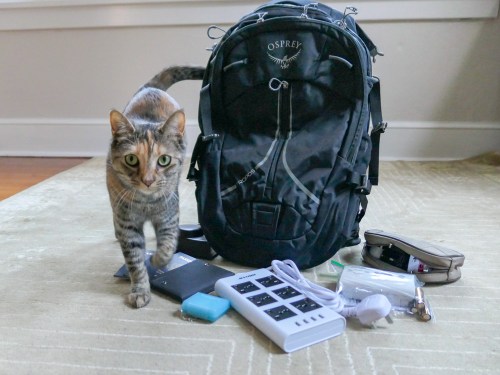
When you’re packing your carry-on bag, here are a few tips to help you focus on the tech you really need to bring along. (Or you can ask your cat.)

My family and I just got back from a fun holiday in London. In preparing for our trip overseas, I asked myself two questions to help decide what technology to pack.

  • How much tech do I really have to bring along?
  • How am I going to protect it?

Of course, you really don’t want to pack anything more than you need. That said, if you want to play with some of your gear while on vacation…well, isn’t that what vacations are for?!

So, it’s a balancing act of sorts.

If you find yourself confronting similar questions, here’s one traveler’s tech packing list to consider…

1.
Portable Power Strip and Surge Protector
It’s likely you won’t have access to as many power outlets in your room as you’d like. Bringing along a portable power strip will certainly help you get all of your tech powered and charged up overnight. And electrical surge protection is a really good idea when you’re staying in a strange place. Finally, make sure the unit can handle different voltage standards.

2.
Compact Portable Charger to Throw into Your Day Pack for On-the-Go Power Back Up
You certainly don’t want your smartphone to choke when you’re traveling through a long day in an unfamiliar land!

3.
New SDXC Memory Card for Your Camera
Yes, standalone compact cameras can still get certain shots that a smartphone will have trouble with… especially in low light.

  • SanDisk Extreme Pro SDXC UHS-1 Card, 64GB
    $20.49 on Amazon Prime
    (Sure, you can manually delete videos and photos from your existing SD card to free up space for your trip. But for only twenty bucks, you can start with a fresh card that’s instantly ready to store as many media files as you can possibly create on your trip!)

4.
Portable, Battery-Operated Carbon Monoxide Detector
You never know, right? If you’re not sure if your room has one of these, it makes sense to pack this.

5.
RFID-Blocking Passport Wallet to Prevent Data Skimming
There’s some controversy as to whether you really need this level of protection, but I say better safe than sorry.

Additional Packing Prep to Consider…

Do You Need a Voltage Converter?
Of course, you’ll need to bring adapters to fit electrical outlets when you’re traveling overseas. England uses Type G electrical plugs, and the voltage in the sockets is 230v.

Since the voltage in U.S. power outlets is 120v, consider the need to take a voltage converter in addition to your plug adapters.

The battery chargers for all of the mobile tech I pack happen to all work in dual voltage modes… 100 – 240 volts.
(Listed on the battery charger in really small print.)

So, I didn’t need to bring a voltage converter to England.
(But the power strip I brought still required plug adapters.)

Add International Service to Your Wireless Plan
My iPhone has AT&T Wireless service. The easiest way to adjust my AT&T plan while overseas is to go with the $10/day “International Day Pass.”

For the ten bucks, you’re essentially mimicking the same plan as you use when you’re home in the United States. You don’t have to worry about data limits or the threat of any additional usage costs. It may not be the cheapest way to use your phone internationally, but I still think it’s a great deal to give your smartphone full functionality.

Bring All of Your Gear Home
It may be an obvious point, but don’t leave any of your expensive tech behind! Stay organized and keep track of all of the little support pieces like battery chargers and cables.

And when you get home, make sure you quickly get to work organizing and sharing the photos and videos you shot on your trip. Family and friends want to see them!

Happy travels!