If you crave instant access your best family photos from yesteryear, here’s how to create your own portable archive…
My family and I attended a little party the other day… a reunion of sorts. It consisted of four families with kids of the same age who spent time together at playdates a few years back. One family then moved to New York City, and we really hadn’t seen them for a while. So, they were the special guests at the party.
Joining the Time Warp
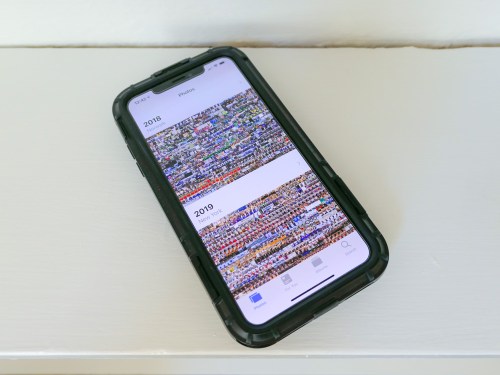
Of course, everyone commented on how big all of the third graders had become. Inevitably, one of the parents whipped out her iPhone and began searching for old playdate photos when the kids were three. I watched her two-fingered gesture slide upwards again her smartphone’s surface as she commanded her iPhone’s photo library to speed backwards in time.
And then another parent activated her iPhone and began her own photo time-warp search. And then my wife did the same…
And before I knew it, the group was excitedly sharing shots and reminiscing about the good old days.
Experiencing Photo Failure
And I just stood there, happy that these iPhones had provided instant gratification, but stunned that mine hadn’t contributed. In fact, I didn’t even try to look for any photos. I knew I didn’t have one to share… not in that moment.
Sure, I could go home and easily find whole bunches of old playdate photos in the appropriate folders organized in Adobe Lightroom on my iMac. But I had no cloud access to any of them from my iPhone. My cloud photo folders through Dropbox and Apple’s Photos all contained more recent groupings of pics. I figured when would I possibly want instant access to photos from five years back? (Cough)
My iPhone’s onboard memory didn’t house photos that old either. I thought I was doing the ‘smart’ thing by not wanting to bog down my device with really old photos.
I stared into space and pondered the absurdity of it all…
If at First You Don’t Succeed…
I’d spent years and countless hours organizing tens of thousands of family photos into folders on my iMac. My focus had been to share relevant photos with family and friends while the pictures were still “fresh.”
(Old photos are old news, right?)
But now, I had encountered a huge flaw in my plan as I watched others suddenly require instant access to photos buried deep in time. Sure, the old photos were hiding in their iPhones and entirely disorganized. But the images were still there in the order they were taken, and a few finger swipes could still access them by simply warping back to 2013.
Huh.
By doing nothing with all of the old photos on their smartphones, these parents had succeeded where I had hopelessly failed.
(So, disorganization does have its benefits.)
I thought a bit more about the irony of my experience. I finally resolved to create another layer of organization on top of my current photo management plan…
If successful, I would give myself easy, mobile access to a percentage of my archival photo content to properly handle this kind of moment next time.
(We’ll get to how much in a moment…)
Create Portable Access
I’d been focused for so long on creating physical photo books as the endgame for archiving all of my best family photos. But that strategy assumed that I’d only want to access these photos from a bookshelf in my living room. That was the problem right there.
Clearly, I also needed ongoing access to some of these photos from my iPhone’s screen.
Sure, that could be accomplished by simply leaving all of my photos on my iPhone. But this limited ‘clutter’ strategy assumes I’m not taking pictures with other devices.
In fact, I’m also shooting pics with…
So, all of my digital photos, including those from my iPhone, need to flow through Adobe Lightroom on my iMac for organization, quality improvements and file backup.
And then some of these photos flow back to my iPhone via cloud folders so I can display what’s been going on in my family’s life. And when a particular cloud photo folder of a family event gets old enough that it’s yesterday’s news, I simply delete the folder.
The only necessary upgrade to this workflow is to leave some of these pics behind in long-term cloud folders as part of a portable and permanent archive of my family’s life.
Build Your Cloud Photo Archive
But I think the trick here is not to move photos out of short-term cloud photo folders into long-term folders. That’s not so simple. It’s an extra step that first requires you to review all of the photos again before you delete the folder. That’s a lot of work right there.
The moment to feed an archival cloud photo folder comes when you’re first picking out your best pics at the beginning of your entire process… not months or years later.
When you first create a short-term cloud photo folder with the pics that you want to show off, also ask yourself if there are one or two that are so great or so relevant to your family’s history that they should always be available in an archival cloud photo folder.
If so, then simply drag and drop them into the archival folder right then and there. That will take you another fifteen seconds. Maybe less.
Done.
Don’t Cut Corners
The next big hurdle to overcome is to resist the urge to simply throw these photos into one big archival cloud folder. Even though you’re only feeding it with a couple pics at a time, it will eventually become massive and difficult to navigate.
So, you have to create a number of permanent cloud folders where you can better organize your best pics.
With all of this in place, you will created a cloud photo archive of your best pics that you can easily access from anywhere!
(Plus, you’ll have an additional layer of backup and protection for these valuable images…)
Look for Efficiencies
Chances are… you’ve already done a lot of the work, especially if your cloud folder categories also exist in the photo folders on your local hard drive.
(Like me, you’ll probably still need to create a few new folders in both locations.)
Once you’ve matched up the categories, you’re essentially mirroring your new permanent cloud photo folders against your local photo folders of the same name.
Carry the Past with You
After you activate this ‘enhanced’ photo-organization plan, you’ll essentially have access to the pictures that tell the story of your life, your family and even your ancestors.
(So… not just from yesterday or last week)
And if you need to pull any of them up on your iPhone… for any reason at all… well now, you can!
(I’m sure you’ll still get stumped now and again when the need for a particular photo pops up unexpectedly. But you’ll always be in the game!)
I’ve successfully made my cloud family photo archive upgrade, and it’s a huge step forward.
Having permanent cloud photo folders to turn to is an amazing resource that everyone should carry around in their pocket!




 At Home with Tech