At Home with Tech

Unlock the power of all your technology and learn how to master your photography, computers and smartphone.

Category: Tech How To

How to Update Apple Watch’s Operating System
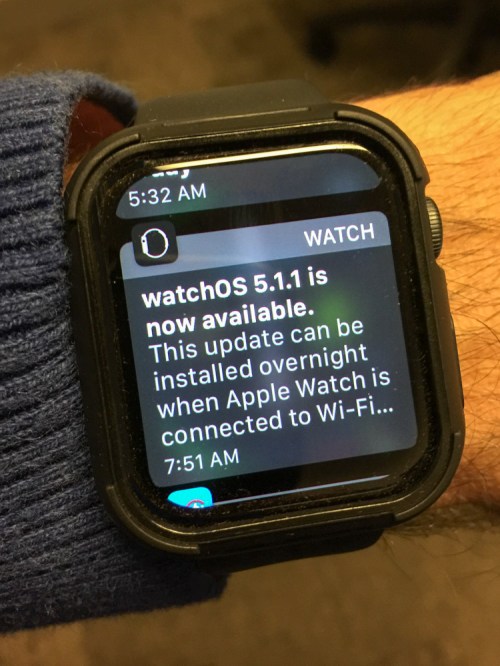
When your Apple Watch stops displaying sweet nothings about your potential and starts talking business, it’s time for a software update. Here’s how…

My new Apple Watch has been reminding me every morning that an updated operating system is available, and I can install it overnight if it’s connected to Wi-Fi.
(That’s a nice way to say that I really should be taking some responsibility as a human and keep my technology up to date!)

And of course, I forget about it the next day, and the cycle has been repeating itself.
(It would help if my Apple Watch reminded me right before I went to sleep.)

But wait a minute… my Apple Watch is connected to Wi-Fi overnight….
Why doesn’t it just update itself?

Is there something more you need to do?

Find the watchOS Update
Well, of course.
It’s just like any Apple operating system update. You’ve got to actively opt in…

For the GPS model:

  • Open Apple Watch app on your iPhone
  • In “My Watch…”
  • Tap “General”
  • Tap “Software Update”
  • Tap “Install”
  • Enter your password

And then, your iPhone begins the software download process.
…followed by the update to your Apple Watch.

Get it Done Overnight
So, much of the heavy lifting actually takes place on your iPhone.

Do you really need to do the update overnight?
(Is it that slow?)

Not necessarily, but any Apple operating system update takes some time… so, I think it’s a great practice to do it overnight when you’re not waiting for it to finish up.

Those Compliments are Nice
Happily, my Apple Watch is now updated and free to display its morning affirmations again.

I must admit, those little encouraging messages from my Apple Watch do help to perk me up as I’m working through my cup of Joe in the morning.

And yes, by the way… that’s an Apple Watch Series 4 plastic bumper I’m sporting in the photo above. I’m not proud of these training wheels, but this little third-party ‘Frankensteinian’ cover has helped me to stop worrying that I’m going to whack my wrist and scar my beautiful Apple Watch.
(It’s made by Alritz and costs $9.90 on Amazon Prime.)

So, now my Apple Watch is both up to date and protected.

#happyhuman
iPhone Fix: When Videos Won’t Rotate to Play in Landscape Mode

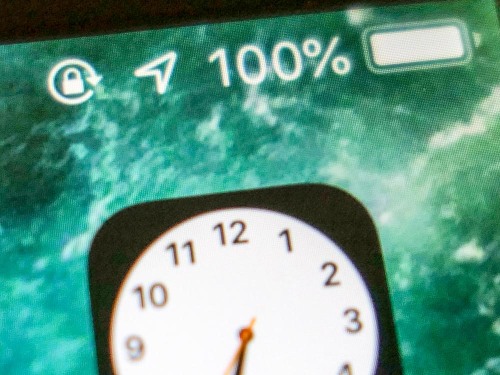
Can you identify every status icon in this image? If not, you may find yourself in trouble the next time you play a video on your iPhone…

How do you encourage videos on your iPhone to play horizontally? Well, that’s easy… you simply rotate your device on its side to cue the video to rotate and play full screen in landscape mode. Right?
(Barrett’s being a little silly.)

And to be clear, I’m not talking about vertical videos. I’m referring to horizontal videos that first pop up at a fraction of their size to fit in your vertically oriented iPhone as you typically palm it.

But what do you do when your gravity-driven iPhone reflex stops working, and your video remains locked in its portrait orientation after you’ve turned your phone?

Well, that’s exactly what happened to me!

The Icon Holds the Answer
So, I figured some setting had gone awry. It was just a matter of figuring out exactly which one it was…

The irony was my iPhone was trying to tell me the answer all along, but I didn’t recognize the hint…

In the status bar at the top of its screen, my iPhone had been displaying a little ‘lock icon’ with a curved arrow around it.


I had noticed the icon before. I just didn’t know what it meant!
(lazy Barrett)

Portrait Orientation Lock
After a little Googling, I discovered the answer. It means… ‘Portrait Orientation Lock.’ And when it’s on, that mode disables the phone’s ability to play videos horizontally.

So, here’s how you turn it off…

  • From your iPhone’s home screen, open the Control Center
  • Find the lock and arrow icon on the left side in the middle
  • Tap it to deselect it
  • Close the Control Center

It’s embarrassingly simple.

Cautionary Tale
There’s just one final unexplained piece to my original mystery… How did Portrait Orientation Lock get turned on in the first place?

Perhaps I accidentally tapped it when I was trying to use my iPhone as a flashlight. Beyond that, I’ll just chalk it up to a practical joke from the video gods.

The lesson, of course is to always pay attention to every new icon that mysteriously pops up on your smartphone. You can ignore it for a while. But eventually, its purpose will reveal itself, and not always in a positive way.

Mobile devices are constantly evolving. You’d better keep up or your digital life is going to get squeezed… just like a video that refuses to rotate properly on your smartphone.

How to Export a Great Photo from a Video Freeze

Why do video editing platforms offer the option to save a frame of video? Well, if you’re the family videographer who captured the video but missed the photo moment, a little video editing can generate the photo of your dreams. Here’s how…

Have you ever realized that you’ve recorded a great family moment on video, but you didn’t snap a single photo? Well, don’t despair! If you’re living in the world of 4K video, you can steal a frame from your video file to create a high-res image that you can frame!

Here’s how you do it on a Mac…

QuickTime
If you’re watching your video in QuickTime, there’s the quick-and-dirty way:

  • Simply find your desired frame and pause the video
  • Copy the specific section of your screen that contains the video window by pressing Apple/Shift/4 and then drag the crosshair pointer to create the appropriate box
  • That screenshot will pop onto your desktop as a PNG file
  • From there you can easily convert it to a JPEG or TIFF

iMovie
JPEG creation is really easy to do in iMovie:

  • In your timeline, simply scrub your playhead to a specific moment
  • Click on the ‘Share’ icon in the upper right corner
  • Click on ‘Image’
  • Then, select where you want to save your new JPEG

Final Cut Pro X
Note: ‘Save Current Frame’ isn’t a default option in FCPX. You’ve got to add it if you’re doing this for the first time:

  • In your timeline, scrub your playhead to your magic moment
  • Click on the ‘Share’ icon in the upper right corner
  • Click on ‘Add Destination’
  • Drag ‘Save Current Frame’ over to the left column to create this choice if necessary
  • Then, click out of Destinations and start your process again
  • The next time… choose ‘Save Current Frame’
  • Click Settings and choose your file format
    (There are more options here than what iMovie offers.)
  • Then, select where you want to save your new photo file

A Video Frame Can Create a Great Portrait
Surprisingly, this technique can also be quite useful when you’re trying to capture a more natural portrait of someone who has a difficult time posing for the camera.

Sure, it’s hard to choose a good freeze when someone’s talking, but the trick is to grab a frame immediately after a sentence. If it’s also at the end of a complete thought, there’s usually a second of a pause to select from.

Find Your Favorite Photo in Your Next Video
Other video editing platforms like Adobe Premiere Pro also have the same freeze frame capture capabilities. So, essentially you’re totally covered to create the photo of your dreams… as long as you can mine a good video clip.
(Yes, those pesky details)

Good luck!