At Home with Tech

Unlock the power of all your technology and learn how to master your photography, computers and smartphone.

Category: Tech How To

How Does Waze Work without a Cellular Connection?

We all know that navigation apps on your smartphone need to be online to function in your car. Or do they? Even with no bars, Waze can still get you where you’re going. Here’s how…

Yes, I must report that I’m still using my portable Garmin GPS in my Toyota RAV4. It’s admittedly difficult to defend my ongoing allegiance to this expensive older tech. My Garmin simply can’t compete with the more flexible user experience of navigation apps on smartphones.

But the good news is I’ve recently taken a big step forward… These days, I’ve been using Waze on my iPhone. All of the real-time traffic and hazard updates provide a nifty virtual view a few miles up the road. That’s hard to beat.

My Garmin Vs. My Waze
I shouldn’t admit this, but I often have both my Garmin and Waze operating simultaneously to see if they agree on the fastest way to go. And more often than not… they don’t. But that’s another story…

One advantage that I thought my Garmin Drive 50LMT still had over smartphone apps was its almost bullet-proof ability to maintain its GPS connection vs my iPhone’s uncertain cellular data tether while driving through dead zones. Navigation apps can’t survive that kind of hiccup, right?

But on a recent vacation road trip, I experienced what seemed to be impossible…
Waze was working without a cellular connection!

Offline iPhone GPS
My family and I were driving through some backroads in New Hampshire, and I looked at my iPhone, which was mounted to my dash via my Bunker Ring. I realized that while Waze had indeed lost all cellular connectivity, it still appeared to be functioning normally. As we drove, it continued to correctly display our location and the distance to our next turn. But it had no signal!

How was that possible?!

The Little-Known GPS Chip
After doing a little research after we got home, I realized that my iPhone was able to pull off this trick by using its built-in GPS radio. Yes, my iPhone has its own GPS functionality as do other smartphones! Its GPS chip operates independently of cellular data, and that’s why Waze was still able to see in the digital dark.

Sure, my Waze app was hobbled without its connection through AT&T. It couldn’t provide crowd-sourced traffic and hazard updates or recalculate my route. But Waze wasn’t entirely down for the count either.

I imagine at some point, Waze would have needed to connect back to its servers to download more map data, but for the fifteen minutes or so that I was driving offline, Waze was able to keep up with the twisty road ahead!

Impressive… most impressive.

Your Smartphone is at Home with GPS
There are actually lots of folks out there taking advantage of their smartphone’s GPS chip in places where cell coverage is nonexistent. They’re using apps designed to download maps ahead of time, before the trip begins.
(Waze can’t do this.)

But for me, I’m just exceptionally pleased knowing that Waze can survive for a while in a data-free zone using my iPhone’s GPS radio.

And if that can’t reverse my irrational allegiance to my Garmin Drive, I’m not sure what else will!

How to Play a Long Audio File from an Email on Your iPhone

If your audio file abruptly stops playing when your iPhone or iPad goes black, it might be time to find a home for that file. Let me explain…

Sending large attachments through email isn’t such a big deal these days. Sure, there are still limits, but emailing a 20MB audio file isn’t a crazy idea. So, when you receive one, the intuitive response is to simply tap on the file icon and listen. And that often works just fine.
(Thank you, Apple.)

But eventually, there’s a problem with the tap-and-listen approach using Apple’s native Mail app…

If the audio file runs longer than the auto-lock setting when your iPhone goes black… the file will suddenly stop playing.

And then, when you wake your iPhone to keep the file going, the file doesn’t remember where it left off. So you’ve got to manually scrub through to get to the right place to keep going.

How elegant is that?

Mrs. At Home with Tech
Someone I know (let’s just call her ‘Mrs. At Home with Tech’) created a clever workaround by simply setting her iPhone’s screen to never turn off.

And while that did the trick, and her audio file played through without a hitch, ‘Mr. At Home with Tech’ thought there had to be a better solution…

Beating ‘Tap and Go’
Of course, ‘better’ is usually a relative term. If you’re clocking speed to solution, I’ve not found a better method than my wife’s tap-and-go approach. But that trick also requires that you remember to turn off your iPhone’s screen when the audio file finishes.

Otherwise, it will shine bright throughout the night, possibly *freaking out your partner when he/she wakes the next morning bathed in an eerie iPhone glow.
*Entirely theoretical scenario… This did not happen to me. Well…

I expect that an AI-driven iPhone future isn’t that far off when your device independently pops on and off to perform certain tasks it deems appropriate. And humans will eventually get used to that just the same as all the 24/7 buzzing and pinging from our chattering smartphones.

For now though, I prefer that all the iPhones in my home at least have the appearance of following human preferences and offer the semblance of sleeping along with their human overlords/companions/pets (just future-proofing this sentence).

Save It!
For uninterrupted access and continuous playback, a more effective first step is to save the file before playing it. That way, it will continue running, even when your iPhone’s screen goes dark.

But there’s still a hiccup here… I’ve not found a way to simply save the file to my iPhone or easily move it into the iTunes ecosystem.

The solution is to move the file to a third-party app. That will do the trick!

Dropbox to the Rescue
There are many apps that can handle this need, but I’m a big fan of Dropbox.
So, here’s how you do it with Dropbox…

Tap on the audio file’s icon.
A QuickTime player window will open to begin playing the file.
On the bottom left, tap on the share icon (little square with an upward arrow).
Find your Dropbox icon.
Click on “Copy to Dropbox.”
The Dropbox app will open up.
Then, save your file to the Drobox folder of your choice.

That’s it.

5 Taps is better than 1
It takes 4 taps… maybe 5, if you move the file into a particular Dropbox folder.

That math can’t beat my wife’s ‘tap-and-go’ approach, but now that the audio file actually lives somewhere outside your Mail app, you’ll have more control of the file and be able to listen to it regardless of your iPhone’s screen status.

Still, not a perfect solution, but it gets the job done.
(If you have a better idea, please let me know!)

How Parents Can Take Control of Notifications on the Family iPad

If your children are starting to read iMessages on your iPad or iPhone that aren’t meant for them, it’s probably time to change the settings in your device. Here’s how…

So, my almost eight-year-old is playing Minecraft on my iPad in the living room, and he turns to me and says, “Mommy is writing me a message!”

“What?!”

I’m a little alarmed, because even though my wife wasn’t at home, she never uses electronic communications with our son and certainly not using something like Minecraft.
(You can probably guess that I’ve been thinking a lot lately about who he will be interacting with when he eventually engages in multiplayer video games online.)

I jump over to take a look.

Phew.

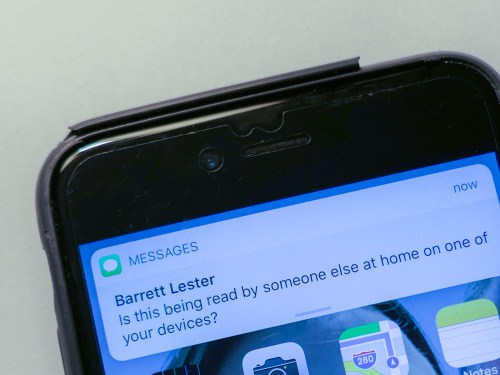
It’s a simple text message banner that popped up at the top of the iPad screen from my wife to me about camp plans for our second grader this summer.

It has absolutely nothing to do with the Minecraft platform.

The Early Taste of a Texting Stream
My wife referenced our son’s name in the text, which is why he mistakenly thought it was written to him.

Yes, he can read now, but he got confused by the style of my wife’s texting banter with me.
(Plus, it’s probably one of the first texts that he’s encountered.)

So, this wasn’t really a problem other than an iMessage to my iPhone also showing up on my linked iPad that my son happened to be using.

Ironically that feature is supposed to be a nice iOS bonus provided by Apple.
But it was clearly time to turn the option off on my iPad.

Our son doesn’t need to be privy to the Lester family texting stream…
(Well, at least… not yet!)

How to Turn Off Pop-Up Text Banners
Using iOS 11.3 –

  • Tap the ‘Settings’ gear icon
  • Tap ‘Notifications’
  • Tap ‘Show Previews’
    You’ll probably find that it’s defaulted to ‘Always’
  • Tap and change to ‘Never’

But that’s not all you have to do…

There is No Global ‘Off’ Switch
I decided to visit the Apple Store in Grand Central Terminal to gather a little more advice.

An Apple Genius told me that you also have to individually turn off each app from proactively trying to send you banner notifications on your device.
(He mentioned that detail to me several times. I imagine I’m not the only one who might be confused by the extra step.)

To ‘completely’ halt your iMessage banners…
While in Notifications, go down your list of apps until you find ‘Messages.’

  • Tap ‘Messages’
  • In ‘Allow Notifications,’ slide the little circle to the ‘off’ position

And that will finally get the job done!

Now, you’ve got to repeat this step for your other apps…

There are a few other settings to consider if you want to be a little less draconian about muffling your iPad or iPhone, but I was satisfied with hobbling my iPad to keep my young Padawan away from the constant buzz of the Net. My iPhone was providing that Borg-like public service to me quite sufficiently, thank you very much.
(I know I’m mixing my science fiction metaphors.)

But then I began to think about my own experience with my iPhone’s many chatty apps…

Less is More
After considering the issue for a moment, I decided that I was, in fact, being interrupted by way too many banners from apps wanting to share ‘critical’ news.

Perhaps I should take a few minutes to review all of them and silence the ones I didn’t want to hear from all of the time.

And that’s exactly what I did!

Of course, I kept ‘Messages’ fully activated, but I did turn off ‘Repeat Alerts’ from ‘Once’ to ‘Never.’
(I usually get it the first time.)

You Can’t Hide Your Child from the Connected World Forever
Now, I find that my iPhone is a little less ‘disruptive.’

My iPad shares nothing from the outside world with my son.

And I fully acknowledge that this is only the beginning.
It’s a long journey ahead for me and my boy.
(I know that as a parent, I can’t keep the ‘off switch’ activated forever…)

My son has asked for multiplayer mode in Minecraft for his 8th birthday… so he can play remotely with his friends.

To be continued…