At Home with Tech

Unlock the power of all your technology and learn how to master your photography, computers and smartphone.

Category: Tech Trends

Time for Wireless Headsets in the Family Room

A loud movie sound track can really inhibit your enjoyment if you can’t watch the movie. Time to move into stealth mode and enter your own personal multimedia bubble…

Not so long ago, I envisioned a shining man-cave, and I would build myself an immersive home theater with massive sound that would shake the core of my house. (and sooth my geeky soul)

Then, I became a daddy, and everything changed.

In fact, my son is about to celebrate his 7th birthday.
(Where do the years go?!)

Now, I’m in eternal stealth mode. It’s not about how loud…. It’s about how quiet.

Testing…One…Two…Three
On the few occasions when I’m consuming TV/video in the family room on my own, it’s usually at night, when our ‘not so little’ boy is sleeping.
So I need to wear headsets to maintain ‘Evening Zen.’

I’ve been using wired headsets for years, and I’ve got to admit… it’s a pain.
It’s definitely time to upgrade to wireless headsets…

Previously, I’ve addressed the same question for my home office and went with a relatively inexpensive solution using a long-in-the-tooth Sennheiser RF wireless model. (RS 120)

My “Rip-Van Headsets” (which you can now pick up for less than $65) have worked just fine in my home office, but I think I’m looking for something a little more current and cushy for our family room.

Sennheiser Wireless Headsets
As I look at the landscape today, there are a crazy number of choices out there. And honestly, I can’t possibly figure out the perfect choice at the most reasonable price for my particular needs.

That kind of research stretches even beyond the amount of time available at the world headquarters of ‘At Home with Tech.’
(I’ve got a little boy’s birthday party at the zoo to help plan!)

Plus, there’s really no one perfect answer…
(I know lots of solid choices exist out there.)

That said, I’ve decided to stick with Sennheiser (brand loyalty in action!) and see what they have going with more up-to-date, over-ear digital wireless models.

Here’s the current line up:

RS 165
$220 on Amazon

RS 175
$239 on Amazon

RS 185
$273 on Amazon

RS 195
$378 on Amazon

Time for a Decision
I’m sure the RS 195 would be an amazing choice. But for the amount of times I will actually be able to transport myself into a sustainable multimedia bubble within the family room and then maintain myself there for more than 48 minutes, I can live happily with one of the mid-tier models. For me, the financial sweet spot hits closer to $250.

So that points to the RS 175 model.
(Plus, the RS 175 is spec’d at almost triple the range of the RS 165… approximately 330 feet vs 100 feet.)

Even though the RS 185 really isn’t that much more expensive, the higher-end model is an open headphone design, which leaks more sound, potentially disturbing others in the same room.

I’d prefer to stick with the closed design of the RS 175, which will assist in my stealth media consumption plans.
(Just being practical)


I think the Sennheiser RS 175 is the one for me!

Any other suggestions out there for sub $300 digital wireless headsets?


Enjoy Your Personal Multimedia Bubble

How many times have you had to remind yourself to stop and smell the roses? Well, that should include being able to hear them rustling in the wind when viewing them on your big HDTV.

Great audio is important!

I wish you well in your quest to properly include it when you slip into your own multimedia bubble zone.
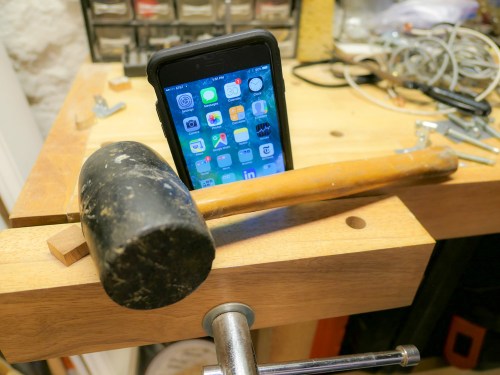
My iPhone’s Logic Board Error

What are you supposed to do when you wake, but your smartphone doesn’t? It’s that thin gray line… when good tech goes bad!

It’s 5:15am. My iPhone’s rise-and-shine alarm begins to ring. I reach over to tap the screen. I tap it again. This time I open my eyes and tap three times more.
Nothing.

Huh?

My iPhone 6 Plus’ screen has become positively unresponsive.

Good morning, Barrett…

Clear the Cache
A few minutes later I trick my digital companion into compliance by clicking the home button a couple times and rebooting. (I forget the exact sequence.)
But clearly something is wrong as the ‘issue’ repeats itself twice more over the next couple of hours.

So I jump in my car and whisk my iPhone to the Apple Store for an emergency check up with an Apple Genius. The first thing she asks me is if I’ve done a ‘hard reboot’ by simultaneously clicking the home button and the sleep/wake button.

“That will clear out the cache, which can really build up over time,” she explains.

“Uh… no,” I respond sheepishly.

She proceeds to do that and a few moments later, my iPhone comes back to life as if nothing was ever wrong.

“Let me do some diagnostics, just in case,” she offers.

Another few minutes pass, and everything looks great on the report.
My iPhone is a picture of perfect health.

The Genius hands my iPhone back to me.

The Thin Gray Line
I look at my device.
Huh.

Then I remember something else.

“You know… there was one other thing…
Once, when the screen was frozen, I noticed a thin gray line shimmering on the very top of the screen.”

“A thin gray line?”

“Yes… at the very top.”

“Oh.”
(pause)

“Is that not a good thing.”

“No, it’s not.”

“What does that gray line mean?”

“It’s a documented sign of a logic board error.”

“Logic board error? That’s bad, right?”

“Yes… that’s bad.”

“But it only happened once. Could it happen again?”

The Genius looked at me. I already knew the answer.
When tech begins to malfunction, of course the problem can or will eventually come back. It’s just a matter of when.

Logic Board Blues
So I really can’t have a smartphone with a glitchy logic board.
That’s not going to work.

I’m planning on upgrading to the iPhone 8 when it’s released. But that’s an eternity when you’ve got an unhealthy iPhone. I see no viable option to just ‘wait it out…’

I turn to the Genius. “What are my choices?”

Her eyes squint a bit as she thinks. “What I can do is give you a new iPhone 6 Plus with the same specs as your old one for the same cost as a screen replacement.”

“And how much is that?”

“One hundred and fifty dollars.”

It’s Going to Cost You
What choice did I really have? Sure, it’s a band-aid solution… and you might recall, I replaced the battery on my naughty iPhone a few months back.
And that cost eighty bucks!

You might say the collective $230 would be better spent on a newer iPhone 7. But in a sense, I’d be buying into newer (though not more advanced) tech… The Genius explained that my new iPhone 6 Plus was built out of new and refurbished parts and came with a 90-day warrantee.

“Okay… let’s do it.”

“Good… So have you done a full back up of your old iPhone? You’ll have to re-sync everything to the new one.”

Thousands and Thousands… of Photos
Okay… so this is a little bit of a touchy subject for me…

I’ve been syncing all of my important iPhone data to iCloud like Mail, Contacts and Calendar. But I haven’t been using iCloud for a full back up.

I’ve got thousands of photos on my iPhone, which I’ve collected over the years.
(The basic 5GB of iCloud storage couldn’t handle that.)

And I’ve felt I haven’t needed to pay for more iCloud storage, because I’ve been religious about archiving my iPhone photos to my iMac… originally into Aperture, and now into Lightroom.
(I’ve also been archiving my iPhone’s video files onto my iMac.)

So I’ve been saving all of my phone’s media elsewhere.

There Are No Shortcuts
Separately, I’ve properly backed up my iPhone to my iMac via iTunes.
But… not recently.
(Bad Barrett)

Still, I know I’ve got all my media plus the old back up. I’m thinking I can confidently hand my iPhone over to Apple… never to see it again.

The Genius looks at me. “You don’t seem certain.”

“No, I’m good.”

“You sure?”

“Yes.”

So she unboxes the shiny replacement and slips my old iPhone’s SIM card into the new iPhone.

And that was it.

I must have suddenly turned pale, because the Genius says, “Do you want me to help you restore your data from iCloud?”

“Yes, please.”
(I don’t do this every day.)

So I stay in the Apple Store for another fifteen minutes, and she guides my next steps to ensure my new iPhone properly downloads all of my iCloud data.

I thank her and leave behind my old iPhone… and all of its photos forever.
(The device’s memory gets wiped and usable parts recycled.)

Rebuild and Improve
When I return home, I have a little more work to do. Since I’m not doing a full restore from a back up, I have to download my apps again and sign into them.
(A full back up solution of course would be better next time.)

The good news is I take the opportunity to only re-download the apps I’ve actually been using. And then I organize them on the screen in way that makes more sense.
(Like organizing your sock drawer… when do you ever make time to do that?!)

And then I tap on the photos app…
Nothing.

Of course, all of my thousands of photos are not on this iPhone.

Well… not exactly…

iCloud Photo Sharing
Over the years, I’ve been organizing all of my best photos into shared photo albums in iCloud. So all of the pictures that really matter to me… have already popped back into their respective shared albums on my new iPhone.

And then I had my Aha Moment…

These iCloud photo albums are now where I always go when I want to show someone a picture on my iPhone. I haven’t been going back and searching for a pic in my ‘Camera Roll.’

How many times have you waited for friends to show you photos on their smartphones, and then they have to swipe through hundreds (thousands?) of locally-stored pics to find the right ones?

I gave up that embarrassing practice a long time ago…

So really… why would you need to carry around your past decade’s worth of disorganized photos locally on your iPhone?
…As long as you’ve backed them up… you don’t!

Plus, without all of those photos bogging down an iPhone… it suddenly recovers a whole lot more local memory for other uses.
(Nice!)

Make Sure the Sun Still Rises
This all points back to the bottom line that you shouldn’t get too attached to any particular iPhone or the data it houses locally.

It’s always all about backing up and properly organizing your data and files… elsewhere.

Because eventually… all good tech goes bad.
Even your trusty iPhone.

How to Prep Your Tech for a Vacation to Europe

The last thing you want when you’re on vacation is frustration with your tech. Either you leave it all at home and go off the grid or do some easy prep…

Bon Dia! My family and I are back from our little trip to Barcelona, and as you might expect, I ran across a few learnings that might be useful for your next holiday overseas…

Eight Tech Tips to Make Your Tech Work For You in Spain

1.
Before You Leave, Download Media for Local Viewing on Your iPad
I discovered that certain streaming video services didn’t work overseas. Amazon Prime Video failed the test. But Netflix worked like a champ! Before we left and without knowing which apps would work for sure, I downloaded a few episodes of my son’s current favorite video series… Amazon’s “Gortimer Gibbons Life on Normal Street.”
(My hedge paid off.)

2.
Not All Streaming Music Apps will Work Either
Pretty much the same story as video apps. Pandora choked in Barcelona, but Amazon Music worked just fine.
(I brought along my portable Logitech Bluetooth speaker to stream some local tunes during my morning coffee.)

3.
Avoid 3% Currency Conversion Fee When You Use Your Credit Card
The way to do that is pay in ‘Dollars’ instead of ‘Euros.’ I found that many of my MasterCard transactions in Barcelona offered the choice. You just have to tap the ‘Dollars’ option on the mobile terminal when it’s offered. (And sometimes for some reason, it wasn’t.)
Thank you, Mastercard for the suggestion.
(I had called customer service before I left to let Mastercard know I would be using the card in Barcelona.)

4.
Don’t Forget to Bring Your Earphones Onboard for Airplane Screen Time
I think by now… most planes that offer seatback monitor viewing are outfitted to use standard mini audio jacks. So your EarPods will work just fine. In fact, they’re a far superior option than using the free earbuds the airlines hand out with your free drink and snack.
(Actually, Delta fed us very nicely… and the stewardess also gave our son his very own Delta wings!)

5.
Clear Up Space on Your Smartphone for Vacation Photos and Videos
One quick way to find large files to remove is to delete a movie or two you’ve previously downloaded from the cloud.
(You can always reload them later.)
You really don’t want to run out of room on your smartphone when you’re snapping that amazing photo of la Sagrada Familia.


6.
Take an Extra Memory Card for Your Camera
If you also carry a separate camera beyond the one in your smartphone, (good for you!) the same rules apply as above. You don’t want your camera to run out of space either! Better yet… treat yourself and start with a brand new memory card! You’ve spent how much on your plane tickets? I say add an extra twenty bucks into your budget for a fresh flash card!

7.
Bring Portable Power to Keep Your Mobile Gear Going
Why risk it? Power stick for your smartphone. Extra battery for your camera. It’s a practical move but also designed to relieve stress. You’re on vacation… right?!

8.
Don’t Forget to Get Your Smartphone an International Plan Before You Leave
If you don’t, your next mobile bill is going to shock you. Alternatively, I don’t recommend hobbling your smartphone and only using the occasional free Wi-Fi hotspot to check in with your world. Again… you’re on vacation! Enjoy your smartphone if you want. Give it full access and stay connected.
(I signed up for the International Day Pass plan for $10/day from @AT&T.)

Release Your Photos!
And when you get back from your big trip, I’ve got one more suggestion for you…

Start sharing your pictures!
(People don’t care about last year’s vacation!)