At Home with Tech

Unlock the power of all your technology and learn how to master your photography, computers and smartphone.

Category: Technology

How to Fix Your Piper Computer Kit’s Corrupted Software
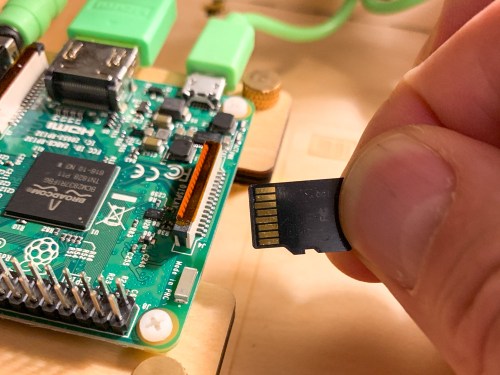
My son brought his new Piper to life, but its software quickly began glitching. So, it was time to help keep the learning experience on track. That means figuring out how to reflash the Raspberry Pi’s OS onto the MicroSD Card. (what?) Here’s what I did…

A few weeks back I proudly bought my nine year old a Piper Computer Kit for his birthday. I was so excited for him… He would build his very own computer, powered by a Raspberry Pi and then learn programming and other computer skills through a Piper-specific Minecraft StoryMode interface…

I felt it was the best birthday gift a dad could give his kid… ever!
(Okay, maybe I got a little too excited.)

The truth is all my boy really wanted was a big stack of Pokémon cards.

Pokémon cards!?

Come on… I was about to give the young Lester the tools to create a virtual universe if he desired… and all he wanted… were some glittery cards.
(Clearly, I don’t understand the Pokémon phenomenon.)

So, of course, we got him the cards… too. And during the next few days, our boy was fully immersed in his Pokémon world.

The Piper Computer Kit sat unopened in the corner.
(Sniff)

…Cue the tumbleweed shot.

Then…

The next Saturday morning at breakfast, he turned to me and said with a big smile,
“Let’s build my computer!”

Finally!
We were on…

The Piper’s Stormy Maiden Voyage
He opened up the massive blueprints, spread them out on the floor, and began constructing the Piper with the intensity of engineers racing to build the spaceship in the 1951 sci-fi movie, “When Worlds Collide.”

In little more than a couple of hours, we had a heartbeat.

He activated the Piper’s Minecraft ‘Story Mode’, and before I knew it, he was testing circuits faster than you can say, “Scotty, I need warp speed!”

It was just glorious.

And then suddenly, it all just… stopped. Minecraft had crashed, and we were just staring at the desktop.

My son turned and looked at me.

Frack.

I suggested he double click on the icon to get back into the teaching game.
Nothing.

Hmmm….

Then, I took the next logical step… I checked for any software updates and downloaded those.
Still nothing.

The computer itself was still seemingly working okay… but we couldn’t get back into the Piper Minecraft teaching program…

Piper, we have a problem!

Time to Reinstall the Software
My son was still feeling pretty pumped about building his Piper, but understandably a bit deflated by this glitch. He powered down his creation, and I pledged to do some research to find a fix…

The next day, I emailed Piper customer service asking for a little support…

After sharing my details, the prognosis came back that somehow the software on the Piper’s microSD card had gotten corrupted, and I needed to “reflash” the SD card.

Huh?
(Reflashing the card means reinstalling the Raspberry Pi’s operating system image back onto the card.)

Okay… So how do you do that…?

How to Reflash the SD Card
Taylor, from Piper Customer Care emailed me links to the Raspberry Pi software and instructions on how to reflash the SD card.

Beyond the obvious need to first download the image of the operating system, there were three other key steps…

  1. I also had to download Etcher, which is a graphical SD card writing app that flashes OS images onto SD cards.
  2. I needed to remove the MicroSD card from its Raspberry Pi slot, slip it into a larger SD card adapter (which I happen to have from my GoPro kit) and then insert that into my iMac’s SD card reader.
  3. When it was time to find the downloaded Raspberry Pi operating system image in the Etcher interface, I first needed to drag it from my ‘Downloads’ to my iMac’s desktop. After that, it was easy to locate.

Then, you click on ‘Flash,’ and you’re on your way!
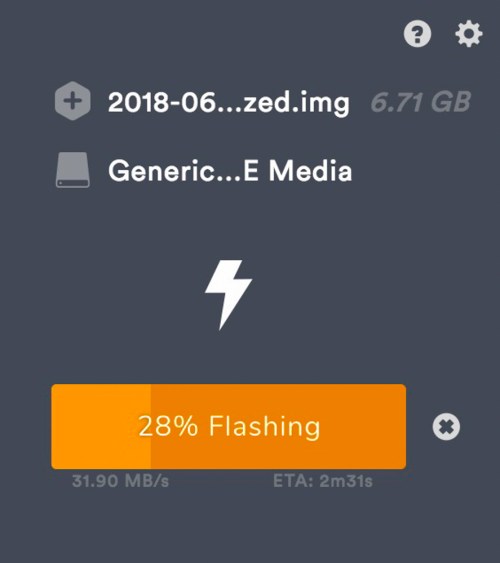
Within five minutes, the operation was compete, and I reinserted the MicroSD card back into the Raspberry Pi.

I powered up the Piper, and BAM!
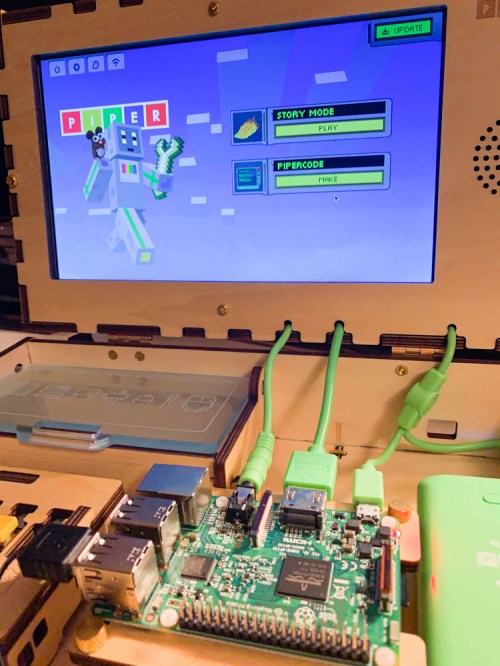
It was all working again…!

A Computer Kit May Require Some Hands-On Maintenance
So, even though the Piper was now fully functional, part of me still wondered how much of a problem it was that I had to reinstall the operating system.

Shouldn’t a new computer not crash after 20 minutes of use?

On the other hand, I had to remind myself that I was working with a $300 computer kit centered around a $40 Raspberry Pi motherboard… not a $2,000 iMac. The rules are a little different!

And isn’t the entire idea behind a build-your-own computer that sometimes you’re going to have to roll up your sleeves and get your hands dirty?

At the end of the day, reflashing the SD card was super simple, and our Piper works like new again.

If my son were a little older, I would have had him do all the reflashing work. That would have been an excellent project for him!
(I just wanted to make sure I flashed the SD card and not my iMac’s hard drive.)

Taylor from Customer Care was super responsive and even offered to mail me a replacement SD card. I’ve got to say that’s pretty good support…

Thank You, Piper!
So, what have we learned from all of this…?

There’s often a fine line between worrying that you’ve made a bad technology purchase and feeling helpless to fix the problem… and taking control to find a solution and making the repair yourself.

It just takes the right point of view…

That’s a lesson children of all ages can learn… and one that I’m really happy my Piper experience has reinforced in my own life.

Play on!
How to Choose the Best TV for Your Aging Parent

Taking my father out to dinner on his birthday was easy. Helping him buy a new TV was considerably harder. That’s because they don’t make TVs like they used to. And that’s exactly why you’ve got to pay close attention when selecting a replacement TV for a member of the Greatest Generation. Here are my shopping tips…

My 86-year-old father needed some help replacing his old analog bedroom TV, which had finally sputtered out years past the digital revolution. So my dad picked up his iPhone and asked me for a recommendation on a replacement. If you ever find yourself in a similar situation, here are the factors to consider…

Select the Right TV Size
My dad’s old TV was this tube-based hulking box with a massive body and 27” screen in the ‘classic’ 4×3 orientation. A slender 16×9 32” LED HDTV would be the likely replacement, though that feels small by today’s standards. The 40”-43” is the next jump up in size.

While that’s considered normal for a ‘small’ TV today (seriously), you’ve got to make sure it fits in the bedroom space. Plus, you’ll likely need to buy a new TV stand.

Why…?

HDTV Legs Require More Surface Space
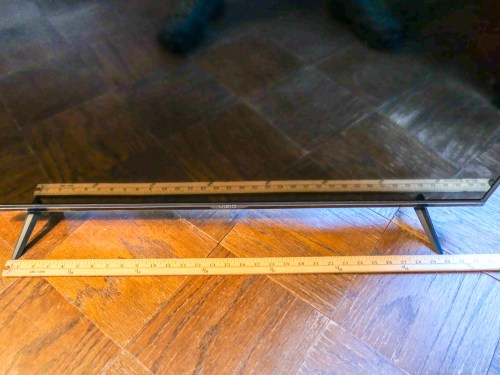
Well, somewhere over the last few years, TV manufacturers have seemingly switched from the center-stand mount design to upside-down V-shaped legs near each screen edge. This design change effectively increases the surface area required for any HDTV to sit on….

My father’s existing TV stand is only 29” wide. That would barely cut it for a 32” HDTV, let alone anything larger…

And even if you could balance your new HDTV onto an old stand, you’d have to worry about the risk of accidentally bumping the TV, causing one of its legs to slip off the stand… and then crash!

Yep, that could easily happen, now that HDTVs weigh so much less than their analog ancestors.

So, you’re probably going to have to also consider a new furniture solution…

Don’t Need to Go with 4K Picture Quality
I centered my research on a 40”-43” screen size for my dad. All I wanted was a straightforward, non-smart, non-4K, easy-to-use model that would quickly connect to my father’s cable box.

And let me simply say… you can’t buy that TV anymore.

Most TVs out there today come with a 4K resolution. But for a smaller screen size, you really don’t need all of those pixels. 1080p ‘full HD’ is just fine. That’s already a huge jump in quality compared to my dad’s analog dinosaur.

I’m sure any number of you would say you can see the 4K difference on a 43” screen.
But do you have the eyes of an 86-year-old?
(I’m just working the right solution for my particular user!)

If Possible, Avoid Smart TVs
Most TVs today are smart TVs with Wi-Fi and on-screen apps containing all of those marvelous and now-standard streaming options. But quite honestly, I didn’t really want to introduce my dad to the streaming world. He’s quite happy with how he used his old TV.

And more importantly, I don’t think he needs the added complexity, because that will just create more calls to… you guessed it… the IT Guy!

Not that I don’t enjoy talking with my dad on the phone. But there’s only so much I can remotely do to help him with his tech.

Yes, I do try to get into New York City to visit him every week. But he’s the kind of octogenarian who needs more immediate solutions to his tech challenges.
(We’ll just say he’s a little impatient.)

Would you like me to tell you about the time when my father’s iPhone’s ringer volume was turned down all of the way? …or the day my dad’s
iPhone wouldn’t charge anymore?
(Don’t get me started.)

But get this…

I actually couldn’t find a non-smart TV made by a manufacturer I trusted.
(Spoiler alert: My dad ended up getting a smart TV after all!)

Look for Absurdly Low Prices
Okay.. so I zeroed in on the market for 40”-43” Full HD (1080) televisions, which were also inevitably ‘smart.’ And I was shocked at how inexpensive TVs have become in this ‘smaller’ size category.

Sure, you can spend $650 on Samsung’s well regarded Q60 Series 43” 4K QLED TV.
($648 on Amazon Prime)

But for what we’ve been talking about, the price point is less than half of that. Here are two great choices I found…

Breaking the $200 Barrier
Vizio D-Series 40” Class Full HD Smart LED TV (D40F-G9)

Breaking the $300 Barrier
Samsung 5 Series N5300 43” Class HDR Full HD Smart LED TV

Really.

Both Samsung and Vizio have strong reputations for TVs although Samsung often sets the gold standard. Vizio is usually seen as a lower-cost alternative with good value.

But I especially liked the 40” Vizio for its smaller size. Most manufacturers are now only putting out 43” models in this range.
(Remember, I don’t want my dad’s new TV to overwhelm his bedroom.)

So I went with the Vizio.
Click.

Keep It Simple
If you’d like, here are my consolidated shopping notes:

  • 40”-43” screen size
  • Full 1080p HD, but not 4K
  • Smart functionality is unavoidable
  • $200-$300 price point
  • Vizio or Samsung are good TV brands
  • Don’t forget you’ll need a wider TV stand to fit the LED feet

Ultimately, I think less is more when buying technology for the elderly. Keep it simple… Spending twice as much doesn’t necessarily mean a better experience.

My father loves his new television… His first words were, “It’s much brighter!”
(Mission accomplished.)

No, he hasn’t figured out there’s a ‘smart’ interface with it yet. But he will…

And yes, now there will be the inevitable training and trouble-shooting calls
in my future!
(Easy problems for #AdultChildofAgingParent)

In Search of an Apple Watch Stand with a Built-In Charger

A third-party charging stand for your Apple Watch shouldn’t be hard to find, right? Well think again… Here’s what’s really out there…

I’m a big Apple Watch fan and have been happily wearing my Series 4 throughout this past year. But it’s also brought me two lingering problems to solve…

The fueling of my Apple Watch has been entirely reliant on the one magnetic charging puck that came with the Apple Watch when I bought it. If it breaks or I misplace the cable, my watch will effectively become a hockey puck within 48 hours.
(I don’t have the same challenge with my iPhone XS Max, because over the years, I’ve accumulated several backup cables and USB wall chargers through past iPhone purchases.)

The other ‘problem’ is the general clutter that both my Apple watch and iPhone creates when I’m charging them overnight on my nightstand next to the bed.

An Apple Watch ‘charging dock’ would certainly help clean things up a bit…

Assessing the Landscape
So, of course Apple provides the perfect solution… but at a premium price.

  • The official Apple Watch Magnetic Charging Dock goes for $79.
  • And a simple back-up Apple Magnetic Charger to USB Cable costs $29.

Hmmm…

So, I did a little research to see what else was out there, and surprisingly, I found a fairly barren landscape…

Most third-party Apple Watch charging stands are just… stands.
(You’ve got to provide your own magnetic charging cable and USB power adapter.)

And nobody with any recognizable name is making their own magnetic charging cable for less.

There does appear to be a healthier market for ‘portable’ Apple Watch chargers with their own batteries for on-the-go travel… but that’s not specifically what I was looking for.

The Belkin Choice
I did find one name-brand candidate…


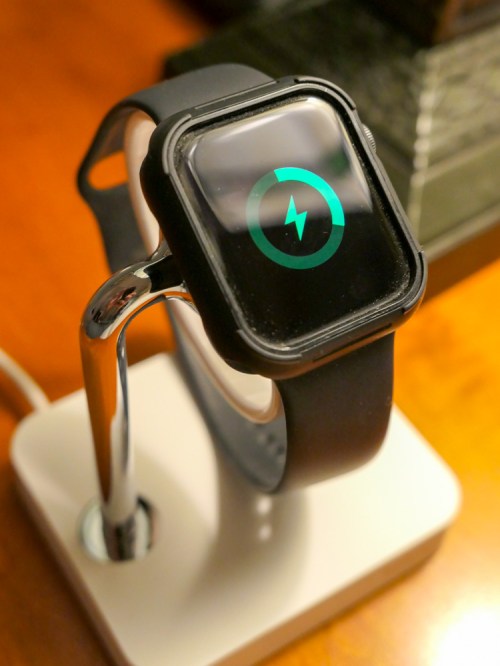
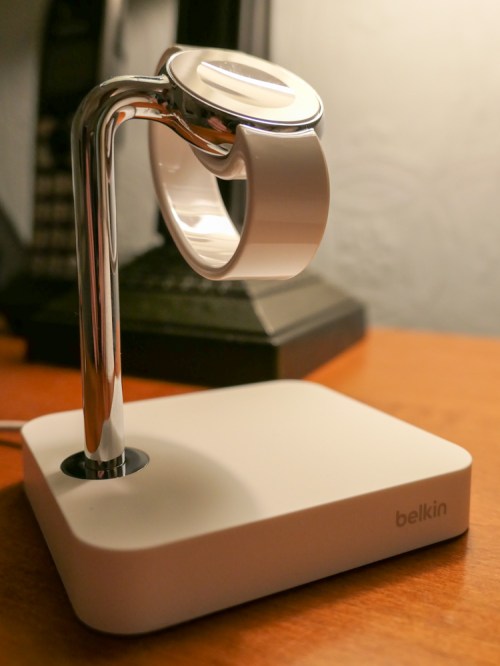
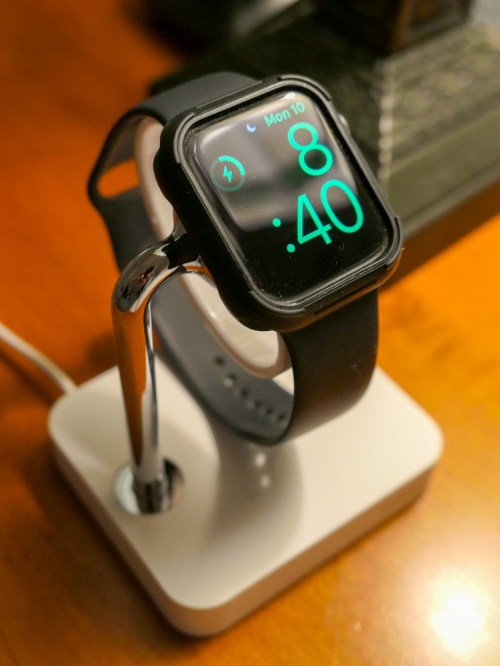
The Belkin is a simple, silver and white stand with a built-in Apple Watch magnetic charging module.

It lists for $79.99, but Amazon had it for $34.95.

The Value of Yesterday’s Model
It seems like this Belkin model was more in vogue a few years back and has been superseded by a dual charger design by Belkin that also handles an iPhone.

But I’ve got my iPhone XS Max imprisoned in its ‘bullet-proof’ Kevlar protective case made by Pelican. So my iPhone isn’t slipping easily into a sleek charger any time soon.

The Runner-Ups
After some intense research, I scrounged up two other choices to consider.
(The market is really almost nonexistent.)

  • Mangotek Apple Watch Charging Stand
    $46.99 on Amazon Prime
    This one looks a lot like the Belkin and also comes with a USB charging port you can plug your iPhone into.
  • UGREEN Portable Charger Stand
    $33.95 on Amazon Prime
    Its portable design flips open to become more stand-like if you want, or you can also use this black charger in its flat position.

While both stands are Apple MFi-certified, include integrated chargers and also receive decent reviews, at the end of the day, I decided to go with the ‘name’ manufacturer I knew.

Buying the Bargain
I presumed the Belkin’s price was cut by more than half, because it’s a relatively old model, and at only five dollars more than just the cost of the simple Apple magnetic puck, I figured it was a real bargain!

Click.

Now, I’ve got my back-up plan for charging my Apple Watch, and a little less clutter next to the bed…

Yay!

Belkin Really Isn’t the Choice… Anymore
But as satisfied as I am with my Belkin purchase, there’s a major wrinkle…

As I prepared this post to share my happy story, I realized a disturbing reality that made me feel a bit like the last man on Earth… or the last man on Earth to buy this Belkin charging stand… because I think I am.

It’s not available anymore on Amazon.

And Belkin’s website lists it as having only a “last few remaining.”

Huh.

So, I got a close-out deal on yesterday’s tech that there’s apparently no market for anymore…
(Hey, Belkin… Really?!)

I usually try to end these blog posts with a clear choice or solution that I can extend out to the world…

But for today, all I can really offer are my two runner-up options…
the UGREEN or the Mangotek.

Something is better than nothing…
(UGREEN and Mangotek are really the last two third-party stands with integrated chargers left standing.)

Of course, there’s always the option of going with the Apple-made dock.
It’s already perfect.

You’ve just got to spend more money…