At Home with Tech

Unlock the power of all your technology and learn how to master your photography, computers and smartphone.

Category: video

How to Take 10 Minutes on Vacation to Create a Brilliant Timelapse

I captured a timelapse video of Barred Island in Maine while the tide lowered, revealing a narrow strip of sand and an entry point.

Look, I knew I wasn’t fooling my family. Not when we went on vacation to Maine, experienced an incredible hike in Acadia National Park, and took a break for lunch. Because then, I unzipped my backpack and didn’t take out my sandwich. That sight is an easy tell by now.

Instead, I pulled out a compact tripod and my DJI Osmo Pocket camera which I’ve been using to create timelapse videos for the better part of the past year.

My wife and ten-year-old son have come to expect that I’m going to try to quickly capture a timelapse shot in moments like this.

Ten Minutes on Top of your World
Lunch on the top of a hiking summit a thousand feet up usually happens pretty fast. There isn’t time to capture hours of a changing landscape. Not when I’m primarily there to enjoy it with my family.

But carving out ten minutes? Yes, my family can handle that.

Capturing a video frame at two-second intervals for ten minutes creates a nifty ten-second timelapse.

It’s enough.

Enough to allow me to feed my creative spirit, but not too much to be disruptive to the larger goals of our day.

Chasing Nature’s Relationship with Time
Snapping a photo isn’t a problem. We’re all used to pausing for someone who needs to take a few seconds to get a quick picture.

But timelapse shots are a different game, and those ten minutes can feel like an hour when it’s really time to resume a hiking trek. I actually take closer to fifteen minutes, because I also need to set up and break down my little tripod. (It’s a Manfrotto Element Small Aluminum Traveler Tripod. $93.84 on Amazon.)

I really appreciate my family’s flexibility as I’ve explored my little hobby capturing nature timelapses.

My Timelapse Videos from Maine
Last week, I shared my favorite photos from our Maine hiking trip.

And now, here are my timelapse clips from our fun adventure in Maine.

Thank you, DJI Osmo Pocket, Manfrotto tripod and my family for helping me to capture these beautiful moments.

Don’t Skip these Steps when Sharing Video Clips during a Zoom Meeting

To prevent Zoom from dooming your day, here are three ways to help you successfully share video content during your next Zoom call.

How many Zoom meetings have you been in over these months? More than a few? I hope by now, you’ve decided that you need to show up for your close up and take the necessary steps to improve your video shot. But you’re not done. Not by a long shot.

That’s because you may decide that it’s time to attempt the more advanced step of “sharing your screen” with your audience. And that’s an even trickier task to do properly, especially because it looks so easy.

If you believe that brain-busting audio feedback caused by an unmuted microphone is the most likely culprit to sabotage a Zoom meeting, then welcome to the unstable art of sharing your screen.

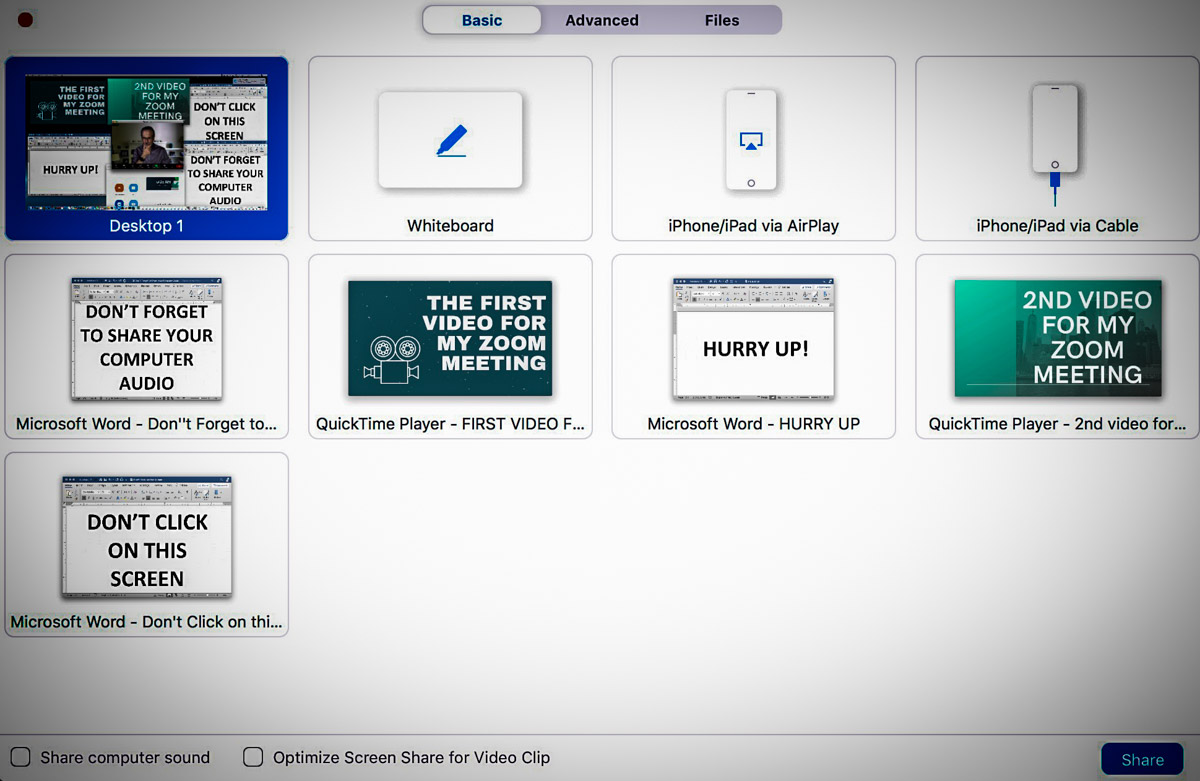
That said, the basics of sharing your screen are indeed relatively simple. You click on the ‘Share Screen’ tab and then you choose the open window on your screen to share. Simple. Right?

I have found the complexity lies in properly sharing the content. And for me, that content is often video.

Here are three easy steps to take to help ensure your success the next time you want to share video content during a Zoom meeting.

#1
Don’t Forget to Also “Share Audio”
First off, the biggest challenge in sharing a video clip on a Zoom call is making sure that your viewers can hear the clip. That’s because you always have to remember to click that bleeping little box on the bottom left that says “Share computer sound” before you select the correct window with your video to share.

That should be easy, right? But let me tell you, it’s also really easy to forget, because you’re mostly focused on finding the right open window to share. And then you’re not aware of your gaffe until someone writes in the chat section that you’re a Luddite.

It’s a maddening experience, especially when you know to look out for the problem.

Note to Zoom:
Please make your “Share computer sound” box sound more prominent. Or at least capitalize the words! Right next to “Share computer sound,” there’s a little box that says, “Optimize Screen Share for Video Clip.” Those words all begin in caps… why not offer the same level of grammatical importance to the audio box?

Isn’t it clear by now that so many have a hard enough time remembering to mute and unmute themselves when talking on Zoom. Please don’t make it even harder to activate the audio from the video clips we’re trying to share.

(User rant is now complete.)

#2
Make Sure All of Your Audio is Balanced
You should test all of your audio sources before you show up for your Zoom meeting. You might find that the output from your microphone is louder than your video clips. Or the reverse could be true.

If you set up a test Zoom session ahead of time and use a second device to hear how it all sounds, then you’ll be able to preview your viewers’ experience. And if necessary, you can adjust your audio levels.

It’s just another example where audio can be your Achilles’ heel during your Zoom presentation.

#3
House All of Your Video Clips in One Window Using Google Slides
During your Zoom meeting, if you want to share more than one open video window, you’ll likely begin to feel like you’re spinning plates on sticks.

It’s not that straightforward to switch between multiple windows. (There’s a reason why in the TV studio production world there’s a professional technical director dedicated to quickly switching between multiple video sources.)

So, the simple fix is packaging everything you want to share into one window. You can try to jam all of your visual elements into Word or PowerPoint, but that can get clunky with video.

I’ve found that Google Slides is a much more efficient way to house video. It’s easy to create a new page in Google Slides and then insert a video file.

  • Click ‘Insert’
  • Choose ‘Video’

But there are two limitations:

  • You can only upload video from Google Drive or YouTube. (You’re actually linking to the video.)
    Other ecosystems are not allowed.
  • If you’re using Google Drive, you can’t change the default video freeze frame that Google chooses as the image in your slide deck. So, when you click on your Google Slides page that houses a video, what you see is what you get before you click it to play.

Be Prepared
If there’s one common thread here, it’s that you should begin your live presentation prepared. You want to feel confident that Zoom will support you and not doom your day.

You’re effectively running your own multi-source live shot. A little practice and testing will go a long way to help you hit it out of the park!

44 Seconds from my Surreal Summer of 2020

Have you begun to see life differently too? Here’s my view from the beach…

I’m not complaining. As I write this, our state is currently not a hot spot. My family and I are healthy and safe. But of course, this summer of COVID-19 is anything but normal.

Even a walk on our local beach early in the morning feels… surreal.

Avoiding the crowds yet also craving more human interaction. Enjoying the uninterrupted patterns of nature and flow of water, though unable to avoid the constant awareness of instability and global disruption.

It sometimes seems like I’m living in someone else’s painting.

This short video I shot with my DJI Osmo Pocket provides a sense of this experience that I imagine you may also be feeling…


Again, I’m not complaining. Not really. It’s just so weird. And if I’m actually inhabiting a virtual painting in some alternate reality, I’m happy it can be at a beach on a sunny Saturday morning.

#FindingTheBrightSide