At Home with Tech

Unlock the power of all your technology and learn how to master your photography, computers and smartphone.

Category: video

The Secret to Finding your Zen in Zoom

You don’t need to suffer with the mess behind you on your next Zoom video call. It’s time to ‘virtually’ relocate to another part of your home. Here’s how…

Remember when once upon a time, you’d show up for an in-person meeting feeling fabulous? Maybe you had a presentation to do, and you hit it out of the park. After your diligent preparation, your success would ultimately rely on psychology and mindset. To help get you in your ‘zone,’ maybe you’d show up wearing your favorite shirt or shoes. Perhaps you’d arrive at the room early to center yourself and visualize the next hour. Or whatever to get your game face on.

But now, all of that has clearly changed. The good news is Zoom and other video conferencing apps have done some heaving lifting filling in the resulting gaps.

Sure, Zoom has been remarkable at keeping us together, but it can’t entirely replace the in-person experience you may be craving.
(Who knows when any of us will physically walk into a conference room again with other people.)

And as amazing as Zoom has been for many of us, perhaps you’ve been unable to get yourself entirely comfortable with Zoom.

Why is that?

Virtual Backgrounds to the Rescue?
It might be because you’re secretly a little frustrated with how your image has appeared on your recent Zoom calls. I’m certainly not thrilled with how I’ve been showing up.

Sure, I’ve worked hard to improve my lighting in my home office by taking advantage of a nearby window and adding in an Elgato Key Light Air light for soft fill on my face.

I’ve also tidied up my background to help ensure there’s nothing too distracting. I want people to pay attention to me, not my mug collection on the shelf behind my head!

But try as I may, I must accept that my home office background isn’t designed for prime time.

So, in moments of frustration, I’ve sometimes activated Zoom’s ‘Virtual Background’ mode to try to quickly solve the problem.

Assuming your computer or smartphone has the horsepower to switch in a virtual background, the result may seem like a neat parlor trick. However, you’ve got to admit it’s a little hokey using someone else’s picturesque background.

Reality Check
Maybe this isn’t actually a problem for most folks living on Zoom these days. Perhaps their backgrounds are the least of their concerns during the altered reality of COVID-19.

And I must concede this excellent point. Our priorities should probably focus elsewhere.

That said…

If you do have some extra bandwidth to improve your Zoom shot, I’ve got an insight to share about your background that could be a gamechanger.

It’s worked great for me!

Choose an Authentic Virtual Background
As much as I just dissed using virtual backgrounds, I feel they’re actually vitally important to solving the challenge of your Zoom shot from home. But your virtual background can’t be some vacation destination or cartoon image like the Minecraft universe.

That just screams…. VIRTUAL BACKGROUND!

Your background should represent your own reality. And that means some part of your home that you’d enjoy sharing with others. And it’s not important exactly where it is. It matters how that background makes you feel.

Forget all preconceptions about some perfect home-office setting that you don’t have. Instead think about your favorite part of your pad… that’s the place you want behind you!

Bring your Happy Space to your Next Zoom Meeting
But that space may or may not be available to you for your next Zoom meeting. (Others may already be occupying it!) That’s why it’s time to make it your virtual happy space!

Simply take a picture of this favorite spot at home and then use it as your virtual background.

It’s authentic; it’s real; it represents a part of you!

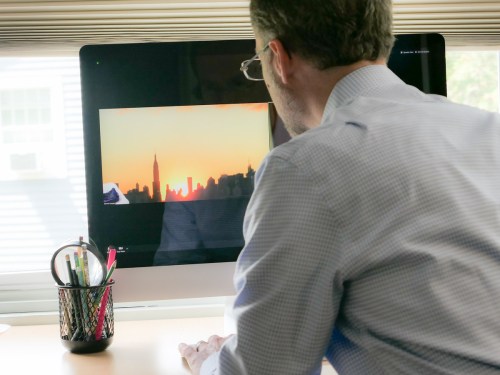
This is my home office via Zoom.

And this is my virtual happy space in Zoom courtesy of our living room.

See?

You’re in your Zoom Zone!
Now, when you show up for your next Zoom meeting, you should feel awesome being exactly where you want to be (at least virtually).

Of course, it’s ironic that your fabulous virtual background will likely fade into the background for your viewers, but that’s exactly what you want.

Because, then you can focus forward on what matters most… Forming a real connection with your Zoom participants.

So go find your Zoom Zen!

Six Ways to Improve your Recorded Zoom Videos

If you’re preparing to use Zoom to record a conversation or a group video message, welcome to the world of video directing. Here are a few tips on how to get the most from your recording session.

So you’ve decided to use Zoom or another video conferencing platform to handle your next video shoot due to social distancing. The quality won’t be as good as having an actual video crew on location, but it’s something, right?

And it’s remarkably simple. You just press the record button during your Zoom meeting to capture the content. Depending on your plan, your video files will get uploaded to the cloud or downloaded to your computer as soon as your meeting ends.

Welcome to the Director’s Chair
But what isn’t necessarily as intuitive is how to use Zoom as a live video production switcher if you’re handling multiple ‘live feeds.’ 

One example would be creating a virtual ‘talk show’ with an interviewer chatting with two guests.

Another is “The Brady Bunch” multi-box effect using Gallery View. It’s a great way to visualize that we’re all in this together during these difficult times.

If you’ve decided to go down this road, and you’ll be using Zoom as your virtual TV studio to switch between multiple video sources in a live environment, congratulations. Now, you’re a video director. 

Here are six tips to help ensure your success.

#1
Hide Self View

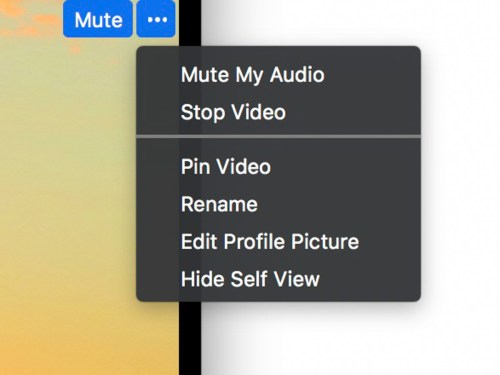
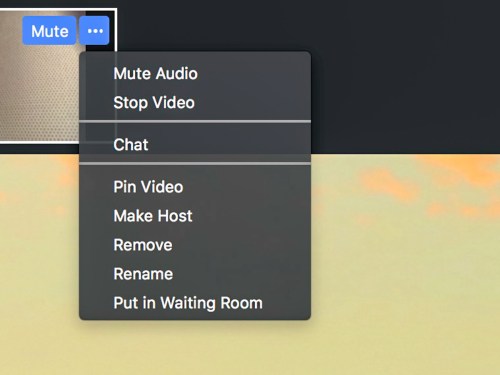
If you want to show multiple people in Gallery View but you don’t want your own shot to be included, then you need to activate ‘Hide Self View.’

You’ll find this option in the drop down menu after you hover over your video box and then click on the three-little-periods icon in the upper right corner.

Hiding your shot will not mute your audio. So you can still talk with everyone to give them instructions as the director. You also might want to mute your audio while the others are being recorded.

#2
Use the Waiting Room

If you’re working with a large group of participants, and not all of them will be part of the same conversation, use the Waiting Room feature. It essentially puts them on hold. 

When you’re ready for them to contribute again, you simply bring them back in to the conversation.

#3
Pin Video

If you want to record a conversation in full screen as opposed to using Gallery View, Zoom’s Active Speaker View will choose the shots for you. But it’s not always perfect. So, if you want to control your shots manually, then you can ‘pin’ each shot you want as you go.
(Again, this only affects what you see and record.)

You’ll find Pin Video in the same three-period drop down in the upper right corner of the person’s box.

You’re not really working in HD
Let’s face it, even though you’re recording your Zoom clips in 720P HD video, a lot of the little boxes that pop up will look and sound like they’re from 1972.

Webcam frame rates are going to vary, and the audio quality may sound like it’s coming out of a tin can. You’re simply at the mercy of the ‘Gods of Bandwidth’ and the Internet in general.

You’ve just got to go with it.

#4
Get Multiple Takes to Capture Clean Audio

It’s ironic that the mediocre image quality will likely not be a problem for your viewers. They’ve come to expect glitchy-looking video as part of this webcam communications medium. 

Instead, it’s actually glitchy audio that will stand out like a sore thumb. If you can’t understand what someone just said, that’s a real problem. 

So, if you can, record the same lines a couple times. Then, you’ll have a higher likelihood of capturing ‘clear audio’ moments. Later, you can extract the cleanest-sounding audio fragments and then ‘Frankenstein’ it all together through audio dubbing during your editing process.

#5
Webcam Video Can Be Your Friend

Speaking of editing, bad-looking webcam video does have one upside. It’s much easier to edit together. You can easily combine two sections of someone talking without running afoul of the ‘jump-cut’ rule. 

Since webcam shots with low frame rates already look jittery, an actual jump cut will likely evaporate into the larger webcam ‘experience.’  

#6
Don’t Worry About…

The yellow outline that pops onto the person’s frame who’s speaking…

  • It’s not in the final recording.

People’s names in the boxes…

  • The words don’t show up in the actual video file either.

How I Learned to Love Terrible Webcam Video
Sure, there are multiple flaws inherent in this suddenly wildly popular communications tool. But using an app as a live TV studio with access to anyone around the world (with connectivity) is still a rather remarkable concept (even if the technical capability isn’t entirely new).

And the resulting raw moments you’ll get can be compelling, because they are truly genuine.

Imperfection is irrelevant as long as you’ve got your own video basics covered.

So just be sure that when you wear your Zoom director’s hat to bring it all together, you’re familiar with using the app as a multicamera switcher and recorder. 

You still need to be at your best.

How Sheltering at Home Helped Me to Find Spring

So, this is a story that boils down to simply opening your eyes and paying attention to your surroundings. But sometimes it takes a pandemic to help you reshuffle your priorities…

It’s important to look for bright spots as we travel through this COVID-19 alternate reality.

For me, one of the few upsides has been the opportunity to pay more attention to the wonders of the early days of springtime, when nature starts to kick it into high gear. Those wonderful buds suddenly appear and the colors begin to pop. Before you know it, there are flowers everywhere.

But it happens so quickly. During every other year I can remember, I never paid enough attention to it all. I was too busy moving and driving and focused elsewhere. And then the renewal would be gone. The greens not so bright. The tree blossoms all gone. Till the following year.

Well, 2020, of course, has been different. Social distancing and sheltering at home provided the perfect opportunity for me to simply look out the window and actually see spring taking hold.

And I’m also happy to report that I took advantage of the early morning hours over the past weeks to get out and capture a few video time-lapses and nature b-roll with my DJI Osmo Pocket camera.

Yes, I tracked the early spring that I discovered all around me and then edited the imagery together in under a minute. My little video project made me smile. Perhaps it will do the same for you. Please take a look.

This year, I didn’t miss spring.
And I am glad.

I pledge not to forget this practice next year, when I hope life has returned to normal for all of us.