At Home with Tech

Unlock the power of all your technology and learn how to master your photography, computers and smartphone.

Summer Activity Ideas for Kids: How to Read Library Books on a Kindle
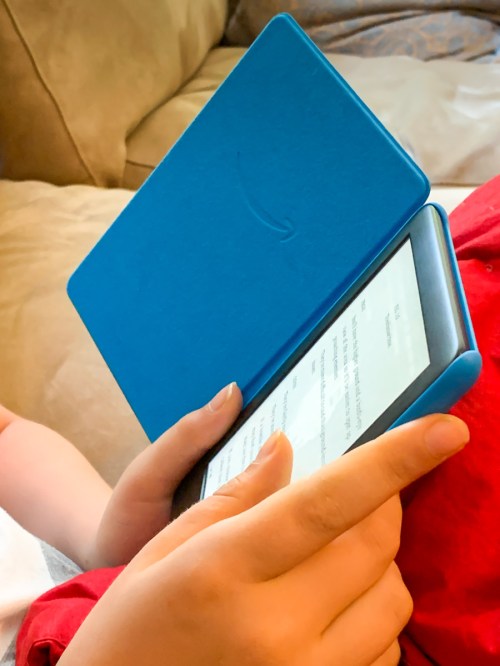
If you find that the FreeTime Unlimited reading app on your child’s Kindle isn’t quite as robust as you’d like, here’s how to transfer library e-books from OverDrive.

How many of you have received more screen-time requests from your kids this summer? Yes… we have as well. With most everything out of whack, there’s obviously a lot more time for our ten year old to fill during COVID-19.

To help relieve some of the pressure to grant more screen time, my wife and I decided to redirect the reading piece of the equation. Our son really enjoys spending time with his books, and due to the circumstances, more of that has been happening lately via our iPad.

Obviously, since we’re no longer taking our weekly trips to the library, we’ve been backfilling that gap with library e-book lending apps like Libby and Hoopla. Sure there are still physical books around our house to read, but the reading apps have replicated our boy’s treasure-hunt experience to uncover new library books every week.

Time to Put the iPad Down
And while that has generally been a successful solution to feeding our boy with new titles to read, it’s also increasingly positioned our ‘family’ iPad as the dominant object he stares at.

And this same screen houses his Minecraft app as well as any number of video apps to watch, including his favorite “Captain Underpants” series on Netflix.

These other apps are just an inch away on the screen and so easy to tap! No matter ‘the rules,’ the mere presence of a glowing iPad as an active reading device has invariably opened up more screen-time opportunities for the other non-reading apps.

Does an E-Book Reader = Screen Time?
I thought about how we might separate his ‘reading’ from his screen time. And of course, an e-book reading device seemed to be an easy solution. Why not just get him a Kindle?

Now, I know there are any number of debates about whether using an e-book reader is also screen time. That said, after some conversation, my wife and I decided it would still be better to move his ‘reading’ onto a different device. That choice would then allow us to leave our iPad out of the picture more often.

It’s Time for a Kindle
Amazon offers the Kindle Kids Edition. It’s a 10th generation Kindle, bundled with a case and a one year subscription to Amazon’s FreeTime Unlimited app, which houses thousands of kid-friendly books for our son to read. (The Kindle also comes with a 2-year repair warrantee.)

It’s all packaged as a ‘worry-free’ reading solution for the kids.
(Fingers crossed.)
$109.99 on Amazon

Click.

Testing the Limits of FreeTime Unlimited
Our son was absolutely delighted when I walked up to him this past weekend and revealed the box from behind my back. I had already set up the Kindle and tethered it to my existing Amazon Prime account (easy to do).

He opened up the magnetic cover and smiled. His first gleeful words were, “It’s like a little iPad.”

I wanted to reply that it was actually his ‘anti-iPad,’ but I allowed him his tech glow.

Then, he began looking up some of his favorite books. FreeTime Unlimited may offer thousands of titles, but some of his usual suspects weren’t there.

He suddenly got quiet. I could sense an enthusiasm leak. So I said, “I can add in additional e-books from other sources.”

He responded, “Oh…. phew!”
And then his general state of excitement resumed.

My boy found a cherished book from his physical library days. He immediately downloaded it and began reading.

Success? I think so! Except…

The Road to Kindle from OverDrive
Downloading books onto a Kindle from other sources isn’t actually a snap. But it’s not impossible either.

The first place I needed access to was the same e-book collection from our local library that the ‘Libby’ app had been feeding our iPad. (Otherwise, our iPad would still remain as his legacy book-reading platform.)

The good news is Libby is owned by the OverDrive website, which is an alternate access point to your local library’s e-book collection. They are just separate ways to access the same content.

Admittedly, Libby is a one-stop book-borrowing experience for the iPad. OverDrive takes a little more work behind the scenes before new titles can magically appear on your child’s Kindle.

But if you need to do it, here are the steps to borrow an e-book from OverDrive and then transfer it over to your Kindle:

  • Log into your OverDrive account
  • Find your e-book
  • Click “Read now with Kindle”
    (That takes you to an Amazon page listing your e-book. There’s a yellow box on the top right that says, “Get Library Book.” Under that box, there’s a white drop-down box that says, “Deliver to: (your Name’s) Kindle.”)
  • Then, click on the yellow box

Finally, go to your Amazon Parent Dashboard (parents.amazon.com) to load the e-book into your Kindle’s FreeTime Unlimited app.

  • Click on (Name) Settings on the bottom
  • Click on ‘Add Content’
  • Click on ‘Books’
  • Click on the button on the right side of the book’s name
    (The sliding button then turns orange.)

Now, your new e-book will pop up to read in FreeTime Unlimited.
(Finally!)

No, these steps do not exactly replicate a streamlined e-book borrowing experience, but it does work. And I think it’s a big deal to be able to feed our Kindle with other library content when FreeTime Unlimited shows it’s inevitable limitations.

Unlimited Summer Reading
Of course, you can buy any book you want on a Kindle, but in the beginning of this technical relationship, I’m interested in simply replicated the same ‘borrowing’ experience we had in the days when libraries were physically open.

There are so many limitations to this summer due to COVID-19. Thankfully, with the help of our new Kindle, our son’s access to books will not be impacted. He can continue to read to his heart’s content.

As for how much summer screen time he should have… well, that’s now a separate conversation. And separate from the Kindle.

Let all summer reading continue!

This Trick will Improve your Zoom Virtual Background

Using a virtual background with Zoom can be hard to get right. Here’s a way to upgrade your look in this digital arena.

Have you gotten a haircut yet? I haven’t. Now, after months of COVID-19 seclusion, my Zoom video shots look like a time portal back into ‘70s. Yes, I must admit I’ve started using hair gel to try to tame my mad scientist look. But I know it’s not sustainable for any long-term plan. I’m spotting lots of folks now with new haircuts. I certainly can’t wait two years until there’s a vaccine!

I think this speaks to what we’re all currently grappling with… how to traverse this new reality when the plan to continue to lock yourself up at home isn’t realistic anymore.

For now though, I’m relying on my hair gel as well as a cool video trick I’ve discovered to improve my Zoom videos when using virtual backgrounds. 

The Challenge Using Virtual Backgrounds
The holy-grail solution to generating a great virtual background is to place a green screen behind you that spans your entire background. Then, Zoom will create a beautiful chroma-keyed background using the green. 

The other option is to let Zoom figure it out without the benefit of a solid color. It works, but often with the edges of your head and body shimmering like an apparition.

Maybe some people don’t care how ‘solid’ they appear with their virtual background. But I just can’t let that sloppy look go without attempting to fix it.

The Limitations of Space Restriction
But, the challenge I face when trying to improve my own virtual background starts with the basic shot my iMac’s webcam creates. It’s a relatively wide field of view, and you will see much more of my home office than I’d prefer. 

No, there’s no dirty laundry to see. (I moved all that another foot away.)
But it’s still not pretty.

I can’t cover my entire background with a green screen, because there simply isn’t enough room based on the configuration of my home office. Even if I could somehow jam one in, I wouldn’t be able to move around anymore. So that really wouldn’t work…

But I’ve figured something else out that does…

Add a White Screen Behind your Head
My trick is to place some ‘white’ behind your head and shoulders. It can be with a white screen, curtain or even a big piece of white paper. It doesn’t have to cover your whole background. Just enough of your body.

Then, when you activate your virtual background, the white screen also disappears, and it does wonders to reduce that horrible black ‘helmet outline’ that often surrounds your head.

And if your virtual background displays lots of white or brightness behind your out-of-control hair, the overall key around your head will look much more realistic. That’s because the virtual background will appear to show through the mess of your hair. 

Otherwise, Zoom will digitally crop the edges of your hair with that black line circling your head.
(Now, if you want Zoom to give you a digital haircut, go right ahead!)

Brighter Backgrounds will Help You Light your Face 
There’s also another big benefit to adding some white behind you before activating your virtual background. It can really improve how your face looks!

This is especially true if your room is generally dark. That’s because ‘Zooming’ in a darker space generally forces your webcam to overexpose your face while trying to bring out more detail in the background of your shot.

So then, when you’re forced to lower the lighting on your face to fix the problem, you end up sitting mostly in the dark.  

And then it becomes a cascading problem, because you really want more light on your face to help your webcam display it properly. Without enough light, your whole shot starts to deteriorate.

But…

If you’ve got the white screen behind you, that will trick your webcam into thinking your background is relatively bright, and it will then automatically allow more light to hit your face and improve your look. 

Here’s my collapsible white screen.

And here’s how I look in my virtual background using my hidden white screen.

My coloring looks normal.

Here’s the same shot without using my white screen.

My skin tone is off, and I look overly pink and generally overly lit. Plus you see that unnatural black edging by my left ear.

I feel the difference is definitely worth the extra step of setting up the white screen.

Now, it’s showtime!

Give Your Face a Little Pop!
The collapsible white screen I’m using is the Studio Essentials Pop-Up Reversible Background (5’x6.5’ Black/White).

$49.99 at B&H Photo

But any home-grown solution using a roll of white art paper will work just as well.

One more tip: Don’t only focus on how your face and hair show up on your next Zoom call. Remember to also pay attention to how your shirt looks. Certain patterns will shimmer in your video (like my shirt did in the above test shots).

And hair gel.

Video chatting is here to stay. Sure, we’ll eventually get our haircuts, but getting our Zoom shots into tip-top shape will always be a best practice moving forward.

Feeling Compressed into a Time-Lapse Movie

It’s been twelve weeks… already.

Social distancing. Sheltering at home. Not spending time with family and friends. Zoom fatigue. Can you believe it?

Life is certainly different. I’m sure I don’t have to tell you. Thankfully, my family and I are staying healthy.

That said, one negative effect of this COVID-19 altered reality has been something of a surprise to me. I thought time would start to slow down due to all the restrictions and seclusion. In fact, the opposite has occurred. It feels like time has been speeding up.

The weeks have been flying by. Suddenly, it’s an entirely different season! Of course, we cognitively understand that. But our experience of time has been necessarily shifted, and I think our bodies are still catching up.

As a result, my little world is starting to feel like an extended time-lapse shot. A compression of sorts. Maybe it’s simply due to the repetition of fewer ‘permitted’ activities. 

What exactly am I talking about?

Well, I edited together this 30-second video with some of my recent time-lapse shots to try to capture this sensation.


So yes, I suppose I’m feeling a little ‘compressed.’ But considering everything else that’s happening during this disruptive time, I’m not complaining.

Instead, let’s simply say I wanted to share a few time-lapse shots from my
DJI Osmo Pocket and leave it at that.
(Hope you like my video!)