At Home with Tech

Unlock the power of all your technology and learn how to master your photography, computers and smartphone.

Tag: apple

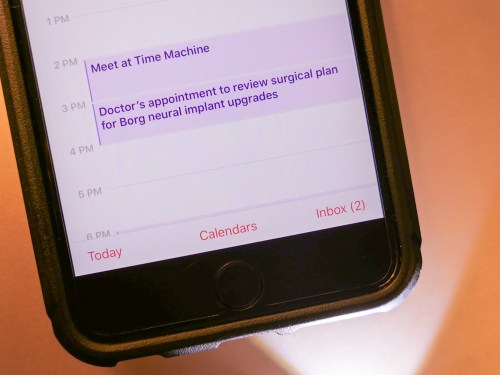
The Borg Advantage of a Shared Cloud Calendar

You don’t need futuristic “Star Trek” solutions to properly sync to your partner’s schedule. Your smartphone already provides that connectivity…

I’m sorry if this confession surprises you, but I am about to describe how my wife and I used to coordinate our schedules… Once upon a time, we’d take out our iPhones during dinner and open up our individual calendars for the upcoming days. We’d discuss our son’s schedule and imminent family events to ensure we were both on the same page. Each of us then added in the requisite events into our own calendars.

Tap, tap, tap.
Tap, tap, tap, tap.
Tap, tap, tap, tap, delete, delete, tap, tap.

(This can really ruin dessert.)

While this antiquated process facilitated a nice conversation about what was going on in our busy lives, it was totally unnecessary from a calendar-syncing perspective.

Create a Synced Calendar to Better Connect Your Family
To upgrade from all of this unnecessary manual coordination, all you need to do is simply create a new ‘shared calendar’ in the Calendar app through iCloud and then invite your partner to join it via email.
(It’s really not that difficult…and not at all as painful as joining the Borg collective on “Star Trek.”)

When you create a new event, just make sure you assign it to this new calendar category.

Once your spouse accepts your invitation to the shared family calendar, any new event you create will also immediately appear in her own Calendar app. (She does need to ‘accept it.’) And she can do the same for your calendar!
(Remember, you can view multiple calendars together on one screen.)

It’s a perfect two-way flow of information to schedule your active lives.
Totally synced… so the two of you can be in sync!

And you don’t have to change or give up anything about your existing personal calendar. It’s all additive.
(The shared events show up as a different color.)

Brilliant!

Cloud Calendars Rock
My wife and I have been using our shared iCloud family calendar for the past few years, and it’s been a game changer for us. It even keeps us organized between our check-in scheduling conversations, because our Calendar apps let us know when a new event has been added.

So, it effectively provides real-time updates to our ever-changing family schedules.

I know there are any number of shared-calendar apps out there, but I’m always partial to using native applications for my technology solutions.

Resistance is Futile
Our son is eight years old, but I know he’s already just a few years away from using smartphone tech. (Exactly how many years is a topic for another conversation.) I expect that shared cloud calendars are already firmly established as a key digital tool for families with older kids.

But if you’re not yet savvy to this Borg-like connectivity, I urge you not to resist joining the ‘collective-think’ advantage of using a shared iCloud calendar.

Which Mesh WiFi System Should You Choose?

Mesh WiFi usually needs a satellite unit positioned towards the center of your house, like on the corner of your kitchen counter. The big question is which manufacturer should you go with? This is my journey to upgrade my home WiFi…

It was time to replace my old Apple AirPort Extreme WiFi router. Not that it hadn’t been serving me well over these years. In fact, it was still functioning just fine. Plus, I had really enjoyed the ease of an Apple WiFi solution with my Macs. There was just one problem…

It was never able to provide strong WiFi coverage upstairs in my house. Even on the first floor, my family would sometimes experience annoying buffering while streaming video.

Goodbye AirPort Extreme
That’s because my AirPort Extreme was far away in a corner on the first floor tethered to my cable modem. I explored the idea of extending the signal with an additional AirPort, but it was complicated, and all of my research pointed to a degraded signal as a byproduct.

Then, I read that Apple was getting out of the WiFi router business! It’s a brave new world that we can’t live in the comfy bubble of a total Apple ecosystem anymore. Apple provided these few helpful shopping tips, and that was it!

We’re on our own.

So, I decided to roll up my sleeves and find a new WiFi solution that provided whole-house coverage…
(I didn’t want to be the IT Guy in the doghouse… yet again!)

The answer was to go with a Mesh WiFi system that natively deploys multiple nodes to create WiFi coverage you really want.

Google WiFi
My friend recently installed Google WiFi in his house. It’s an easy, bulletproof solution many folks have turned to.

All of the reviews pretty much agree that while Google WiFi may not lead all of the speed specs, it can’t be beat for stability.

So, that choice would be a no-brainer for me except for one variable…
Google WiFi is designed to work in a totally wireless environment.

How to Handle USB Printers
I was still using a Canon Pixma USB printer, which was hardwired to my AirPort Extreme. You might think I shouldn’t choose my new WiFi system based on the needs of an old printer. And you’re right. But because of the space configuration in my home office, I really didn’t want to upgrade to a new printer, because most of them are so large. My old Canon is relatively compact.

If there was another WiFi option out there that could handle my Canon printer and could also compete with Google WiFi, I would happily bring it home.

And in fact, there is…

Netgear Orbi
Netgear makes a whole family of WiFi routers under the ‘Orbi’ brand, and they also get great reviews. The Orbi is a tri-band system as opposed to Google WiFi’s dual-band design. That’s supposed to make the Orbi a little more flexible to generate the fastest WiFi network.

While the Orbi might be faster, some reviews I found suggested it isn’t quite as easy to set up and use as Google WiFi.
(More on this in a moment.)

The other big difference is the Orbi deploys only two units in its standard configuration, while Google WiFi uses three. I’d say that’s another plus for the Orbi.

And yes, you can connect a USB printer to the back of the Orbi.

Which Orbi Model?
There are seemingly dozens of Netgear Orbi models to choose between. While I exaggerate, I think there are way too many options. That said, my research pointed me to the Orbi RBK50 as the best choice. This particular model also includes a USB port for my Canon printer.

The Orbi RBK50 is $298.97 on Amazon.

I was ready to make my move.
Click.

Orbi Installation
To set up my new Orbi, I used the Orbi app which I download to my iPhone. Unfortunately, I wouldn’t say it was exactly a ‘seamless’ experience.
(Cough, cough… Google WiFi)

But after two attempts, I got my Orbi network up and running.

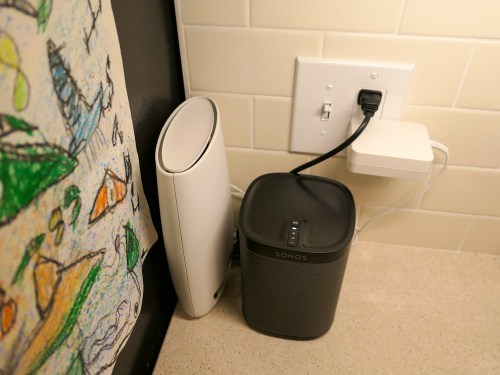
The main router connected directly to my cable modem. I positioned the ‘satellite’ unit on the corner of our kitchen counter by the refrigerator next to an existing Sonos Play:1 speaker.

Both Orbi units are larger than I’d prefer, but positioning them so the thinner side faced forward cut down on the footprint.
(My wife still noticed the satellite immediately. The fact that that a small but growing technology hub is creeping into the kitchen and taking over valuable counter space is a topic for another day.)

The good news is the resulting WiFi signal… is amazing… everywhere in the house! (Problem… solved!)

The Unwritten Last Installation Step
One huge step that nobody talks about when replacing your WiFi system is getting all of your electronics successfully back onto your new network. Sure, that’s an obvious process for some of your tech, like your iMac and Apple TV.

But there’s a whole secondary tier of gear that operates in the background of your smart home, and you may not even remember how to update the WiFi settings.

Case in point, I realized I wasn’t so smart when it came to updating…

I had to relearn how to access all of the WiFi settings. So leave yourself some extra time to handle this inevitable residual WiFi clean up.

The Tail Wags the Dog
One final point on my stick-in-the-mud Canon USB printer… Yes, it’s functioning with my new Orbi system, but I had to first download the Netgear ReadyShare Printer Utility to my iMac. That’s the conduit to bridge a USB printer to the Orbi network.
(Just connecting the printer with the USB cable isn’t enough.)

And moving forward, I still need to ‘reconnect’ my Canon printer using the Netgear app on my iMac every time I want to print. This adds an annoying extra step to my printing workflow.

It’s not at all elegant, but it works.

Happy with My Orbi
So, my new Netgear Orbi is in place, and my WiFi network is now in peak condition throughout my house.

But who knows what future tech ‘enhancements’ will challenge my Orbi’s orbit. If there’s one fundamental truth to living happily with your tech, like anything… it’s never a ‘set it and forget it’ relationship.

For now, this home IT guy is delighted with his Orbi.

How to Play a Long Audio File from an Email on Your iPhone

If your audio file abruptly stops playing when your iPhone or iPad goes black, it might be time to find a home for that file. Let me explain…

Sending large attachments through email isn’t such a big deal these days. Sure, there are still limits, but emailing a 20MB audio file isn’t a crazy idea. So, when you receive one, the intuitive response is to simply tap on the file icon and listen. And that often works just fine.
(Thank you, Apple.)

But eventually, there’s a problem with the tap-and-listen approach using Apple’s native Mail app…

If the audio file runs longer than the auto-lock setting when your iPhone goes black… the file will suddenly stop playing.

And then, when you wake your iPhone to keep the file going, the file doesn’t remember where it left off. So you’ve got to manually scrub through to get to the right place to keep going.

How elegant is that?

Mrs. At Home with Tech
Someone I know (let’s just call her ‘Mrs. At Home with Tech’) created a clever workaround by simply setting her iPhone’s screen to never turn off.

And while that did the trick, and her audio file played through without a hitch, ‘Mr. At Home with Tech’ thought there had to be a better solution…

Beating ‘Tap and Go’
Of course, ‘better’ is usually a relative term. If you’re clocking speed to solution, I’ve not found a better method than my wife’s tap-and-go approach. But that trick also requires that you remember to turn off your iPhone’s screen when the audio file finishes.

Otherwise, it will shine bright throughout the night, possibly *freaking out your partner when he/she wakes the next morning bathed in an eerie iPhone glow.
*Entirely theoretical scenario… This did not happen to me. Well…

I expect that an AI-driven iPhone future isn’t that far off when your device independently pops on and off to perform certain tasks it deems appropriate. And humans will eventually get used to that just the same as all the 24/7 buzzing and pinging from our chattering smartphones.

For now though, I prefer that all the iPhones in my home at least have the appearance of following human preferences and offer the semblance of sleeping along with their human overlords/companions/pets (just future-proofing this sentence).

Save It!
For uninterrupted access and continuous playback, a more effective first step is to save the file before playing it. That way, it will continue running, even when your iPhone’s screen goes dark.

But there’s still a hiccup here… I’ve not found a way to simply save the file to my iPhone or easily move it into the iTunes ecosystem.

The solution is to move the file to a third-party app. That will do the trick!

Dropbox to the Rescue
There are many apps that can handle this need, but I’m a big fan of Dropbox.
So, here’s how you do it with Dropbox…

Tap on the audio file’s icon.
A QuickTime player window will open to begin playing the file.
On the bottom left, tap on the share icon (little square with an upward arrow).
Find your Dropbox icon.
Click on “Copy to Dropbox.”
The Dropbox app will open up.
Then, save your file to the Drobox folder of your choice.

That’s it.

5 Taps is better than 1
It takes 4 taps… maybe 5, if you move the file into a particular Dropbox folder.

That math can’t beat my wife’s ‘tap-and-go’ approach, but now that the audio file actually lives somewhere outside your Mail app, you’ll have more control of the file and be able to listen to it regardless of your iPhone’s screen status.

Still, not a perfect solution, but it gets the job done.
(If you have a better idea, please let me know!)