At Home with Tech

Unlock the power of all your technology and learn how to master your photography, computers and smartphone.

Tag: apple

Why Does my iMac Turn Itself on at Midnight?

If your Apple computer independently starts its day in the wee hours of the morning without your involvement, you should check this setting.

I was out late the other night, and when I got home around midnight, I walked into in my home office before I headed off to bed. All was quiet. Then, I heard a sudden but familiar brief whooshing sound from the direction of my desk. I instinctively turned my head.

My iMac was booting up as if Skynet had taken over.
It was pretty freaky.

I glanced over at my Marathon clock that was positioned close to my iMac, and it eerily displayed 12:00am… on the dot.

Hmmm. That was interesting.

I took a breath and looked at my clock again. I felt that this clearly wasn’t some random moment where my iMac had decided to misbehave.

Turn Off the Schedule Mode
Was there a hidden setting in my iMac’s System Preferences that was telling my iMac to independently boot up?

I took a look, and in fact… there was. My iMac was ‘scheduled’ to turn itself on at midnight.

So, here’s what I did to turn that off:

  • Click on System Preferences
  • Click on ‘Energy Saver’
  • Click on ‘Schedule’ on the bottom right
  • Unclick ‘Start up or wake’
    (which had defaulted to 12:00am)

Problem solved.

Living with your Gremlins
I suppose the lingering question is why that scheduled action was clicked in the first place.
I certainly hadn’t done it.

It’s an issue for another time.
For now, my iMac should behave…as directed.

Thank you, HAL.
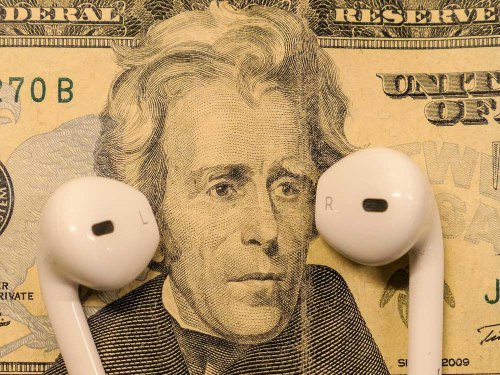
Who Has the Biggest Discount on Apple EarPods?

Apple EarPods are yesterday’s news with AirPods and AirPods Pro grabbing all of the headlines. Still, if you’re in the market for a new pair, here’s the best deal I found.

I misplaced my Apple EarPods recently. They simply vanished. I couldn’t find them in the top zipper of my trusty Briggs & Riley black knapsack that I use for work. I was more annoyed at my memory glitch than the actual loss and replacement value. And then I thought about what Apple charges for a new set of these… $29.00.

These days, earbuds feel like a giveaway item. They get thrown around like pretzels on airplanes, and if I still ate Cracker Jacks, I’d expect to find a pair at the bottom of my next box. Granted, the audio quality of Apple EarPods is going to be better than some no-name earbud. Still, with tax, I don’t feel the price tag should be creeping over thirty bucks. They’re yesterday’s tech, especially with Apple focusing so heavily on their wireless AirPods and AirPods Pro lines.

Guilt-Free Purchase for Old Tech?
And while I definitely have felt the full-court press by Apple to upgrade to one of the wireless models, I still believe it’s worth having a back-up wired pair that you can carelessly throw in a bag.

But paying full price for old tech doesn’t feel that good.

Best Deal of Apple EarPods
So I went online to research if any retailers were offering discounts on this legacy Apple product.

B&H Photo offers a pair of Apple EarPods with Lighting Connector for $26.99.
That’s something.

But get this…
Walmart has them for just $19.99.
Wow!
That feels so much better.

Amazon Prime also offers the EarPods for $19.99.
But I worry sometimes about fakes being sold on Amazon and then receiving some knock-off in the mail that pretends to be a genuine Apple product. (75% of Amazon reviewers gave this offer five stars. Yet, some reviewers did cry foul.)

Walmart Wins
So, Walmart got the prize for the best deal on ‘genuine’ Apple EarPods.
Click.

Keeping the price point to twenty bucks made my purchase less painful, especially when I know I could have put my money towards a wireless set.

I continue to tell myself there’s value in having a throwaway pair of earbuds.

Still, I can’t deny the irony surrounding this whole situation.
You know why?

Because I found my original missing pair of Apple EarPods!

My Favorite Feature in iOS 13

If you hate spam robocalls as much as I do, you’ll be happy to learn Apple has provided a better defense in iOS 13…

I expect this iOS 13 tweak is not on top of anyone else’s list, but it’s quickly become a game changer for me when using my iPhone.

First, some background…
Earlier this year, I activated the ‘Do Not Disturb’ setting on my iPhone in an attempt to stop spam robocallers from interrupting my life.
(This setting still allowed calls from my ‘contacts’ to get through.)

But the big problem I found with this setting was there were still plenty of times when my iPhone was not in its Do Not Disturb mode, because I was using it. And whenever my iPhone was on, it was no longer locked down.
(I had decided not to engage the Do Not Disturb… ‘Always’ mode, because that was too restrictive. I’d never see any incoming texts!)

So of course, those moments when my iPhone was awake presented a crack in its defenses…

Invariably, I would be interrupted by a robocall when I was using an app on my iPhone. And I couldn’t just decline the rogue call for fear that any manual response would somehow trigger even more unwanted calls in the future. So, I’d sit there for twenty seconds while the call rang out. And then I’d continue along, having lost twenty seconds I’d never get back.

That stinks, right?

Silence Unknown Callers
I imagine this annoying problem has also happened to enough iOS designers at Apple over the past year. And so they’ve created a better defense for it in iOS 13.

It’s a setting called ‘Silence Unknown Callers,’ and here’s how you turn it on…

  • Tap Settings
  • Tap Phone
  • Slide on Silence Unknown Callers

Apple describes this setting as “Calls from unknown numbers will be silenced, sent to voicemail, and displayed on the Recents list. Incoming calls will continue to ring from people in your contacts, recent outgoing calls, and Siri Suggestions.”

So, the huge change here is when a call from an unknown number comes in while you’re using your iPhone, the call doesn’t take over your device other than a momentary drop down notification about the unknown call.

More ‘Good’ Calls Get Through
With this feature in place, I no longer needed to keep the draconian ‘Do Not Disturb’ mode on.

The ‘Silence Unknown Callers’ setting is much more flexible, because it lets through numbers that you’ve used before but may not yet be listed in your contacts.
(So, if you make a one-off phone call but also expect a return call, now your iPhone won’t immediately send it to voice mail.)

Hailing Frequencies are Open
Of course, the real solution to handling spam robocalls is not how to best avoid them, but how to stop them from happening in the first place!

But until then, I’m pleased that Apple has helped me keep my generally ‘silenced’ iPhone more available to receiving legitimate calls from my own little universe.

It just takes sliding on the right setting!