At Home with Tech

Unlock the power of all your technology and learn how to master your photography, computers and smartphone.

Tag: iPhone Portrait Mode

How to Use AI to Easily Improve your iPhone Photography
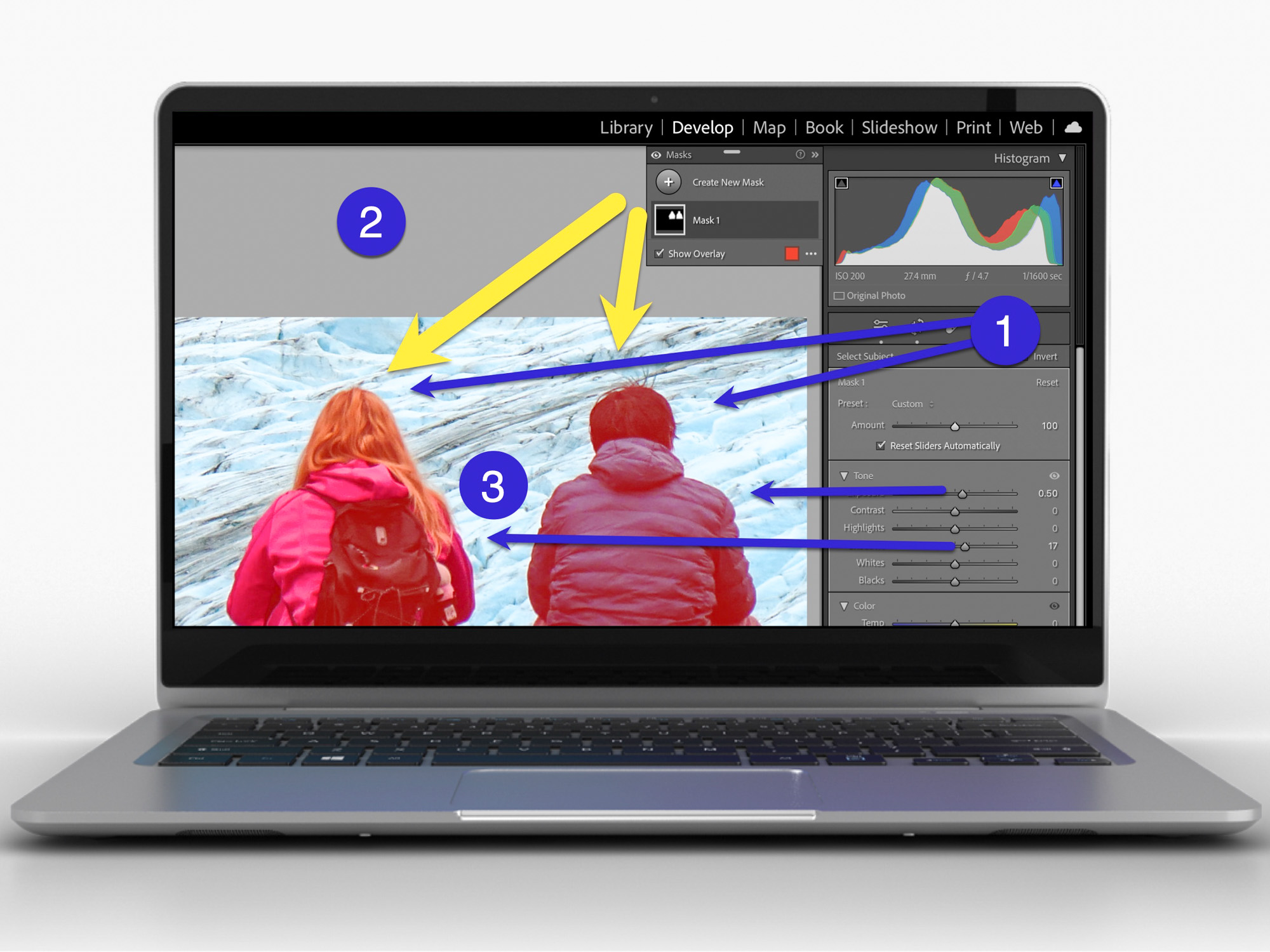
AI can effortlessly and perfectly select the people in your photos to individually brighten and edit. Here’s how to access this superpower using your iPhone and Adobe Lightroom.

I don’t travel about taking family photos with my own team of lighting professionals and a heavy bag of prime lenses (I wish). I typically just use the camera baked into my smartphone, which as you know is my trusty iPhone.

Sure, I sometimes get more ambitious and bring my GoPro, my Panasonic Lumix LX-10 or Lumix ZS200 with its bigger zoom. But my iPhone 15 Pro Max has a great camera system. And best of all, it’s always with me.

So, like the rest of us, most of my photography is generated through my phone.

When the Light is your Enemy
Even though my iPhone’s camera skills are admirable, the world usually doesn’t present perfect conditions to capture an optimal photo. Often, the lighting is not quite right.

Your subject can often look dark. Sure, my iPhone can sometimes handle this challenge. But it has problems (as does any camera) when my subject isn’t as well-lit as other parts of the frame. A similar limitation develops when the background is too bright (such as when your subject stands in front of a window with sun pouring in).

Then you’ve got yourself a silhouette shot, which is the opposite of what you probably wanted.

Yes, you can try to reframe, but that’s not always possible. The only option is to snap the photo and then try to fix it in post.

The Former Limits of Photo-Editing Solutions
There are any number of photo editing software options where you can brighten your photo to pump up how your subject appears. (Your smartphone will do this in one click.) But that can often start to overexpose the other parts of your image that are already sufficiently bright.

Professional photo editing programs can enable you to just select a portion of your photo to enhance, but there’s not been a one-click solution… until recently.

How to Brighten the People in your Photos using the AI in Adobe Lightroom
I use Adobe Lightroom Classic to organize and enhance my photos. The software now offers the ability to perfectly isolate and select people in photos with just one click. Being able to accomplish that used to take years of training and practice with complex software.

But with the power of Adobe Sensei AI, Lightroom does all that for you. Then you can easily pump up how the people in your photo look.

Here’s how:

  • In Develop mode, click on the circular Masking Tool on the top right. That’s your entry point.

On the top of your options, there are three boxes you can click to select:

  • Subject
  • Sky
  • Background

The AI-powered Masking Tool immediately isolates a perfect cut out and adds a mask that you can brighten, darken or adjust in any number of ways. If there are several people in your photo, and you want to enhance the look of just one, you can click on ‘People’ to select that individual.

It’s amazing.

Two Examples of Lightroom’s Masking Tool in Action
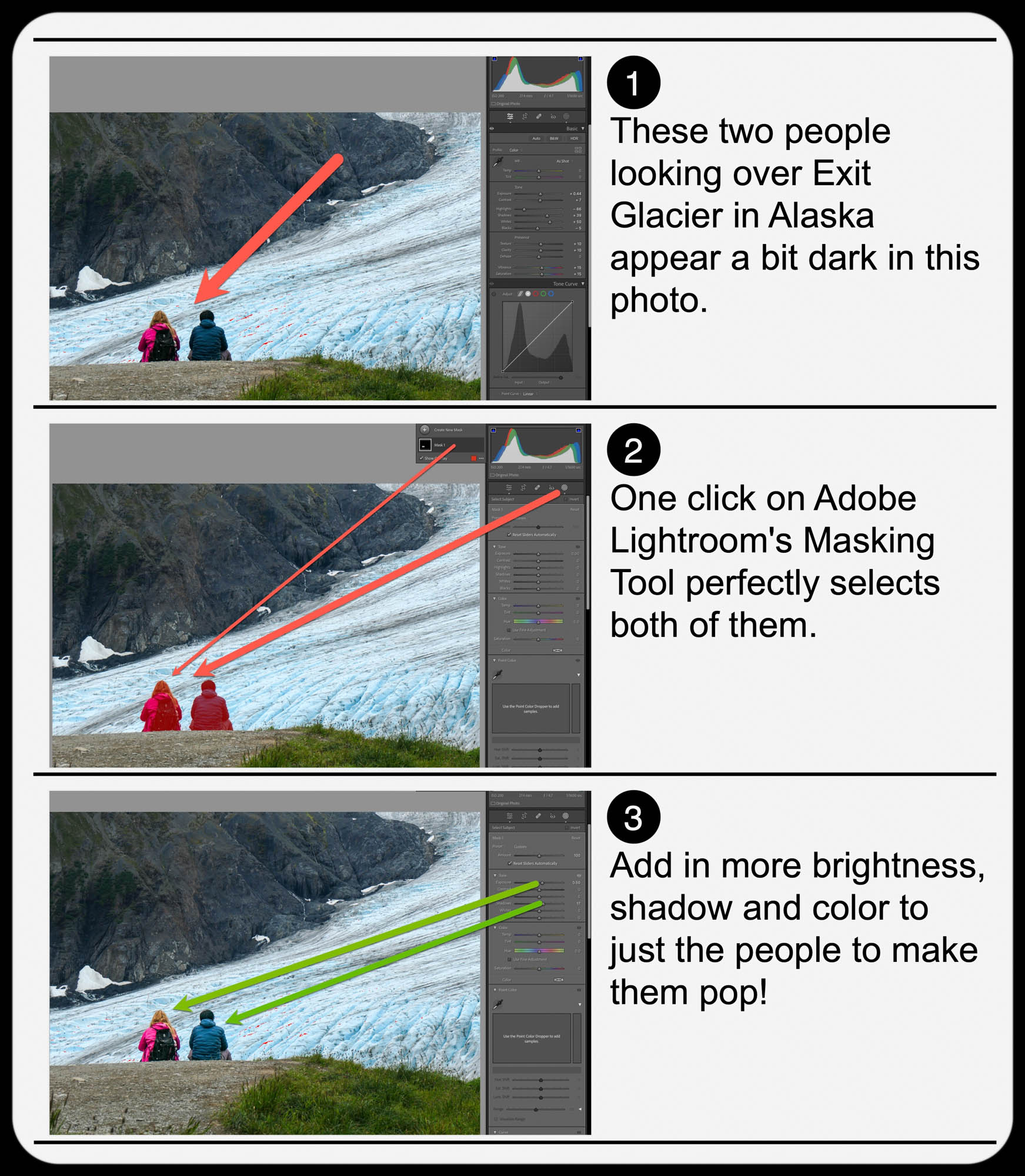
Here’s one example of using the Masking Tool to pump up the light and color saturation of just the two people in my shot overlooking Exit Glacier in Alaska’s Kenai Fjords National Park.

Brighten the People
And here’s another example where I used the Masking Tool to brighten this somewhat hidden young moose I spotted while biking near Anchorage.

Brighten the Moose
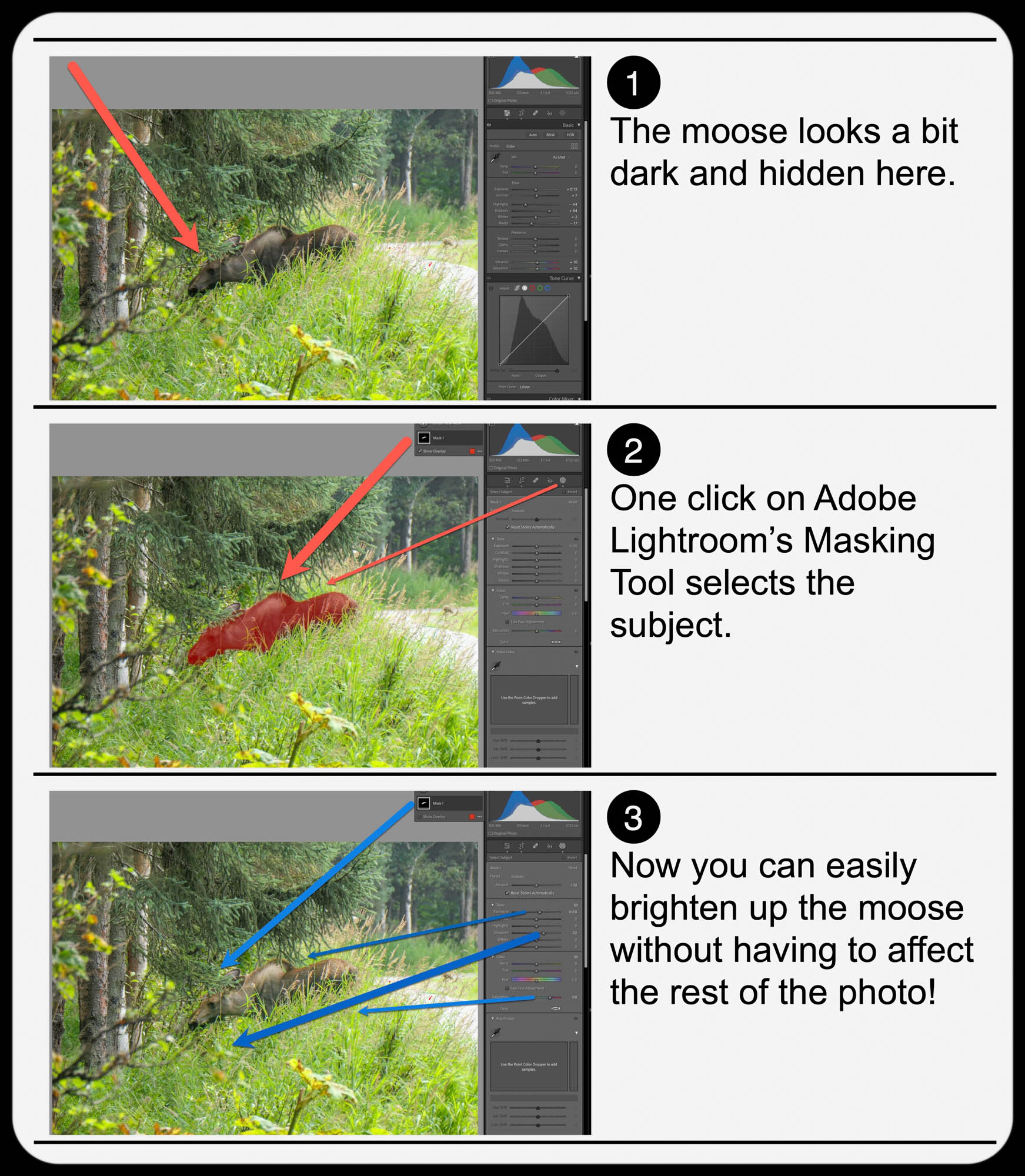
It’s not a perfect shot but being able to actually see the moose more clearly with the help of AI certainly improves it.

  • A warning: Clicking-in more light onto your subjects should be a subtle enhancement. Otherwise, it will look fake. So, sprinkle in your extra light sparingly.

Add Buttery Bokeh Blur Using your iPhone’s Portrait Mode
Once, you’ve got your photo subjects properly ‘re-lit,’ then you can focus on editing the backgrounds in your shots. A relatively new AI trick you can use is adding in background blur or ‘bokeh.’

This nifty visual effect used to be achievable only while taking photos with a more traditional camera in bright light using the right lens and aperture setting. Now you don’t have to be an expert photographer to get some bokeh. AI can create the same effect in post!

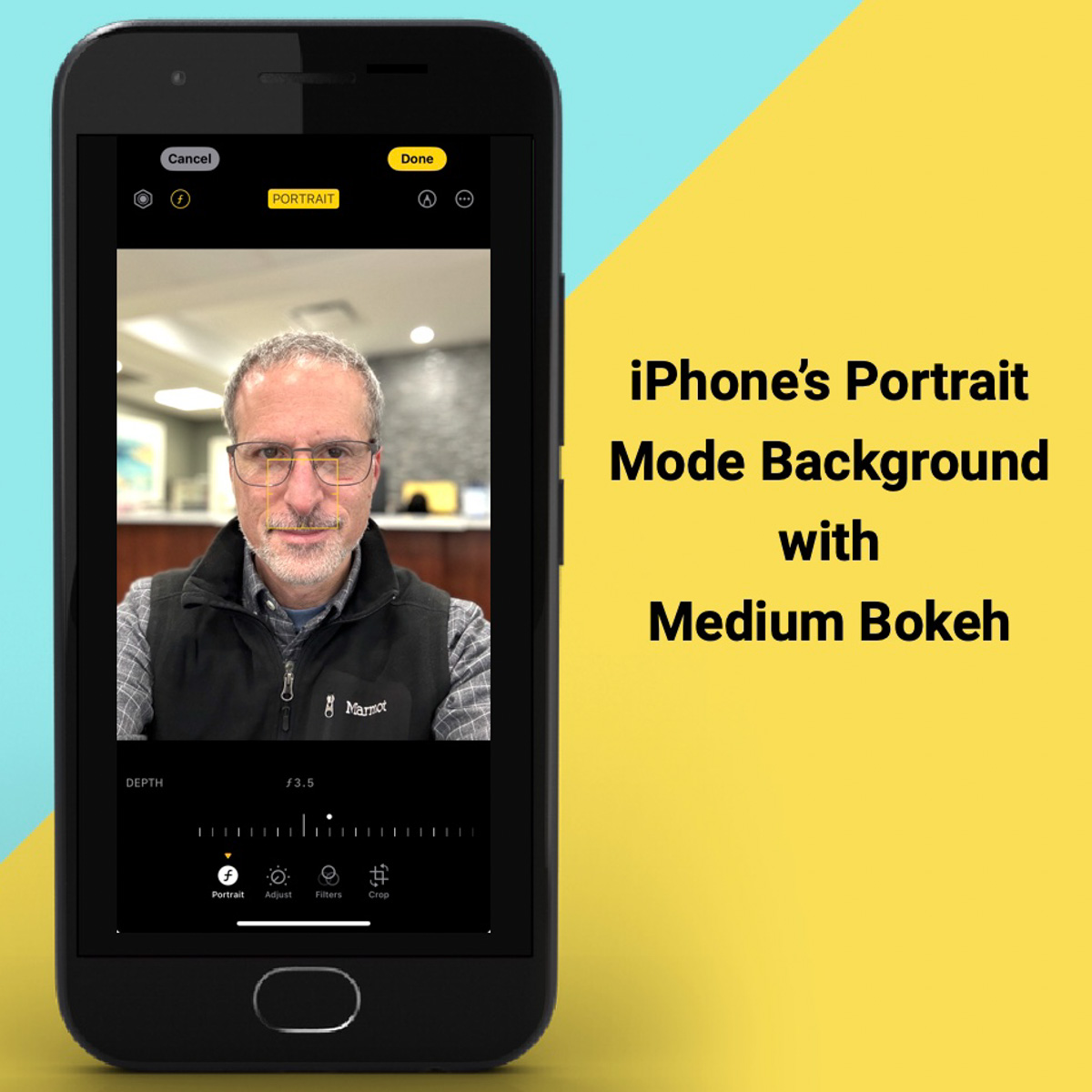
An iPhone camera’s Portrait Mode setting is designed to do exactly that. The iPhone’s software in the Photos app isolates the background from your subject, allowing you to dial in your background blur. You can snap away and then later choose to add bokeh (as long as the photo was originally taken in Portrait Mode).

This feature has been a game changer for me.

  • Another warning: You might want to dial back the amount of your iPhone’s auto bokeh level setting (Yes, you can do that.). Sometimes, just a subtle background blur is all you need. Too much may make the background look like it’s a complete digital replacement.

Three Levels of Bokeh
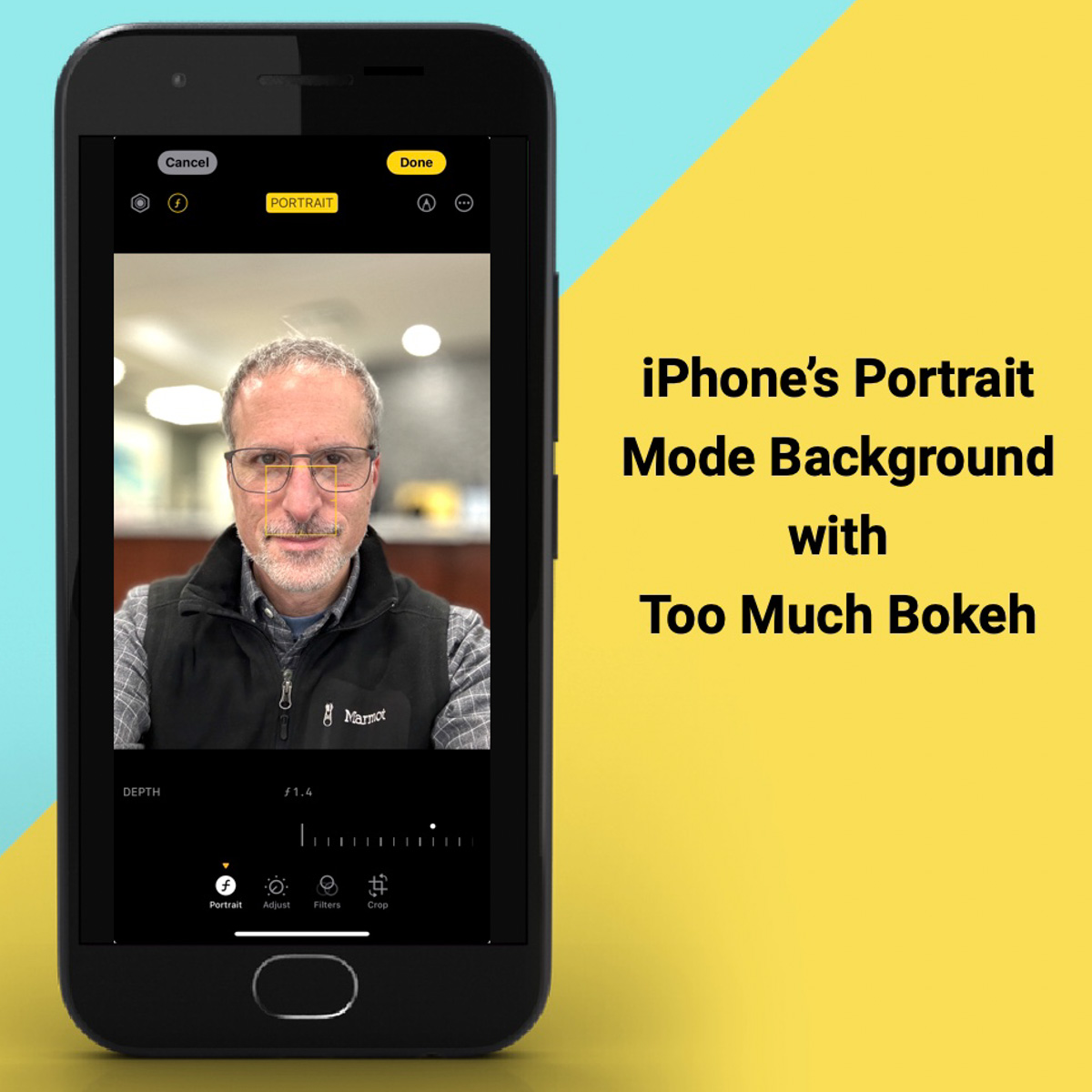
Here are three examples adding different levels of bokeh in Portrait Mode on my iPhone. I took this selfie while I was shopping for a new pair of reading glasses. You don’t need to see the optometrist office background. So, I thought it was a perfect opportunity to blur it out. But how much bokeh is the right level? You decide…

Lens Blur in Lightroom Classic
Adobe Lightroom Classic can perform the same bokeh trick with its new Lens Blur feature. In one click, you can create a depth map of your photo using Adobe Sensei. From that point, you can tinker further to adjust the scope of the blur.

Is It Cheating to Use AI to Improve your Photos?
The technology to digitally adjust your photos has been around for years. But some of the tricks were complex to pull off. The big change now is AI can do much of the same work for you with just a few clicks.

Should you feel like all of this is somehow cheating? Are you not really a good photographer, because you couldn’t originally capture your shot perfectly, and you need AI to save you?

Please.

If you’re a Luddite, maybe. Otherwise, this is simple technological progress.

Time to get on board and use some AI-oomph to make your photos shine brighter!
5 Steps to Simplify Your iPhone XS Max Purchase

If you’re feeling a bit paralyzed about your next iPhone purchase, I’ve got a few tips that might help you finally pull out your credit card…

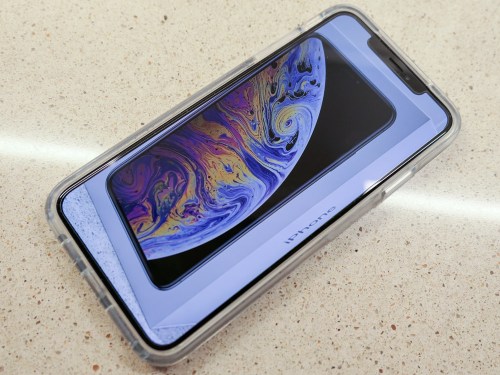
I love my Apple tech, but I’ve got to admit that it’s getting more complicated to decide exactly which features and options to buy these days. Take my new iPhone… Yes, I’m now the proud owner of a silver iPhone XS Max.
(Applause)

But that virtual applause isn’t for my choice to get Apple’s latest and greatest device. It’s more about the fact that I finally made it through my decision tree!

If you’ve been delaying your own purchase, because there are so many pieces to the iPhone decision-making process, perhaps you’ll find the details of my recent Apple Store shopping experience helpful…

Advantages of an Unlocked iPhone
My Apple Genius at the Apple Store told me that buying my iPhone XS Max outright from Apple would enabled me to get an unlocked iPhone and avoid a $30 AT&T (upgrade?) charge.
(So, there’s some upside to an all-in purchase vs. monthly payments with 0% interest.)

But perhaps more importantly, an unlocked iPhone provides more flexibility down the line should you want to switch carriers.

Shopping note: If you go with the iPhone Upgrade Program, you’ll also get an unlocked iPhone.

Step 1:

  • I bought an unlocked iPhone.
    (My Apple Genius simply popped my AT&T SIM Card out of my old iPhone 6 Plus and inserted it into my iPhone XS Max.)

Theft and Loss Protection
I’ve always attached AppleCare+ to all of my Apple products. Why quibble over the extra cost if you’re already spending so much money? You want to protect your expensive Apple gear!

Have I ever used AppleCare+? Yep.
Enough said.

But AppleCare+ with Theft and Loss?
Another hundred bucks adds loss and theft protection to the plan.
That’s great, right?

Hang on…
If you end up walking into an Apple Store without your iPhone and a sad tale of loss, there’s a $269 replacement fee (deductible) for a new iPhone XS Max. You pay the deductible instead of the cost of a whole new iPhone.

That’s $269 plus the original $100 in the plan.

So, it’s essentially a $369 insurance plan against loss.
Is that a good deal?

Well, I guess that depends on the odds of your iPhone XS Max leaving you over the next two years.

I’m hoping not to attract any attention from the evil ‘Fates of Bad iPhone Luck’ by talking about this.

Step 2:

  • I added AppleCare+ for $199 instead of the $299 AppleCare+ with Theft and Loss option.

Let’s move on…
(Cough)

256GB of Memory
Look, I know I agonized over this a particular topic when the iPhone XS Max first came out… and I pledged that I would go all in with the 512GB model.

The most storage… the greatest ability to shoot and hold onto 4K video content. More is always better, right?

Well, yes…
…and no.

The truth is I quickly started to struggle with my choice.

And the simple reason is cost. I had difficulty justifying to myself the extra $200 to supersize to 512GB. These iPhones are just so expensive. You’ve got to draw the line somewhere.
(You’ll notice I’m not even mentioning iPhone pricing. If you’ve done any research, I’m sure you know how much they cost.)

I questioned my Apple Genius on the 256GB vs 512GB choice. He agreed that more people have gone with the smaller capacity. Then, he said, “But if you never want to worry about your storage, then go with 512GB.

Ironically, that’s what sealed it for me… but not how you’d think.

Here’s my truth… if you’re planning to capture 4K videos of your family, you’re eventually going to run out of storage, no matter the capacity. It’s just a matter of when.

And it’s actually more important to have a media management plan that forces you to offload and organize your content rather than let it sit gathering digital dust in your iPhone’s massive internal storage.

Step 3:

  • Yes, I changed my mind… and went with the 256GB model.

Screen Protection
Of course I wanted a screen protector for my new iPhone…

Sure, there are several out there you can choose between. But that will send you down another decision rabbit hole.

The Apple Store sells Belkin InvisiGlass screen protectors for $39.95. And an Apple Genius professionally will install it for you.

I’d say that’s totally worth it…
You’ve got a perfectly-positioned screen protector and no worries.

Step #4:

  • I went with Belkin InvisiGlass and professional installation.

iPhone Armor
I’m not exactly sure why I’ve covered up all of my previous iPhones with black cases that obscured all of the iPhone’s design beauty. Perhaps that wasn’t an such important factor to me, and protection was.

With my new silver iPhone XS Max, I suddenly wanted to retain the cool silver edging. So, after I left the Apple Store, I shopped for a clear case and landed on OtterBox’s Symmetry Clear Series Case for $49.95.
(You can find it for less online… D’oh!!)

It took a little work to pop my iPhone into the Symmetry case, but once the job was done, I felt my new companion was properly prepared to face its new life with me…

I’ve been a big fan of OtterBox over the years, and even though the Symmetry design is more minimalistic than the typical OtterBox, I feel comfortable that my new iPhone is plenty safe.

Step #5:

One usability note:
My iPhone in its Symmetry Clear Case is a little slippery on smooth surfaces when you rest it on its plastic back. But if you flip the iPhone over so the screen faces down, the Symmetry’s rubbery front edges provide much better grip.

And a note about OtterBox…
The Apple Store I visited carried a couple OtterBox models (not the Symmetry). Apple and OtterBox is an interesting business relationship that I think is great from a consumer perspective…

Why Not an iPhone XR?
I’ve read a lot of great reviews about the iPhone XR.
Why didn’t I just go that way?
(It would have surely saved me a lot of money…)

…I wanted the advanced camera capability of the XS line with the 2X optical zoom. I believe that punch-in feature without pixel loss really offers value. I also craved the more advanced portrait-mode ‘background blur’ muscle of the XS line. For example…


These features should enable my new iPhone to better handle more of my day-to-day photography opportunities when I’m not carrying another camera with me.

In my eternal quest to capture great photos of family and friends, I’ll take all of the help I can get!

Cutting Edge for Now…
So that’s my story that put a new iPhone XS Max in my pocket. I hope it helps to simplify your own decision-making process, because I expect you really don’t want to delay.

Every day that passes is a day closer to next September when your new iPhone becomes last year’s iPhone.

If you’re going to go for it, that time is now.