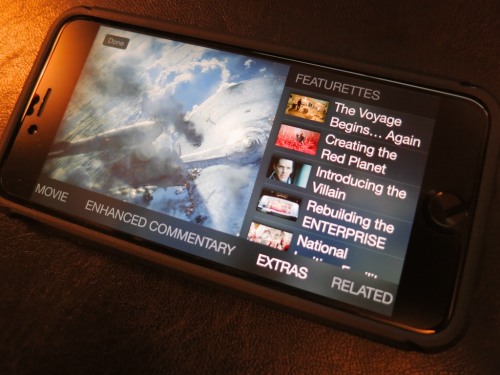
If you can satisfy three conditions, you just might find a surprise in your Videos folder the next time you click on an iTunes movie.
So while perusing my new iPhone 6 Plus, I stumbled onto what I thought was a rip in the fabric of the space/time continuum…
I took a look in my movies folder and randomly clicked on “Star Trek into Darkness.” I had loaded the iTunes movie file months ago after purchasing the Blu-ray Disc, which came with the free digital download.
For me, that was the sweet spot… to have mobile access to the flick and also own all the Blu-ray extras.
I casually waited for my screen to load, half expecting something to look a little different in iOS 8. And guess what, something very different appeared.
It was an entirely unfamiliar interface, complete with a menu and extra content selections. What was this strange new experience I had encountered?
It was as if I were peering into an iPhone from an alternate universe.
In fact, iTunes Extras had loaded onto my iPhone.
I spotted the deleted scenes…!
I saw the long list of unwatched documentaries….
All this new content had magically appeared on my iPhone…
How was this all possible?!
I looked up and around me as if I were guilty of some crime.
This must be what it feels like to win the lottery.
(a little)
I cautiously slipped the iPhone back in my pocket and continued on with my afternoon…
Easy Come, Easy Go…
The next day, while on my train ride to work, I decided to explore all that new content I had found.
I eagerly clicked on the movie icon…
But this time, iTunes Extra wasn’t there. None of it. The extras had vanished.
Just the movie remained…
Khan!!!!
For a moment, I questioned my own reality. Which viewing experience was the real one?
The Recipe to Watch iTunes Extras on Your iPhone
That night, I went home to crack the mystery.
And the answer comes in the form of a recipe…
You need the following ingredients to serve up iTunes Extra content onto your iPhone or iPad:
And that points to the fact you need to stream iTunes Extras.
So the missing piece while I was on the train was Wi-Fi.
Trying to stream iTunes Extras on a cellular network won’t work.
Holding Onto the Extras
So yes, Apple has given you this little gift, assuming you’ve purchased your content in HD.
But you can only look. You don’t own the files.
In this situation, though, the limitation was not debilitating.
And I can still have my digital cake and eat it too…
Remember, I also own the Blu-ray Disc!
And considering the iTunes file came as a free digital download to begin with, in this particular space and time… I’m feeling like one happy customer!
Thank you, iTunes…


 At Home with Tech