At Home with Tech

Unlock the power of all your technology and learn how to master your photography, computers and smartphone.

Category: Homemade Videos

The Best Video Recording Setting for your Smartphone

There isn’t a one-size-fits-all solution on how to set up your iPhone’s video recording menu. But here’s a great default setting that should handle many of your needs.

If you’ve found yourself suddenly thrust into the spotlight of having to record occasional videos of yourself for work-related projects, you’re not alone.

So many of us have been relying on Zoom and other video conference platforms to stay in touch during the pandemic. Yes, these live virtual meetings are carrying much of the load for video communications, but not every moment can be live. Sometimes, you’ve got to prerecord your message and send it in for editing.

Your Smartphone’s Movie-Making Power
And while you can certainly record a video message using your computer (assuming your webcam is working), you should really consider using your smartphone, which can typically generate a much better image. Plus, you’ll probably have a lot more flexibility finding the right spot at home to shoot in.

Before you activate your inner Francis Ford Coppola, you need to choose your smartphone’s best setting for your video message.

Go with 4K Video at 30 FPS
4K video is usually best, because it’s the highest quality that smartphones can generate. (Plus, 4K will give your video editor some flexibility to reposition you in your shot if that’s needed. It’s possible that the final edit won’t be in 4K. So, your editor will be able to crop your shot without losing image quality.)

But I’d recommend recording 4K video at 30 frames per second instead of 60 fps.

Creating 4K video on an iPhone at 60 fps uses a newer video compression format that Apple has coined High Efficiency. It may be more efficient from a file size/image quality perspective, but the highly compressed codec is harder to edit. In fact, there’s potential for audio syncing problems and dropped video frames. What that means is some computers are more prone to creating editing errors due to the heavier technical lift of handling this video format.

So, unless you’re going for slow motion in the video edit or you’re shooting action footage, which benefits from a higher frame rate, you really don’t need 60 fps. (Plus, 60 fps takes up more storage.)

How to Find your iPhone’s Video Recording Menu
To confirm your video recording setting, tap on:

  • Settings
  • Camera
  • Record Video

And this is what you’ll see.

4K at 30 fps is the way to go!*

It’s Time for your Close Up
*Of course there are exceptions. 60 fps recording might be specifically required or 1080p HD video could be good enough for an existing 1080p edit. Plus, older iPhones can’t shoot 4K at 60 fps. (That trick started with iPhone 8 and iPhone X.)

But If you’re just recording video of yourself talking, and you don’t have other technical guidance, it’s hard to go wrong using the 4K 30 fps video setting.

Just don’t forget to keep your main light source in front of you, your smartphone horizontal and any visual distractions off to the side.

Good luck!
At Home with Apples

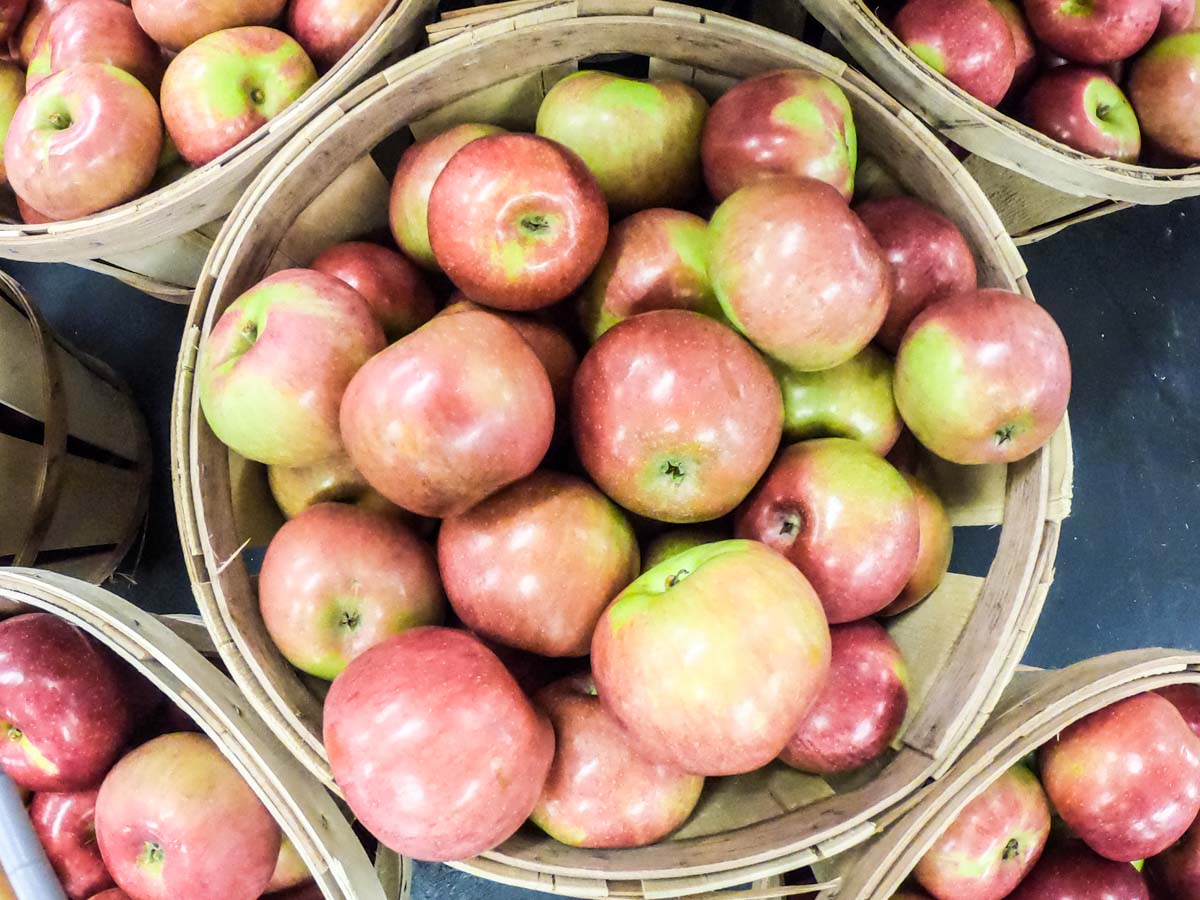
If you enjoy apple picking and apple cider donuts, you may be interested in what happened during our weekend adventure to Rogers Orchards.

A lot of advice out there talks about spending time outdoors to help manage the everyday stresses caused by the pandemic. If apple picking has previously been part of your annual routine, I think you should move that trip to the front of the line for your next weekend activity. It’s a great way to reconnect yourself to the ‘normal.’ Just be sure to wear your mask and maintain social distancing.

Visiting Rogers Orchards
This past weekend, my family and I visited Rogers Orchards in Southington, CT. We picked apples to our hearts’ content under the bright, warm sun of a cool October day.  The apple orchard was about a two-minute drive down the road from its 336 Long Bottom Road farm store and bakery.

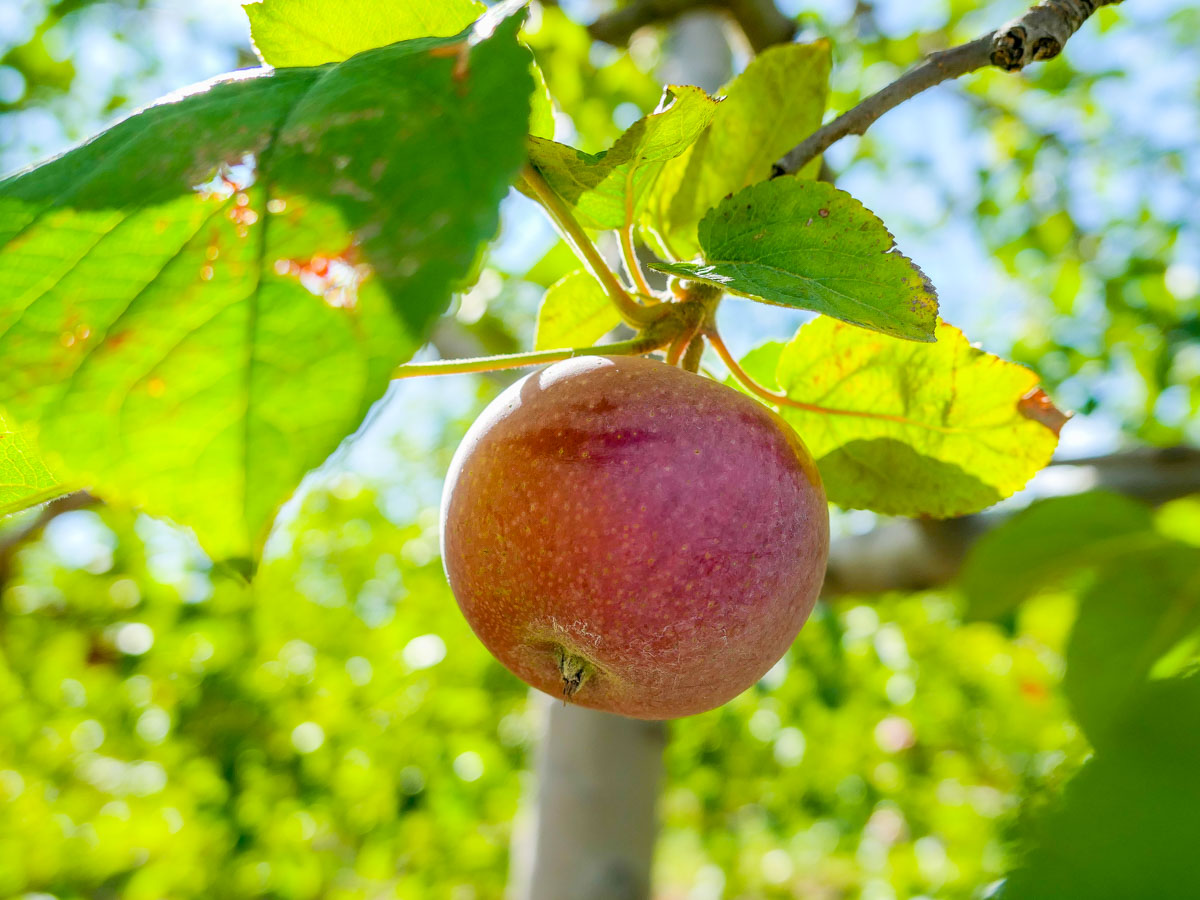
I’ve found that taking pictures of apple trees is similar to picking apples. It’s mostly about the experience. What you bring home isn’t always as amazing as you hope for, but you always feel like the effort was worth it. 

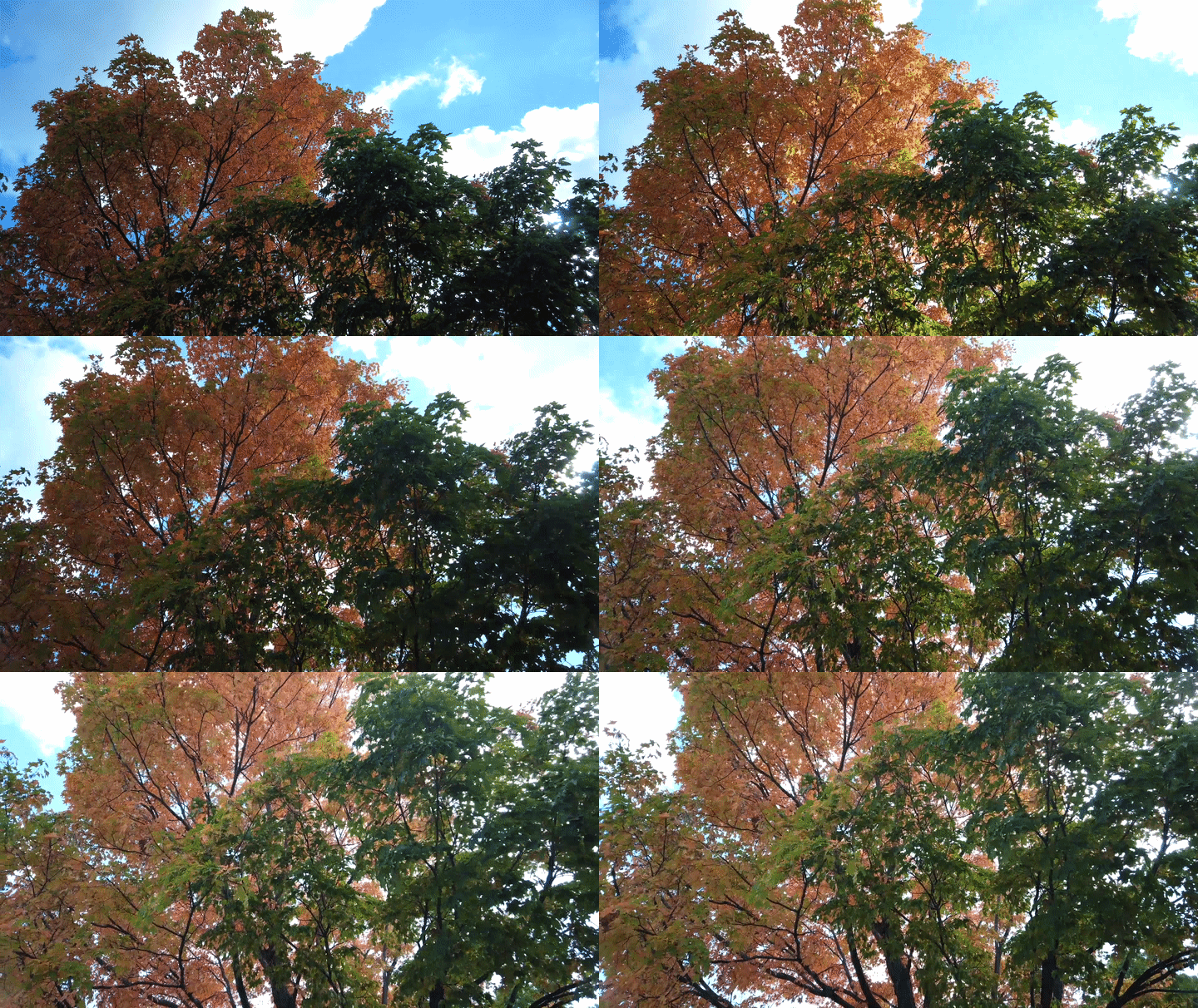
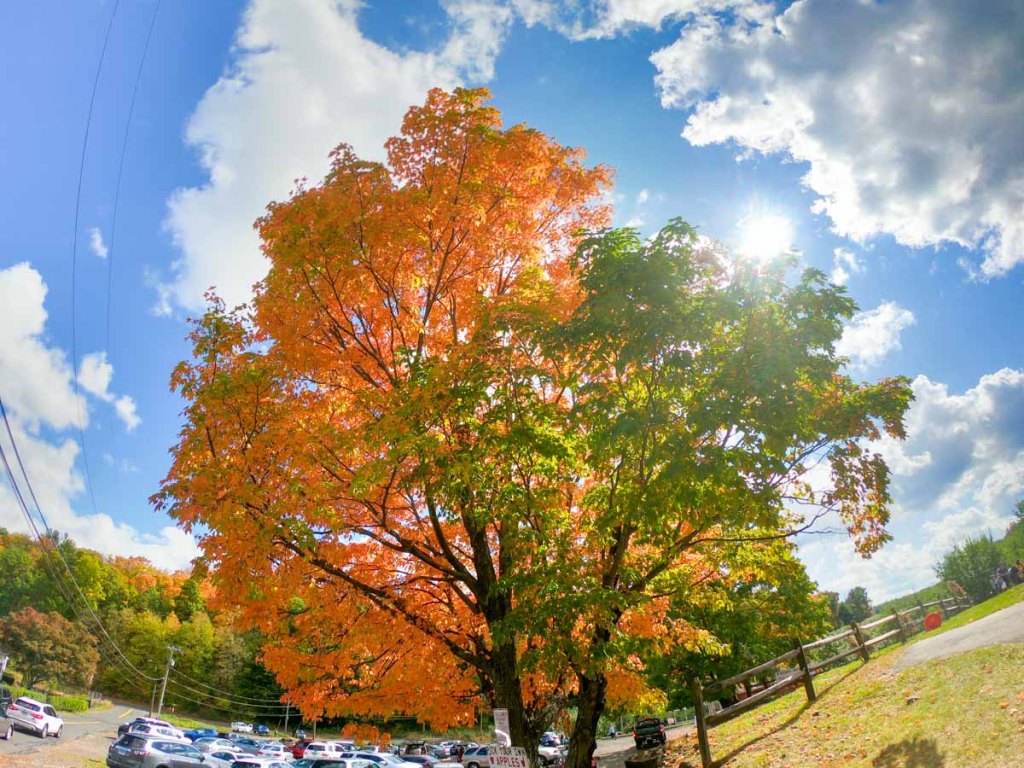
While you’re out there, don’t forget to focus on the colors of fall foliage. That’s always a good bet.

Timelapse of Tree during Fall

Look for the Views
Plus, there’s a good chance that your immersion into nature will reveal an unexpected surprise…

Timelapse of Shuttle Meadow Reservoir

I shot this timelapse of the Shuttle Meadow Reservoir at the edge of the apple orchard with my DJI Osmo Pocket camera. 

Before heading back, we stopped by Sunset Rock State Park to do a short nature walk around part of Crescent Lake. The views were gorgeous.

It was the perfect fall day. Normality restored.

At Home with Pumpkins?
If you’re lucky, you don’t always have to drive an hour away to recenter yourself and rediscover the gifts of nature. Sometimes it’s growing right outside your window.

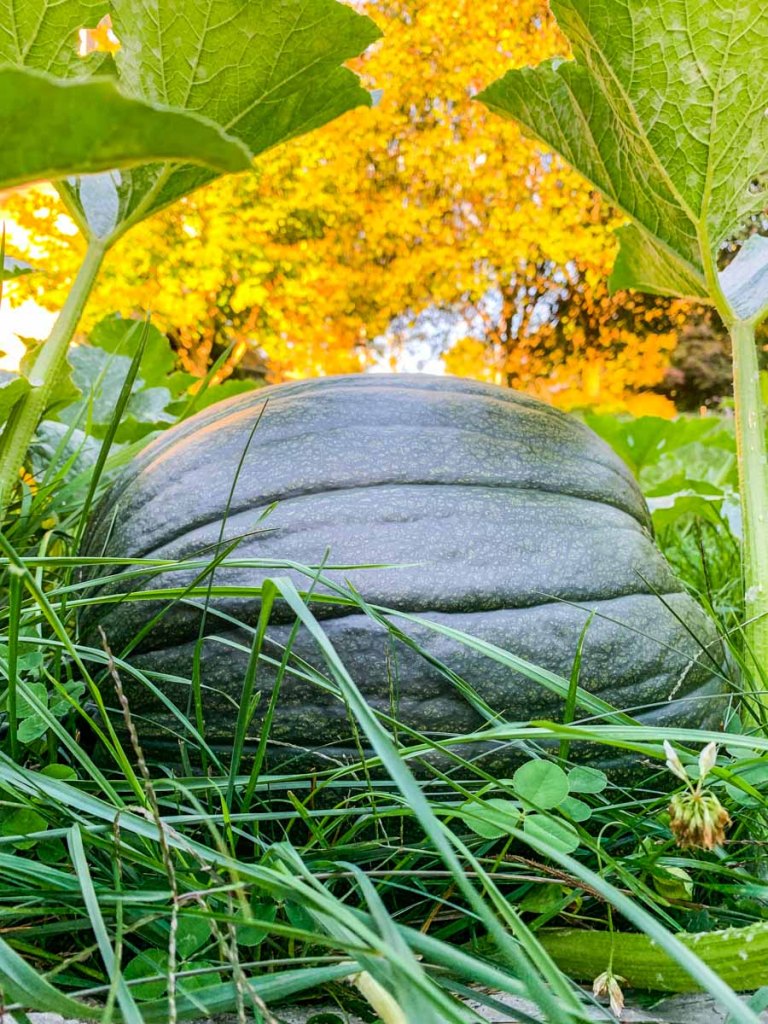
This surprisingly huge Lester pumpkin materialized after its host vine burst outside of the confines of our garden. I think it’s on track to be ready in time for Halloween!

But I’m getting ahead of myself. Now, it’s time to eat the rest of our apple cider donuts from Rogers Orchards.

Did I forget to mention the donuts?

#Comfort

How to Transform your Nixplay Digital Photo Frame into a Video Screen

If you’d like to generate a more action-filled window into your past, here’s the trick to get your Nixplay digital photo frame to play video files.

If you own a digital photo frame, I now is an especially important time to feed it with all of your great photos that can remind of you of your normal life.

You can also take it one step further and feed your frame with videos. That will create a motion-filled window into your past to look through. And that can go a long way to help you stay tethered to some sense of normal.

Nixplay’s iPhone App is the Video Path to your Frame
As you may recall, my family and I have enjoyed our Nixplay digital photo frames for the past few years. Recently, I’ve been trying to take advantage of the video playback capabilities of my newer Nixplay Smart Photo 10.1 Black” frame.

But, that experience has quickly reminded me that it takes more than a click to load video content onto a Nixplay photo frame.

If you’re also looking to put video clips onto your Nixplay frame, the only way to do it is via your iPhone. The trick is using the Nixplay iPhone app. Here’s how…

Move your Videos to the Nixplay Ecosystem
If your video was not shot on your iPhone, you must first transfer your video to, and save it, on your iPhone. I do that using Apple’s native Photos app:

  • Create a shared Photos album on your Mac that your iPhone can also access.
  • Drop the video file in the shared Photos album on your Mac.
  • Next, find the shared video file on your iPhone.
  • Save the video file.
  • Assign it to a ‘Nixplay Videos’ folder in the Photos app to use for the following steps.

The App will Do the Rest
Next, go to the Nixplay app on your iPhone. That’s where the real action happens:

  • From the Nixplay app’s home screen, click on the ‘plus’ icon on the bottom.
    (The Nixplay app then accesses your Apple Photos albums to choose from.)
  • Search for your new ‘Nixplay Videos’ album under ‘Collections.’
  • Open the album and select the video file(s) you want to upload to your Nixplay account.
    (You can only transfer ten at a time.)
  • Select the specific Nixplay playlist you want to move the video files into.
  • Tap ‘Send.’

These ten steps aren’t exactly an efficient process, but it does work. If your video is already natively on your iPhone, it’s a lot easier. Clearly, the Nixplay designers envisioned this video upload process as a shoot-and-immediately-transfer-over-via-app experience. As you move further away from that, the complexity grows exponentially.

Fifteen Seconds is All You Get
By the way, your videos can’t be more than fifteen-seconds long, unless you upgrade to the $49.99/year Nixplay Plus plan. Among other benefits, this ‘Plus’ plan allows you to upload videos that are up to one minute in length.

If you’re using the basic plan and choose a video to upload that’s longer than fifteen seconds, the app will automatically trim it for you and keep the first fifteen seconds.
(The app also gives you the option to trim out more if you’d like.)

If you do want to upgrade to get the flexibility of displaying one-minute video files, Nixplay will give you 50 GB of storage vs. the 10 GB of the standard plan. (You’re going to need it!)

Background Imagery Works Best
You can actually show a lot in fifteen seconds. I believe the experience you should try to create is a video tapestry of moving images that you can enjoy from any point in the playlist.

Your viewer shouldn’t feel forced to consume longer ‘clips’ with a clear beginning and end. Otherwise, you’re effectively trying to turn your digital photo frame into a TV. That shouldn’t be the user experience with a digital photo frame. A television dominates the environment. A photo frame sits in the background.

And even though a newer Nixplay frame can play video files with audio, it still can’t get you deep into a video immersion with a one-minute cap.

So you should think about the kinds of videos that will work best with these limitations. For me, I’ve been focusing on displaying my recent outdoor timelapse videos I’ve been shooting with my DJI Osmo Pocket camera.

They’re ten-seconds each. Short. Snackable. Yum.

Video Treats from your Photo Frame
I’m quite satisfied with these reminders of normality via these short video moments.

Thank you, Nixplay.