
Which Mesh WiFi System Should You Choose?
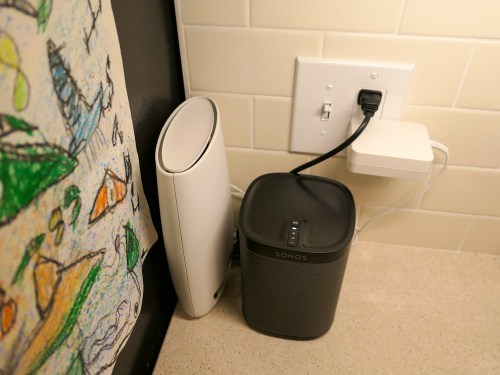
Mesh WiFi usually needs a satellite unit positioned towards the center of your house, like on the corner of your kitchen counter. The big question is which manufacturer should you go with? This is my journey to upgrade my home WiFi…
It was time to replace my old Apple AirPort Extreme WiFi router. Not that it hadn’t been serving me well over these years. In fact, it was still functioning just fine. Plus, I had really enjoyed the ease of an Apple WiFi solution with my Macs. There was just one problem…
It was never able to provide strong WiFi coverage upstairs in my house. Even on the first floor, my family would sometimes experience annoying buffering while streaming video.
Goodbye AirPort Extreme
That’s because my AirPort Extreme was far away in a corner on the first floor tethered to my cable modem. I explored the idea of extending the signal with an additional AirPort, but it was complicated, and all of my research pointed to a degraded signal as a byproduct.
Then, I read that Apple was getting out of the WiFi router business! It’s a brave new world that we can’t live in the comfy bubble of a total Apple ecosystem anymore. Apple provided these few helpful shopping tips, and that was it!
We’re on our own.
So, I decided to roll up my sleeves and find a new WiFi solution that provided whole-house coverage…
(I didn’t want to be the IT Guy in the doghouse… yet again!)
The answer was to go with a Mesh WiFi system that natively deploys multiple nodes to create WiFi coverage you really want.
Google WiFi
My friend recently installed Google WiFi in his house. It’s an easy, bulletproof solution many folks have turned to.
All of the reviews pretty much agree that while Google WiFi may not lead all of the speed specs, it can’t be beat for stability.
So, that choice would be a no-brainer for me except for one variable…
Google WiFi is designed to work in a totally wireless environment.
How to Handle USB Printers
I was still using a Canon Pixma USB printer, which was hardwired to my AirPort Extreme. You might think I shouldn’t choose my new WiFi system based on the needs of an old printer. And you’re right. But because of the space configuration in my home office, I really didn’t want to upgrade to a new printer, because most of them are so large. My old Canon is relatively compact.
If there was another WiFi option out there that could handle my Canon printer and could also compete with Google WiFi, I would happily bring it home.
And in fact, there is…
Netgear Orbi
Netgear makes a whole family of WiFi routers under the ‘Orbi’ brand, and they also get great reviews. The Orbi is a tri-band system as opposed to Google WiFi’s dual-band design. That’s supposed to make the Orbi a little more flexible to generate the fastest WiFi network.
While the Orbi might be faster, some reviews I found suggested it isn’t quite as easy to set up and use as Google WiFi.
(More on this in a moment.)
The other big difference is the Orbi deploys only two units in its standard configuration, while Google WiFi uses three. I’d say that’s another plus for the Orbi.
And yes, you can connect a USB printer to the back of the Orbi.
Which Orbi Model?
There are seemingly dozens of Netgear Orbi models to choose between. While I exaggerate, I think there are way too many options. That said, my research pointed me to the Orbi RBK50 as the best choice. This particular model also includes a USB port for my Canon printer.
The Orbi RBK50 is $298.97 on Amazon.
I was ready to make my move.
Click.
Orbi Installation
To set up my new Orbi, I used the Orbi app which I download to my iPhone. Unfortunately, I wouldn’t say it was exactly a ‘seamless’ experience.
(Cough, cough… Google WiFi)
But after two attempts, I got my Orbi network up and running.
The main router connected directly to my cable modem. I positioned the ‘satellite’ unit on the corner of our kitchen counter by the refrigerator next to an existing Sonos Play:1 speaker.
Both Orbi units are larger than I’d prefer, but positioning them so the thinner side faced forward cut down on the footprint.
(My wife still noticed the satellite immediately. The fact that that a small but growing technology hub is creeping into the kitchen and taking over valuable counter space is a topic for another day.)
The good news is the resulting WiFi signal… is amazing… everywhere in the house! (Problem… solved!)
The Unwritten Last Installation Step
One huge step that nobody talks about when replacing your WiFi system is getting all of your electronics successfully back onto your new network. Sure, that’s an obvious process for some of your tech, like your iMac and Apple TV.
But there’s a whole secondary tier of gear that operates in the background of your smart home, and you may not even remember how to update the WiFi settings.
Case in point, I realized I wasn’t so smart when it came to updating…
I had to relearn how to access all of the WiFi settings. So leave yourself some extra time to handle this inevitable residual WiFi clean up.
The Tail Wags the Dog
One final point on my stick-in-the-mud Canon USB printer… Yes, it’s functioning with my new Orbi system, but I had to first download the Netgear ReadyShare Printer Utility to my iMac. That’s the conduit to bridge a USB printer to the Orbi network.
(Just connecting the printer with the USB cable isn’t enough.)
And moving forward, I still need to ‘reconnect’ my Canon printer using the Netgear app on my iMac every time I want to print. This adds an annoying extra step to my printing workflow.
It’s not at all elegant, but it works.
Happy with My Orbi
So, my new Netgear Orbi is in place, and my WiFi network is now in peak condition throughout my house.
But who knows what future tech ‘enhancements’ will challenge my Orbi’s orbit. If there’s one fundamental truth to living happily with your tech, like anything… it’s never a ‘set it and forget it’ relationship.
For now, this home IT guy is delighted with his Orbi.


 At Home with Tech