At Home with Tech

Unlock the power of all your technology and learn how to master your photography, computers and smartphone.

Category: Tech Diary

Will Your Tech Survive the Next Snowstorm?

You can’t capture cool pictures of winter if your battery is dead. But when the power goes out, your camera may be the least of your problems. I’ve got six ways to give your tech a fighting chance…

A windy snow event or ice storm will likely create stress that you can’t control. Fortunately, if you’re prepared, you can protect your precious tech from getting zapped by a brownout or worse.

Here’s my six-step checklist to prevent ‘techtastrophy’ when a storm plays havoc with the power grid.

#1
Avoid Direct Connections to Wall Outlets
First off, just don’t plug your electronics directly into the wall. If you expect the power to fluctuate, that could also include a power surge. Why take the chance of frying your gear? You should always plug your power supplies and chargers for your delicate tech (smartphones, laptops) into surge-protector power strips.

If you happen to have a whole-house surge protection system, then good for you. Otherwise, invest in a few good power strips with surge protection.

#2
Get a UPS for Your Computer
A power strip isn’t going to cut it if you’re using a desktop computer that requires a constant flow of electricity. Any irregular (dirty) power is bad, but when a blackout hits, you don’t want to be working at your computer without some power backup. So, you’ll need a more advanced solution…

Your desktop should always be plugged into an uninterruptable power supply. A ‘UPS’ is essentially a battery backup unit with surge protection and automatic voltage regulation. So, during bad weather, you can type away in relative peace.

I bought a great UPS for my iMac.
It’s made by CyberPower (model CP 1350PFCLCD) and goes for
$189.95 on Amazon.

#3
Turn Off Your Desktop During Stormy Overnights
Even with a UPS in place, I’d still recommend you turn off your desktop overnight during a big storm instead of just putting your computer into sleep mode.
(Why take any chances?)

#4
Activate Your Portable Power Generator
A battery-powered UPS can only handle your computer for a short while- enough time to finish up what you’re doing and then safely shut down. If you need a more powerful solution, then you’ll have to invest in a portable power generator for your house that can run for hours or days (depending on your fuel reserves).

I own a liquid propane portable generator (which of course, I’ve never had to use since the day I bought it). But I’m happy it’s in place to keep the essentials going during a blackout.

#5
Juice the Backup for Your Smartphone
If you don’t have any beefy power creation solutions in place, then at least invest twenty bucks on a pocket-sized battery power bank. It will give your smartphone an extra charge or two while the rest of your home waits in the dark.

I carry around an Anker Portable Charger.
($25.99 on Amazon)

But a little power stick can’t come to your rescue if it’s not charged! So, make sure it’s juiced up before the snow hits.
(And it wouldn’t hurt to top off your smartphone either)

#6
Keep Your Smartphone Warm
Your particular smartphone model might be water resistant, but its battery is still sensitive to winter. It will drain down faster when exposed to frigid temperatures.
(And that’s why you shouldn’t keep your AA batteries in the refrigerator)

So, if you’re out and about after a storm, try to keep your smartphone as warm as possible. Otherwise, you may find it suddenly needs a recharge.
(Then, please see tip #5!)

Power Up!
Sure, it’s hard to function in the dark. But it’s easier if your critical tech isn’t down for the count. Here’s hoping you successfully weather the next ‘Snowmageddon’ along with your gear!

Why Nixplay Smart Photo Frames are Better as Screens for Video

Nixplay’s new smart digital photo frames can handle HD video files transmitted via your iPhone. Here’s why that’s a game changer.

I picked up one of the next-generation Nixplay Wi-Fi digital photo frames over the holidays to support my ongoing quest to provide more exposure for my recent family photos. I’ve generated thousands of family images over the years, and most never get any screen time, let alone make it to the physical print stage.

Yes, I know that many folks use their smartphones and shared cloud photo albums for this purpose. Or they just email pics around. But that design requires an action from both the sender and receiver. A Wi-Fi digital photo frame only needs the recipient to glance over and see what’s on the frame.

Plus digital photo frames have the huge advantage of being able to cycle through many photos.

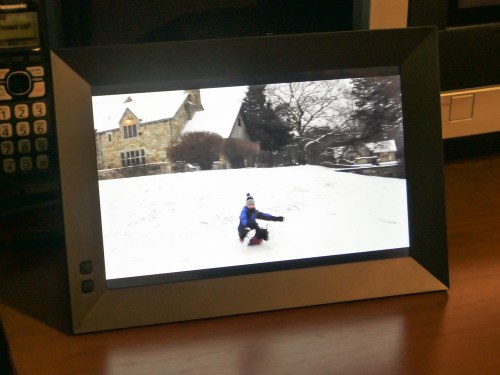
My new frame is the Nixplay Smart Photo 10.1” Black.
$152.99 at Amazon Prime

HD Video Capability
But a funny thing happened while I set up my new Nixplay frame, which was a snap… and an entirely different experience than earlier generation Nixplay frames that I had to wrestle with.

I finally processed that these current Nixplay frames now have the capability to playback HD video files.
(Older Nixplay frames could only handle SD videos, which required you to first convert your native HD MOV video files to lower-resolution AVI files. Ugh.)

So, this improvement instantly sets up a simple distribution pipeline for all of my family video clips that have had an even harder time finding an audience than their photo cousins.

But before I was able to get too excited, I read the fine print:
The length of videos is limited to a mere 15 seconds.

Well, how Vine of them!
(I expect this is not so much a creative choice as a limitation of the hardware handling huge video file sizes.)

Still, you can do a lot with 15 seconds.

Straight Out of Hogwarts
And once you put together a playlist of short video clips using the Nixplay iOS app, it creates a whole new visual experience on the frame that a sequence of digital photos simply can’t compete with.

I immediately set up a series of video clips for my Nixplay highlighting our day’s fun sledding during a light snow storm.

I felt like I was transported to the middle of a Harry Potter movie where photos and paintings come to life. Watching the videos on the frame was really that cool!

For the record, I kept the frame’s audio functionality off. Sure, it would be great to hear the sound, but I think only when you’re actively showing off your videos. Otherwise, it would be too intrusive as an ongoing environmental background element.

15-Second Videos for your Photo Frame
To simply throw your clips into a playlist for easy viewing and not have to edit together a finished video… that’s so quick and easy!

Plus, video files fit perfectly in this HD 16×10 aspect-ratio frame.
(The screen resolution is 1280×800, which is essentially 720HD. That said, my 1080p video files have been playing back fine.)

Sure, there are still some drawbacks.

The 15-second video limit is depressing, but it also respects people’s limited attention spans. If you want to show off the ten-minute school chorus performance that your child was a part of, you’ll simply need to tether your viewer to another screen.
(If you’re interested, I be happy to set up my video for you.)

And the restriction to load videos only via the Nixplay iOS app means you’ve first got to get your video onto your iPhone. So that could mean another step or two if you’re not working with native iPhone videos.

I’ve been having a lot of fun lately shooting time lapse videos with my new DJI Osmo Pocket.
Snowy Day at Cranbury Park
Still, a digital photo frame that can easily play your HD video files is a big step forward in functionality.

Every day, we’re evolving further into a world dominated by video. Digital frames that show off photos are nice, but that trick is so yesterday.

Smart frames that can handle HD videos isn’t magic anymore. It’s the only way to go.

Thank you, Nixplay!

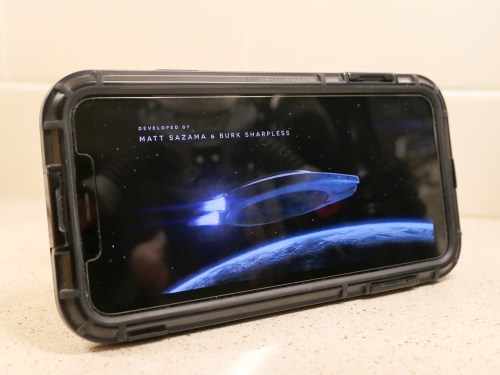
Geeky Parent Review: Netflix’s “Lost in Space” Season 2 has Changed Course

“Lost in Space” is on a journey to becoming more family friendly. The question is whether this hurts the epic Netflix sci-fi series.

Season 2 of Netflix’s “Lost in Space” is better than the first. No question.

Not that season 1 was bad. In fact, I really liked 2018’s 10-episode adventure, which reimagined the classic 1960’s series with a more action-packed, gritty storytelling style.

And in many ways, I felt that season 1 was a solid family-friendly science fiction series to watch with my (then) seven-year-old son.

Season 1’s Challenges
But the first season was filled with any number of ‘challenging’ moments better designed for adults than kids. It was hard to figure out some of the complex characters, and it took time to determine whether they were ‘good’ or ‘bad.’ (And some were left in the gray zone.)

Even though the series is rated PG-TV, a few of the alien encounters in season 1 might be a little too scary for younger kids. Though there wasn’t any serious violence, there were plenty of intense moments involving life and death.

And then, there were a few examples of salty language thrown in that you might not want to expose your kids to. (Episode 9 at 14 minutes was the worst offender.)

All of these factors point to the reality that you’ve really got to watch season 1 of “Lost in Space” with your kids. You’ll also probably want to deconstruct some of the plot elements with them as teachable moments.

Season 2’s Improvements
“Lost in Space” season 2 successfully addresses all of these ‘weaknesses’ as a family-friendly vehicle.

Most of the problems with the Robinsons as a family unit have been worked through, and we’re left with an overachieving A-team that’s more unified in confronting every life-threatening challenge that’s thrown its way. The result is more adrenaline-fueled adventure for the viewer.

Simply put, season 2 has more thrills.

And the cinematic-level special effects continue to dazzle, especially for a TV series.

But this series is not only about the action. The great cast also continues to be a major asset. The actors are consistently solid, embodying both strong male and female characters.

In fact, if you had to pick the dominant character, (which is difficult) it’s Molly Parker’s Maureen Robinson. And Parker Posey’s Dr. Smith continues to mystify and satisfy.

Positive Course Correction
Season 2’s storytelling has also moved towards a simpler structure, which kids will be able to digest more easily. That may not be a positive change for some adult viewers who enjoyed the “Battlestar Galactica” type complexities in season 1. But the enduring ‘heart’ from this “Lost in Space” has always set this sci-fi series on a different, more optimistic course.

As for the salty language issue, the writers have cleaned up their act. There’s nothing of concern to parents in any of these ten new scripts.

While season 2 has simplified its structure, it’s also benefited from any number of continuing story elements, most importantly the idea of growth and evolution that comes from experience.
(Minor spoiler: the Robot changes.)

Figuring Out the Details
The only small beef I have with season 2 is there are certain quick plot twists than are slightly confusing. I think some pivotal moments literally happen too quickly, requiring a 30-second rewind. Others appear part of the ongoing mystery behind the connection between the aliens and the humans.

And there are a few expected payoffs that you don’t get by the end of season 2. I’m sure that’s because some of the cards are being held for season 3, which is clearly set up at the end of the episode 10.

That said, enough gets wrapped up in season 2 that I am satisfied with the overall experience of “Lost in Space” (as opposed to being entirely drained by the end of each of the “Stranger Things” season cliffhangers).

Danger… Friend
“Lost in Space” season 2 is a whole lot of fun to watch for the entire family. As a geeky father, I don’t feel that it’s lost anything by becoming more family friendly. In fact, I believe it has clearly locked its identity in this season.

While “The Mandalorian” on Disney+ has sucked all of air out of sci-fi water-cooler conversations, you may have missed the arrival of this next Robinson family chapter.

Now’s the time to follow its orbit.

Buckle up!