At Home with Tech

Unlock the power of all your technology and learn how to master your photography, computers and smartphone.

Category: Tech Fixes

How to Remove an Undead Zombie Eye from a Photo

halloween-eye

Sometimes a perfectly good-looking eye won’t reflect its twin in a camera’s flash. That can really ruin a picture. Bring it back to life in seven easy steps with some photo-editing voodoo from Adobe Lightroom!

I call it ‘Dead-Eye Syndrome.’ And it’s a killer. It can unexpectedly strike at the heart of your favorite photos.

We all know how ‘red eye’ is a common problem with flash photography.
And how that devilish defect tends to occur in low-light situations when someone’s pupils are wide open.
(Blue-eyed people have a greater problem with this than brown-eyed folks.)

But barring this complication, eyes tend to normally reflect the flash in the form of a glint or sparkle.
Totally expected…

In certain circumstances though, one eye may unfortunately reflect the flash less directly than the other eye. Or sometimes not at all….
Now that can look really weird!

And the otherwise best photo you’ve taken in years can make somebody look like an undead zombie.

This Dead-Eye Syndrome is definitely going to ruin that pic…

Time for an Eye Job
Red eye is so easy to fix these days. Cameras and computer software have simple tools to magically turn all that red to black.

But what are you supposed to do with a dead eye?!
Well, to bring it back to life, you’ve got to give it the similar glint of its partner.

And that’s going to take a little tech voodoo…

Dead Eye Surgery in Seven Steps
The basic task is to clone the glint from one eye and place it on top of the sickly-looking pupil in the other eye.

Here’s how you do it using Adobe Lightroom 6:

  1. Click on the ‘Spot Removal’ tool.
  2. Click on ‘Clone.’
  3. Adjust the Brush Size to exactly cover the reflection of the good eye.
  4. Move the tiny circular brush to the dead eye and click where the reflection should be.
  5. Lightroom will choose a section from the photo to clone and highlight it with a second circle.
  6. Drag that second circle to hover back over the flash reflection in the good eye.
  7. Click again on Spot Removal to repair the dead eye and lock in the change.

It’s a little counterintuitive, but what you’re essentially doing with ‘Spot Removal’ is removing the ‘dead spot’ that should have the glint in it, and then replacing it with the appropriate flash reflection from the other eye.
(As opposed to copying the glint from the good eye and then pasting it to the dead eye)

Voila! Both of your eyes now have matching reflections.
Normality has been restored in your picture.
You are no longer an undead zombie.

Take a look at this example:

daddy-zombie

This is cropped in from the original photo. I think part of the frame from my glasses is also a contributing culprit that’s blocking the flash’s reflection. But it’s still a good example to use.


no-more-daddy-zombie

After surgery – No more Daddy Zombie…


Illuminating the Darkness
I know there’s lots of debate about the appropriateness of touching up a face in a photo.

I don’t think this falls under the same category of concern.
You don’t really have a non-reflective dead eye.
(Right?)
There is no darkness to your soul.
(I hope.)

It’s more of an aberration created by technology.
(Unless your evil eye always photographs that way… if so, immediately run to your ophthalmologist…!)

We’re simply reversing a little error and letting your true beauty shine through…

You’re welcome.
Cheap Portable Power to Feed Your Smartphone

goes for your tech… and your smartphone. If you can keep it going all day, that takes it a long way to “happy.” Can the Anker Astro E1 power stick do the job in a pinch? Let’s find out!

Happy Vs. Not Happy. That’s much of what life boils down to, right? And so it goes for your tech… and your smartphone. If you can keep it going all day, that takes it a long way to “happy.” Can the Anker Astro E1 power stick do the job in a pinch? Let’s find out!

My 83-year-old father likes to keep up… technologically speaking. Every time we have dinner together, he pays attention to each piece of tech I’m carrying. And then he invariably decides he wants to get it for himself.

One day as we were having tea after dinner, I checked my email and realized I needed a little more juice for my iPhone. So I pulled out a tiny battery-driven ‘Innergie’ charger out of my briefcase.
(I don’t use a Mophie Juice Pack battery case for my iPhone 6 Plus only due to size considerations. The Plus is bulky enough in my pants pocket!)

“What’s that?” my dad asked.

“Oh, this? It’s just a rechargeable battery to help out my iPhone.”

“Do I need one of those?”

“I don’t know. Do you?”

Power Sticks are a Must
Well, you can imagine how the conversation went from there. Before I knew it. I was on the hook for helping him figure out which portable charger to get.
No big deal…

These little power sticks are everywhere. Like little sticks of gum. I figured it shouldn’t be too difficult to quickly choose one for my dad.

And in fact, I’ve been somewhat consumed in recent years by how to generate my own power, especially if I’m off the grid…

So where’s the harm spending a little more time on this mini obsession…?
(But not too much time)

Anker Astro E1
So it wasn’t a big deal to simply go to Amazon, type in ‘portable smartphone charger’ and see what quickly rose to the top.

It was the Anker Astro E1.
(self described as ‘The Candybar-Shaped Powerpack’)

19.99 at Amazon
That’s so cheap!
It’s highly reviewed- 4.7 stars.
And it comes in multiple colors- black/blue/white.

The E1’s capacity is 5200 mAh
(Which can charge an iPhone one to two times)

The truth is there are plenty of other choices, and I’ve always liked my own Innergie ‘battery bank,’ power stick but I must admit I didn’t do much more competing research.
(Okay… None.)

The Anker seemed just fine for what it was.

Click.

Powering Up Takes Time
But when I opened up the box, the Astro E1 seemed more than just fine…
I was pleasantly surprised by its sleek black design, its practical, spongy carrying bag, and an enigmatic little card at the bottom of the box.
(More on this in a moment)

My father will love the Astro E1… if he ever ends up using it!

A word of minor caution:

  • A 1-amp iPhone charger is supposed to take 5 hours to charge the Astro E1.
    That said, I spent more than 6 hours charging mine before I packed it in to go to bed. So think of it as needing an overnight charge…
    (Anker of course sells its own charger, which does the job much faster.)
  • Don’t forget you’ll need buy/provide a separate USB cable to connect the Anker.
    (The Astro E1 doesn’t come with one.)

Happy/Not Happy?
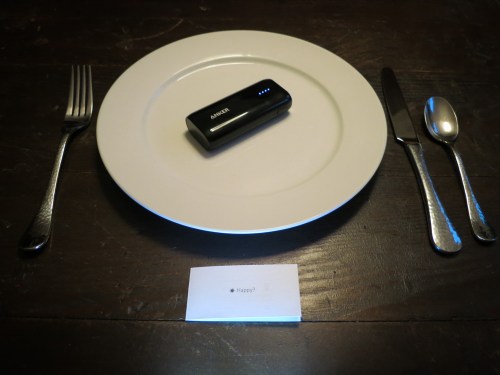
Remember that little card in the bottom of the Anker box?

There was a “Happy?” on the front with a little icon for the sun.
And “Not Happy?” on the back with a rain cloud.

Hmmm. What was this?
I was simultaneously confused and invigorated.

What was I supposed to do with this card?

I quickly imagined I could have hundreds of these little cards and carry them with me as I moved about my life, placing them in choice locations to reflect my experience.

After attending a two-hour meeting that was scheduled for only one, I would get up and leave a card behind, positioned appropriately to display my sentiment.

“Barrett, you forgot this ca….. Oh. Oooh.”

Or when I leave a movie theater after watching a great flick… I would deposit one on my seat with the right side up.
(That’s far more polite than leaving behind an explosion of popcorn, right?)

I wasn’t immediately sure what Anker had in mind with the Happy/Not Happy card, but I liked it!

Then I realized the card actually opened up…
And inside it invited me to share my happiness online or how to reach customer service should I have a frown on my face.

Of course.
(Now I felt I needed a ‘Silly/Embarrassed’ card.)

Survey Says…
All right, then.

So they say money can’t buy you happiness.
But sixteen bucks for the Astro E1?

“Happy.”

How to Decide if Sonos is Right for You

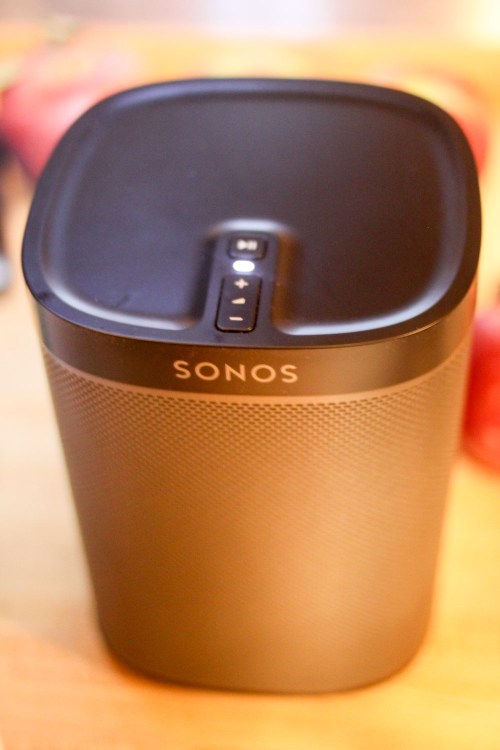
Behold! My new Sonos Play:1 wireless speaker. I’ve struggled with the choice to go Sonos for years. But it really boils down to five reasons….

Behold! My new Sonos Play:1 wireless speaker. I’ve struggled with the choice to go Sonos for years. But it really boils down to five reasons….

I used to long for the days when playing music at home was as easy as turning on an analog radio. Yes, I still have my old stereo system with its antiquated tuner, but it sits mostly dormant in our family room, unable to compete in today’s on-demand and streaming world of music consumption. My bookcase with hundreds of CDs gathered over half a lifetime collects dust in a corner.
(My stalled CD music transfer project to iTunes is on eternal “I’ll get to that tomorrow” mode.)

Bluetooth Blues
I thought I was finally ‘getting it done,’ when I bought my little Logitech UE Bluetooth rechargeable speaker that could pair with my old iPhone 6 Plus.
(No, I haven’t felt compelled yet to pull the trigger on an iPhone 7.)

The portable Bluetooth speaker was fine, but it really didn’t cut it as a total solution.

Sure, when linked to my iPhone, it could magically project whatever music I wanted while I made my Saturday morning pancakes for the family. But whenever a phone call came in, my little pop-up concert came to an immediate halt. The call became a projected public event as the Bluetooth speaker morphed into an unwanted speakerphone.
(The speakerphone trick is cool, but not when you’re rocking out.)

Also, if I had to run downstairs to the garage with my iPhone in my pocket, the distance back to the speaker would break the Bluetooth connection.
(Another way to interrupt your six-year-old’s dance party.)

And sometimes, my rechargeable Bluetooth speaker would simply run out juice.
(You can’t always keep track of every device’s charge.)

Hello, Sonos
Our limited sonic existence at home has been going for a few years. As a parent, I imagine you’d agree there are a fair number of bowling pins to juggle. This particular inconvenience just wasn’t percolating to the top of my fix-it list.

But every six months or so, my wife would walk up to me, and in the nicest of ways would suggest how great it would be if listening to music at home were just… easier.

  • If we could more quickly and easily access our music.
  • If we could listen to the same music in different rooms in the house.
  • If some of my tech solutions weren’t so… complex.
  • If…

I think you get it.
And of course, I knew what the answer was.

Sonos.

Whenever we visited friends… there it was… some variant of a Sonos system.

Sonos has been around for years as the go-to solution for wireless, Wi-Fi speakers that can stream music from a myriad of music services or connect to your massive HDTV to complete your home media center.

A free downloadable Sonos app on your smartphone then turns your phone into a remote control for your entire Sonos ecosystem.

Sonos.

The choice is easy, right?
So what was my problem?

Well, I thought it was going to be an expensive solution…

Truthfully, I hadn’t done enough Sonos research to fully understand all of the purchasing choices.

Bite the Bullet
And in fact, Sonos speakers are pretty expensive.

There are three flavors of standalone Wi-Fi speakers:

  • Play:1 – $149
  • Play:3 – $299
  • Play:5 -$499

They range in size and power…
So if you contemplate popping a bunch of them throughout your house, you can see how the price tag will quickly add up.

Still, it is a once-and-done solution.
And there’s another way to look at it… you can build to your whole-house sound system over time.

But the key factor for me was the release of the smallest but more affordable Play:1.
(which came out back in 2013)

So when my wife whispered in my ear again a couple of weeks back, I finally sat down and took a good look at the Sonos universe online and quickly realized the Play:1 could easily be our path in…

It was finally time to begin…

Toe in the Water
I decided to buy one Play:1 and pop it in our kitchen. That space is currently a music hub, as my family often enjoys listening to tunes during meal prep.

I figured if it all worked out, I would then expand the joy to our family room and bedroom.

The Play:1’s price was exactly the same wherever I looked… $149.
It comes in white or black.
Here’s the black Play:1 on Amazon.

Click.

How to Install Your Sonos
I opened the box and pulled out a pretty hefty ‘small’ speaker. It stood 6.5 inches tall, and I think if you dropped it, you’d likely break a toe.
(So don’t drop it!)

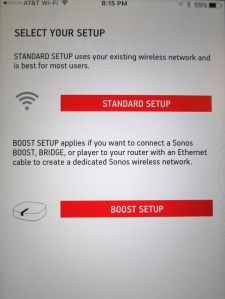
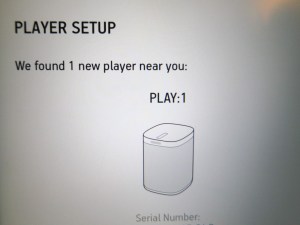
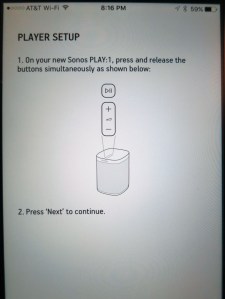
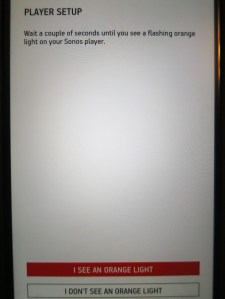
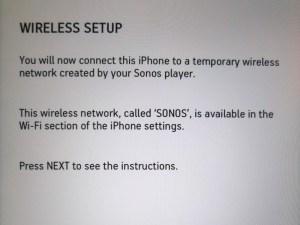
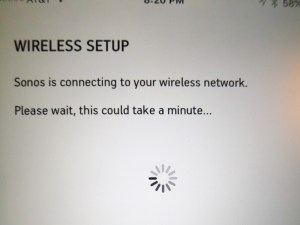
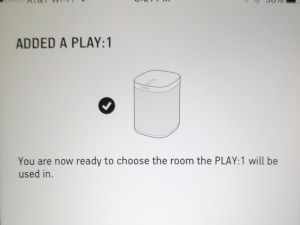
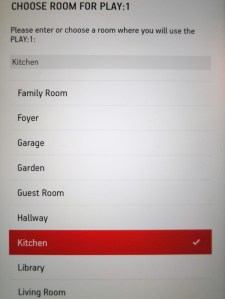
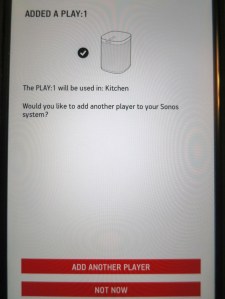
Then, I realized there are no instructions… You’re supposed to just download the app on your smartphone, and let it take you through the install process from there.

There’s an online product guide, but the app-directed install couldn’t have been easier.

Here are the key set-up pages you’ll encounter…

sonos-set-up-on-app-1


sonos-set-up-on-app-2


sonos-set-up-on-app-3


sonos-set-up-on-app-4


sonos-set-up-on-app-5


sonos-set-up-on-app-6


sonos-set-up-on-app-7


sonos-set-up-on-app-8


sonos-set-up-on-app-9


There are a few more pages that deal with registration and updates that your Sonos may need.

But that’s essentially it.

Let the Music Begin
Once you’ve got your Sonos speaker up and running, you have immediate access to your streaming music services like Pandora as well as over 100,000 internet radio stations.
(Radio by TuneIn comes preloaded.)

And your Play:1 can play music from up to 16 of your devices.
(smartphones, tablets, computers)

One surprising detail…
The Sonos speaker is designed to always be on.
You can hit the pause button on the top control panel and just walk away.
(A little light on the top stays on, but it apparently draws only a trickle of juice in this mode.)

Is the ‘1’ Big Enough?
The early review from my wife is a big thumbs up!

The Play:1 sounds awesome and is plenty powerful for our kitchen. In fact, it would do just fine projecting into the other rooms in our house.

Sure, if you have a more cavernous space to fill or really enjoy punching it to ‘eleven,’ then I imagine you’ll want the Play:3 or Play:5.

But I think our little kingdom is going to be quite happy populated by more Play:1 speakers.

The Five Reasons
Am I the last person on Earth to recognize the power and ease of Sonos?
It certainly feels that way.

But if you’ve read this far, I bet you’ve also held back but have the itch.
And if you’re still unsure, it boils down to this:

  1. It’s the current go-to solution for Wi-Fi speakers.
  2. You can get started for $199.
  3. Installation is a snap.
  4. You can stream music but also play from local devices like your iPhone.
  5. It makes your family happy.

So if you haven’t taken the plunge yet, I’m happy to report the water’s warm.
Jump in!