At Home with Tech

Unlock the power of all your technology and learn how to master your photography, computers and smartphone.

Category: Tech Trends

Which Mesh WiFi System Should You Choose?
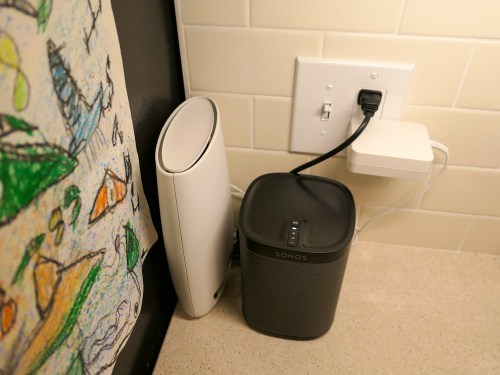
Mesh WiFi usually needs a satellite unit positioned towards the center of your house, like on the corner of your kitchen counter. The big question is which manufacturer should you go with? This is my journey to upgrade my home WiFi…

It was time to replace my old Apple AirPort Extreme WiFi router. Not that it hadn’t been serving me well over these years. In fact, it was still functioning just fine. Plus, I had really enjoyed the ease of an Apple WiFi solution with my Macs. There was just one problem…

It was never able to provide strong WiFi coverage upstairs in my house. Even on the first floor, my family would sometimes experience annoying buffering while streaming video.

Goodbye AirPort Extreme
That’s because my AirPort Extreme was far away in a corner on the first floor tethered to my cable modem. I explored the idea of extending the signal with an additional AirPort, but it was complicated, and all of my research pointed to a degraded signal as a byproduct.

Then, I read that Apple was getting out of the WiFi router business! It’s a brave new world that we can’t live in the comfy bubble of a total Apple ecosystem anymore. Apple provided these few helpful shopping tips, and that was it!

We’re on our own.

So, I decided to roll up my sleeves and find a new WiFi solution that provided whole-house coverage…
(I didn’t want to be the IT Guy in the doghouse… yet again!)

The answer was to go with a Mesh WiFi system that natively deploys multiple nodes to create WiFi coverage you really want.

Google WiFi
My friend recently installed Google WiFi in his house. It’s an easy, bulletproof solution many folks have turned to.

All of the reviews pretty much agree that while Google WiFi may not lead all of the speed specs, it can’t be beat for stability.

So, that choice would be a no-brainer for me except for one variable…
Google WiFi is designed to work in a totally wireless environment.

How to Handle USB Printers
I was still using a Canon Pixma USB printer, which was hardwired to my AirPort Extreme. You might think I shouldn’t choose my new WiFi system based on the needs of an old printer. And you’re right. But because of the space configuration in my home office, I really didn’t want to upgrade to a new printer, because most of them are so large. My old Canon is relatively compact.

If there was another WiFi option out there that could handle my Canon printer and could also compete with Google WiFi, I would happily bring it home.

And in fact, there is…

Netgear Orbi
Netgear makes a whole family of WiFi routers under the ‘Orbi’ brand, and they also get great reviews. The Orbi is a tri-band system as opposed to Google WiFi’s dual-band design. That’s supposed to make the Orbi a little more flexible to generate the fastest WiFi network.

While the Orbi might be faster, some reviews I found suggested it isn’t quite as easy to set up and use as Google WiFi.
(More on this in a moment.)

The other big difference is the Orbi deploys only two units in its standard configuration, while Google WiFi uses three. I’d say that’s another plus for the Orbi.

And yes, you can connect a USB printer to the back of the Orbi.

Which Orbi Model?
There are seemingly dozens of Netgear Orbi models to choose between. While I exaggerate, I think there are way too many options. That said, my research pointed me to the Orbi RBK50 as the best choice. This particular model also includes a USB port for my Canon printer.

The Orbi RBK50 is $298.97 on Amazon.

I was ready to make my move.
Click.

Orbi Installation
To set up my new Orbi, I used the Orbi app which I download to my iPhone. Unfortunately, I wouldn’t say it was exactly a ‘seamless’ experience.
(Cough, cough… Google WiFi)

But after two attempts, I got my Orbi network up and running.

The main router connected directly to my cable modem. I positioned the ‘satellite’ unit on the corner of our kitchen counter by the refrigerator next to an existing Sonos Play:1 speaker.

Both Orbi units are larger than I’d prefer, but positioning them so the thinner side faced forward cut down on the footprint.
(My wife still noticed the satellite immediately. The fact that that a small but growing technology hub is creeping into the kitchen and taking over valuable counter space is a topic for another day.)

The good news is the resulting WiFi signal… is amazing… everywhere in the house! (Problem… solved!)

The Unwritten Last Installation Step
One huge step that nobody talks about when replacing your WiFi system is getting all of your electronics successfully back onto your new network. Sure, that’s an obvious process for some of your tech, like your iMac and Apple TV.

But there’s a whole secondary tier of gear that operates in the background of your smart home, and you may not even remember how to update the WiFi settings.

Case in point, I realized I wasn’t so smart when it came to updating…

I had to relearn how to access all of the WiFi settings. So leave yourself some extra time to handle this inevitable residual WiFi clean up.

The Tail Wags the Dog
One final point on my stick-in-the-mud Canon USB printer… Yes, it’s functioning with my new Orbi system, but I had to first download the Netgear ReadyShare Printer Utility to my iMac. That’s the conduit to bridge a USB printer to the Orbi network.
(Just connecting the printer with the USB cable isn’t enough.)

And moving forward, I still need to ‘reconnect’ my Canon printer using the Netgear app on my iMac every time I want to print. This adds an annoying extra step to my printing workflow.

It’s not at all elegant, but it works.

Happy with My Orbi
So, my new Netgear Orbi is in place, and my WiFi network is now in peak condition throughout my house.

But who knows what future tech ‘enhancements’ will challenge my Orbi’s orbit. If there’s one fundamental truth to living happily with your tech, like anything… it’s never a ‘set it and forget it’ relationship.

For now, this home IT guy is delighted with his Orbi.

How Does Waze Work without a Cellular Connection?

We all know that navigation apps on your smartphone need to be online to function in your car. Or do they? Even with no bars, Waze can still get you where you’re going. Here’s how…

Yes, I must report that I’m still using my portable Garmin GPS in my Toyota RAV4. It’s admittedly difficult to defend my ongoing allegiance to this expensive older tech. My Garmin simply can’t compete with the more flexible user experience of navigation apps on smartphones.

But the good news is I’ve recently taken a big step forward… These days, I’ve been using Waze on my iPhone. All of the real-time traffic and hazard updates provide a nifty virtual view a few miles up the road. That’s hard to beat.

My Garmin Vs. My Waze
I shouldn’t admit this, but I often have both my Garmin and Waze operating simultaneously to see if they agree on the fastest way to go. And more often than not… they don’t. But that’s another story…

One advantage that I thought my Garmin Drive 50LMT still had over smartphone apps was its almost bullet-proof ability to maintain its GPS connection vs my iPhone’s uncertain cellular data tether while driving through dead zones. Navigation apps can’t survive that kind of hiccup, right?

But on a recent vacation road trip, I experienced what seemed to be impossible…
Waze was working without a cellular connection!

Offline iPhone GPS
My family and I were driving through some backroads in New Hampshire, and I looked at my iPhone, which was mounted to my dash via my Bunker Ring. I realized that while Waze had indeed lost all cellular connectivity, it still appeared to be functioning normally. As we drove, it continued to correctly display our location and the distance to our next turn. But it had no signal!

How was that possible?!

The Little-Known GPS Chip
After doing a little research after we got home, I realized that my iPhone was able to pull off this trick by using its built-in GPS radio. Yes, my iPhone has its own GPS functionality as do other smartphones! Its GPS chip operates independently of cellular data, and that’s why Waze was still able to see in the digital dark.

Sure, my Waze app was hobbled without its connection through AT&T. It couldn’t provide crowd-sourced traffic and hazard updates or recalculate my route. But Waze wasn’t entirely down for the count either.

I imagine at some point, Waze would have needed to connect back to its servers to download more map data, but for the fifteen minutes or so that I was driving offline, Waze was able to keep up with the twisty road ahead!

Impressive… most impressive.

Your Smartphone is at Home with GPS
There are actually lots of folks out there taking advantage of their smartphone’s GPS chip in places where cell coverage is nonexistent. They’re using apps designed to download maps ahead of time, before the trip begins.
(Waze can’t do this.)

But for me, I’m just exceptionally pleased knowing that Waze can survive for a while in a data-free zone using my iPhone’s GPS radio.

And if that can’t reverse my irrational allegiance to my Garmin Drive, I’m not sure what else will!

4 Ways to Handle the Mess of Taking Too Many Pictures

Irony is everywhere… especially when it comes to taking pictures. If you’re having a hard time managing and sharing all of your disorganized digital photos, you’re not alone. I’ve got a few tips to help you get back on track…

Now that summertime has unofficially begun, I’d like to share a little warning… Don’t fall for what I call the “Quadrotriticale Paradox.”

Remember that “Star Trek” episode titled “The Trouble with Tribbles” where those cute furballs found their way into a poisoned storage bin of quadrotriticale? All of the tribbles had a big feast, but many ended up starving after eating the poisoned grain.

What does this have to do with all of those summer photos you’re going to be taking…? If you’re snapping hundreds of pictures, your family and friends may still feel like they’re starving to receive a few images that show what you’ve been up to.

What’s the Plan?
We all want to share our best summer moments, but the “Quadrotriticale Paradox” can get in the way. The truth is the more pictures your take, the lower the odds you’ll actually find the time to go through, organize and share your top photos.

Short of taking fewer pictures…
The best way to reverse the effects of the paradox is have a good plan on how to unlock and release your photographic treasures.

Here are four ways that help me get the job done…

#1
Rate Your Photos to Find the Gems
There is no magic bullet. You have to review each photo.
(I prefer using the larger real estate of a computer screen vs. a smartphone or tablet.)
Use the 1-5 numbering system.
(Both Adobe Lightroom and Apple’s Photos allow you to do this.)

Here are my rating rules-

  1. Total failure. Give it an immediate appointment with the trash bin.
  2. Really bad photo. Trash it unless it’s the only shot of something special.
  3. Just okay. Decide whether to trash it another time.
  4. Good photo, but there’s a better version of it
  5. The better version or simply a great picture

Then, organize your photo album to display in descending order based on the rating numbers.

Give your 2’s another look and see if any of them should be a 3.

Then move the 1’s and 2’s into the trash, and DELETE!
Your worst photos are now gone forever.
Now it’s time to focus on the pictures you want to show off.
And those are your 5’s.

#2
Share Your Photos Quickly
I know I’ve said it before, but it’s always worth repeating…

Your family photos have an expiration date! Nobody is really interested in last month’s photo. Last week is already yesterday’s news. Yesterday’s pics are okay, but today’s photos are even better.

So, you don’t have a lot of time before your amazing photos are old news.

If you want to tweak your best pics before sharing, that’s fine, but don’t let that delay your process. You can always take the time to crop and adjust the colors and brightness when building your archival photo albums.

#3
One is Better than None
Sometimes, when time is really working against you, you’ve won’t have the luxury of evaluating and rating your photos.

Instead, just ask yourself this question…
“Which one or two pictures tell the story?”

You’ll need to rely on your instincts here, because remember… you won’t have the time to go back through all of your photos.

If you start practicing this technique regularly, you’ll begin to recognize ‘the shot’ when you take it.

Then, you’ll be able to quickly find it again and share it with your world.

#4
Don’t Fall Behind!
After the firestorm of immediacy subsides, you may return to your more organized process.

But there’s never really more time to handle yesterday’s photos, because tomorrow’s are just around the corner.

And if you fall behind and develop a backlog of pictures to review… you may never get to them.

You’ll find yourself sitting on thousands of photos from months and years past that nobody else ever had the chance to enjoy.

It’s Time to Deal with the Mess
The reality is we’re all faced with the likelihood of having to manage thousands more pictures in the years to come.

The Quadrotriticale Paradox is a beast that needs to be kept under control.
Or else.

Now go tame your photographic jungle and hunt down your best pictures to share. And if you come across a wild tribble or discover a way to stretch the fabric of time, please let me know!