At Home with Tech

Unlock the power of all your technology and learn how to master your photography, computers and smartphone.

Tag: digital photo management

5 Ways to Quickly Free Yourself from the Shackles of Digital Clutter
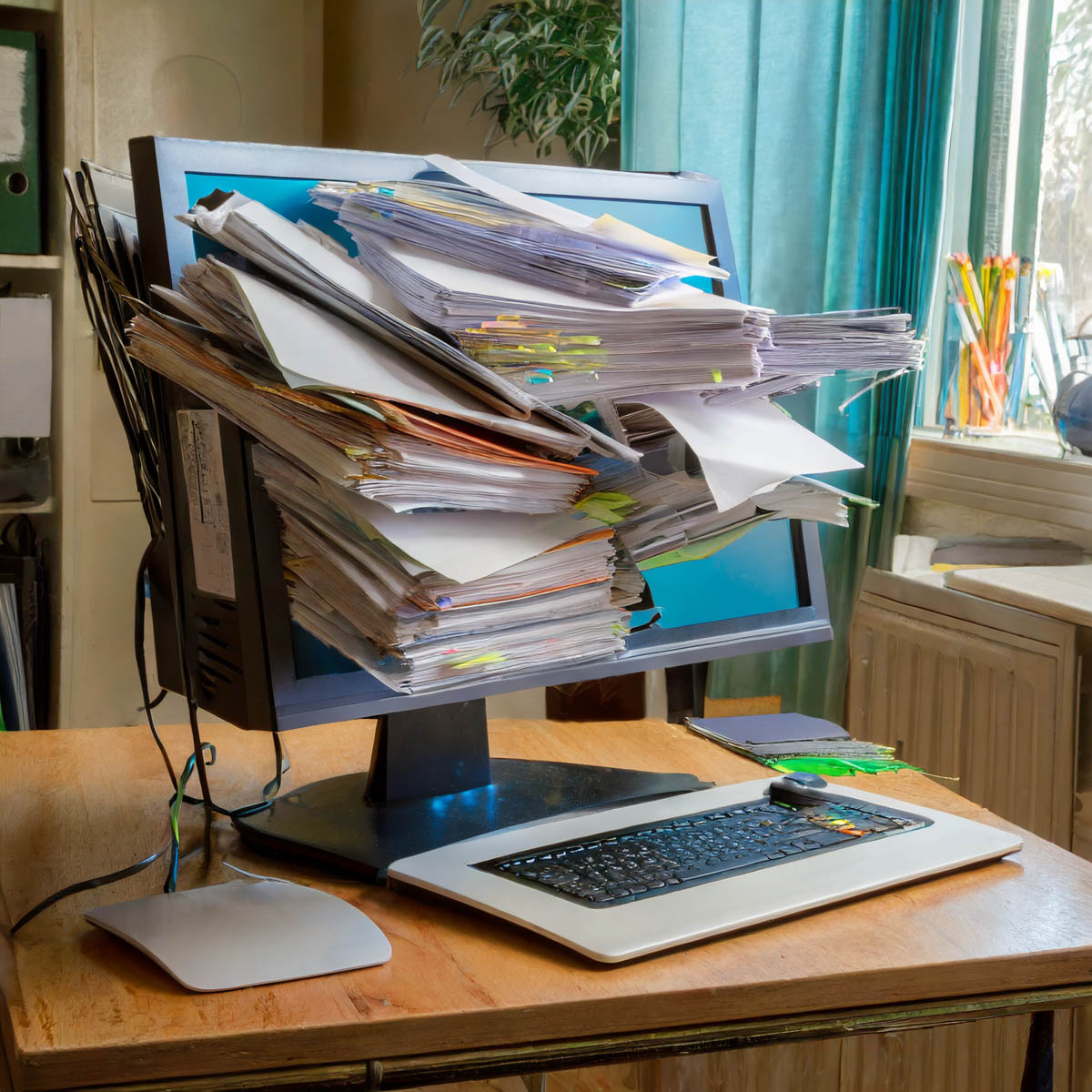
Is your digital life a bit of a disorganized mess? The best gift you can give yourself is carving out time to get it back in recognizable order.

You’ve got it all done. For your family, friends and work. Another year. Congratulations. Everyone says it’s now time to take a break and recharge. Relax!

But if you’re like me, you might be experiencing a certain unease… an uncomfortable itch. It’s like that feeling when you know you’ve forgotten something, but you can’t remember what. But this time, you do. And you’ve continued to put it off, because there’s always something else more pressing.

Now, you hear this nagging inner voice that whispers. It says, “Do it. Do it now. You’ve finally got time.”

Of course, we’re taking about handling all the digital disorganization that piles up throughout the year in the invisible but very real corners of your life. No one else can see it. But you know it’s there. Sure, you’ve been able to operate around it, but it’s ever heavy, and it weighs on you.

The Journey to Digital Zen
Do you want to feel refreshed? Recharged? Really ready for the year ahead? It’s time to invest in a little digital housecleaning. Start the journey to digital Zen.*

Now is the perfect opportunity, as you might have a little more free time in your day.

Here are five areas that I bet could really use your attention right now:

#1
Organize your Digital Photos from the Past Year
Whether your pictures live on your smartphone or computer (or both), if you haven’t yet finished going through this year’s crop and completing your photo-management process (physical albums/online albums/digital photo frames), it’s going to be too late.

Sure, you can tell yourself that you’ll eventually get to them, but they’ll likely get left behind, as your newer photos demand your attention.

#2
Delete All those Emails You Don’t Need
Can’t find that email from last week you want to refer to? It could be due to those thousands of disorganized emails that are cluttering up your inbox. It’s time to get rid of most of them and move the other ones into organized folders!

And don’t forget to also clear out your Junk Email folder (but not before you review it to confirm that real emails haven’t been errantly sucked in).

#3
Remove Old Photos and Videos from your Camera’s Memory Card
If you happen to still use a separate camera, I bet its memory card is looking mighty full. Do you often find yourself frantically trying to delete enough files at the last minute before you need to use your camera? (Yes, that’s me.) It’s time to make that problem go away. Go through that memory card and really free it up!

#4
Clear Out your Unnecessary Cloud Storage
Speaking of memory limits, I bet you’re paying more for your cloud storage these days. Sure, the cloud holds much more than a memory card, but it still has its own limits. Do you really need everything that’s currently in your Dropbox account or iCloud drive?

#5
Slim Down What’s Stored on your Computer’s Internal Drive
Not to be repetitive, but I bet your computer suffers from the same storage woes. Look, you just can’t save everything on your internal drive. And now that newer internal computer drives are the more-pricey SSDs, your current computer probably has less internal storage than your last one.

Gone are the days that you can simply upgrade to your next computer with double the capacity to keep up with your needs.

Portable Drives are Not a Permanent Solution
Yes, you can solve some of these problems by picking up reasonably priced portable drives and archiving your digital life onto them. But hoarding external drives and redirecting your disorganized digital content onto them is simply kicking the virtual can down the road.
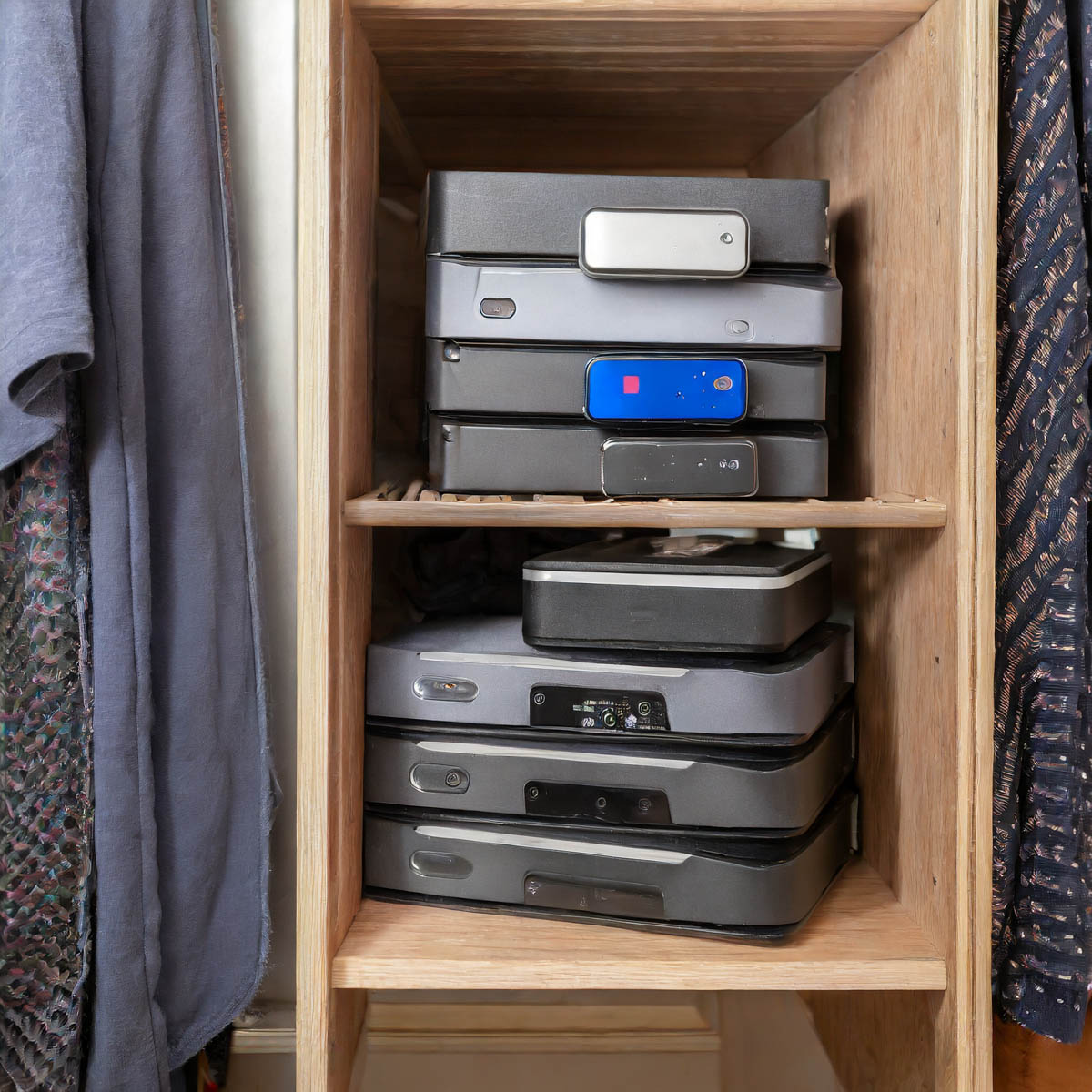
What are you going to do a decade from now when you open your closet door, and you spot fifty drives in the back corner? That’s right. You’re going to close the door.

Game over.

The Limits of your Digital Life
Wait. Take a deep breath. Now exhale.

We’re all dealing with the same challenges. In fact, we’re really the first generation to go through this.

The reality is you can’t carry around a record of your complete digital existence throughout your life. We’re only a few decades into this challenge, and I feel we’ve already reached certain limits. Our kids are going to have to figure out how to handle three to four times as much!

But I’m getting ahead of myself. For now, let’s just do what we can. If it’s only a quick fix, that’s okay.

A digital band-aid is better than nothing to slow the hemorrhaging.

The Road to Freedom
Ongoing file organization and strategic file deletion should be part of any long-term strategy for a healthy digital life. And ultimately, as in the physical world, less is more. Clutter in any form is a real drag.

If you invest some time every few months to keep your digital life in order, you’ll likely feel more control over your entire life.

And especially during this time of year, I say why not invest in yourself and start to free yourself from the shackles of all that digital clutter?

You’ll be happy you did!

*I generated my photos for this blog post via Adobe Firefly.
The Hidden Problem when your Camera’s Internal Clock is Wrong

Don’t forget to take this important prep step with all of your cameras before your next trip to a different time zone…

It wasn’t that long ago when you had to think about the accuracy of your watch and whether it needed to be adjusted. Most watches used to drift a bit. Remember that?

But now, with smartphones and smartwatches infused into our lives, the need to worry about the precise time has been removed, because they’re all synced to ‘network time.’ So, carrying around ‘time’ has become something of a set it and forget it phenomenon.

But you really shouldn’t ignore how the rest of your tech interfaces with time, even if that tech isn’t designed to operate using it as a primary factor. Because when your gear loses track of time, it can really mess you up in unforeseeable ways…

A perfect example is the internal clock in your digital cameras…

What Time Does your Camera Think It Is?
When I snap photos with my iPhone, they always get a perfect time stamp. It doesn’t matter if it’s Daylight Savings or whether I’m on my family vacation in London. Smartphones always know to adjust to the local time.

But if you’re also using other cameras to take some of your pictures, their internal clocks that you probably set a while back may now be inaccurate. And if you haven’t updated them for Daylight Savings Time (guilty) or the different time zone you’re traveling to (guilty), they will be way off.

So what?

The Importance of Maintaining the Sequence of Time
Well, if you’re shooting photos across a defined period, maintaining the sequence of those pictures may be important, such as the order of activities on a family vacation. Without accurate digital time stamps in your photos, you’re going to be in real trouble when you get home and start to go through and organize your pictures.

If you’re using only one camera, this problem won’t matter, because all of your pictures will be consistently off, and their proper sequence will still be maintained.

But if you’re adding in smartphone pictures too, that’s when the perfection of ‘network time’ can create a huge headache for imperfect humans.

Multiple Camera Time-Stamp Paradox
That’s what happened to me after our London vacation from earlier this year. In addition to taking pictures with my iPhone, I also used my GoPro and my Panasonic Lumix LX10.

Granted, my iPhone did a lot of the photographic heavy lifting. But there were moments to use my other gear too.

When I later went through my mountain of vacation pictures in Adobe Lightroom on my iMac, I worked hard to identify a smaller group of show-ready photos. Then, I was horrified to realize that many of them lined up significantly out of sequence. because I simply hadn’t reset the internal camera clocks forward five hours.

I had inadvertently created a ‘multiple camera time-stamp paradox!’

So, what did I have to do to fix the problem?

I needed to go through all of those pictures and manually adjust the capture-time metadata via Lightroom. And believe me, that took time. Time that I didn’t enjoy spending.

Said another way… It was a big waste of my time!
But what was more painful was knowing how unnecessary this stumble was.

Travel Prep Tech Tip
So, here’s a little tech tip before you take your next trip to another time zone…

  • Always adjust your camera’s internal clock to the correct time.
    (And then don’t forget to reset it when you get home!)

Then, when it’s time to display your pictures on your computer or smartphone, they’ll organically remain in the correct order.

Organizing all of your photos throughout life is difficult enough as it is. Don’t make it harder for yourself by accidentally destroying the natural organizing constant of time.

What To Do When Adobe Lightroom 6 Randomly Crashes

When your tenuous photo management process hits a wall, because your software gets glitchy, sometimes an obvious solution actually works. Let’s begin…

I’ll be honest… digital photo management has been a challenge for me since my 7-year-old son was born. I’m the kind of parent who takes way too many family photos and then struggles to organize them, quickly share the best ones and eventually create photo books.
(Sound familiar?)

But I’m trying.

The truth is you’ve just got to put in the time, have an organized plan, and use photo management software that’s right for you.

I switched to Adobe Photoshop Lightroom 6 from Apple’s Aperture a couple years back after Apple retired Aperture and launched the Photos app.

I wanted software that was more powerful than Photos, and Lightroom has indeed proven itself to be a rock star.

At the time, I made the choice to buy a standalone Lightroom 6 license for $149, instead of Lightroom CC, which requires you to pay into a $10/month Adobe Creative Cloud ecosystem.

I figured my one-time DVD purchase would be more economical than the pay-as-you-go model, as long as I used Lightroom for more than 15 months. That was the plan, and I’ve already passed the two year mark. So, yay Barrett.

But I know it’s just a matter of time until I’ll be joining Adobe’s Creative Cloud. It will eventually become unavoidable. For now though, I’ve been enjoying my Lightroom 6.

Until something went very wrong…

Random Crash Alert!
A few weeks back, my Lightroom began randomly crashing. It happened mostly when I wasn’t actually working with it. Lightroom would be open in the background, and then ‘pop,’ it would suddenly disappear. My iMac rushed to create a report to send to both Apple and Adobe, but I didn’t expect any engineers to be calling anytime soon.

I ignored the problem for a while. (Silly me.) But then, it began happening when I was actively using the program. And finally, it crashed while I was importing photos.

So, it was clearly time to do some troubleshooting…

The only recent change to my iMac’s ecosystem was an update to my iMac’s OS High Sierra. (And you know, that seemed to be about the time my troubles began.)

I did some Googling and ran across an insanely obvious question…
Was I running the most up-to-date version of Lightroom 6?

Uhhh…
What?

Huh.

Well, actually… No.
I hadn’t been receiving any notices about updates.
(I’m so used to Apple’s incessant reminders to update my software.)

So, no… I haven’t (ever) updated Lightroom 6.
(Maybe I did right after I installed it.)

Please don’t expel me from the Island of Misfit Toys.

All right…. So guess what I decided to do?

How to Update Adobe Lightroom
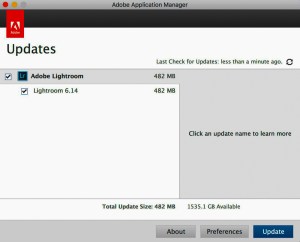
If you too are trying to figure this out, you’ll find your Lightroom software updates in the Adobe Application Manager program.
And here’s how to get there…

Go to the ‘Help’ drop down and click on ‘Updates…’
The Adobe Application Manager will open, and this is what you will see…


If you’ve got an update waiting, it’s time to take the blue pill.
From here, it’s straight forward!

Always Backup First
Updating Lightroom is a painless process, although it’s always good to do a backup before you update any important software.

For me, I simply ran Time Machine on my external G-Drive. And I also saved a backup Lightroom catalog file to the G-Drive.
(The catalog houses all the work you do to your photos.)

And guess what? Now that I’m running Lightroom 6.14… everything is…
Just… fine… again.

Yup.
Updating Lightroom did the trick.

Software Conundrum
I know my report ultimately falls under the category of “DUH!”

But can you tell me you’ve never dragged your feet on doing software updates, because you feared unexpected glitches and compatibility issues?

Well, if you wait long enough and do nothing, that’s clearly a problem too.
(And I’m not even talking about security patches.)

Choose your poison.

Lightroom stability: Restored!

#LovingMyDigitalLife