At Home with Tech

Unlock the power of all your technology and learn how to master your photography, computers and smartphone.

Tag: GE WiFi Connect Enabled Oven

Why I Bought This GE Microwave Oven
I won’t deny I was attracted to the few tech tricks it offers beyond heating up food fast. And it all starts with a little circular logic….

I won’t deny I was attracted to the few tech tricks it offers beyond heating up food fast. And it all starts with a little circular logic….

I said goodbye to our glitchy Samsung microwave oven last week. As some of you know, I’ve had something of an ongoing rocky relationship with this temperamental unit.

Since my wife and I were doing some other work in our kitchen, we decided it was finally time to move on.
(Across five years, there were multiple pain points… First, the microwave’s control panel blew out after two years and was repaired for free. Then, the turntable mechanism stopped working… and more recently, the vent control has become glitchy.)

Yes, technically, the microwave still works, and yes, I could pay more to repair its existing nuisance problems, but it was an easy choice just to say, “Toodle-oo!” and start again.

I expect that microwave reviews probably aren’t top of mind for Samsung these days as they try to move beyond ‘Galaxy-gate.’
(That said, I really liked Samsung’s commercials at the Oscars.)
But I’ve seen ongoing interest in my 2013 Samsung microwave post.
I do hope the future brings better news…

Hello, GE Microwave Oven
So we decided to buy a GE Profile series 1.7 CU. FT. over-the-range microwave oven (Model PVM9179SKSS) to join our year-old GE Profile series gas range/oven (Model PGB940ZEJSS).
(Blogger’s note: Why don’t companies come up with a simple appliance model-naming convention?)

One reason for this particular choice was to create a matching range/microwave pair from the same manufacturer.

Not that it’s wrong to mix manufacturers, but after our Samsung experience, it seemed like a safer bet to go with a brand we felt more confident in.
(Yes, simple brand loyalty to GE)

Chef Connect
I wouldn’t exactly say this GE was a ‘smart microwave,’ but it does come with a Bluetooth feature called “Chef Connect” that pairs it to our GE range.
(Cool!)

But what exactly does that get you?

Three features:

  • The microwave’s clock will automatically sync to the range’s clock.
  • The microwave’s surface light can automatically pop on when you turn on one of the range’s burners.
  • The microwave’s vent can automatically turn on when you use one of the range’s burners.

Huh.

Are these upgrades really that useful? Or are they more like parlor tricks? A synced clock is always helpful, but do I really need more light and fan support every time I turn on the range?

Well, I certainly don’t need the fan every time I decide to boil an egg, but the automatic light trick intrigued me. So I activated it:

  • You just hold the “Chef Connect” buttons on the range and microwave for three seconds to activate the pairing mode. And then they magically find each other!
    (Whoah!)

And then you select which of the three tricks you want to turn on
Easy as pie.
(Sorry for the pun)

The only wrong turn I made was incorrectly assuming that Chef Connect was somehow related to the “WiFi Connect” feature the range possesses, which allows me to monitor the range with an app on my iPhone.
(No… Chef Connect and Wi-Fi Connect are totally different.)

More Tricks
You might be thinking… a microwave is a microwave is a microwave.
It just needs to work!

True enough. But beyond “Chef Connect,” this microwave’s got a few other features I’m already warming to:

  • You’re able to ‘mute’ that horrible electronic pinging sound you hear every time you press a button on a microwave or oven these days.
    (I really don’t need an audible confirmation for every finger action I make.)
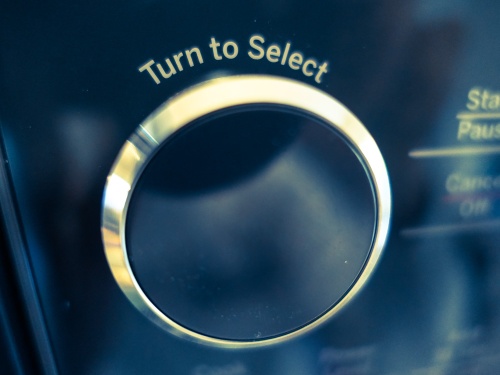
  • The addition of a ‘selection dial’ in lieu of an ‘all keypad’ panel is a more advanced design. This little circular knob reduces the number of times you’ve got to ‘push’ the keypad to get things going…
  • The ‘Beverage’ button is a dream… One tap heats up your cup of tea to the perfect temperature.
    (Not quite as spiffy as Captain Picard saying out loud “Earl Grey Tea… Hot.” But we’re getting there…)

But Wait…There’s More
This particular model is also a ‘convection’ oven. While I honestly don’t know how often we’ll be using the feature, it seems like a valuable functional upgrade for our kitchen to have two ‘ovens.’ So if we’re cooking dinner in the main oven below, and there’s a sudden craving to bake some chocolate chip cookies, we can now do that using the convection oven feature in our new microwave.

Convection tech does push the price tag up a hundred bucks to a ’pricier’ $599 MSRP.
(You can get a base-level GE microwave for less than three hundred bucks.)

But I had already decided to spend a little more on this unit, hoping it would stand up better to the test of time than my not-so-old Samsung did.
(However untrue that logic may be)

The Internet seemed split right down the middle when I did a little research on how the world feels about convection tech baked into microwave ovens.
But I decided to go for it anyway.
(Any feedback out there on my choice?)

At Home with My Kitchen
So we’ve got a new GE microwave/convection oven.
Whoop de doo…
my-new-ge-microwave-oven


And it’s got a few tricks up its sleeve using Bluetooth tech.
Good enough.

And for now… I feel like my shiny, new kitchen tech is there to
‘improve my life.’  Translation: It’s not a headache… not yet.

Still, that’s a win in my book… So let’s move on!
How to Connect Your Wi-Fi GE Range to the Web

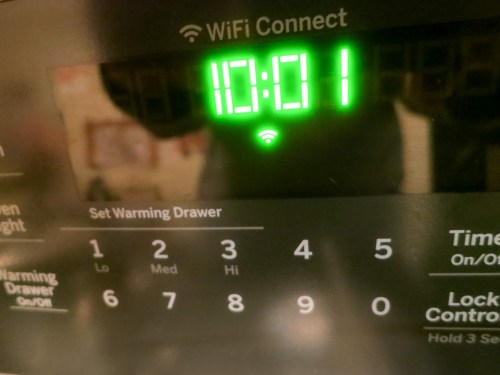
Behold, an oven that has Wi-Fi baked in! I must admit, I was excited and a tad scared to see the Wi-Fi icon pop onto my new GE range’s control pad. But it took a little work for my range to join the Internet of Things…

Behold, an oven that has Wi-Fi baked in! I must admit, I was excited and a tad scared to see the Wi-Fi icon pop onto my new GE range’s control pad. But it took a little work for my range to join the Internet of Things…

I must report I’ve obtained the power to burn down my house remotely using an app on my iPhone. Okay… calm down. That’s not really what this app is intended for… In fact, it’s an innocent app with the good intention to help me control my new GE oven when I’m not at home.

The idea is you can preheat your oven before you arrive home to get your dinner prep started. You can even start cooking that roast you popped in the oven before you leave for work.
(Example used for illustrative purposes only…I don’t know how well a raw holiday ‘Roast Beast’ would last in a cold oven.)

Observing from a Distance
So for those of you in the market for a new range, it’s a Wi-Fi enabled shiny
GE Profile 30” Convection Range. (Model PGB940ZEJ1SS)

And yes, my wife and I just bought one.
No… our decision was not significantly affected by its Wi-Fi capability.
(Secretly, I was pretty pumped.)

But the Wi-Fi value for me isn’t that I can cook dinner while I’m still at work.
(Though I know it theoretically sounds appealing)

What I really want is the ability to randomly check and make sure I didn’t accidentally leave the oven on when I’m not at home.
(The app doesn’t control the gas stovetop.)

Intentionally Disconnected from my Connected Oven
The GE app’s default mode is to simply monitor the status of the oven. You have to opt in to take over active control from your smartphone.

And that… I haven’t done…yet.

I feel a bit like Bruce Wayne in “The Dark Knight Rises.” He built a revolutionary energy generator, but was unwilling to turn it on, because he feared he couldn’t control its use.

And to quote another superhero franchise…
“With great power comes great responsibility.”
(Are we sensing a theme here?)

To be fair, the app has a safety setting, which automatically turns off the oven after it’s been cooking for six hours.
(Looks like the oven’s designers had some of my same concerns.)

So for now, I will observe my oven from afar.
And perhaps one day, I will summon the courage to control it from a distance as well…

How to Turn on the Wi-Fi Feature
You might be wondering how one sets up Wi-Fi on a GE oven.
(It doesn’t exactly operate like a computer.)

And as that’s the subject of this post, it’s probably time to get to the point!

I was a bit puzzled where to begin…
(The one-page instructions on “Connecting your Wi-Fi Connect Enabled Oven” wasn’t especially clear.)

GE calls the feature “Wi-Fi Connect”
and tells you to visit GEAppliances.com/connect to “download the appropriate app” on your smartphone.

On the website, you’re strangely greeted by advertising for more of GE’s Wi-Fi-enabled kitchen devices.
(Including refrigerators and dishwashers)

But in fact you’ve arrived at the right place. It’s the starting line to a process you need to go through if you want your range to join the Internet of Things. So after going through the exercise myself, here are the required steps to connect your oven:

  • On the webpage, click on “More About the Wall Oven & Range App.”
  • On the bottom of the next page you’ll see “What You Need- GE Kitchen App” and two links to download the app on Apple’s App Store or on Google play.

GE Kitchen App


Then, using your new GE Kitchen App…

  • Choose “Add an Appliance.”
  • Choose “Range.”
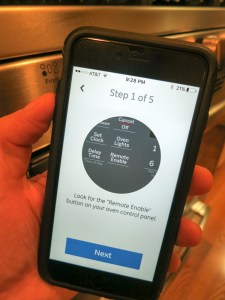
  • Then turn on the range’s Wi-Fi by pressing the “Remote Enable” button.
    (Yes, it creates a mini Wi-Fi signal that your smartphone can connect to.)

GE Kitchen App Step 1 of 5


  • Join your smartphone to the stove’s network using the password printed on the sticker on the inside edge of the warming drawer.

At this point, I ran into a little trouble…

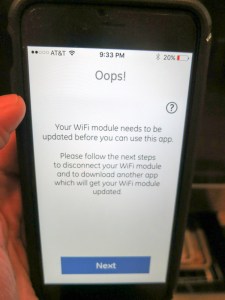
I received the following message from the GE Kitchen App after trying to connect to my stove’s Wi-Fi signal…

GE Kitchen App Oops


What?!

My stove is brand new. It already needs a firmware update?
Why yes…. Yes it does.

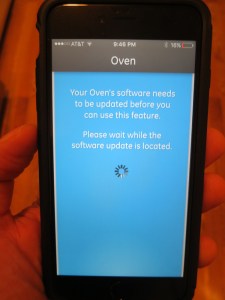
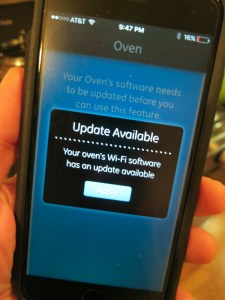
GE Kitchen App Says Update Software


So what’s the fix…?

If this happens to you, you’ll next need to download another app that has the power to update your stove’s Wi-Fi module.

  • This one is called, “GE Brillion App.” The GE Kitchen App is supposed to automatically direct you there, but my iPhone 6 Plus got stuck for some reason. So I navigated to Apple’s App Store, found the new app and downloaded it myself…
  • The GE Brillion App then went through the same early steps, but when it ran into the roadblock, it magically offered to do the firmware update.

GE Brillion App to the Rescue


  • And update my oven… it did!
    (And while the update chugged along, the Brillion App displayed a muffin joke. Really.)
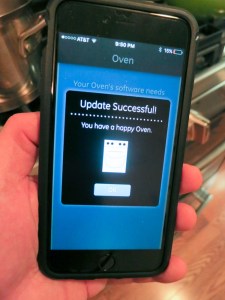
  • And then it said my oven was happy.
    (How can you be mad after that kind of proclamation?)

GE Brillion App Says You Have a Happy Oven


  • Once the Brillion App was done bringing my oven back to the future, I successfully connected my iPhone to the oven’s Wi-Fi. Then I got my range onto my home network’s Wi-Fi and finally finished the setup to connect the oven to the app.
    (Quite the little dance)
  • Next, the GE Brillion App offered to run my oven like the GE Kitchen App, but as it appeared to be an older app, I successfully switched back to using the GE Kitchen App.
    (And as I’ve already said, I haven’t yet fully activated the app to ‘control’ mode.)

And I was on my way…

Adding to My Virtual Presence
The whole Wi-Fi setup took about half an hour. And though the firmware update wasn’t a huge roadblock, I’ve got to say the process wasn’t especially intuitive. You’ve really got to pay attention to the twists and turns…
(Though I must admit, the GE Brillion App’s light banter did take the edge off of my growing annoyance.)

So now I have yet another connected device to help me know that my home is healthy when my house is on its own:

And for now, my Wi-Fi connected GE range will simply reassure me wherever I am… that all is cool…

Happy Oven.

Happy Home.

Happy Barrett.