At Home with Tech

Unlock the power of all your technology and learn how to master your photography, computers and smartphone.

Tag: iPhone 6 Plus

You Won’t Believe Why this iPhone Battery Died

If your iPhone can’t hold a charge anymore, you might want to check out one more possible solution before you throw in the towel…

If your iPhone can’t hold a charge anymore, you might want to check out one more possible solution before you throw in the towel…

My wife’s iPhone 6 Plus suddenly had battery problems. Big problems. Purchased online right after I got my own 6 Plus, her iPhone is not even ten-months old. But suddenly it couldn’t get through half a day without burning through a full charge. And believe me, she’s no smartphone power user… so that wasn’t the problem.

Warning: Low Battery
So the IT Guy proceeded to take some standard steps to eliminate known battery-drain culprits on her ailing smartphone:

  • I closed all the unnecessary open apps.
  • I turned off Bluetooth.
  • Also switched off Wi-Fi.
  • I then let the phone drain down all the way and then fully powered it back up to make sure the battery wasn’t experiencing any memory issues.

No improvement.

I was resigned to the likely reality I needed to take a trip to the Apple Store for surgery and a new battery.
(Fortunately, we always buy AppleCare coverage. Plus, our lazy iPhone was still covered on its base one-year warrantee. So my projected pain was more about inconvenience than cost…)

Hiding in Plain Sight
I decided to take another look and lifted the device out of my wife’s purse. The iPhone’s screen was already glowing, and the whole unit was pretty warm… as if it had been lit up for a while.

That’s odd.
It must have just gotten knocked around inside the purse when I picked it up, and the home button had accidentally been squeezed.

That night, I walked by the phone. It was sitting idly on my wife’s night table.
Its screen was illuminated… again.

I stopped.
Wait a minute… I was sure my wife hadn’t just been using it.
She was downstairs.

Hmmm… this couldn’t be a coincidence.
Could it be possible this iPhone was stuck in some kind of ‘always-shine’ mode?

Illumination
So I walked back, sat down and picked up the iPhone to drill down into its settings:

  • General
  • Auto-Lock

And do you know what I found?
Its Auto-Lock setting that determines when the screen shuts off automatically was set to…“Never!!”

WHOAH!!!
(How did that happen?)
(Of course, any iPhone 6 Plus would quickly lose its juice if its screen had been instructed to always remain on…)

So I switched the setting back to ‘five minutes,’ which I find is to be a reasonable amount of time to let your iPhone radiate while momentarily unattended.

Problem solved!

Well, not entirely…
My wife hadn’t adjusted this configuration. And it would seem almost impossible to accidentally make the change.

It was a conundrum for both of us.

Better AppleCare+
Of course the good news is my wife’s iPhone battery is just fine. No Apple Genius appointment needed at the Apple Store.

Another piece of good news for iPhone batteries throughout the known universe is Apple has just improved its AppleCare+ warrantee coverage.

Previously, AppleCare+ would only replace your battery if it couldn’t hold a 50% charge. Now, if your battery can’t get past 80%, AppleCare’s got you covered.
(That’s a pretty sweet upgrade for iPhones, iPads and MacBooks.)

Your Skynet has Arrived
The bad news…?
How the iPhone’s Auto-Lock setting got bumped to infinity mode will remain an unsolved mystery in the Lester family.
Case closed…

Is this ‘freakish’ tech tale really as much of a shocker as my post’s headline suggest? Well, consider it a cautionary account, as we all rely more heavily on technology to live our lives.

You can laugh at sci-fi sagas like “Terminator: Genisys” for being a bit ludicrous. But you can’t deny it’s always a problem when your tech goes rogue.

Pray it’s never intentional.
That could really ruin your day…

How to Stop Dropping Your iPhone

Have you ever felt your smartphone was a little wobbly while texting? You’re not alone. To stabilize your situation, you might want to consider getting an iRing.

Have you ever felt your smartphone was a little wobbly while texting? You’re not alone. To stabilize your situation, you might want to consider getting an iRing.

Let’s face it. The iPhone 6 Plus is huge. I love mine, because it is so big. But I must admit I have some concern for its safety, because of the size. Simply put, this large and expensive device can easily find its way out of the protection of my right hand onto the unforgiving floor…
(And I’ve got big hands.)

I’d really prefer my iPhone not meet its doom this way, simply because I can’t hold onto the darn thing!  It’s already survived a couple of low-impact drops, but I worry it’s just a matter of time until a more damaging event occurs.

Part of the problem is I find myself walking around holding my iPhone a lot more these days,
(Like it’s some kind of on-board attachment for a robotic arm)

Statistically, there’s a greater chance it can either get knocked away or simply slip out in a careless moment…

So you’d think there’s got to be a few entrepreneurial folks out there who’ve thought about this problem and come up with a clever solution.

And in fact someone has…

Inspiration at 70 MPH
Recently, I was commuting to New York City on the train, wearing
my Road Warrior hat. On this particular day, both the travel and tech gods were smiling on me….

  • I magically found an aisle seat on a very crowded train.
  • Moments later, I ran into a friend of mine, who eventually nabbed a seat right next to mine.
  • And then he had something new attached to his iPhone he wanted to show me…

My friend enjoys fusing ‘helpful’ technology into his daily life as much as I do. And we both get a kick showing off our latest ‘upgrades’ to each other.

And what was this newest invention he had to show me?

The iRing.

My iPhone 6 Plus Needs a Leash
It’s simply a little ring attached to a plastic square that mounts onto the back of your smartphone. Then, you slip your index or middle finger through the iRing and voilà… “Look Ma! No hands!”

More importantly, your precious device stays attached to your hand no matter what your other four fingers are doing…

Sure, if you want, you can carry your phone around without gripping it anymore. But for me, that’s just showing off. It’s more like a belt for your pants. You just want to keep everything where it is…

If you use this mini leash correctly, you’ll eventually forget it’s even there.

Another way to use this useful invention is as a simple kickstand on a flat surface.
(Horizontal use seems most logical.)

And how much does this revolution in smartphone safety cost?

$19.95
For me, twenty bucks is the perfect price point for any kind of tech accessory. Especially if it’s on ‘sale.’ Or appears to be…
In fact, dropping a few fins on a good tech deal feels like getting something for free!
It’s a no brainer…

Perhaps not so coincidentally, the iRing goes for $19.95.
(It comes in a variety of colors.)

So I went to the Amazon app on my iPhone… and tap.
(I bought the black one to match my iPhone’s case.)

Instructions Not Included
The big question now was where exactly to mount my iRing?

This wasn’t as stressful a choice as it could have been, because the makers of the iRing claim you can pull it off and reapply it multiple times… as long as you don’t ‘touch’ its ‘special’ adhesive. You can also ‘re-energize’ the adhesive by placing it under running water, and then allowing it to ‘air dry.’
(You’ve got to wonder what this super-sticky stuff is made out of… but that’s another conversation…)

The other piece of good news here is my iPhone is protected by a ‘Tech 21’ case.
So there’s no chance I’d gum up the actual back of ‘my precious’ with this iRing.
(The makers of the mystery adhesive technology say the iRing’s ‘sticky’ back leaves no ‘excess’ residue. But I still don’t want to see what ‘normal’ residue looks like.)

Logic Doesn’t Apply
All this said, I really didn’t want to embark on a lengthy trial and error process to determine where to position my new iRing. There had to be a simple rule of thumb to follow…

My first impulse was to pop the iRing smack onto the center of my Tech21 case’s back.

But then I decided to take a close look at where all my fingers typically sit while my thumb is typing away. And I immediately realized my entire hand sits noticeably lower on the back of my iPhone than I thought.

So how would I figure out how to get it exactly right?

Scotch Tape to the Rescue
As I pondered this challenge, I took a look at Amazon and landed on one of the iRing’s competitors… the Bunker Ring Essentials.
(This accessory appears to mirror the iRing, except for one little detail. The Bunker is round. The iRing’s structure is flat on the part facing away from the phone.  I prefer the iRing’s flat-edge design, because it creates more stability when used as a kickstand.)

Then, I noticed a video review and decided to observe where this user positioned his ring mount. Yes, he had it placed noticeably lower on the back of his iPhone Plus. But the big “Ah-ha” for me was he first used scotch tape to hold it in place to test it out.

Of course.

So that’s what I did…

iRing Prep with Scotch Tape


After a little scotch-taped experimentation, I found the perfect spot…

I discovered that I not only had to lower my iRing off the case’s vertical center, I also had to pull it in towards the edge closest to my thumb. This asymmetrical positioning would allow my fingers to sit exactly where they otherwise would be while my thumb does its hunting and pecking.

Problem solved…

Happy Fingers
Holding onto a massive smartphone shouldn’t be an ongoing concern as you move about your day. And now, it doesn’t have to!

iRing in Action


And all this peace of mind for $19.95…

Think of the iRing as a twenty-dollar insurance policy to ensure your smartphone’s safety…

…Against all danger?
Not quite… but it’s a useful step in the right direction!

Where Are All Your iMessages?

Have you noticed you’re receiving noticeably fewer iMessages on your iPhone recently?  Maybe that’s because you’re not receiving any iMessages.  So what’s the problem…?

Have you noticed you’re receiving noticeably fewer iMessages on your iPhone recently? Maybe that’s because you’re not receiving any iMessages. So what’s the problem…?

I missed a text message from a friend on my iPhone the other day. I realized the problem when I got home and saw the lingering comment glowing on my iPad as an old iMessage.

I looked for it on my iPhone 6 Plus, but it simply wasn’t there…
Strange.

Why was my Wi-Fi iPad receiving iMessages that my iPhone was missing…?

So I decided to take a closer look…

Is iMessage Activated?
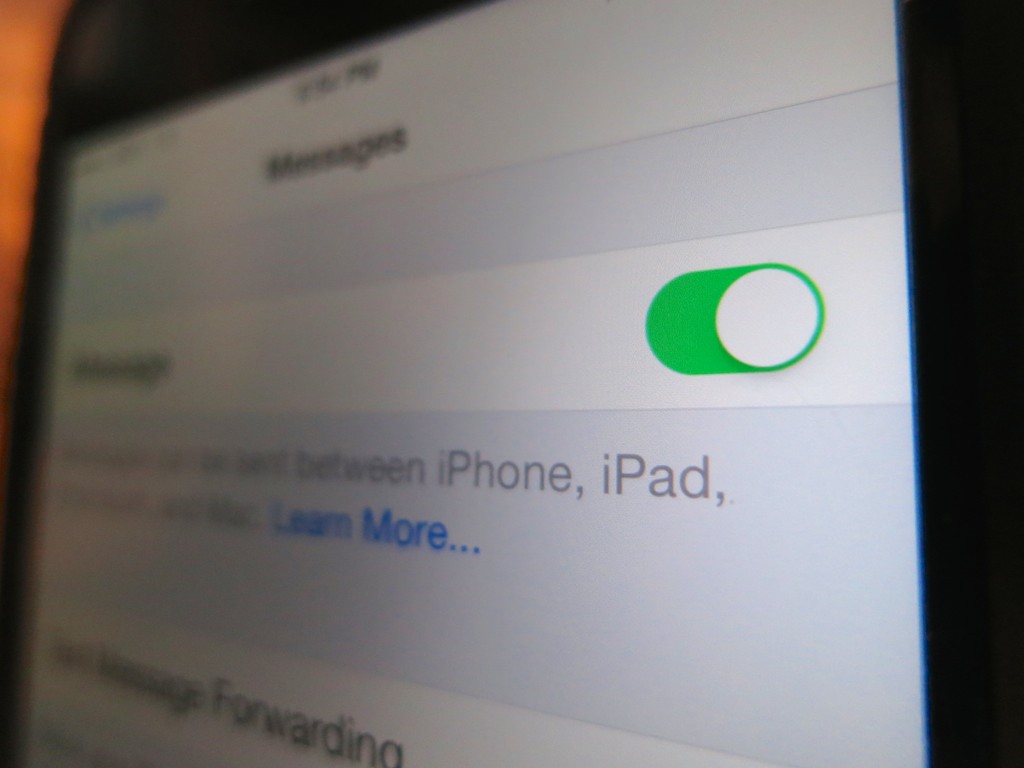
I opened up the ‘Messages’ settings on my iPhone.
The red flag was immediately evident….
I saw that ‘iMessage’ was simply turned off.
(That’s confusing.)

And to rub it in, the Off setting was accompanied by an ‘error’ message.

What?
How did iMessage get deactivated?

Come to think of it, I had recently noticed that some of my texts which would typically travel on the free, ‘blue’ iMessage road to another iDevice were only showing up as normal ‘green’ SMS texts that count against my texting plan.
(Yes, I still have a free-texting limit. Is that too old school?)

I didn’t think much of these little green monsters, because sometimes the blue path gets inexplicably blocked, forcing an iMessage to morph into a standard text.

Why Is iMessage Suddenly Turned Off ?
So I immediately reactivated iMessage on my phone, which required my thumbprint’s touch ID authentication.
(Why was my phone treating me like a stranger?)

More importantly though, I wanted to know why this had all happened in the first place.

I had recently upgraded my iPhone’s operating software to iOS 8.3. Was this the culprit…?

I took a look online at some Apple message boards, and in fact there were others talking about similar problems. But I found no official determination that an iMessage issue had been created by iOS 8.3.

Huh.

Check the Facts Again
Then I did a little more diagnostic research as to when the green texting regression actually cropped up. I tracked my daily texts to my wife, and in fact, they started turning green a month back on April 1.

D’oh!

And that was before iOS 8.3….

It’s possible I did a previous iOS upgrade on that day, but I no longer have any evidence.

All I’m left with is… April Fools!!!
(seriously?)

Don’t Anger the Tech Gods
So what are the lessons learned here…?

  1. Never ignore the playful (and frustrating) power of April Fools’ Day.
  2. It’s probably a good idea to check your iMessage settings every time you upgrade the iOS on your iDevice.
  3. If it takes a month to figure out you’ve got a tech problem, you can’t place all the blame on someone else.

Let’s move on…