At Home with Tech

Unlock the power of all your technology and learn how to master your photography, computers and smartphone.

Tag: iPhone photos

Why Memories May Demand Intense Colors in your Autumn Photos

After I snapped a few pictures of the fall foliage in New England, I found myself unconsciously pushing the colors to the max when I edited these photos. I think I may know why…

There’s something intoxicating about my memories from autumns long gone. I feel in one way or another, they’re connected to the intense colors that surround the fall season in New England. I was up in Litchfield County in Connecticut this past weekend, and I was surrounded by all of the peak foliage. And as I drove, I felt transported back in time to my high school years as a young student at the Hotchkiss School in Lakeville, CT.

The color of the leaves. The sunlight poring through them. The brisk fall air. It was a reality-bending experience.

And of course, I snapped a few nature pictures with my iPhone XS Max in an attempt to capture that feeling.

But when I reviewed my photos later, they lacked the truly deep colors and dreamlike quality that my mind had created to reflect that time in my life.

As I worked through the photos in Adobe Lightroom, I found myself unconsciously pushing the color index. I made the reds of the leaves redder, and the blue fall sky even bluer. I wasn’t happy until the colors almost began dripping off of my computer screen.

I created a series of images that I don’t think you’d actually find anywhere in New England today, but they still feel entirely real to me. The forced colors connected me back to another time in my life that clearly still speaks to me today.

Using Color to Connect to your Past
What is reality anyway? The present may be easier to quantify, but the past is always in flux, because of how we remember… or choose to remember it.

Memory has its own set of rules, and today… I simply followed that direction without really understanding it.

And if that means pushing the colors to an intensity beyond nature’s capability, then I’ve given myself permission to do exactly that.

If you ever experience a similar impulse, I highly recommend you give it a try…

Here’s a Trick to Quickly Share a Camera’s Best Vacation Photos

If you’re not using your smartphone to take your vacation pictures, you may quickly get the feeling that they’re trapped on your camera’s memory card. Here’s how to quickly get them ready to share with family and friends…

So my family and I were visiting friends across town and catching up, since they had just returned from their vacation visiting relatives in Italy.

Of course, the major topic of conversation during dinner was their big trip. And what’s a good story without a few accompanying photos?

Inevitably, an iPhone XS materialized, and the Lesters were transported to the streets of Pompeii. My wife and I leaned in and our nine-year-old son ran around the table to see the images of our friends standing in an ancient city, frozen in time by the brutal force of Mount Vesuvius.

The impromptu presentation was effortlessly supported by the mom’s index finger flicking through her photos’ app on her iPhone. Some of the photos were absolutely amazing. And this raw collection completely captured their experience.

Several times, I turned my gaze to the dad who was sitting on the other side of the table.

He peered at me and said with a smile, “I’ve got better pictures.”

I nodded and returned the smile.
(But I wondered if he was experiencing a feeling of slight betrayal by technology that hadn’t quite lived up to expectations.)

And then we all turned our gaze back to the glow of his wife’s iPhone.

Time is Your Enemy
Here’s the backstory… The dad had traveled to Italy equipped with a brand-new Sony RX-100 VA camera as well as a GoPro HERO7 Black. I believe those are among the best tools available to visually capture a family’s vacation.

And I had complete faith that he had, in fact, captured a collection of outstanding photos that would have humbled any iPhone’s camera.

But in that moment at the dinner table, I knew that my friend had fallen victim to one of the classic limitations of the strategy I usually follow on how to handle a fresh crop of vacation photos…

  • Take loads of photos with a high-quality camera
  • Download them onto your computer at home
  • Choose the best ones
  • Tweak them to make them even better with software like Adobe Lightroom
  • Then share your winners with your family and friends to enjoy

The crippling limitation to this plan is that it takes time.
(Depending on your post-trip availability, that could take days or weeks.)

The Unbeatable Smartphone Experience
The mom’s iPhone (which arguably took pretty good pictures) effortlessly made mincemeat of the dad’s superior photo gear due to the immediate shareability of its photos.

Sure, I guess you could try to whip out the RX100 VA or GoPro and flick through your photos, but it’s always easier to use a smartphone that’s right next to you.

So, how can a noble family photographer with all of the right gear and best intentions beat the instant satisfaction that smartphone photography provides today?

Tick Tock
First off, I think it’s okay to say that this is not only about immediate gratification. Amazing photos not born from smartphones can still find their moments to shine… in photo frames…. in photo books…
and in cloud family photo archives.

And if you work fast enough, you can still get them ready for prime time in time to ensure they’re still relevant for your social media feeds and even, dare I say… your next dinner party.

But it’s always going to be an uphill battle fighting time…

Don’t Fight It
All of this said, there’s a solution that will mostly solve this conundrum.

The trick is to willingly give into the power of your smartphone. For a moment, think of it not as a device that takes instantly-sharable photos, but only as a tool that can instantly share any photo file. If you could wirelessly add photos from other cameras into your smartphone, then you’d be able to instantly share those as well…
(Do you see where I’m going?)

Yes, you may feel like a young Jedi giving into the ‘Dark Side’ or a misguided sorcerer drawing power from the Dark Dimension like the Ancient One did. But hey, you’re not in the Marvel universe… you’re just trying to share some vacation photos!

I say ditch all of your post-vacation photo organization plans and do this instead while you’re still on your trip…

Transfer Your Photos Wirelessly to Your Smartphone
Many of today’s standalone cameras have Bluetooth or Wi-Fi capabilities that allow you to tether them to your smartphone. Once you activate that feature, you can easily transfer some of your key photos from your camera’s card onto your smartphone.

The key word here is ‘some.’
(I don’t think you want to be transferring hundreds of photos over.)

And once they’re on your smartphone, it’s a game changer, baby!

Now, just find a few opportunities during your vacation to quickly review your photos and simply pick out a few winners. Then send them over to your smartphone, and BAM! you’re in business…

If you miss a few winning photos, it doesn’t matter… You’ll find them later when you ‘officially’ go through them.
(Warning: May require weeks of work)

When you get home, you’ll already have a few of your best photos ready to share at the dinner table with your smartphone simply serving as your projection device.

A Solution Forged from the Power of Your Phone and Camera
So really, it boils down to simply taking a few minutes while on vacation to move a few photos from your camera over to your smartphone’s ecosystem.

And by doing that, you’re marrying the power of your superior camera with the unbeatable convenience that any smartphone provides.

I imagine there’s a day coming when one device will be powerful enough to do both…

Until then, just remember this trick, and you’ll always be ready to show off some of your best vacation photos at a moment’s notice!


Why Do PCs Display iPhone Photos Upside Down?

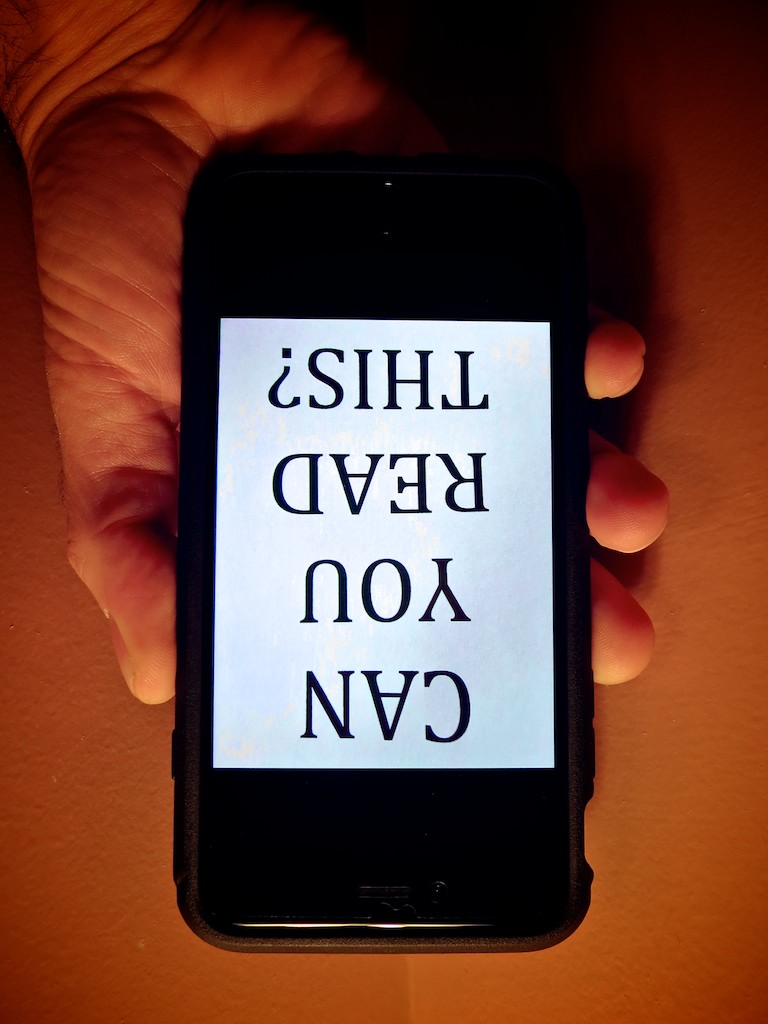
If this is how your PC displays a photo snapped with your iPhone, you know it’s time to determine the culprit. And you may be surprised what you find….

If this is how your PC displays a photo snapped with your iPhone, you know it’s time to determine the culprit. And you may be surprised what you find….

At work, I often snap an iPhone photo or two at video shoots. It takes two seconds, and then I quickly email them to an offsite colleague or client for immediate feedback on the set or background.
(I often forget that the smartphone is such an incredible work collaboration tool that didn’t exist so long ago.)

Unfortunately, a problem I often run into is my pictures inexplicably show up upside down on computer screens. More specifically… PCs.

They always display correctly on Macs… just not PCs running Windows.

Your World is Topsy-Turvy
So you’ve got to imagine the response I sometimes get when my pictures play their little dance.
(How easy would it be to evaluate an image if you had to stand on your head?!)

I’ve always taken the privileged position that the problem is somehow caused by the evil PC.
(It couldn’t possibly be the fault of the perfect iPhone!)

The reality is most folks are going to also assume that you’re somehow the culprit. That you’ve made a mistake and you don’t know how to use your own iPhone.

Guess what…
Up until now, I didn’t!

Which Way is Up?
What I didn’t know is there is actually a right side up to the iPhone when you hold it horizontally.
(I assume we all understand how to hold it vertically, since the ‘home’ button is always there on the bottom to orient you.)

Horizontally, I’ve always gripped my iPhone 6 Plus with the two side volume buttons facing up. That’s because I often like to press either of the two volume buttons to take the photo instead of the white circle on the screen.
(If I’m holding my iPhone with only one hand, it’s more effective to press down on a button.)

As it turns out, positioning your iPhone that way is upside down!

It seems counter intuitive to grasp your iPhone the other way when snapping a pic… and then ‘squeeze’ the button from underneath…. But that’s the correct orientation according to Apple’s engineers.

Clever Apple
But even if you’re accidentally documenting your life upside down, how do Macs know to correctly display your picture?

That’s because your iPhone includes an EXIF tag with each photo that says which way is up. According to iPhone Photography School, every Apple device that displays your photo is going to know how to read that metadata.

The problem is lots of software in PCs can’t.

That’s the huge rub.
It’s simply a compatibility problem.

Well, technically, it’s still your fault if you’re holding your iPhone incorrectly. Apple just fixes the problem for you, and many PCs won’t.

How to Correctly Hold Your iPhone
So what’s the fix?

Well, first off… this problem has actually been around since the iPhone 5.
(Wake up, Rip Van Lester!)

There are various PC methods to manually adjust the orientation of pictures, but do you seriously expect anyone to take additional steps to flip around your mistake after experiencing the annoyance of trying to view your inverted photo?

Own the problem!
When you want to snap and send a photo to a PC, just turn your iPhone so the buttons are on the bottom… and then proceed.

Yogi Barrett?
Yes, I could blame Apple for a design flaw.
(It’s more natural to push the button down like with any camera in the known universe!)

But the truth is, I didn’t know which way was up.
(An important lesson that Apple has been so considerate to remind me of.)

I am not the center of my known universe.

Maybe I’ve begun a journey to a higher plane…
…or the story of my gaff has no place other than perhaps a fortune cookie:

“Wise man holds iPhone with volume buttons down.”

No?