At Home with Tech

Unlock the power of all your technology and learn how to master your photography, computers and smartphone.

Tag: iPhone

Is Your Smartphone Safer with the iRing or Bunker Ring?
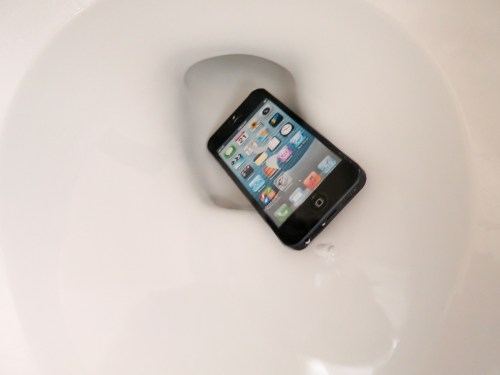
Do you worry about dropping your smartphone in the toilet? You should if you often practice a one-handed grip. If you’re also using a stick-on ring for total security, you may want to rethink your plan…

Do you worry about dropping your smartphone in the toilet? You should if you often practice a one-handed grip. If you’re also using a stick-on ring for total security, you may want to rethink your plan…

Ten months ago, I experienced a watershed moment… I attached an ‘iRing’ to the back of my iPhone 6 Plus. (Actually, my Tech 21 case.) And I immediately felt invincible. Of course, this tiny plastic square absolutely ruined the perfect sleek profile of my Apple device.

Sacrilege.

But let’s face it, these plus-sized iPhones are huge, and I must admit they’re a little difficult to handle one handed.

Now, don’t get me wrong. I love my little phablet.

But I’m the first to admit that I’m a multitasker throughout my day. I often find myself balancing my iPhone in one hand while my other hand is doing something else. Dropping my digital companion while trying to ‘one hand it’ would be something of a game-over moment.

So the ideas of attaching a ‘non-destructive’ stick-on plastic square with a ring to the back of my iPhone and then sliding my finger through the ring for extra support seemed simultaneously strange and brilliant.

So, I gave it a go…
And quite honestly, it was a game changer.
To be able to hang your iPhone from your finger…. Whoa!

Plus, you can use it as a kickstand to watch videos on a table with others.
Like…. “Hey, look at this.”
(Plop.)
(Play…)

So Weird, It’s Cool
I simply loved my iRing. Not to mention I discovered this $20 add-on became something of an unexpected fashion statement.

More than a few folks asked me,

“Hey, what’s that on the back of your phone?”

“Oh this little thing…? It’s an iRing.”

“Ooh…”

Suddenly, I’m the cutting-edge, ‘early adopter’ guy.
(When I often choose not to be)

And all I’m actually trying to do is not drop the darned thing in the toilet!

These were halcyon days.
Until….

My iRing Lost Its iPhone Connection
A couple of week’s back I was holding my iPhone using my fabulous iRing…
In no particular strange way or stressful positioning…
And my magical power circle… It… just… popped off.

What?!
(I was sitting at a table. So, my iPhone only had an inch or so to drop. I was insanely fortunate.)

It had been ten months since I first stuck the iRing to my life.
I would have thought the heralded ‘restickable’ adhesive would have lasted longer than that…

But have no fear… The iRing’s makers say you can reuse the iRing ‘hundreds’ of times.

Really?
Okay then…

So I ran the adhesive section under running water to ‘recharge’ it as per the instructions.
(No I don’t understand how that works either.)

And I pressed it back on.

Two days later, the iRing came off again.

A third attempt lasted for only 24 hours.
(By this time, I was mostly palming my iPhone to protect it from what seemed like the inevitable.)

No doubt about it – My iRing had reached the end of its useful life.
‘Cause really… If you can’t trust the ‘stick’… it’s simply a liability.

So now what?

Plenty of Other Choices
I could buy another iRing and hope to get a year out of the next one. But just the knowledge that it is doomed to fail, suggested I should try my luck elsewhere…

Actually, there are plenty of other competing smartphone ‘rings’ on the market.
Here’s a bunch I quickly found on Amazon:

Hello, Bunker Ring
As I did my research, all of these stick-on rings all started to look the same…
And maybe some of them actually were!
(Plus, you’ve got to wonder if the adhesive technology they’re all using comes from the same ‘sticky-goo’ lab.)

My brain started to feel fuzzy, and I began to loose focus on my quest to regain my grip.

Then, I happened upon another choice –
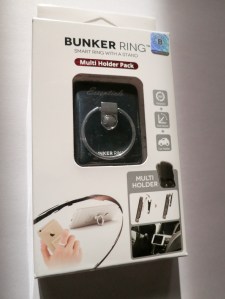
Bunker Ring in Box


Hmmm…

  • It had a solid name.
    (Not unimportant)
  • The product was supported by a professional-looking main website.
  • And it’s received better overall user reviews than the competition on Amazon.
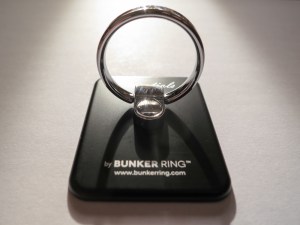
Bunker Ring Essentials


The Bunker Ring seemed like the real deal… as opposed to some reseller popping their own name on a generic unit.

That said, the Bunker Ring is more expensive than the other choices above.
(I certainly hope that means it’s got more going for it.)

A couple other details:

  • The ‘Essentials’ model is a fifth generation design.
    (Maybe the fifth time is the charm?)
  • The flat ‘super pad’ is a little larger than the iRing’s.
    (Hopefully that will give it more sticking power.)
  • The outside of the ring part is circular as opposed to having one flat edge like the iRing.
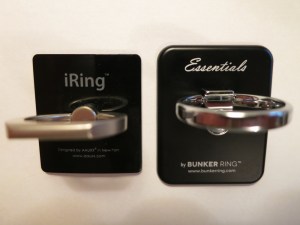
Bunker Ring Vs iRing


On that last point… the iRing had won out in my first search last year, partly because that one section on the outside of the ring was flat, theoretically making its ‘stand’ functionality more stable.

Meh.

Ironically the Bunker Ring is marketed on Amazon as a “kickstand,” and while I’ve used that trick a bunch of times, the one-handed ring maneuver is really what I need to perform flawlessly multiple times every day.

Déjà Vu?
After going through all of this mishegoss, I realized I had actually considered the Bunker Ring Essentials my first time around, but the iRing’s flat edge was more appealing and took the prize.
(Hey, it was ten months ago. Sometimes, I can barely remember yesterday.)
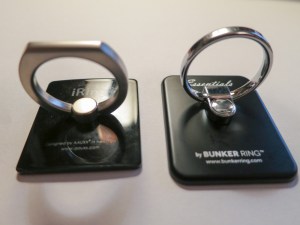
Bunker Ring Vs iRing angle shot


Maybe it was time to give the runner-up a shot…

Click.

Never Dismiss the Strength of Five Fingers
So I’m happy to report I’m again one-handing my iPhone with confidence. My Bunker Ring Essentials is firmly attached, and my hand is back in control of my huge smartphone.
(For now)

But really… who am I fooling? Do I really expect any super-stick voodoo to last forever?

Before, the iRing made me feel totally secure. I didn’t need a net…
My iRing’s failure says more about me than its chemical engineers. That I would totally entrust the safety of my iPhone to some marketing promise was silly.

Perhaps I should actually thank the iRing for its sticky failure. That experience will now force my hand to pay a little more attention when relying on the support of my Bunker Ring Essentials.

Yes, tech is there to make our lives better… but it’s rarely perfect. You should never give up total control…

Or else one day… you could find your life in the toilet.

How to Join a Conference Call without Remembering the Code

When was the last time you had to remember someone’s phone number? These days, your smartphone is used to handling all that. Right? Did you know it can also dial the complex code at the right moment when you’re joining a conference call? As long as the human ‘leader’ remembers this lesser-known step…

When was the last time you had to remember someone’s phone number? These days, your smartphone is used to handling all that. Right? Did you know it can also dial the complex code at the right moment when you’re joining a conference call? As long as the human ‘leader’ remembers this lesser-known step…

So I’ve got to first admit I didn’t know about this little trick when joining a conference call using your smartphone. I’m sure it may be an obvious point to the majority of you. I’m embarrassed to even bring it up…

But this blog is intended to be a safe space to discuss how to navigate our tech-infused world… no matter how ‘advanced’ you may or may not feel.
(Okay… there’s the disclaimer. So don’t hurl any “Duhs” at me, please.)

Okay, here goes…

The Power of Three Commas and Your Next Conference Call
Who really prefers dialing manually into a conference call when you can tap the listed number on your smartphone, and your phone dials the number for you?
(No, that’s not the trick. Come on. Wait for it…)

You’ve got to believe the entire smartphone-enabled human population is quickly losing its collective ability to memorize any phone number, because smartphones now do all of that heavy lifting for us.

Then, you’re forced to tap in the participant code.
(The password to get in)

And how easy is it to remember another set of seven or more random digits?
(I’ve often had to double check the participant code at least once while tapping the numbers.)

Recently, while joining a conference call, I stumbled across the ‘better way…’
(Thanks to someone a bit more At Home with their Tech)

After I tapped the conference call number with my index finger, my iPhone somehow grabbed and dialed the entire line, which also included the participant code.

Then, magically, my iPhone waited the perfect amount of time to offer up the code, and I seamlessly joined into my call without doing anything more.
(It was like butter…)

How did all that happen?

Was it due to some new iOS update?
No…

I looked more closely at the conference call invite and noticed three commas between the phone number and the participant code.

Was that some kind of typo?

No… that was the trick.

The three commas are what simply directed my iPhone to pause long enough and then dial the participant code.

Huh.

Okay… you can say it.

“Duh!”

Hashtag It
So the next time you set up a conference call, use the ‘three comma rule’ to speed up the day of your smartphone participants on iOS or Android.

Remember…. three commas.

Oh… and don’t forget to include the pound sign at the end of the participant code.
For all the cool kids on the block, that’s a hashtag.
As in…

#HowToSetUpAConferenceCallForDummies

This Post will Self Destruct in Ten Seconds
Okay… Now, you can take your right hand down from above your head with your index finger and thumb extended.
(I just did.)

Remember, this blog is a safe space.

But let’s not discuss this again.
Really.
Enough said…

You’re Taking Way Too Many Pictures

Does your picture-taking style resemble throwing lots of pasta at the wall to see what sticks? That can help you nail the perfect photo, but what about the mess you’ve also created?

Does your picture-taking style resemble throwing lots of pasta at the wall to see what sticks? That can help you nail the perfect photo, but what about the mess you’ve also created?

Last week, I asked someone to take a couple of pictures for me on his iPhone for a project. It was something of a spontaneous moment… But everyone’s got a smartphone these days, right?
So no biggie…

Later that afternoon, he walked over and offered to AirDrop “the bunch” to me between our iPhones.
(And that was so much faster than receiving an email with the photos attached and then having to save the pics to my iPhone.)

So I stare at my iPhone’s screen. A message popped up that asked if I wanted to accept the incoming photos.
(They would get immediately stored in the native Photos app.)

I clicked “Yes” and voila, my iPhone ingested… 81 photos.

81 what?!
You read correctly.

Yes, the ‘few’ images I had requested ended up being a photo essay of 81 images.

I thanked him, but really… I didn’t want that many photos.
(I secretly grumbled about much time it would take me to go through all of them to find the best one or two.)

Tick Tock
Now, I’m sure he was just trying to be helpful by capturing a whole lot of photos to ensure he nailed some good ones for me.
(And now I’m feeling a little guilty being so ungrateful.)

But there’s a fundamental problem at play here that this kind of moment demonstrates.
And I think we’re all guilty of this when we start snapping photos…

We act like digital photography is essentially free.

And to a certain extent, that’s true. The only noticeable cost is the gradual filling up of your smartphone’s memory or your camera’s media card.

But trust me, this way of thinking is certain to create a time bomb down the road.
‘Cause you’re going to wake up a few years later and realize you’ve got 12,000 photos in your phone.

And what are you supposed to do with all of those photos?!
Are you spending the necessary time to separate the wheat from the chaff?
And more importantly, what have you been doing with your thousands of pictures along the way?

Overwhelmed
Here’s your true cost to taking thousands of your free photos every year:
You’re going to need huge chunks of time to manage your growing photo archive.
or
You will give up trying and figure you’ll deal with the problem another day.

And you know what that means…

  • You didn’t print them.
  • You didn’t share them.
  • You didn’t enjoy them.
  • And nobody else did either.

Whoa… that’s a bummer.

And you know how I feel about waiting too long…
Yes, I say that lots of your pictures actually have expiration dates!
Because beyond your immediate family unit, nobody really wants to see a three-year-old photo of your six year old.

People want to see fresh photos.

Sure, there are always archival benefits to your pictures, but they’re much more valuable in the here and the now!

Less is More
Remember the old days of film photography just before the turn of the century?
(Ahem… the 21st century)
Come on… it wasn’t that long ago when we used rolls of physical film in our cameras. There were only 24 or 36 pictures per roll, and it cost you about twenty bucks to develop each roll.

Trust me, you probably weren’t taking 81 pictures of anything back then.
I know I wasn’t.

The beauty from that pre-digital age was you’d take two… maybe three photos of something… to be sure you got the photo just the way you wanted.
(There was no way to know, because there was no screen in the back. How did we ever survive…?!)

You’d maintain a few family photo albums and probably a couple of shoeboxes with some disorganized pics, and that would be it.

Okay, let’s fast forward to the present….
How much physical space would it take to house… say… twenty thousand physical photos?

Well, of course the answer is zero, because most of these photos would either live on your hard drive, which will eventually go caput, or in the Cloud somewhere.

What happens if one day you forget to pay for your Cloud account? Then, you’ll lose access to those photos.

And then where will you be?
You’ll have no photos of your life… at all.
(You’ve got a stronger back up plan, you say? Well, bravo for you. You can skip to the end of this post.)

Okay, I know I’m being a little apocalyptic.
Perhaps, I exaggerate. But only slightly.

Your Sock Drawer is a Mess
I really feel we’re losing control of all the photos we’re taking.

Too Many Photos


(I know I’m having a hard time keeping up.)

Sure, many of us effortlessly post dozens or even hundreds of photos online to share our lives in the moment, but I believe this apparent fluidity masks the larger problem of what’s happening to the others 19,000 photos.

Imagine a giant sock drawer you haven’t opened in twenty years with thousands of unmatched socks.
Do you feel the problem now?

If you don’t pay attention to your digital photo library and to the volume of photo files you’re feeding it, you’re going be in a world of hurt down the line.

Magical Sequences
Of course, there’s often an exception to any rule….
And that’s when you’re capturing a series of related moments via rapid-fire picture taking. My wife has done this a bunch of times with me and my son using her iPhone 6 Plus.
(This art form is very intuitive for her.)

These magical photo sequences can represent a few seconds to up to a minute. You’d never be able to capture these wonderful connected images unless you simply snap away… as if the price per photo were free.

How Many Photos Do You Need?
So no, don’t take lots of pictures all of the time.
Except when sometimes you should.

Got that?

All right, so you’ve got to be a little flexible when confronting how to capture your family’s lives through digital photography.

Just always ask yourself this question-
How many photos do you really need to take to get what you want?

If you decide to take 81, that’s okay.
Just don’t leave it for another day (decade) to figure out which two or three you should keep.

And remember, nobody really needs to hold onto 20,000 pictures to tell their life story.

Sometimes, it only takes one.