At Home with Tech

Unlock the power of all your technology and learn how to master your photography, computers and smartphone.

Tag: Nest Learning Thermostat

13 Tech Tips from 2013

We’ve covered a lot of technology ground this year.
I hope you’re finally feeling a little closer to Tech Zen at home.
If not, don’t despair. It can be a long (never-ending?) journey!
So I’ve got a quick tech review to help you stay ahead of your many demanding gadgets in the year ahead.

Here are my lucky 13 tech tips to remember:

#1
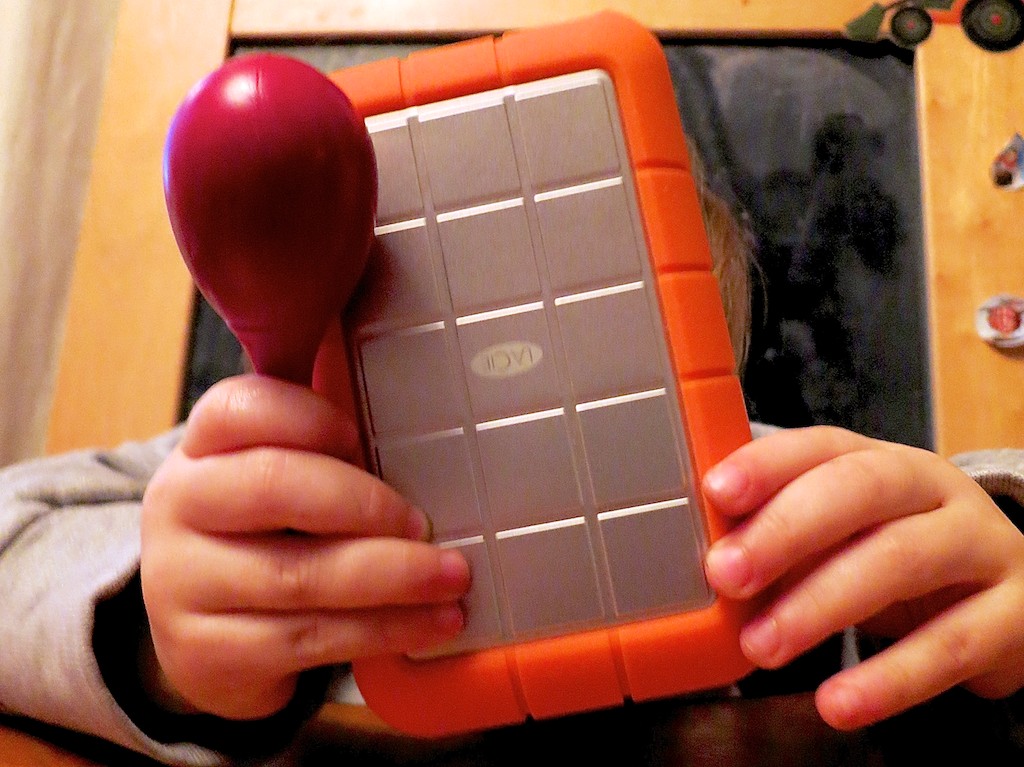
You’re Going to Need a Bigger Hard Drive

LaCie Rugged with Rattle

Even if you have faith your external hard drives can withstand the forces of fate, they’ll eventually buckle under the load of all those home videos you’re shooting.

#2
There’s No Question. USB 3.0 Rocks!

The Choice

Thunderbolt is great. But USB 3.0 is just fine. Both blow FireWire (R.I.P.) away.

#3
Build Your Home TV Studio for $44

My favorite piece for this home-grown tech solution is the $2.99 teleprompter system for your iPad!


#4

That Bad Photo You Took May Be Your Best Yet

The Eye

You may not know it, but some of your best photos are slipping through the cracks. Maybe they first struck you as flawed, or you didn’t recognize their hidden value. Time to recognize your ugly ducklings!

#5
Find Your Neighbors on Nextdoor.com

Nextdoor enters the neighborhood

You can create your own virtual neighborhood based on your real one.
Talk about two worlds colliding!

#6
It’s Time to Buy LED Bulbs

Passing the Torch to Cree

The price is right for this Cree LED bulb. Convert!!

#7
Transcode Your Camera Videos to Windows Media Files
with 
Flip4Mac

When you want to email your child’s birthday party video to grandma, you’ll need the power of Flip4Mac. Then, she’ll be able to watch the magic
candle-blowing moment on her PC.

#8
Create a Shared iCal Calendar for Your Family

Connected and Happy iPhones

Missing a family commitment can be a thing of the past if your family iPhones share a calendar.

#9
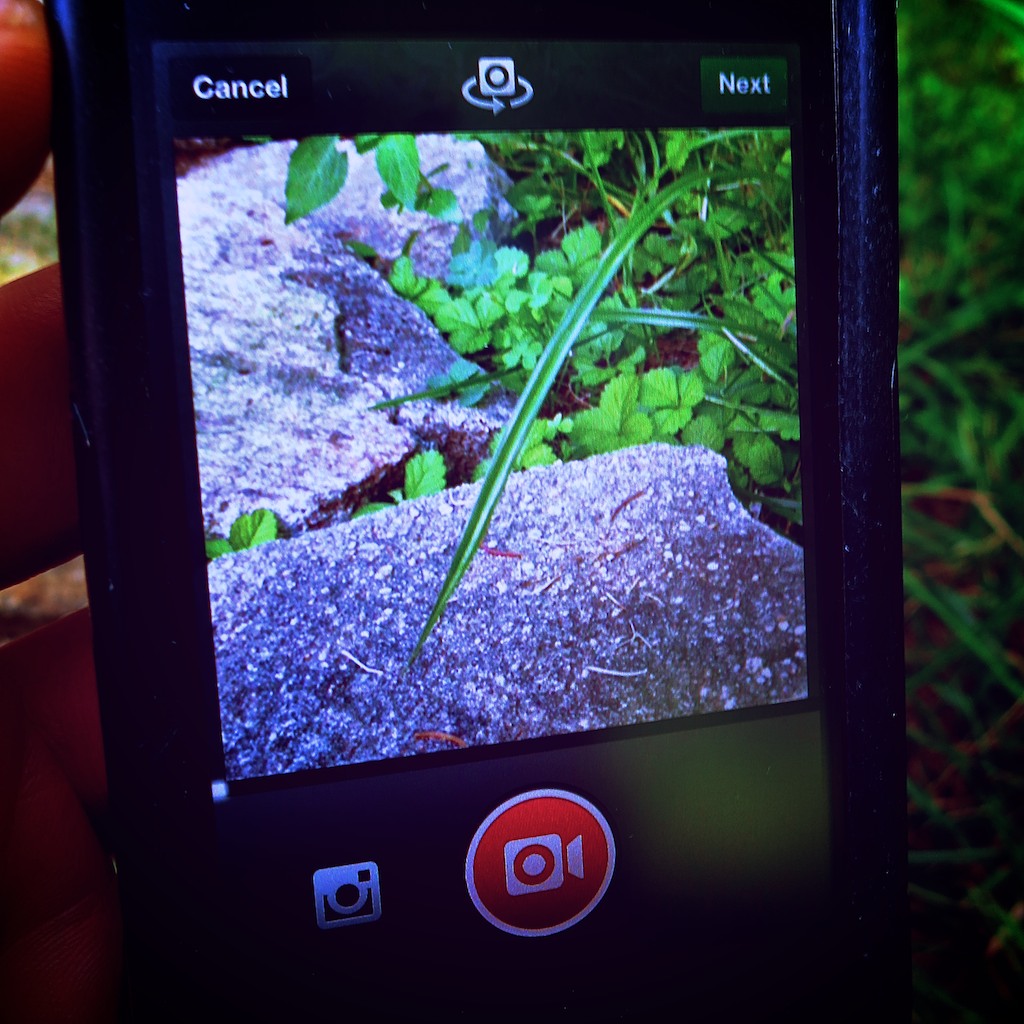
Video on Instagram Gives You Your 15 Seconds of Fame

Watching a Blade of Grass Grow

If you can’t muster up 15-seconds worth viewing, you might like Vine instead.
They only offer you six seconds. If that gets too complicated, try taking a photo, and call it a day…

#10
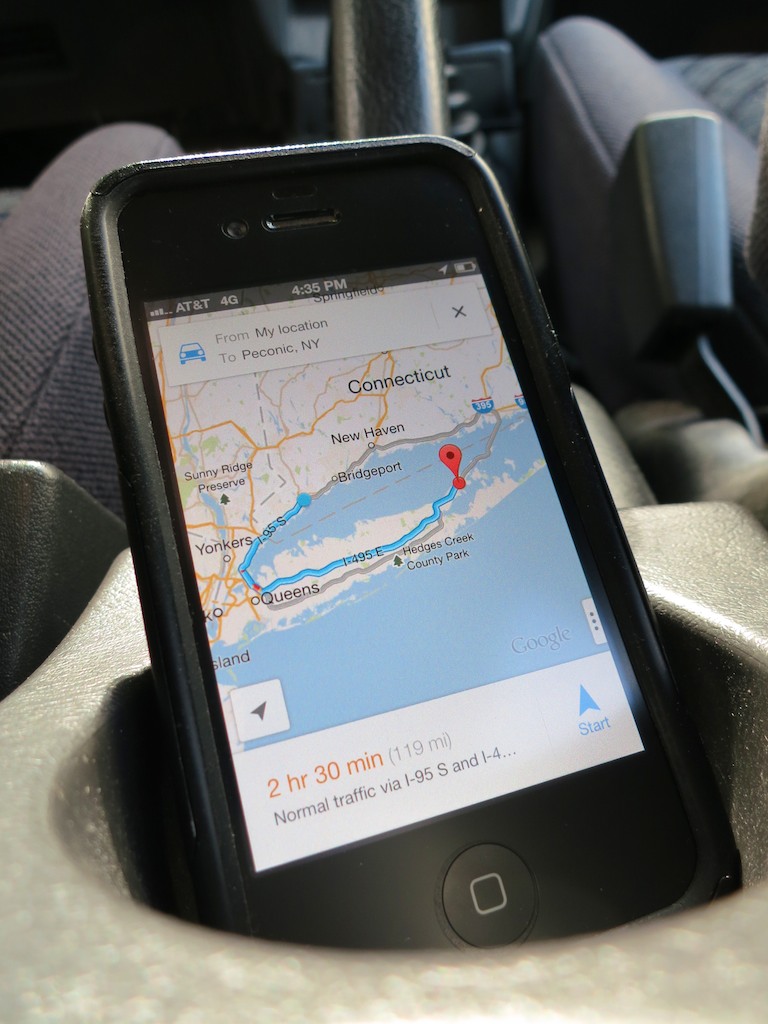
Strap Your Smartphone into Your Car while It’s Doing GPS Duty

iPhone navigating in cup holder

Don’t let another road trip go by with your smartphone sliding about as its GPS app shouts out turn-by-turn directions from the car floor. Mount it onto your dash!

#11
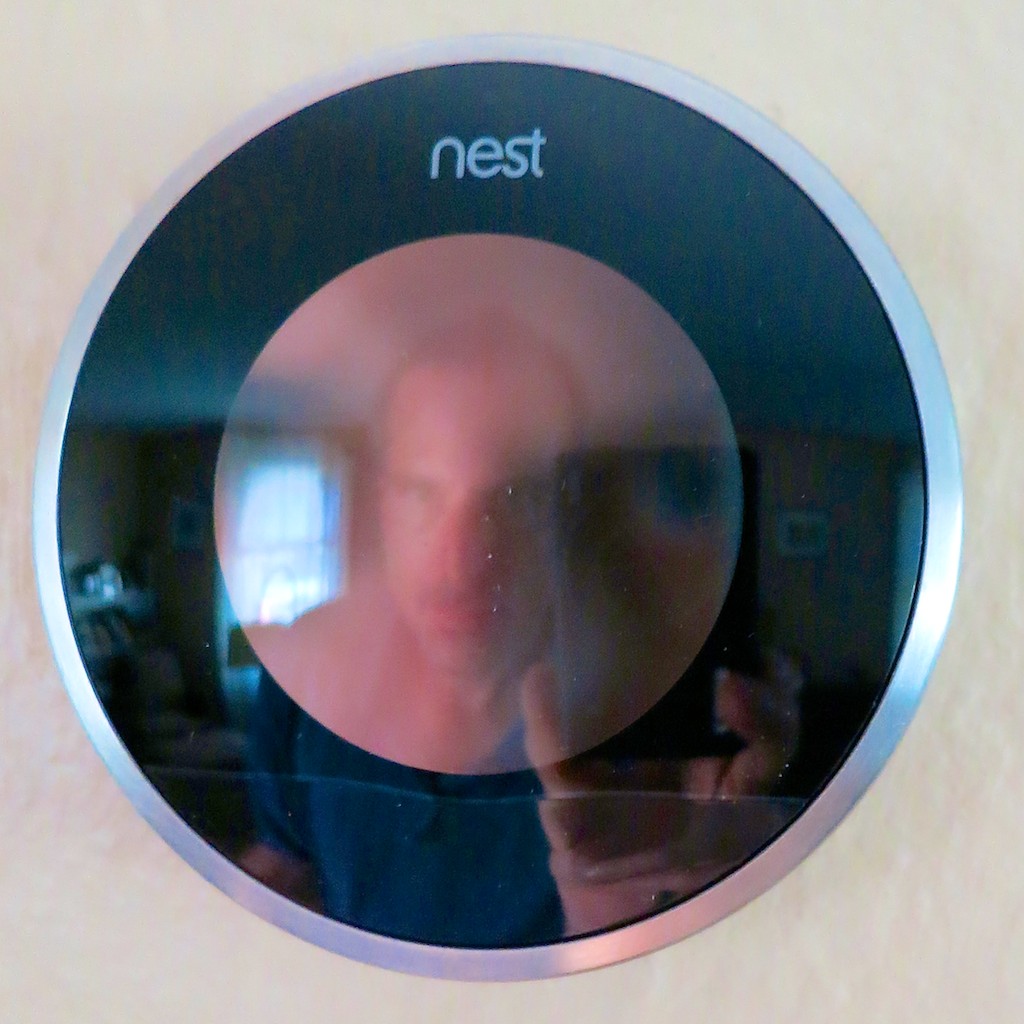
Buy a Nest Learning Thermostat

My Nest and Me

How’s your 1950’s-era thermostat handling the extreme weather? Did you forget to adjust it before you left home today? Wish it were smarter? Well, now it can be…

#12
If You Buy an HD iTunes Movie, You Also Get the SD Version for Free

Movies for the Road

You just need to know how to ask for it. And why would you want the SD copy? Ask your bloated iPhone…

#13
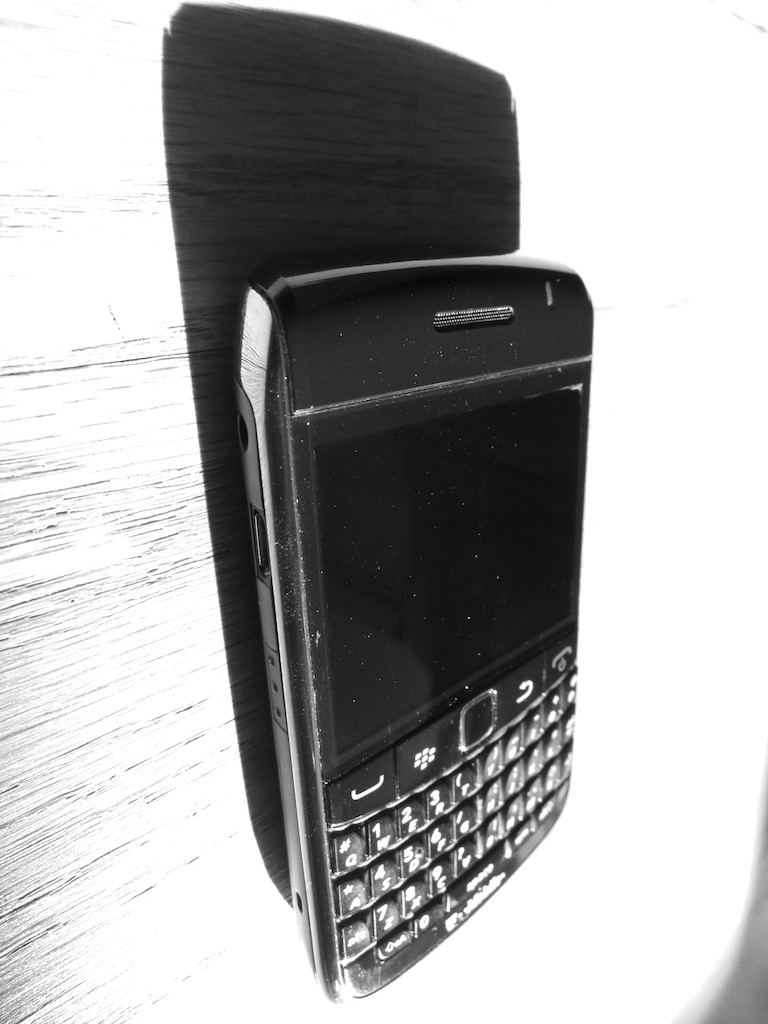
BlackBerry is Toast

BlackBerry on the Floor

You don’t need me to tell you this news, but I really want you to read my little poem about this former giant.


Happy New Year!

Well, there you have it.
Feel free to add your own favorite tech tips from 2013.

(Yes, even I am not a Tech Jedi yet…)

Finally, thank you for visiting At Home with Tech over the past 12 months.
I hope my posts have been of some assistance or at least a bit of amusement.

I look forward to working through a few more of the universe’s many
tech mysteries with you in 2014…

Nanu! Nanu!

Comfort Data to Feed Your Vacation Zen

What's it going to take to make your next vacation as carefree as a three year old experiences it?  Well, you'll need a little tech at your side to maintain a small but steady stream of ‘Comfort Data.’

What’s it going to take to make your next vacation as carefree as a three year old experiences it? Well, you’ll need a little tech at your side to maintain a small but steady stream of ‘Comfort Data.’

As we’ve arrived at the unofficial end of summer, I think it fitting to conclude my season-long investigation on the nexus between:

  • House
  • Weather
  • Home tech
  • and my blood pressure!

Consider this…
You take one last look at your house as you drive away on your late-summer vacation.
You’ve staged your home for low-occupancy use.
(The cats will hopefully use the time to catch up on some sleep…)

But your castle is essentially on its own.
Who knows what tomorrow will bring…
Natural disaster. Power outage. Alien attack.

As you turn the corner towards your relaxing journey, you smile at your family and secretly wonder if you will ever see your house again… in one piece.
(A slightly catastrophic perspective… but don’t tell me the thought has never crossed your mind.)

Are you enjoying your Vacation Zen yet?

Your Tech Always Comes Along for the Ride
Disconnecting from your daily routine is the foundation of recharging yourself on vacation. And that usually means putting down the work BlackBerry and personal smartphone.
But hey, how many of you spend zero time with your iPhone or Droid while soaking up your summer sun?

Exactly.
You’re not disconnected at all.
And you like it that way…

  • Send that text
  • Update your Facebook page
  • Make the phone call

The digital ‘wish you were here’ moments fly off your digits.

So if you continue to keep in touch with every part of your life, why can’t you use the same tech to monitor your house’s life signs?

Well, of course you can…

Comfort Data
I’m back from more beach R&R, and I’m happy to report my house is still in one piece.
(I know you’d be worried for me.)
More importantly, I didn’t have to wait to get home to arrive at this conclusion.  I received enough ‘Comfort Data’ via my iPhone along the way.

I’ve been enjoying the benefits of having made my house a ‘wee bit’ smarter.
Now it shares its vital signs wherever I go.

And this ongoing evolution helped to make this vacation more relaxing than my earlier summer jaunt…

Let’s review my three tech muses that now feed my Comfort Data stream…

Nest – Keeping It Cool
Recently, I installed a Nest Learning Thermostat to give me remote access to my home’s HVAC system.
This vacation was the perfect opportunity to see if my pricey investment was worth it.

Each beach morning, I sat down with my cup of Joe, reflecting a bit while the early sun illuminated the calm water, and then I opened up the Nest app on my iPhone to confirm my house was as temperate as my current surroundings.

(All my windows were closed at home to avoid the possibility of wind-swept rain damage. But that choice also removed the opportunity for my house to breath in all that chilly late-summer night air.
So my Nest really needed to keep things cool without running my AC 24/7.)

The Nest app powered up and showed me the current temperature in my living room. It knew I was away, because it didn’t sense any movement.
(Apparently, its software algorithms can filter out cats.)
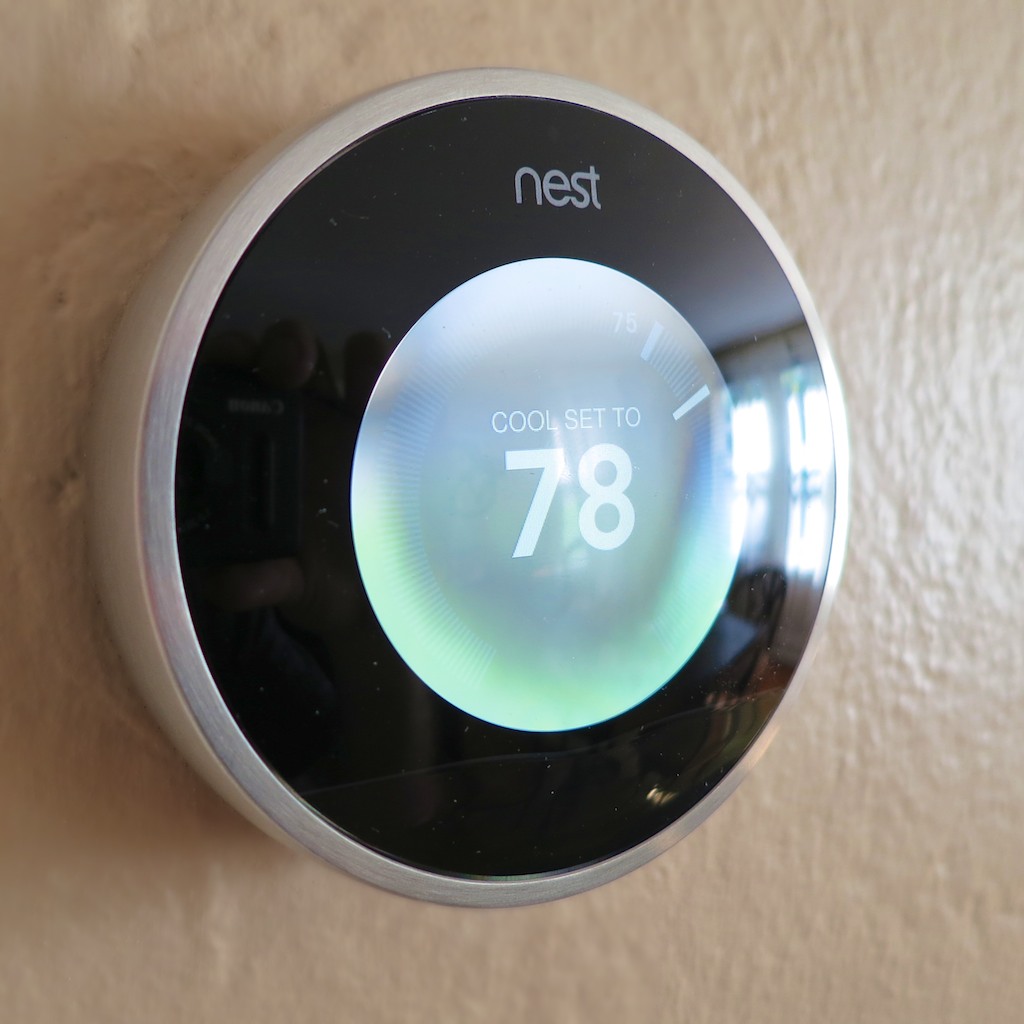
Nest was holding the temperature steady just under my ‘Auto-Away’ setting.

Sweet!

Leaving Eyes Behind with Your Foscam
So Nest can make you Lord of the Temperature, but you’re still blind to everything else happening at home.
Well, not exactly…
Remember that Foscam IP baby monitor camera I installed last year…?

  • I walked it downstairs before the trip, so I could take a remote peek at the homestead while building sandcastles with my son
  • I also moved a digital thermometer next to the Foscam so the IP camera could visually confirm my Nest was behaving

This back-up temperature check gave me additional peace of mind to know the cats were comfortable and getting their beauty sleep.

One time, as I was having some fun remotely panning the Foscam about the room, I spotted one of my two felines studying the sudden movement.

I immediately froze the camera so as not to incite more interest and a direct encounter.
(My Foscam didn’t have the optional ‘anti-cat force field’ installed.)

Finally, the simple fact I could successfully monitor the happy status of my Foscam confirmed my home was still getting juice from the street.

Dark Sky Looks for Trouble Overhead
So if you were wondering… no, I wasn’t continuously preoccupied with my offsite tech throughout my vacation.

There was plenty of room left to apply the power of tech to my present environment…

I was forced to navigate a dodgy weather day at the beach, and I really needed some hyper-local weather forecasting.

My friend suggested I try a weather app called Dark Sky, which was created by a couple of cool-looking dudes via
a successful Kickstarter campaign.
(The name sounds like a bad sci-fi movie on late night TV.)

This app’s trick is to take real-time data from the National Weather Service, pair it with your specific location and offer you an accurate rain report for the next hour right where you are.

I downloaded Dark Sky from iTunes for $3.99 and gave it its first test drive the final morning of our trip as I was packing up the car with all our family gear.

The clouds looked a little ominous, and of course, I was curious to see if I’d be schlepping out all our gear in the rain…

I asked Dark Sky…
‘All clear for the next hour!’

So I took my time.

Ten minutes later, the droplets began bouncing off my head.
D’oh!

To be fair, it only rained for the next five minutes, and then it stopped.
The rest of the day’s precipitation held off till later that afternoon as per the forecast.
(An errant rain cloud in need of a diaper change?)

Clearly this rain predictor app wasn’t completely infallible, but it wasn’t entirely wrong either.

I gave it another try last week during lunch at work. I needed to run an errand, and it was pouring out. Dark Sky displayed there was no end to the storm for the next hour.
So I dashed out after waiting as long as I could.

As I made my return protected by my trusty Tumi umbrella, the heavy rain subsided to a drizzle.
While waiting for a red light on Sixth Avenue to change, I felt curious what Dark Sky had to say…

It was ready to impress and let me know we were in a window of drizzle for the next ten minutes.
(eerily accurate)

Okay, this app wasn’t so bad after all…

It’s Getting Chilly Already
So there you have it… my summer… made a bit more relaxing through the power of home tech.

Yes, it’s always a little sad when you have to say hello to September.

But the good news is you can keep some of that summer glow with you
year round with all your Comfort Data.

You’re going to need it…
Old Man Winter isn’t that far off!

Happily Married to my Newly Installed Nest Thermostat

My new Nest and me.  I needed a little help directing my house’s response to extreme weather.  So it was time to bring on a new tech tool to join the home team.

My new Nest and me. I needed a little help directing my house’s response to extreme weather. So it was time to bring on a new tech tool to join the home team.

Some people love the summer heat.
I hate it.
For the record, it’s my kryptonite.

  • Problem #1
    Keeping your home cool throughout the summer is always a priority, but you don’t want to continue throwing money out the window using a manual thermostat with a set-it and forget-it mentality…
  • Problem #2
    What’s the temperature in your home right now?
    (You’re not there? Doesn’t matter.)

X-ray vision could do the trick, but how can you magically adjust your thermostat from fifty miles away if you’re not Superman?

Solution:
This is a job for… Nest!

Nest is a learning thermostat, which you can control with your smartphone from anywhere in the world. She also observes your energy-use patterns and programs herself!
(See, I’m already anthropomorphizing it.)

Her goal is to keep you comfy and save you money.
Pretty neat, right?

Last time on At Home with Tech, I decided it was time to buy a Nest for my little Fortress of Solitude.
(though my house has not been so quiet lately with my three-year-old boy running about faster than a speeding bullet!)

Now it was time to introduce my Nest to my HVAC system…

Warning: Your Home can be a Dangerous Place
I’ve been a homeowner for more than twenty years.
And I’ve made my share of mistakes on the home-improvement front.

My favorite story I like to tell about my ineptitude as a new homeowner is how I handled a little rain…

It was a few months after I moved into my first house, and there was an incredible spring rainstorm.
My basement started to flood.
I called the fire department fearing some sort of water main break, and they came by to check out the situation.
Their evaluation… It had rained a lot, and the water table had simply risen
‘a bit.’ Everything was exactly as it should be.

Mr. Fireman told me I needed to call a plumber to pump out my basement.
So I did.

Mr. Plumber came over, and before you could say “emergency plumbing appointments are wicked expensive,”
…the lake in my basement was gone.

As soon as he left, I walked back downstairs to continue the drying-out.
To my horror, I realized I had acted too soon.
I watched my basement fill right back up.
D’oh!

The next day I bought a sump pump.

The moral to this laughable tale of new homeownership is you’d better do your research before beginning any home improvement/repair project.

The existence of Nest doesn’t threaten disaster the way a nor’easter does, but you can never be too careful…

The Nexus between Tech Savvy and Handy at Home
Many home tech improvements go beyond the relatively safe bubble of your desk, where much your technology lives.

If you want to create a ‘smart home,’ sometimes you’ve got to roll up your sleeves and get your hands dirty!

And it’s difficult to integrate tech into your house without dealing with a little…
(cue the organ music)

ELECTRICITY…

Please Don’t Electrocute Yourself
Replacing your old-school thermostat with a ‘smart’ one requires you to disconnect a few wires from one device and attach it to another.

One potential problem is these wires carry some electrical current.
It’s not exactly like handling wiring for a power outlet, but you don’t want to get caught completing any kind of electrical circuit with your fingers.

Nest clearly directs you to turn off the power to your furnace/AC, or if you can’t be certain you’re safe, just turn off all the power.

Cutting the main breaker seemed like overkill, but it took me ten tries to find the right circuit breaker to flip.

I’m not proud admitting this, but I didn’t realize till the ninth attempt that the bulk of my main electrical panel had been bypassed.
My electrician installed a manual transfer switch for
my new portable generator last month into a new subpanel, underneath the original.
That’s where most of the action now lived.

(I told my bruised ego it was good to get acquainted with the new breaker box before the next power outage showed up!)

The Installation: Don’t Forget your Wall Prep
With the power off, it was time to begin….
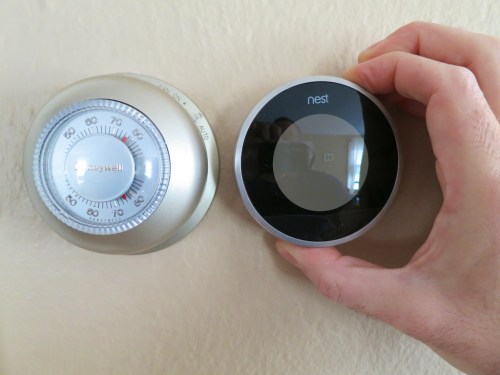
Comparing Nest to Honeywell

Nest claims, “Three out of four customers install Nest in 30 minutes or less.”

Sure, it didn’t take too long to remove the wiring from my old Honeywell manual thermostat and pull it off the wall.
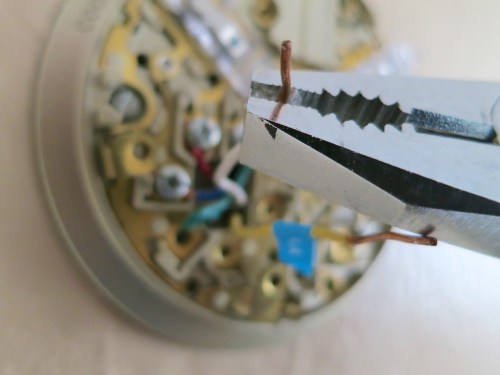
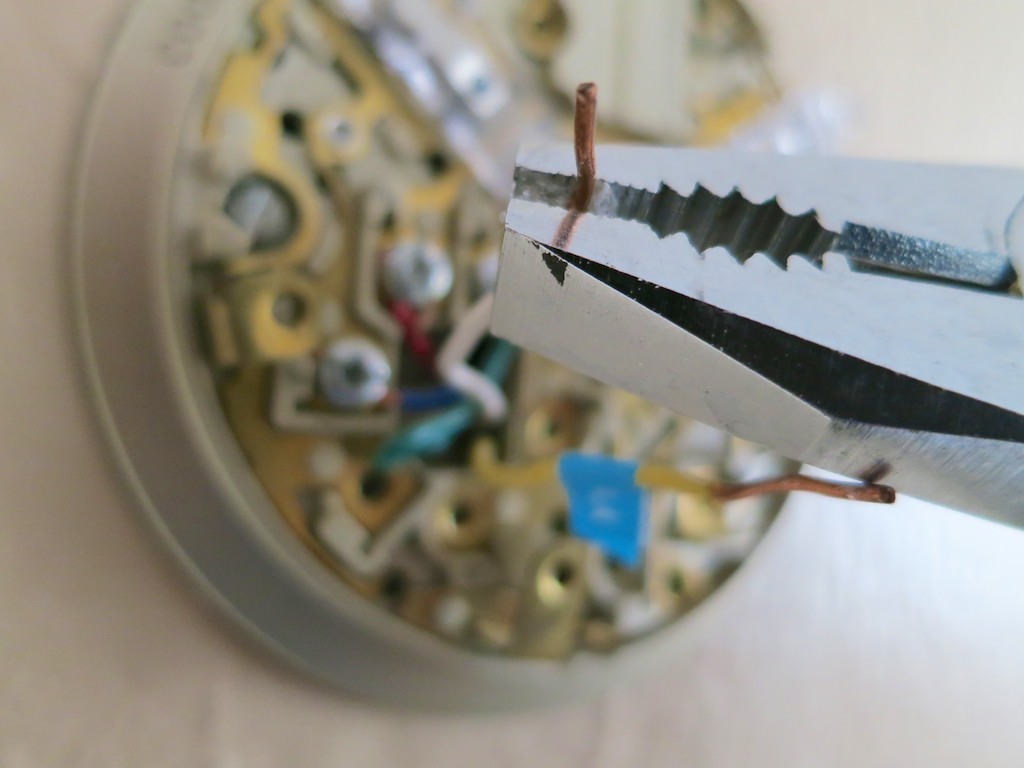
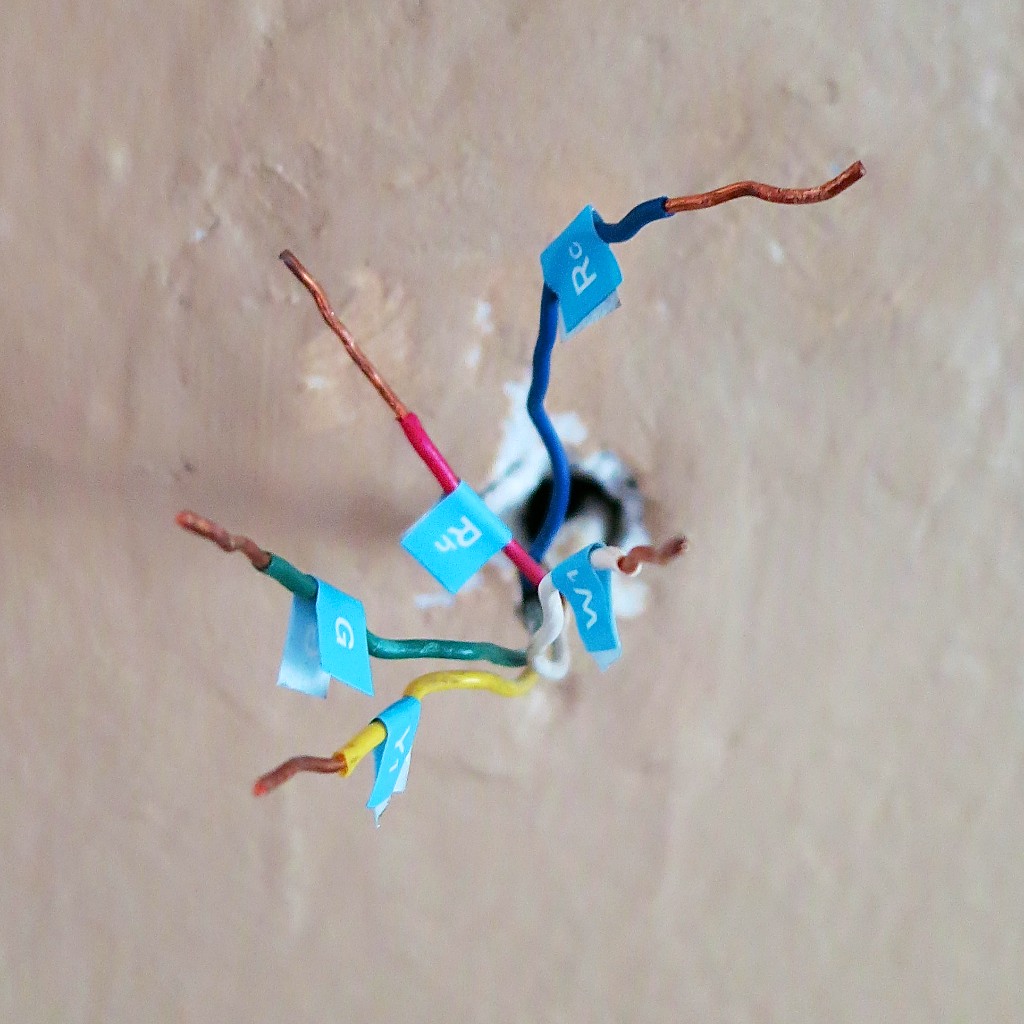
Straighten out the wires

What the Nest folks don’t say is their stopwatch stops ticking as soon as you take a look at the ‘time bubble’ behind the old thermostat, and only starts running again after you’ve erased it.

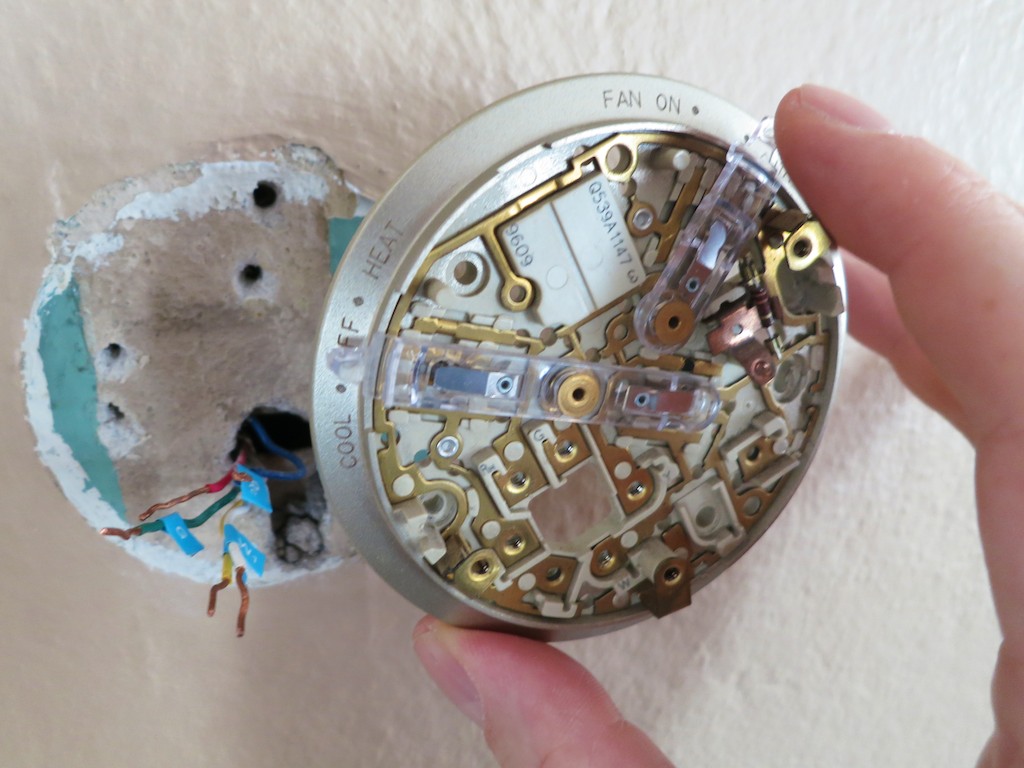
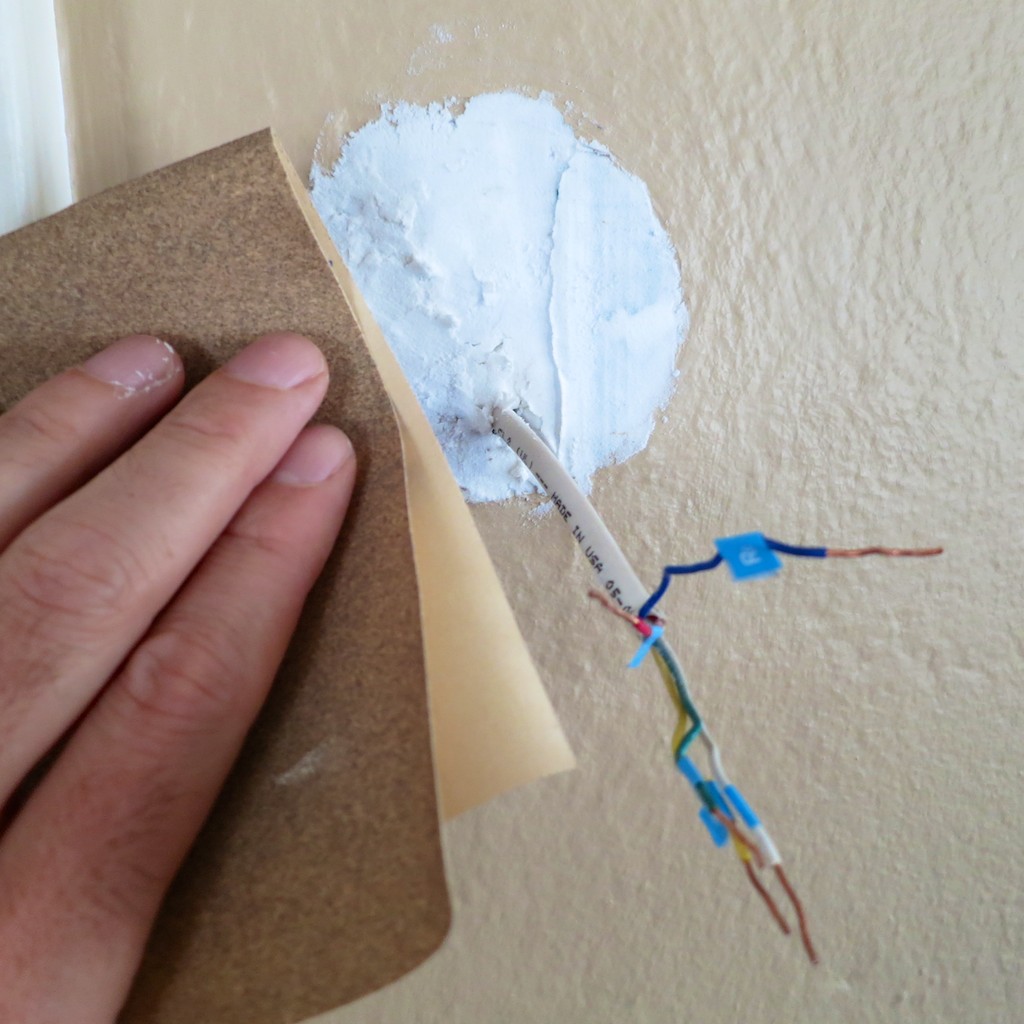
What I’m talking about is if you live in an older house like mine, the wall underneath the old thermostat has likely been hidden for decades.
Even if the thermostat has been more recently replaced, nobody’s been minding the condition of the poor wall.

My circular bare spot looked like a war zone from WW2.
(There were crumbly holes everywhere!)
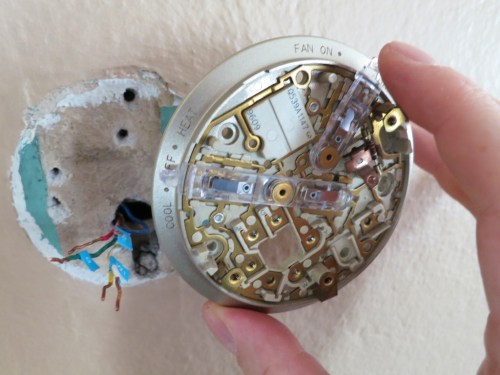
Get prepared for what’s behind the thermostat

So a glop of spackling paste was clearly in order!
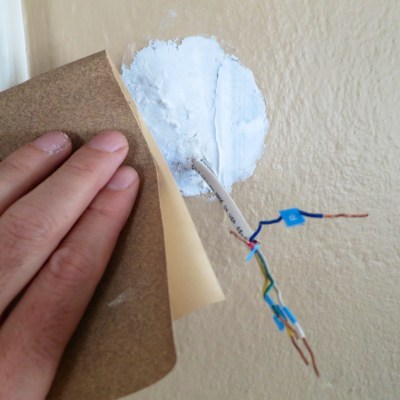
Spackle and sand away

Then, there was the tiny issue of the paint job.
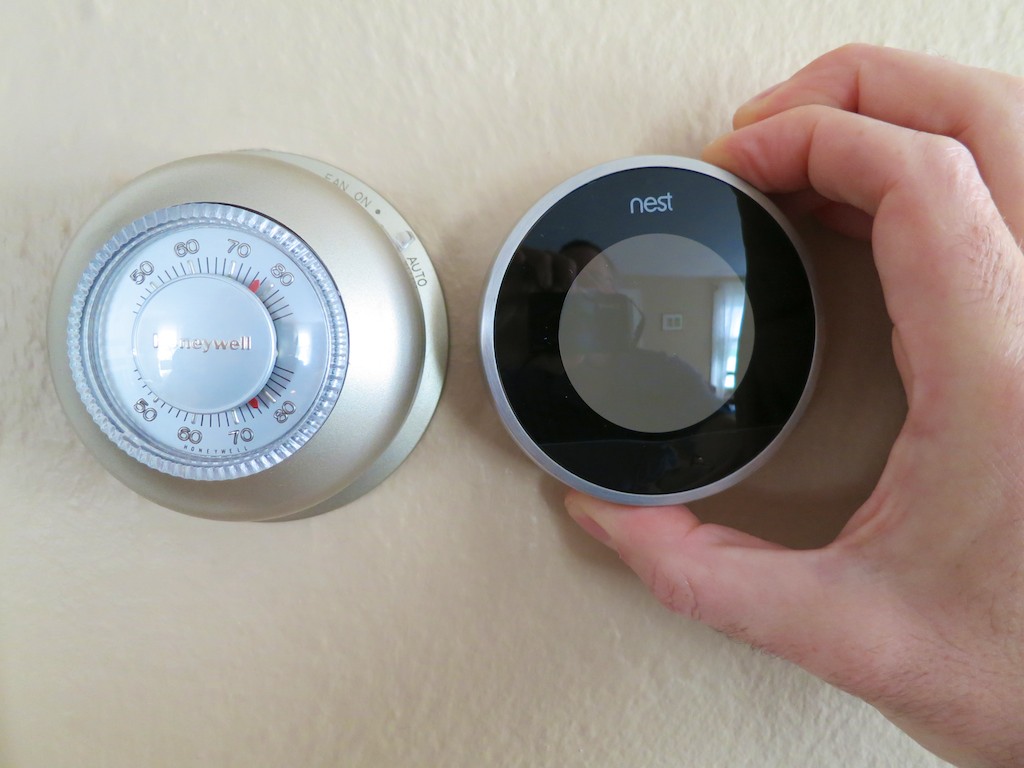
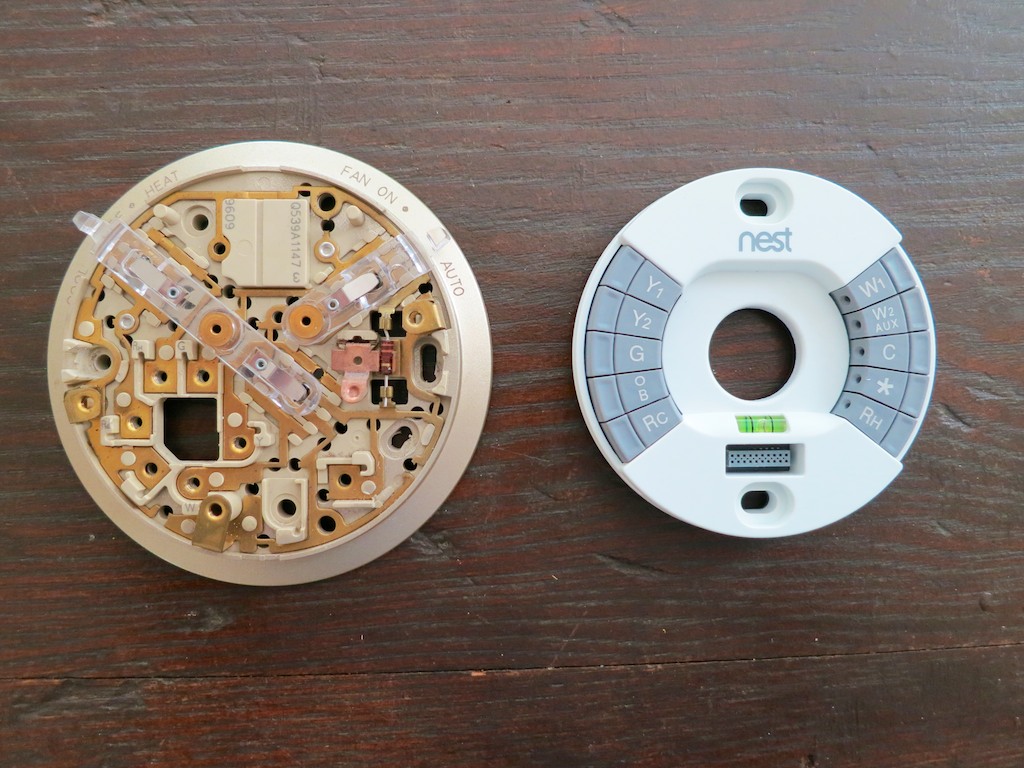
My Nest is smaller than my old Honeywell…
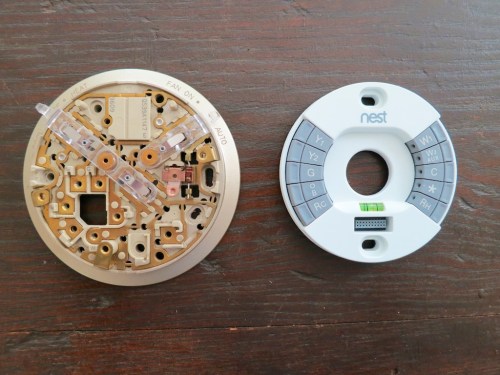
Nest’s Smaller Footprint

So my ugly green paint lurking underneath from the 1950’s (‘40’s?) would surround the Nest like a really ugly case of ring-around-the-collar!

Nest provides a white rectangular plastic plate mount to hide all of this mess.
But what’s the point of buying a cutting-edge product with a clean, Apple-like sleekness if you’re going to take the easy-way out by using a chunk of white plastic for the install?
(I’m insulted at the very idea.)

Believe me, you don’t see the plastic mount displayed in any of Nest’s marketing beauty shots…

The only real solution: Repaint that section of the wall.
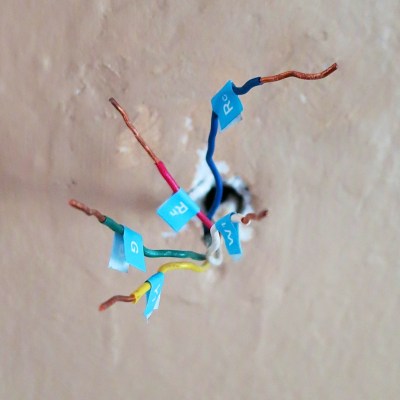
The patch and paint job is done

Let’s just say it was a few hours later when I was finally ready to begin the installation process…

How Simple is Simple?
This is all the Nest manual says about installation…
And I quote:

  • Attach base
  • Connect wires
    (After all the wires are connected, make sure they’re flush with the wall.)
  • Attach display
  • Switch power back on

That’s it.
And they’re not lying!
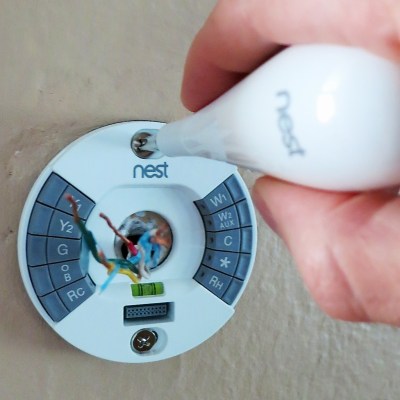
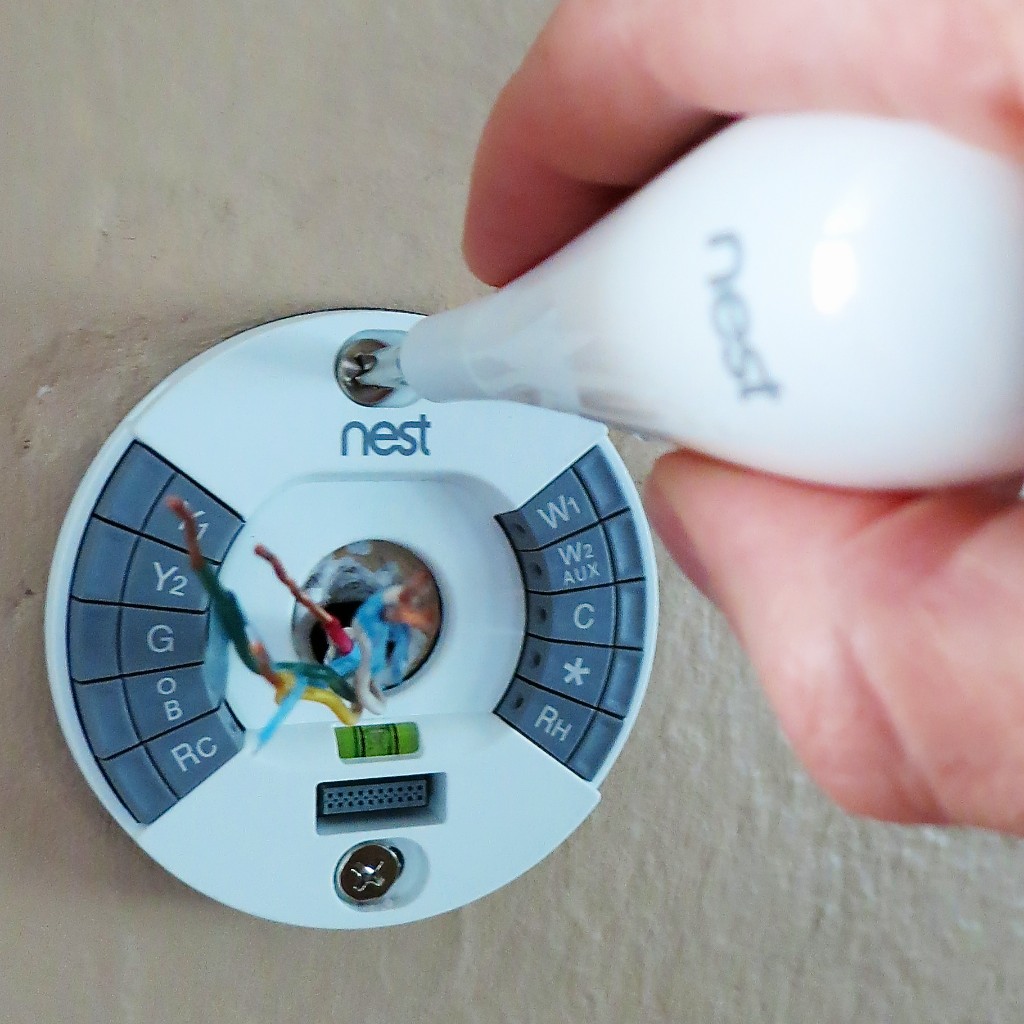
Screw in the new base
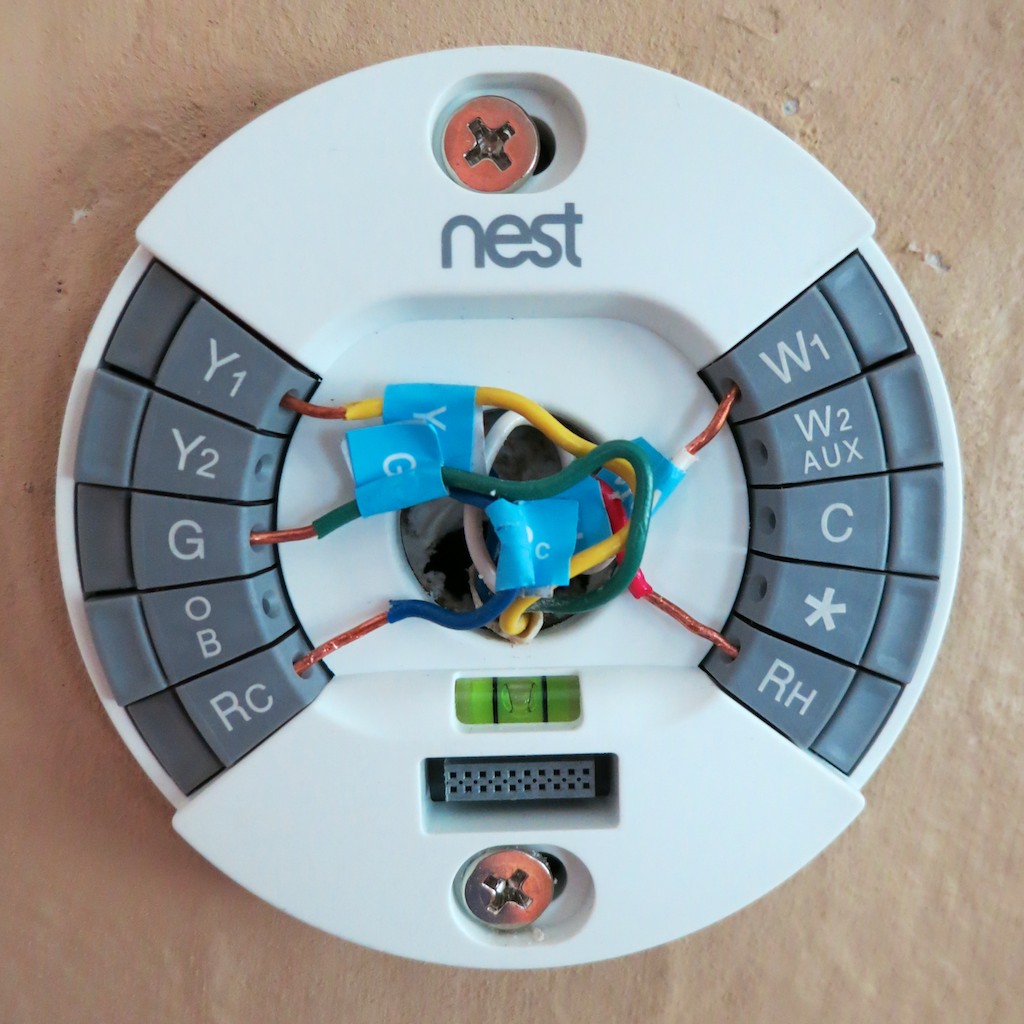
I first screwed in the base with the two provided screws
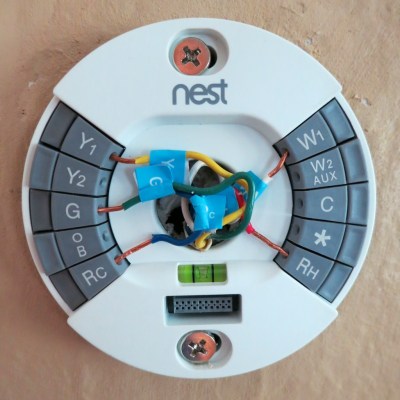
Reattach the wires

  • Then, I carefully reconnected my five wires
  • Snapped on the iPod-like flat sphere
  • About 35 minutes later, I proudly walked downstairs and flipped back the circuit breaker
    (Okay, so I’m in the lowest 25th percentile… but it’s not a race, you know.)

I ran back upstairs and was greeted with a glowing screen displaying a home icon.
(joy)

It’s Alive!
My Nest had a heart beat!

Now what?
There really aren’t any provided instructions.
You either turn the ring or click the front.
(sound familiar?)
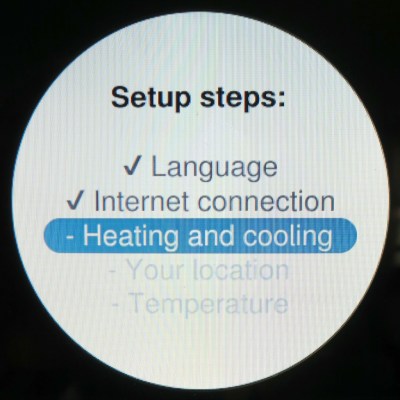
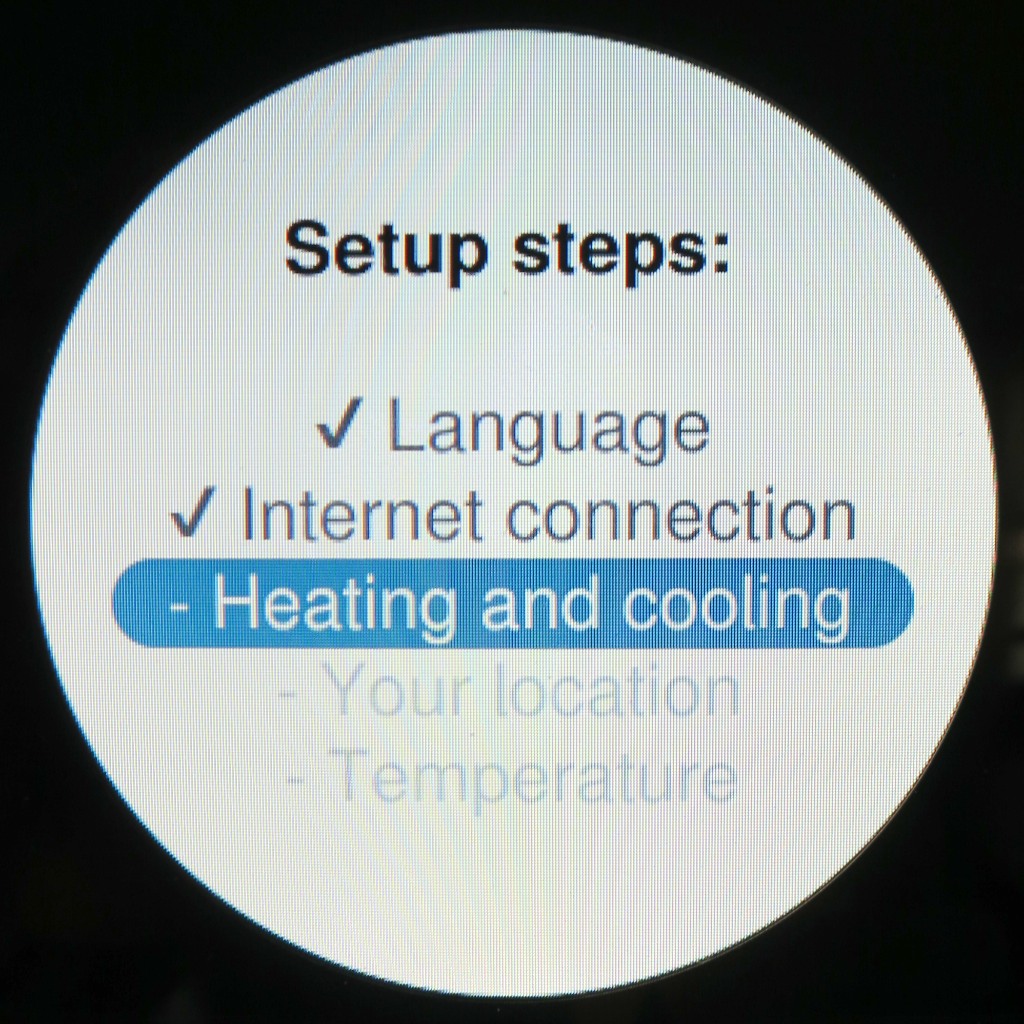
Setup Steps

Well, the setup was a joy. It’s really quite intuitive.
(If you were willing to pay $249 for this, you’re probably going to have enough tech smarts to breeze through this…)

First, I connected my Nest to the Web via my Wi-Fi network.
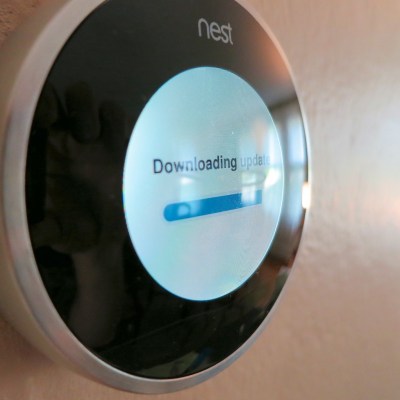
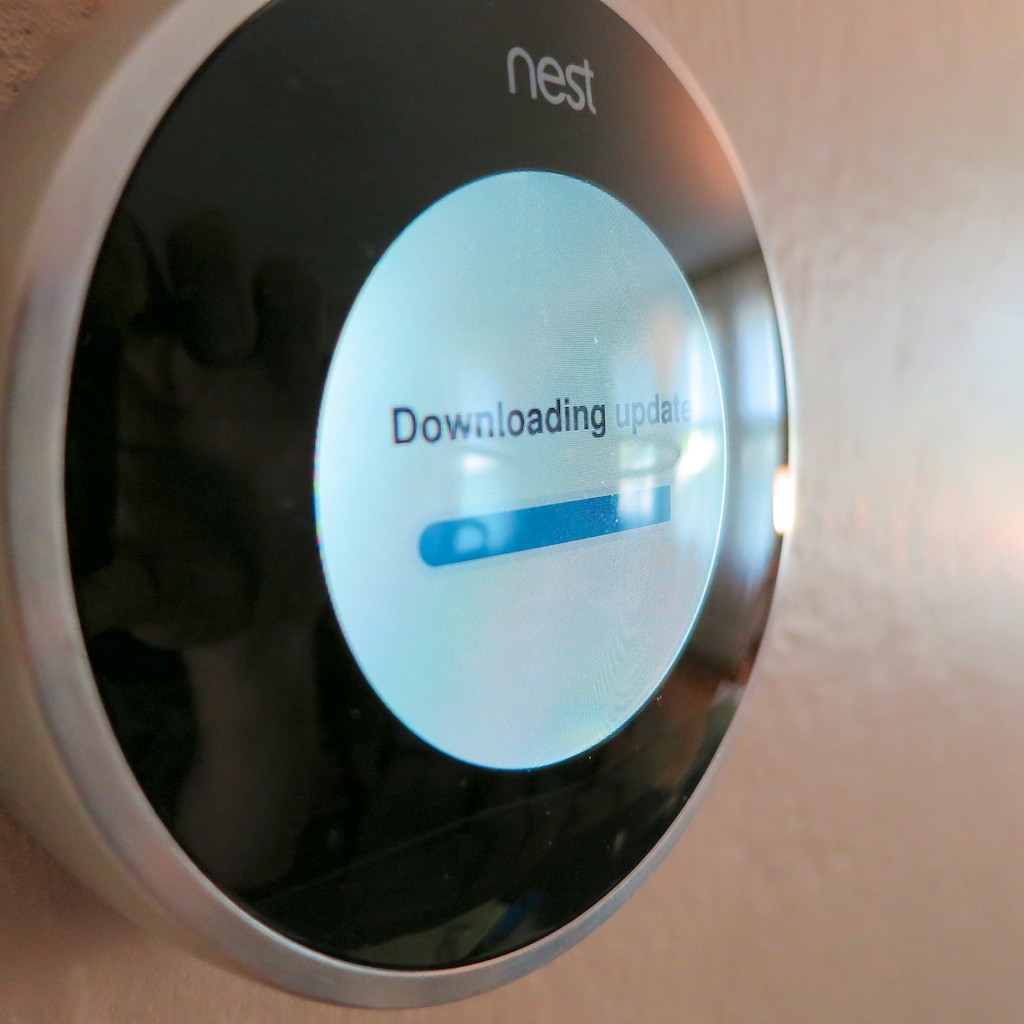
Downloading Update
Then, she downloaded a software update… One moment please!
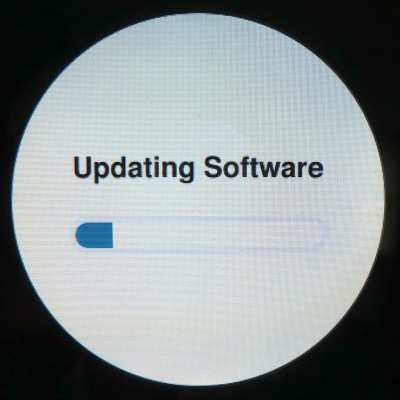
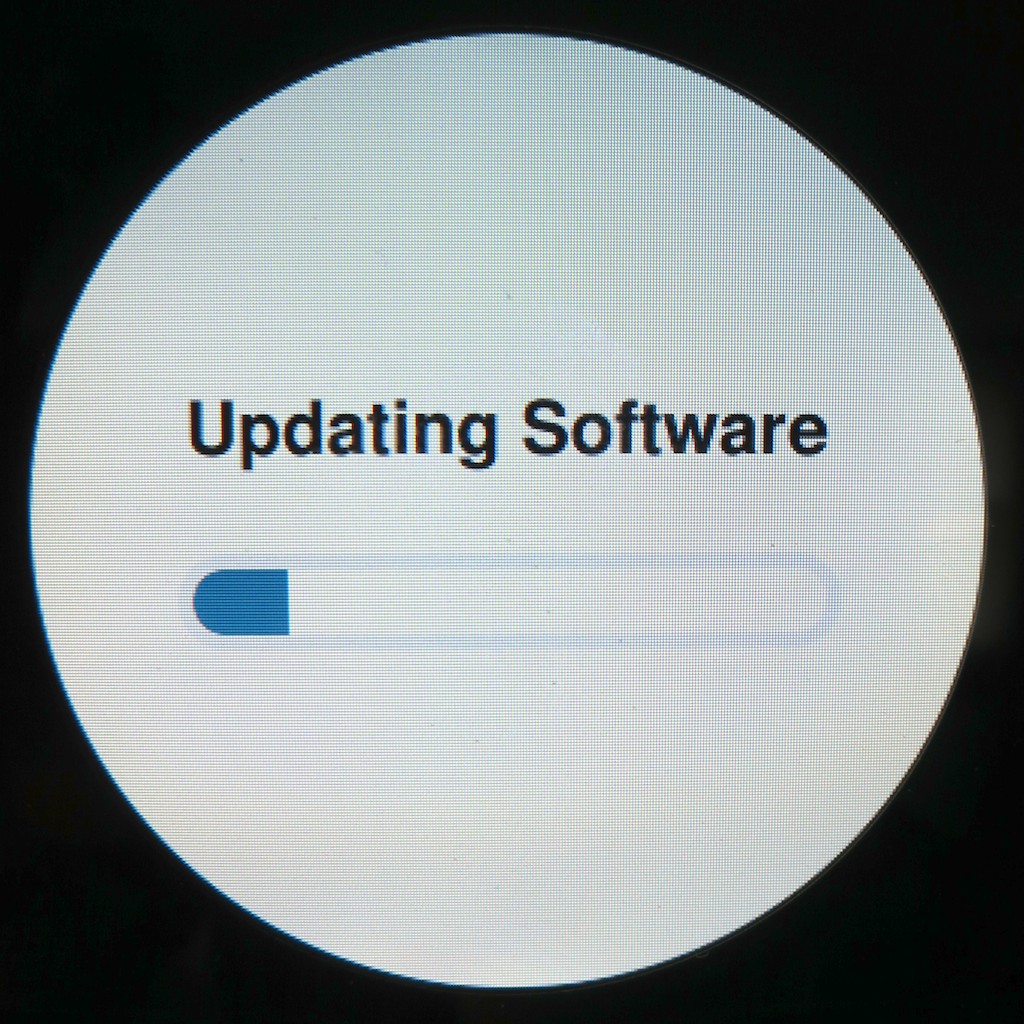
Uploading Software

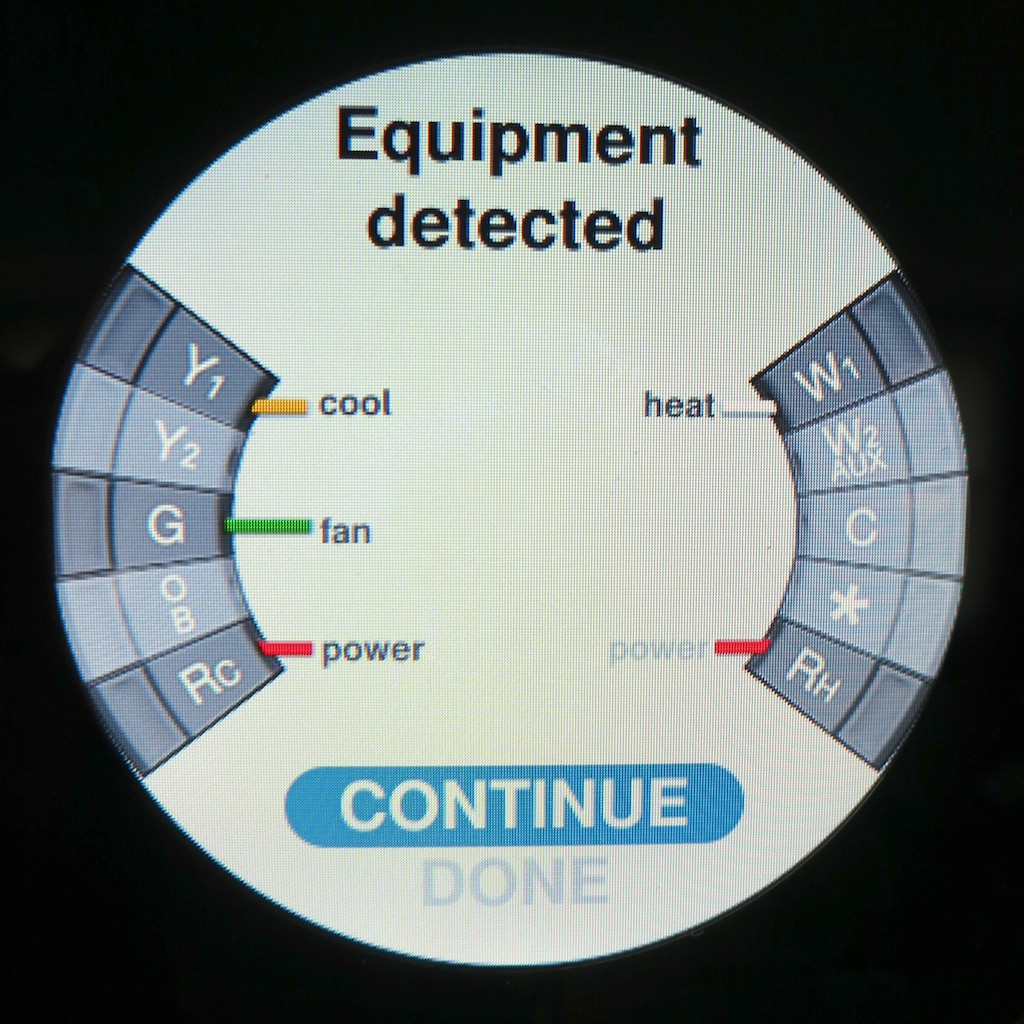
She performed a self-diagnostic and displayed a diagram with all of the attached wires she sensed.

I noticed the yellow wire was conspicuously absent.
Uh Oh!

  • Heat. Check.
  • Fan blower. Check.
  • Air Conditioning. Nada.

Red Alert!

It appeared I needed to reattach the yellow cable.

Next problem:
How do you take Nest off her base?
I didn’t want to force anything and break the mount.

But the solution was nowhere in the written directions.
I scoured the Web and Nest’s support site for an answer.
Finally, I found it.

Are you ready?
“Pull it off the base.”

What, you’re not going to break any tabs by just yanking it? (gently)
Nope.

Snap it on.
Snap it off.
Genius.

So I pushed in the yellow wire a little further and snapped the base back on.
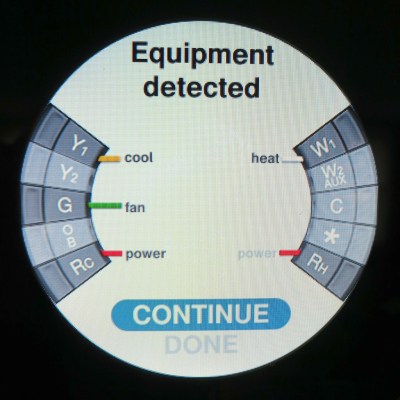
Wiring Self Diagnostic

Warp power restored!

How Bad is Error Code N22?
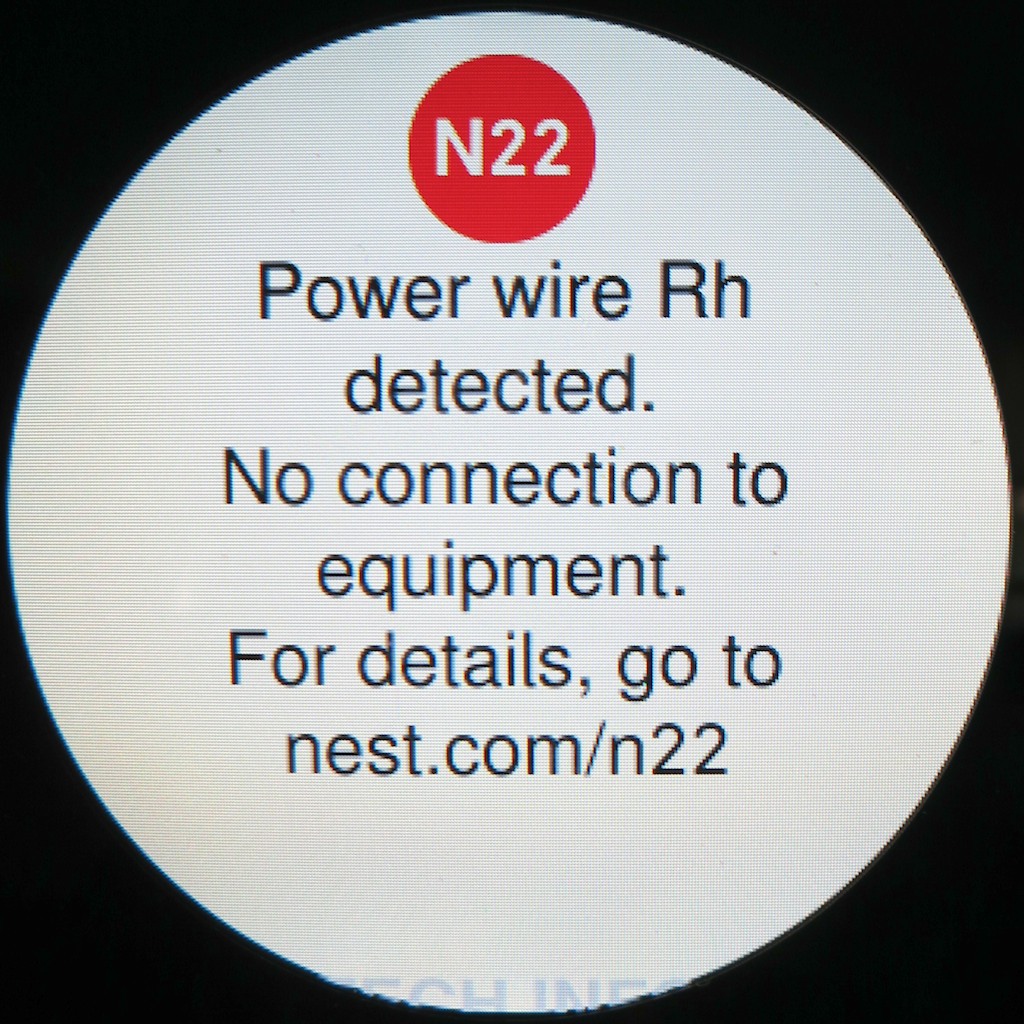
Then my Nest gave me a worrisome message:
“N22”
Apparently, another wire (Rh) was attached but not talking to my furnace.

She directed me to –
Nest.com/n22
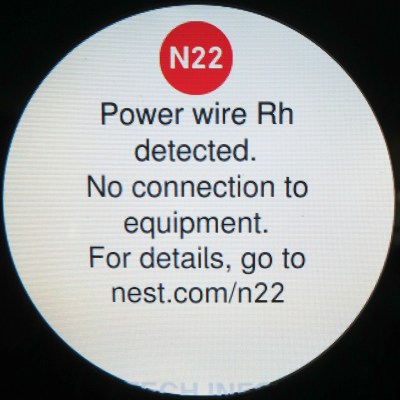
The Mystery of N22

With a few clicks I again diagnosed there was no power to my ‘Rh’ wire,
which normally connects to the heating system.

Nest’s recommendation:
“If your heating and cooling system is working correctly, ignore this note.
Your system has an unusual configuration, but Nest will work fine with it.”

Ignore it?!

Well, everything seemed to be working.
(both furnace and air conditioning)

The website then gave some parting words of wisdom-
“Enjoy living with Nest.”

Don’t mind if I do…

Remote Access
Now the fun can really begin!

I completed my Nest’s launch and set the temperature for the first time,
(Remember, she’s paying attention to every degree adjustment you make to create her ‘Auto-Schedule.’)

Then I went back online and officially opened up a Nest account.
Nest.com immediately recognized my computer was using the same Wi-Fi network as my Nest.
(That’s really spooky.)

And with three more clicks, my Nest paired with my new account.
Then, I downloaded and logged into the Nest mobile app for my iPhone and iPad.
(also available for Android)

In less time than it takes for a black hole to engulf the planet Vulcan, I gained the capability to control my Nest from anywhere around this globe.
(assuming an Internet connection)
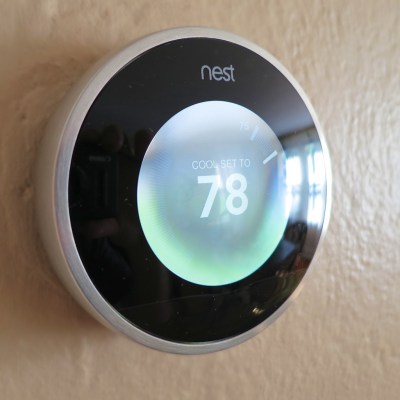
My Nest is home

But Wait, There’s More…!
She’s also got a whole host of other tricks to help you save energy and money…
(Remember, Nest claims you’ll make your money back in less than 2 years.)

  • Airwave, which helps squeeze out more AC for your buck
  • Auto-Away, which activates automatically if you’ve left on vacation and forgotten to adjust the temperature
  • Early-On, which fires up your system to get to your desired temperature before you wake up or return home
  • Auto-Tune, which tweaks your settings to eke out even more savings
  • Nest Energy Reports to help you track your savings

Wedding Bells
Well, there you have it.
It’s official. My Nest has officially moved in.

We’re entering the height of the summer heat, but I’ve never felt so cool…

It’s going to take a week or so for my Nest to officially take over as it learns my energy-use preferences, but it’s great knowing I’ve already begun earning back my $249 investment.

Yes, we’re only in the honeymoon phase.
But please allow me to happily borrow a line from “Man of Steel” and proclaim…

“Welcome to the planet!”