At Home with Tech

Unlock the power of all your technology and learn how to master your photography, computers and smartphone.

Tag: nixplay

How to Turn your Digital Photo Frame into a Memory Portal with Motion

In the same way that an iPhone’s Live Photos functionality can add motion to a frozen photograph, digital photo frames can perform an even better trick if you load them up with short videos. Here’s how I do that.

I’ve never completely understood the value of the ‘Live Photos’ mode on iPhones. These moving photos are tiny videos that represent 1.5 seconds of action before and after you snap your ‘photo.’ So that expanded capture range gives you the flexibility to later select your perfect frame (Key Photo) during those 3 seconds.

Of course, I want to improve my iPhone’s pictures, but working through every Live Photo to identify that one ‘perfect frame’ takes some patience. By the time you do all that, the person next to you can snap the same picture the old-fashioned way by tapping their screen a couple times, quickly select the best (non-Live) one and then share it on social media. (And all this while you’re still carefully identifying your new Key Photo from the original Live Photo.)

The Live Photos feature is a nifty trick but working to maximize each one is not a speedy process.

The Limitation of 3 Seconds
If you just want to enjoy the magic of a Live Photo that contains some action, I suppose that’s fine. But I don’t think three seconds is necessarily long enough. It can be frustrating to only get three seconds to capture a moment. But of course, any longer would make it… a video… which it really is to begin with.

And after taking thousands of Live Photos, you’re going to inevitably eat into your iPhone’s memory reserves.

So, I generally try to leave the Live Photos feature turned off unless I really want to use it.

Still, I think Apple is onto something here.

Creating Extended Live Photos is Even Better
When the Live Photos feature was first introduced, it felt like magic… like the wizardry of the live paintings represented in the “Harry Potter” movies. The only real difference is these live-action framed images lasted for a bit longer… maybe five or six seconds.

These extra few seconds can be important, because they allow for enough time to let the story of a particular moment play out.

And if you didn’t know it, this little magic trick isn’t that fantastical anymore. You can do it today on digital photo frames which have the capability to play videos.

I’ve tried this feature on my home digital picture frames made by Nixplay. They allow for up to 15-second video clips. Their ‘Plus’ subscription plan lets you play up to 2-minute clips. But I think 15 seconds is more than enough.

I’ve purchased a few Nixplay digital frames across the years. I think their current Nixplay 10.1” Wi-Fi Photo Frame is a good place to start.

As for the audio part of the video files, I’m not interested in hearing the sound. (That turns the digital frame into a TV.) I just want to watch the action of a moving photo. And 5-10 seconds is usually plenty of time to properly capture the action of a scene.

I experimented with this extended Live Photo idea a few years back, and the results were eerily cool. That said, getting my short videos onto my Nixplay frames wasn’t exactly straight forward. It took a few steps and required Nixplay’s mobile app. I’ve documented the process in this blog post here.

A New Way to Capture the Moment
Recently, I expanded my practice of intentionally shooting short videos for my Nixplay frames to display alongside regular stills.

I’ve begun shooting 10-15 second videos during family events. These videos are designed to capture what you might think of as “B-Roll” in a documentary. During these moments, ideally no one will look at my camera. But if someone wants to playfully pose, that’s okay too.

And after trimming and adding these new short videos into my frame’s playlist, these clips have immediately transformed my digital photo frames into little time machines that seemingly allow you to peer back into more realistic reflections of the past.

It’s wild.

Turn your Digital Frames into True Memory Portals
In the same way that Apple has evolved the definition of a photo into a Live Photo, why can’t digital photo frames more fully evolve into memory portals that better connect you to the past through 5-10 second video clips?

I’m certainly going to maximize this opportunity on my own digital frames moving forward.

And I’m happy to offer this uncommon pictorial presentation strategy for your consideration.

How to Transform your Nixplay Digital Photo Frame into a Video Screen

If you’d like to generate a more action-filled window into your past, here’s the trick to get your Nixplay digital photo frame to play video files.

If you own a digital photo frame, I now is an especially important time to feed it with all of your great photos that can remind of you of your normal life.

You can also take it one step further and feed your frame with videos. That will create a motion-filled window into your past to look through. And that can go a long way to help you stay tethered to some sense of normal.

Nixplay’s iPhone App is the Video Path to your Frame
As you may recall, my family and I have enjoyed our Nixplay digital photo frames for the past few years. Recently, I’ve been trying to take advantage of the video playback capabilities of my newer Nixplay Smart Photo 10.1 Black” frame.

But, that experience has quickly reminded me that it takes more than a click to load video content onto a Nixplay photo frame.

If you’re also looking to put video clips onto your Nixplay frame, the only way to do it is via your iPhone. The trick is using the Nixplay iPhone app. Here’s how…

Move your Videos to the Nixplay Ecosystem
If your video was not shot on your iPhone, you must first transfer your video to, and save it, on your iPhone. I do that using Apple’s native Photos app:

  • Create a shared Photos album on your Mac that your iPhone can also access.
  • Drop the video file in the shared Photos album on your Mac.
  • Next, find the shared video file on your iPhone.
  • Save the video file.
  • Assign it to a ‘Nixplay Videos’ folder in the Photos app to use for the following steps.

The App will Do the Rest
Next, go to the Nixplay app on your iPhone. That’s where the real action happens:

  • From the Nixplay app’s home screen, click on the ‘plus’ icon on the bottom.
    (The Nixplay app then accesses your Apple Photos albums to choose from.)
  • Search for your new ‘Nixplay Videos’ album under ‘Collections.’
  • Open the album and select the video file(s) you want to upload to your Nixplay account.
    (You can only transfer ten at a time.)
  • Select the specific Nixplay playlist you want to move the video files into.
  • Tap ‘Send.’

These ten steps aren’t exactly an efficient process, but it does work. If your video is already natively on your iPhone, it’s a lot easier. Clearly, the Nixplay designers envisioned this video upload process as a shoot-and-immediately-transfer-over-via-app experience. As you move further away from that, the complexity grows exponentially.

Fifteen Seconds is All You Get
By the way, your videos can’t be more than fifteen-seconds long, unless you upgrade to the $49.99/year Nixplay Plus plan. Among other benefits, this ‘Plus’ plan allows you to upload videos that are up to one minute in length.

If you’re using the basic plan and choose a video to upload that’s longer than fifteen seconds, the app will automatically trim it for you and keep the first fifteen seconds.
(The app also gives you the option to trim out more if you’d like.)

If you do want to upgrade to get the flexibility of displaying one-minute video files, Nixplay will give you 50 GB of storage vs. the 10 GB of the standard plan. (You’re going to need it!)

Background Imagery Works Best
You can actually show a lot in fifteen seconds. I believe the experience you should try to create is a video tapestry of moving images that you can enjoy from any point in the playlist.

Your viewer shouldn’t feel forced to consume longer ‘clips’ with a clear beginning and end. Otherwise, you’re effectively trying to turn your digital photo frame into a TV. That shouldn’t be the user experience with a digital photo frame. A television dominates the environment. A photo frame sits in the background.

And even though a newer Nixplay frame can play video files with audio, it still can’t get you deep into a video immersion with a one-minute cap.

So you should think about the kinds of videos that will work best with these limitations. For me, I’ve been focusing on displaying my recent outdoor timelapse videos I’ve been shooting with my DJI Osmo Pocket camera.

They’re ten-seconds each. Short. Snackable. Yum.

Video Treats from your Photo Frame
I’m quite satisfied with these reminders of normality via these short video moments.

Thank you, Nixplay.

Why Nixplay Smart Photo Frames are Better as Screens for Video

Nixplay’s new smart digital photo frames can handle HD video files transmitted via your iPhone. Here’s why that’s a game changer.

I picked up one of the next-generation Nixplay Wi-Fi digital photo frames over the holidays to support my ongoing quest to provide more exposure for my recent family photos. I’ve generated thousands of family images over the years, and most never get any screen time, let alone make it to the physical print stage.

Yes, I know that many folks use their smartphones and shared cloud photo albums for this purpose. Or they just email pics around. But that design requires an action from both the sender and receiver. A Wi-Fi digital photo frame only needs the recipient to glance over and see what’s on the frame.

Plus digital photo frames have the huge advantage of being able to cycle through many photos.

My new frame is the Nixplay Smart Photo 10.1” Black.
$152.99 at Amazon Prime

HD Video Capability
But a funny thing happened while I set up my new Nixplay frame, which was a snap… and an entirely different experience than earlier generation Nixplay frames that I had to wrestle with.

I finally processed that these current Nixplay frames now have the capability to playback HD video files.
(Older Nixplay frames could only handle SD videos, which required you to first convert your native HD MOV video files to lower-resolution AVI files. Ugh.)

So, this improvement instantly sets up a simple distribution pipeline for all of my family video clips that have had an even harder time finding an audience than their photo cousins.

But before I was able to get too excited, I read the fine print:
The length of videos is limited to a mere 15 seconds.

Well, how Vine of them!
(I expect this is not so much a creative choice as a limitation of the hardware handling huge video file sizes.)

Still, you can do a lot with 15 seconds.

Straight Out of Hogwarts
And once you put together a playlist of short video clips using the Nixplay iOS app, it creates a whole new visual experience on the frame that a sequence of digital photos simply can’t compete with.

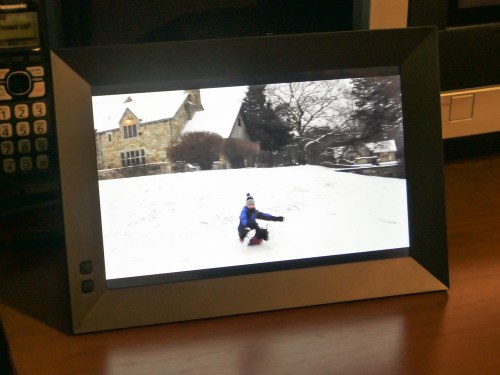
I immediately set up a series of video clips for my Nixplay highlighting our day’s fun sledding during a light snow storm.

I felt like I was transported to the middle of a Harry Potter movie where photos and paintings come to life. Watching the videos on the frame was really that cool!

For the record, I kept the frame’s audio functionality off. Sure, it would be great to hear the sound, but I think only when you’re actively showing off your videos. Otherwise, it would be too intrusive as an ongoing environmental background element.

15-Second Videos for your Photo Frame
To simply throw your clips into a playlist for easy viewing and not have to edit together a finished video… that’s so quick and easy!

Plus, video files fit perfectly in this HD 16×10 aspect-ratio frame.
(The screen resolution is 1280×800, which is essentially 720HD. That said, my 1080p video files have been playing back fine.)

Sure, there are still some drawbacks.

The 15-second video limit is depressing, but it also respects people’s limited attention spans. If you want to show off the ten-minute school chorus performance that your child was a part of, you’ll simply need to tether your viewer to another screen.
(If you’re interested, I be happy to set up my video for you.)

And the restriction to load videos only via the Nixplay iOS app means you’ve first got to get your video onto your iPhone. So that could mean another step or two if you’re not working with native iPhone videos.

I’ve been having a lot of fun lately shooting time lapse videos with my new DJI Osmo Pocket.
Snowy Day at Cranbury Park
Still, a digital photo frame that can easily play your HD video files is a big step forward in functionality.

Every day, we’re evolving further into a world dominated by video. Digital frames that show off photos are nice, but that trick is so yesterday.

Smart frames that can handle HD videos isn’t magic anymore. It’s the only way to go.

Thank you, Nixplay!