At Home with Tech

Unlock the power of all your technology and learn how to master your photography, computers and smartphone.

Category: photography

Why Do You Need an iPhone with 512GB of Storage?

The world has somehow gotten along until now without an iPhone with 512GB of storage. Do you really need this much in your iPhone Xs? Here’s one opinion…

I’m sure I am one of countless Apple fans trying to figure out which iPhone to buy now that the annual upgrades have been announced. And after some serious consideration, I think I’m going to pull the trigger on the massive iPhone Xs Max.

Why?

Well, I’ve simply become accustomed to the larger screen of my old iPhone 6 Plus. I’ve got to say that I love my old ‘phablet.’ So, sticker shock aside, I know I’d be totally comfortable handling an Xs Max throughout my day. The big question is whether I really need to max out on the whopping 512GB of storage, which balloons the price tag to $1,449.

The 256GB option already doubles the current capacity of my 6 Plus.
Is it necessary to double it again?

To use all that up, you’d have to maintain a boatload of Hollywood movies on your iPhone or shoot an insane number of home videos.

And it’s ironic that while all media today is supposed to be easily stored and instantly available on the cloud… larger local storage is still marketed as a premium feature.
(But we all know that network upload speeds can’t compete with the huge media file sizes that we’re creating.)

Media Management Still Required
I try to download my iPhone videos to my iMac for long-term storage and then delete many of them from my iPhone. So I haven’t really been facing an iPhone storage crunch lately. But I also haven’t been shooting videos like I’m holding a bottomless bottle of beer.

If there’s one thing to remember when considering a new technology purchase, it’s how you might use it into the future…
(Past experience is not necessarily an indicator of future needs.)

Okay… So, why 512GB?

The Downside of Shooting in 4K
I was talking with a work colleague about this question, and he reminded me that you can chew through a lot of memory if you’re shooting video in 4K.

Oh… right. 4K:

  • The format I pledged over a year ago that I would use to shoot all of my family videos with my Panasonic Lumix LX10
  • The format that was quickly becoming the new video standard
  • The format that would future proof all of my home media
    (Just like 720HD and 1080HD was supposed to do not that long ago.)
  • The format that creates gigantic files

Yes… I’m shooting in 4K… mostly.

I know 4K video capability isn’t new in iPhones, but for those who are jumping into a 4K workflow on an iPhone, it’s worth remembering the heavy lifting that’s ahead for you…
(And remember, you can’t just pop in a fresh memory card when your iPhone fills up!)

Prepare for Huge File Sizes
Here’s approximately what a minute of 4K video on an iPhone consumes:

  • At 24 fps- 135MB
  • At 30 fps- 170MB
  • At 60 fps- 400MB

If you’re like me and ‘committed’ to 4K video, on average you’ll probably be using up about 500 MB of memory every time you shoot a video clip at 60 fps (assuming a little more than a minute a pop).

So let’s do some simple math:

  • You’d get 900 clips from 450GB of memory in a 512GB iPhone
  • And 400 clips from 200GB of memory in a 256GB iPhone

That’s a ton of clips either way!
(Remember, you’ve got to leave some memory for a few movies, your photos and all your apps!)

So again… who really needs 512GB of storage?

How It Gets Worse
Well, if you’re shooting longer segments on your iPhone such as capturing a 30-minute music recital, the math paints a different story:

That’s 12GB for 30 minutes.
Twenty 30-minute ‘events’ will absorb 240GB and your 256GB iPhone would suddenly be maxed out.

It’s Never Enough
Here’s the harsh reality: No matter how much onboard memory you’ve got on an iPhone, you’ll eventually fill it up… It’s just a matter of time if you’re not exporting and then deleting some of your content from your iPhone.

Sure, having 512GB to play with will delay the problem, but eventually, you’ll want to capture that once-in-a-lifetime moment, and your phone will choke.

The Wisdom of 256GB
Yes, there’s a minimum amount of storage that you absolutely need to handle your day to day. 64GB should certainly cover that… But it might get tight really quickly, even if you’re somewhat conscientious about offloading your video clips.

So, Is 256GB the sweet spot if you’re expecting to shoot a healthy number of photos and video clips?

Probably.

My Surprising Turning Point
It’s costs $200 more to supersize to 512GB.
That’s a lot of money for something you may not need.
But it’s not that much more considering you’re already going to plunk down $1,249.

Hmmm….

Well, you’re sure getting the best price-per-GB with 512GB.

And as much as I don’t feel I need 512GB of storage, I know I’ve been known to say you can never have too much memory.

The Decision Crystalizes
So who really needs 512GB of storage?
Probably about 54 people worldwide.

Who feels better having 512GB to play with?

Me.

I can’t really defend my choice.
But I think that’s what I’m going to do.

And I know I’m not alone.

Excessive?
I could blame the whole 4K video revolution.
I could blame my inconsistent home media management practices.
I could blame ‘FONES.’ (Fear of Not Enough Storage)

I’m going all in on 512GB on my iPhone Xs Max, and one day I may still run out of memory on the darn thing.

But after you think about it for a while, (or write a blog post about it)
…you figure that 200 bucks more may be worth a little peace of mind for the next couple of years as the family videographer.

It’s one opinion…
…for your consideration if you’re in the market for a new iPhone.

Good luck with your decision!

How to Hold onto Your Best Summer Memories

Don’t let those great summer memories go. Sure, you’ll remember them, but you’ve probably also got some digital documentation as well. That’s the key. Here’s what I did…

Summer’s over. Deal with it. But don’t move on… not yet. Now’s the time to review, organize and archive all of the great summer photos and videos you captured. Like me, you probably haven’t had the time to organize your summer memories, because you’ve been living them!

The best way to hold onto all of those great memories is to properly share them:

  • Email or text a few of the very best to your family and friends
  • Share them on your social media accounts
  • Print out a couple of photos for your desk at work
  • Add them to your digital Wi-Fi cloud photo frame in your living room
    (I use Nixplay frames)
  • Make a hard-copy photo album from your go-to online service
    (I use Blurb)
  • Add your favorite photo to the background of your smartphone screen
    So, when someone asks how your summer was… you have that perfect image at the tip of your fingertips. You then turn your phone around, and your summer recap story can begin!

And remember, nobody wants to hear about your summer adventures when the leaves start to fall. That time is now.

So, in the spirt of not only doing what I say, but also doing what I do…
Here’s my summer recap in five photos and five videos…

Watching the Summer Solstice Sunset from Griffith Observatory
Seeing the Space Shuttle Endeavor at the California Science Center

Experiencing July 4th Fireworks at Calf Pasture Beach in Norwalk, CT

Riding the Port Jefferson Ferry
Port Jefferson Ferry

Fishing in Peconic, NY


Boogie Boarding at the Peconic Shore
Boogie Boarding at Peconic Shore

Picking Blueberries at Bhavana Blueberry Farm in Southold, NY

Picking Blueberries at Bhavana Farm

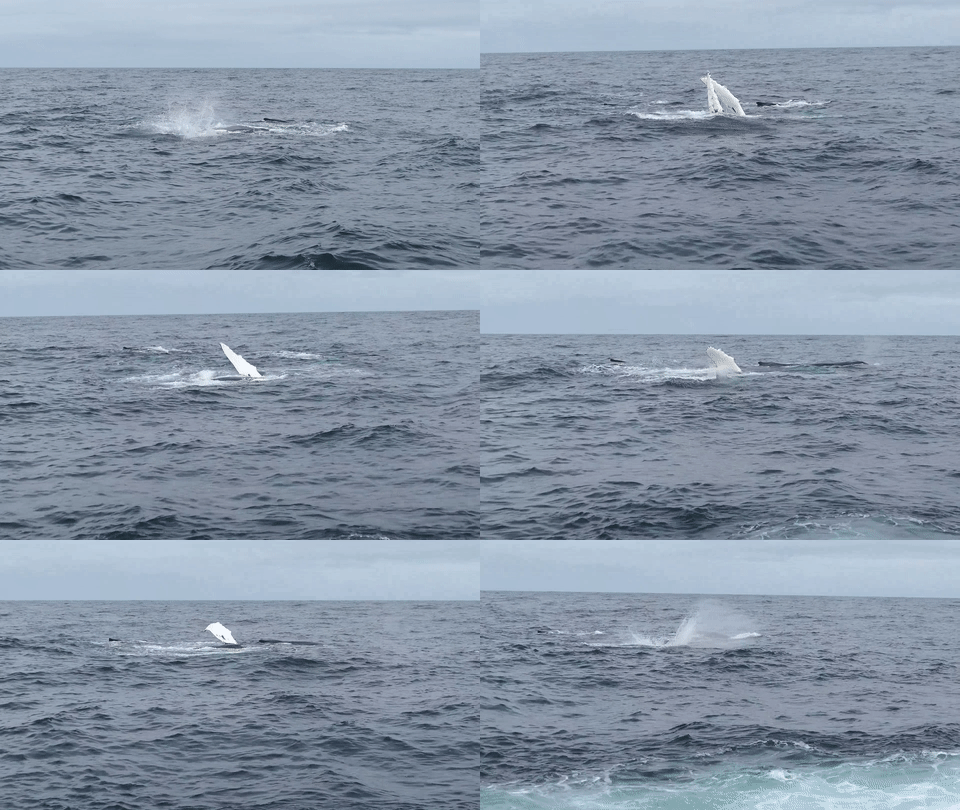
Spotting Humpback Whales off Cape Cod from the Hyannis Whale Watcher

Humpback Whales off Cape Cod

Swimming Underwater at Joshua’s Pond in Osterville, NY

Ziplining at The Adventure Park at the Discovery Museum in Bridgeport, CT
Ziplining at Discovery Adventure Park

Share Your Summer Memories Now!
…And how was your summer?

4 Ways to Get the Most Out of Your GoPro

I’ve enjoyed carrying my GoPro around in my pocket on vacation to capture the moments my other cameras wouldn’t be ready for. Here are a few tips I’ve discovered to help ensure your GoPro gets it done!

I recently returned from a week’s vacation on Cape Cod where I put my new GoPro HERO6 Black to work documenting my family’s beach and lake adventures. I especially enjoyed capturing my 8-year-old boy underwater.


But there was one problem…
A crack somehow showed up on the back LCD screen!
(There was no moment of impact that I was aware of.)

Previously, I had attached a plastic screen protector to the LCD in anticipation of this kind of unsettling moment.

The question was whether the top-to-bottom crack was on the plastic protector…
…or on the screen.


Phew!

Protect Your LCD
I think it clearly makes sense that if you’re going to put your GoPro in harm’s way, you have to give it some additional ‘armor.’
(They’re not tanks.)

I originally went with a lens and LCD protection kit made by GoPole. It comes with a lens cap and two clear covers for the lens and LCD. These near-invisible shields are made out of ‘shatterproof, tempered glass.’

But, clearly, they’re not ‘crack proof.’

Not that anything is… but I still decided to choose a different manufacturer for my second attempt at GoPro protection.

I landed on a similar kit made by Deyard.


It’s received good reviews on Amazon and costs less than half of the GoPole kit. Plus, it comes with two sets of screen and lens protectors and two lens caps.

$8.99 on Amazon
Click.


The Deyard protection plan may not necessarily be any better than GoPole’s. The fact that there are backup items in the Deyard kit perhaps reflects the reality that any screen protector is not impervious to in-the-field abuse.

As for having multiple lens caps… that’s a super idea, because lens caps have their own special way of disappearing…

If you want to avoid risking unnecessary damage to the glass on your GoPro, you’ll probably need to spend a few bucks every so often replacing these protectors, no matter which manufacturer you go with…

Minimize Ghosting by Turning Off HDR
In a portion of my vacation photos showing people, I ran into the problem of ghosting, where certain body parts displayed echoes. It was as if my GoPro had trouble locking in the action.


It’s so weird, because this happened in bright sunlight where most cameras don’t have this kind of problem.

So, I had originally turned on the HDR mode when I set up my GoPro. I figured… “Why not?”
HDR quickly takes several photos at different exposures and stitches them all together to create the best image possible.

But that extended sequence can lead to the ghosting problem… which makes total sense.

So, turn off HDR if you’re having issues freezing the action in your GoPro photos.
(And don’t forget to hold the camera steady!)

If you continue to use HDR, you’ve also got to pay attention to whether you’re moving!

Did I mention you might want to turn off HDR?

Keep People Towards the Center of Your Shot
I’ve previously mentioned my infatuation with my GoPro’s wide angle lens and how it reveals so much more of an image’s story.

The challenge is keeping your subjects out of the distorted fringes of the wide angle. Otherwise, they’ll look like aliens with warped heads.

This can be especially challenging when you’re snapping a photo with multiple people crammed in. Those on the ends will be at risk.

The good news is the wide angle lens should naturally provide plenty of safe space around everyone in your shot unless you intentionally try to fill the frame by walking up really close.

Even if you’re going for a group selfie, you should be fine as long as you keep the shot centered.

Download a QuikStory Video
I’ve also talked about how impressed I am with GoPro’s QuikStories video-editing smartphone app, which quickly throws together and shares a short music video using your GoPro’s action videos and photos.

The only glitch you may experience when sending out web links of your Quikstories to your family and friends is that they may not know how to ‘save’ them.

Your videos will play back online embedded in a GoPro web page, which I believe will eventually disappear when you delete the specific QuikStory project from your smartphone.

So, the web link is not forever…
Some folks may want to save your video file for their ‘happiness’ archive.

To do that, they need to click on three really tiny dots on the bottom right of the page with the video. Doing that will reveal the download option.

Not that all of your GoPro QuikStories are forever masterpieces… but it could be important for someone to know how to save one of them…

The Human Factor Still Matters
My GoPro HERO6 Black has proven it has many tricks up its sleeve. But like any piece of tech, it’s not magic.
(Nor indestructible)

A little human care and operating knowledge can really make all the difference when you take it on your next family adventure!