At Home with Tech

Unlock the power of all your technology and learn how to master your photography, computers and smartphone.

Category: Tech Fixes

My Favorite Feature in iOS 13

If you hate spam robocalls as much as I do, you’ll be happy to learn Apple has provided a better defense in iOS 13…

I expect this iOS 13 tweak is not on top of anyone else’s list, but it’s quickly become a game changer for me when using my iPhone.

First, some background…
Earlier this year, I activated the ‘Do Not Disturb’ setting on my iPhone in an attempt to stop spam robocallers from interrupting my life.
(This setting still allowed calls from my ‘contacts’ to get through.)

But the big problem I found with this setting was there were still plenty of times when my iPhone was not in its Do Not Disturb mode, because I was using it. And whenever my iPhone was on, it was no longer locked down.
(I had decided not to engage the Do Not Disturb… ‘Always’ mode, because that was too restrictive. I’d never see any incoming texts!)

So of course, those moments when my iPhone was awake presented a crack in its defenses…

Invariably, I would be interrupted by a robocall when I was using an app on my iPhone. And I couldn’t just decline the rogue call for fear that any manual response would somehow trigger even more unwanted calls in the future. So, I’d sit there for twenty seconds while the call rang out. And then I’d continue along, having lost twenty seconds I’d never get back.

That stinks, right?

Silence Unknown Callers
I imagine this annoying problem has also happened to enough iOS designers at Apple over the past year. And so they’ve created a better defense for it in iOS 13.

It’s a setting called ‘Silence Unknown Callers,’ and here’s how you turn it on…

  • Tap Settings
  • Tap Phone
  • Slide on Silence Unknown Callers

Apple describes this setting as “Calls from unknown numbers will be silenced, sent to voicemail, and displayed on the Recents list. Incoming calls will continue to ring from people in your contacts, recent outgoing calls, and Siri Suggestions.”

So, the huge change here is when a call from an unknown number comes in while you’re using your iPhone, the call doesn’t take over your device other than a momentary drop down notification about the unknown call.

More ‘Good’ Calls Get Through
With this feature in place, I no longer needed to keep the draconian ‘Do Not Disturb’ mode on.

The ‘Silence Unknown Callers’ setting is much more flexible, because it lets through numbers that you’ve used before but may not yet be listed in your contacts.
(So, if you make a one-off phone call but also expect a return call, now your iPhone won’t immediately send it to voice mail.)

Hailing Frequencies are Open
Of course, the real solution to handling spam robocalls is not how to best avoid them, but how to stop them from happening in the first place!

But until then, I’m pleased that Apple has helped me keep my generally ‘silenced’ iPhone more available to receiving legitimate calls from my own little universe.

It just takes sliding on the right setting!
The Hidden Problem when your Camera’s Internal Clock is Wrong

Don’t forget to take this important prep step with all of your cameras before your next trip to a different time zone…

It wasn’t that long ago when you had to think about the accuracy of your watch and whether it needed to be adjusted. Most watches used to drift a bit. Remember that?

But now, with smartphones and smartwatches infused into our lives, the need to worry about the precise time has been removed, because they’re all synced to ‘network time.’ So, carrying around ‘time’ has become something of a set it and forget it phenomenon.

But you really shouldn’t ignore how the rest of your tech interfaces with time, even if that tech isn’t designed to operate using it as a primary factor. Because when your gear loses track of time, it can really mess you up in unforeseeable ways…

A perfect example is the internal clock in your digital cameras…

What Time Does your Camera Think It Is?
When I snap photos with my iPhone, they always get a perfect time stamp. It doesn’t matter if it’s Daylight Savings or whether I’m on my family vacation in London. Smartphones always know to adjust to the local time.

But if you’re also using other cameras to take some of your pictures, their internal clocks that you probably set a while back may now be inaccurate. And if you haven’t updated them for Daylight Savings Time (guilty) or the different time zone you’re traveling to (guilty), they will be way off.

So what?

The Importance of Maintaining the Sequence of Time
Well, if you’re shooting photos across a defined period, maintaining the sequence of those pictures may be important, such as the order of activities on a family vacation. Without accurate digital time stamps in your photos, you’re going to be in real trouble when you get home and start to go through and organize your pictures.

If you’re using only one camera, this problem won’t matter, because all of your pictures will be consistently off, and their proper sequence will still be maintained.

But if you’re adding in smartphone pictures too, that’s when the perfection of ‘network time’ can create a huge headache for imperfect humans.

Multiple Camera Time-Stamp Paradox
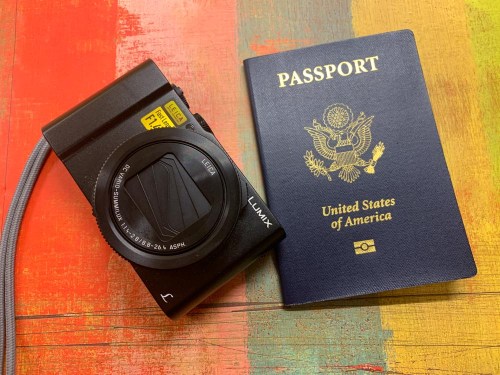
That’s what happened to me after our London vacation from earlier this year. In addition to taking pictures with my iPhone, I also used my GoPro and my Panasonic Lumix LX10.

Granted, my iPhone did a lot of the photographic heavy lifting. But there were moments to use my other gear too.

When I later went through my mountain of vacation pictures in Adobe Lightroom on my iMac, I worked hard to identify a smaller group of show-ready photos. Then, I was horrified to realize that many of them lined up significantly out of sequence. because I simply hadn’t reset the internal camera clocks forward five hours.

I had inadvertently created a ‘multiple camera time-stamp paradox!’

So, what did I have to do to fix the problem?

I needed to go through all of those pictures and manually adjust the capture-time metadata via Lightroom. And believe me, that took time. Time that I didn’t enjoy spending.

Said another way… It was a big waste of my time!
But what was more painful was knowing how unnecessary this stumble was.

Travel Prep Tech Tip
So, here’s a little tech tip before you take your next trip to another time zone…

  • Always adjust your camera’s internal clock to the correct time.
    (And then don’t forget to reset it when you get home!)

Then, when it’s time to display your pictures on your computer or smartphone, they’ll organically remain in the correct order.

Organizing all of your photos throughout life is difficult enough as it is. Don’t make it harder for yourself by accidentally destroying the natural organizing constant of time.