At Home with Tech

Unlock the power of all your technology and learn how to master your photography, computers and smartphone.

Category: Tech How To

4 Ways to Get the Most Out of Your GoPro

I’ve enjoyed carrying my GoPro around in my pocket on vacation to capture the moments my other cameras wouldn’t be ready for. Here are a few tips I’ve discovered to help ensure your GoPro gets it done!

I recently returned from a week’s vacation on Cape Cod where I put my new GoPro HERO6 Black to work documenting my family’s beach and lake adventures. I especially enjoyed capturing my 8-year-old boy underwater.



But there was one problem…
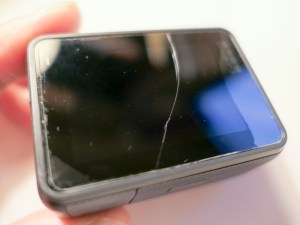
A crack somehow showed up on the back LCD screen!
(There was no moment of impact that I was aware of.)

Previously, I had attached a plastic screen protector to the LCD in anticipation of this kind of unsettling moment.

The question was whether the top-to-bottom crack was on the plastic protector…
…or on the screen.
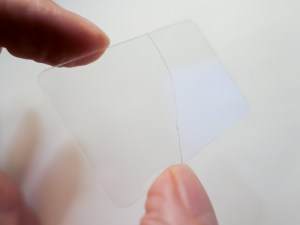


Phew!

Protect Your LCD
I think it clearly makes sense that if you’re going to put your GoPro in harm’s way, you have to give it some additional ‘armor.’
(They’re not tanks.)

I originally went with a lens and LCD protection kit made by GoPole. It comes with a lens cap and two clear covers for the lens and LCD. These near-invisible shields are made out of ‘shatterproof, tempered glass.’

But, clearly, they’re not ‘crack proof.’

Not that anything is… but I still decided to choose a different manufacturer for my second attempt at GoPro protection.

I landed on a similar kit made by Deyard.
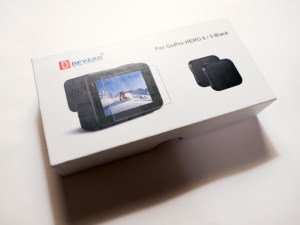


It’s received good reviews on Amazon and costs less than half of the GoPole kit. Plus, it comes with two sets of screen and lens protectors and two lens caps.

$8.99 on Amazon
Click.
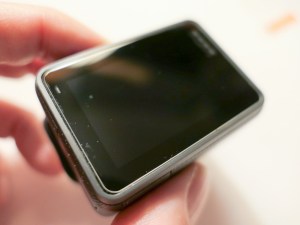


The Deyard protection plan may not necessarily be any better than GoPole’s. The fact that there are backup items in the Deyard kit perhaps reflects the reality that any screen protector is not impervious to in-the-field abuse.

As for having multiple lens caps… that’s a super idea, because lens caps have their own special way of disappearing…

If you want to avoid risking unnecessary damage to the glass on your GoPro, you’ll probably need to spend a few bucks every so often replacing these protectors, no matter which manufacturer you go with…

Minimize Ghosting by Turning Off HDR
In a portion of my vacation photos showing people, I ran into the problem of ghosting, where certain body parts displayed echoes. It was as if my GoPro had trouble locking in the action.



It’s so weird, because this happened in bright sunlight where most cameras don’t have this kind of problem.

So, I had originally turned on the HDR mode when I set up my GoPro. I figured… “Why not?”
HDR quickly takes several photos at different exposures and stitches them all together to create the best image possible.

But that extended sequence can lead to the ghosting problem… which makes total sense.

So, turn off HDR if you’re having issues freezing the action in your GoPro photos.
(And don’t forget to hold the camera steady!)

If you continue to use HDR, you’ve also got to pay attention to whether you’re moving!

Did I mention you might want to turn off HDR?

Keep People Towards the Center of Your Shot
I’ve previously mentioned my infatuation with my GoPro’s wide angle lens and how it reveals so much more of an image’s story.

The challenge is keeping your subjects out of the distorted fringes of the wide angle. Otherwise, they’ll look like aliens with warped heads.

This can be especially challenging when you’re snapping a photo with multiple people crammed in. Those on the ends will be at risk.

The good news is the wide angle lens should naturally provide plenty of safe space around everyone in your shot unless you intentionally try to fill the frame by walking up really close.

Even if you’re going for a group selfie, you should be fine as long as you keep the shot centered.

Download a QuikStory Video
I’ve also talked about how impressed I am with GoPro’s QuikStories video-editing smartphone app, which quickly throws together and shares a short music video using your GoPro’s action videos and photos.

The only glitch you may experience when sending out web links of your Quikstories to your family and friends is that they may not know how to ‘save’ them.

Your videos will play back online embedded in a GoPro web page, which I believe will eventually disappear when you delete the specific QuikStory project from your smartphone.

So, the web link is not forever…
Some folks may want to save your video file for their ‘happiness’ archive.

To do that, they need to click on three really tiny dots on the bottom right of the page with the video. Doing that will reveal the download option.

Not that all of your GoPro QuikStories are forever masterpieces… but it could be important for someone to know how to save one of them…

The Human Factor Still Matters
My GoPro HERO6 Black has proven it has many tricks up its sleeve. But like any piece of tech, it’s not magic.
(Nor indestructible)

A little human care and operating knowledge can really make all the difference when you take it on your next family adventure!
Use these Batteries in Your Nest Protect or Else

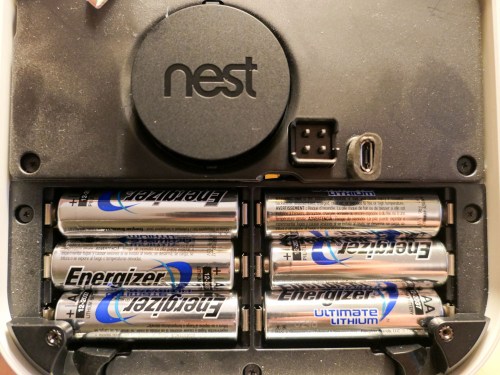
If you own a Nest Protect, you should pay attention to this picture. You’ll be needing to remember a particular detail to replicate in the future…

I needed to replace my Nest Protect’s batteries after the smoke and carbon monoxide alarm warned me it was time. I know that’s hardly a compelling start to a story, but what I discovered after I opened up the battery compartment’s door was rather surprising…

I found a big warning directing me to install one… and only one type of battery-
Energizer’s Ultimate Lithium L91 AA…

or else.

The Risk of Using Duracells Instead of Energizer Ultimate Lithiums
If I chose to install a less powerful battery, my human error would be “harmful to the smoke/CO alarm operation.”

All right then… I didn’t want to anger my Nest Protect. Nor did I want it to fail during an emergency. I took a look in my battery box for Energizer L91’s. And no, I didn’t have any.

So, I immediately went to Amazon Prime to order some L91’s.

But my Nest Protect was in its mind-melting chirping stage. So I had to either disable it for a couple of days or swap in some Duracell batteries I had on hand until the L91’s arrived.

I decided on the Duracells.

But I was worried that somehow the potentially ‘harmful’ Duracells would ‘destroy’ my Nest Protect. Perhaps less powerful batteries would simply not work as long.

It was only going to be for two days. So, I gave it a shot…

And guess what…?

The Duracell batteries worked just fine for the 48 hours.

Then, I replaced them with six Energizer L91’s.
My family was protected.

And life goes on.

Better be Prepared
If you own a Nest Protect, you might want to keep a package of Energizer Ultimate Lithium L91 AA batteries on hand so you don’t have to make “life-threatening” batteries choices like me.

But, what’s the deal with being able to use only one type of battery?
Are they so much more powerful?

Energizer Ultimate Lithiums are the Best Battery Out There?
Energizer claims that their Ultimate Lithiums are the world’s longest lasting battery in “high-tech devices.” And I haven’t found anything online to definitely dispute that claim.

So, apparently Nest Protect needs a serious battery to keep it going over the long haul. Will a ‘weaker’ model actual ‘harm’ the unit? I don’t think so… but perhaps other batteries would prevent the Nest Protect from operating properly over time.

I don’t think it’s the kind of rule you really want to question…

Obey Google’s Nest Protect instructions and use Energizer Ultimate Lithiums…

Let’s move on.

Which Mesh WiFi System Should You Choose?

Mesh WiFi usually needs a satellite unit positioned towards the center of your house, like on the corner of your kitchen counter. The big question is which manufacturer should you go with? This is my journey to upgrade my home WiFi…

It was time to replace my old Apple AirPort Extreme WiFi router. Not that it hadn’t been serving me well over these years. In fact, it was still functioning just fine. Plus, I had really enjoyed the ease of an Apple WiFi solution with my Macs. There was just one problem…

It was never able to provide strong WiFi coverage upstairs in my house. Even on the first floor, my family would sometimes experience annoying buffering while streaming video.

Goodbye AirPort Extreme
That’s because my AirPort Extreme was far away in a corner on the first floor tethered to my cable modem. I explored the idea of extending the signal with an additional AirPort, but it was complicated, and all of my research pointed to a degraded signal as a byproduct.

Then, I read that Apple was getting out of the WiFi router business! It’s a brave new world that we can’t live in the comfy bubble of a total Apple ecosystem anymore. Apple provided these few helpful shopping tips, and that was it!

We’re on our own.

So, I decided to roll up my sleeves and find a new WiFi solution that provided whole-house coverage…
(I didn’t want to be the IT Guy in the doghouse… yet again!)

The answer was to go with a Mesh WiFi system that natively deploys multiple nodes to create WiFi coverage you really want.

Google WiFi
My friend recently installed Google WiFi in his house. It’s an easy, bulletproof solution many folks have turned to.

All of the reviews pretty much agree that while Google WiFi may not lead all of the speed specs, it can’t be beat for stability.

So, that choice would be a no-brainer for me except for one variable…
Google WiFi is designed to work in a totally wireless environment.

How to Handle USB Printers
I was still using a Canon Pixma USB printer, which was hardwired to my AirPort Extreme. You might think I shouldn’t choose my new WiFi system based on the needs of an old printer. And you’re right. But because of the space configuration in my home office, I really didn’t want to upgrade to a new printer, because most of them are so large. My old Canon is relatively compact.

If there was another WiFi option out there that could handle my Canon printer and could also compete with Google WiFi, I would happily bring it home.

And in fact, there is…

Netgear Orbi
Netgear makes a whole family of WiFi routers under the ‘Orbi’ brand, and they also get great reviews. The Orbi is a tri-band system as opposed to Google WiFi’s dual-band design. That’s supposed to make the Orbi a little more flexible to generate the fastest WiFi network.

While the Orbi might be faster, some reviews I found suggested it isn’t quite as easy to set up and use as Google WiFi.
(More on this in a moment.)

The other big difference is the Orbi deploys only two units in its standard configuration, while Google WiFi uses three. I’d say that’s another plus for the Orbi.

And yes, you can connect a USB printer to the back of the Orbi.

Which Orbi Model?
There are seemingly dozens of Netgear Orbi models to choose between. While I exaggerate, I think there are way too many options. That said, my research pointed me to the Orbi RBK50 as the best choice. This particular model also includes a USB port for my Canon printer.

The Orbi RBK50 is $298.97 on Amazon.

I was ready to make my move.
Click.

Orbi Installation
To set up my new Orbi, I used the Orbi app which I download to my iPhone. Unfortunately, I wouldn’t say it was exactly a ‘seamless’ experience.
(Cough, cough… Google WiFi)

But after two attempts, I got my Orbi network up and running.

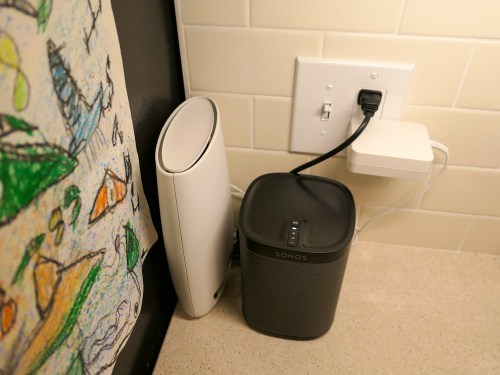
The main router connected directly to my cable modem. I positioned the ‘satellite’ unit on the corner of our kitchen counter by the refrigerator next to an existing Sonos Play:1 speaker.

Both Orbi units are larger than I’d prefer, but positioning them so the thinner side faced forward cut down on the footprint.
(My wife still noticed the satellite immediately. The fact that that a small but growing technology hub is creeping into the kitchen and taking over valuable counter space is a topic for another day.)

The good news is the resulting WiFi signal… is amazing… everywhere in the house! (Problem… solved!)

The Unwritten Last Installation Step
One huge step that nobody talks about when replacing your WiFi system is getting all of your electronics successfully back onto your new network. Sure, that’s an obvious process for some of your tech, like your iMac and Apple TV.

But there’s a whole secondary tier of gear that operates in the background of your smart home, and you may not even remember how to update the WiFi settings.

Case in point, I realized I wasn’t so smart when it came to updating…

I had to relearn how to access all of the WiFi settings. So leave yourself some extra time to handle this inevitable residual WiFi clean up.

The Tail Wags the Dog
One final point on my stick-in-the-mud Canon USB printer… Yes, it’s functioning with my new Orbi system, but I had to first download the Netgear ReadyShare Printer Utility to my iMac. That’s the conduit to bridge a USB printer to the Orbi network.
(Just connecting the printer with the USB cable isn’t enough.)

And moving forward, I still need to ‘reconnect’ my Canon printer using the Netgear app on my iMac every time I want to print. This adds an annoying extra step to my printing workflow.

It’s not at all elegant, but it works.

Happy with My Orbi
So, my new Netgear Orbi is in place, and my WiFi network is now in peak condition throughout my house.

But who knows what future tech ‘enhancements’ will challenge my Orbi’s orbit. If there’s one fundamental truth to living happily with your tech, like anything… it’s never a ‘set it and forget it’ relationship.

For now, this home IT guy is delighted with his Orbi.