At Home with Tech

Unlock the power of all your technology and learn how to master your photography, computers and smartphone.

Tag: apple

Don’t Look Too Closely at iCloud’s Shared Photo Streams

It’s always nice to get an invitation to look at family pictures online.  The only problem with Apple’s Shared Photo Streams is the pictures don’t show up in full resolution.  And that could be a problem if you’re planning to use them to create a photo book.

It’s always nice to get an invitation to look at family pictures online. The only problem with Apple’s Shared Photo Streams is the pictures don’t show up in full resolution. And that could be a problem if you’re planning to use them to create a photo book.

I never really got excited when Apple introduced iCloud Photo Streams.
The concept of storing your most recent 1,000 photos in the cloud for 30 days and having them sync across all your Apple devices didn’t do that much for me.

That’s because the functionality in ‘My Photo Stream’ is designed mostly for pictures taken by your Apple devices. The admittedly slick idea is to enable those photos to ‘phone home’ and seamlessly beam themselves back to your mothership.
(But you’ve got to use your computer at least once a month to download the photos to your hard drive before they go ‘poof’ in iCloud.)

Locate Photo #872
Plus the entire mass of pictures you snap end up in your photo stream.
(the good, the bad… and the ugly)

The pictures duplicate themselves to your other devices so you can easily show them off to family and friends.
But the reality that you’ve got to sift through a thousand images to find the one you’re looking for seems a bit half-baked.

I had lunch with a friend recently, and when we pulled out our iPhones to proudly display a few images of our three-year-old boys, I navigated to the picture I wanted in five gestures via my iTunes’ synced folder.
He needed at least fifteen gestures to quickly finger down his long photo stream.

Getting Canon to Play in the Photo-Stream Sandbox
My other problem with Photo Streams is while I do snap the occasional iPhone picture, when I’m really serious, I use one of my Canon cameras.

Then, I download the Canon photos to my iMac and sift through them to separate the wheat from the chaff in Aperture.
(Apple’s more powerful iPhoto cousin)

Only then am I interested in sharing the chosen few across my Apple devices and with others.

And I’ve traditionally loaded up my iPhone by syncing my photo folders via iTunes.
And yes, that takes an extra step….

While this workflow keeps my best photos close to me, nobody else gets to benefit.

Your Favorite Unseen Photo in Your Computer is a Terrible Thing to Waste
Sharing my best pictures in a timely manner has continued to prove itself an elusive tech challenge.
I’ve tried lots of solutions:

  • Recently, I bought the nixplay Wi-Fi Cloud Frame to stream my favorite photos for my wife and son to enjoy at home.
  • A year ago, I did the same for my father with a Pix-Star Wi-Fi frame.
  • Of course, I’ve got a few family Flickr albums, but I often forget to update and remind people about them.

Time for the Wife to Pick Up Your Slack
The current nut I’m trying to crack is simply finding a workflow to move my ‘best’ photos over to my wife’s Macbook Pro laptop, so she can have some fun working with them as well.

Her goal is to quickly create small event-driven family photo books.
(as opposed to my more globally-focused yearly photo book collections, which have unfortunately proven to take years to create)

I totally welcome this divide-and-conquer strategy.

But getting the photos over to her laptop and into iPhoto has been at an imperfect process at best.

I’ve traditionally exported the photos to a thumb drive and then transferred them via sneakernet.

I’ve also used Air Drop and Dropbox, but there’s got to be a better way to get those photos over…

Shared Photo Streams
(Cue up the angelic harps.)
Apple introduced iCloud Photo Sharing over a year ago.
These newer, ‘shared’ Photo Streams were designed for viewers beyond your eyes only.
They’re kind of like the MobileMe photo galleries of the good old days.

With Shared Photo Streams, you can easily create online photo albums to share with your family and friends.
(Though only up to 100. Larger families and friendship groups require another solution.)

But for me, the more enticing factor is that Shared Photo Streams allow your invited guests to view your photos directly in iPhoto, and then easily download whatever they want!

So I decided to designate my wife as the singular special guest for my new Shared Photo Stream. While this is certainly not a cutting-edge plan, and I’m admittedly quite late to the party,
I’m not embarrassed to report I finally gave this photo-stream ecosystem a whirl…

If You Want to Catch Up, You’d Better Run
In no time at all, I created my shared family photo stream, and the invitation went out to my wife’s iCloud email address.

I ran over to her laptop.
Click.

Nothing happened.

Click again.
Zippo.

Then I read the fine print:

To view a shared photo stream in iPhoto, your computer needs to be operating on at least the Mountain Lion OS.

D’ohhhhh!

I’d been running Lion on my wife’s laptop since we bought it a few years back.
So I decided this was as good a time as any to finally upgrade to the Mavericks OS…
(I’d really been meaning to get around to it.)

Click.

Two hours later…
(after the Pre-OS upgrade prep and a smooth Mavericks install)
I again attempted to connect my wife’s computer to my Shared Photo Stream.

Click.
Success!

Now, the possibilities seemed endless!
(Though there are inevitable limits.)

Here’s what Apple gives you:

  • Maximum photo (or video) uploads per hour: 1,000
  • Maximum shared streams you can share: 100
  • Maximum subscribers per shared stream: 100
  • Maximum photos and videos in a shared stream: 5,000

And all of these uploads do not count against your 5GB iCloud storage limit.

I can live with that.

But there was still one problem…

Why Optimize What is Already Perfect?
When I dragged the photos from my Shared Photo Stream over to iPhoto, I realized they had been…
(Cue the organ.)

‘OPTIMIZED!’

(This means the file sizes had been chopped down from their original pixel resolution to something more ‘manageable’.)

I scoured the web for confirmation of this unwelcome development.
And indeed, I found that Apple does reduce the file sizes for iCloud-shared photos.

Khannnnnn!!

Look, I simply want to easily move full-resolution photos over to another computer.
(This shouldn’t be so hard!)

I couldn’t locate Apple’s official position on their photo-slimming practices.
But I discovered some intelligent speculation that Apple’s resizing logic has to do with the native screen resolution on Apple devices. It’s simply unnecessary to view a photo containing a higher resolution than what the screen can display.
The image won’t look any better…

And the typical 2048 x 1536 optimized pixel resolution should also be adequate if you want to print a photo up to 5” x 7” in size.

Plus, it’s a ‘helpful’ storage-saving strategy for iOS devices with limited storage capacity.

So what’s there to complain about?!
(The humble Home IT Guy raises his hand in the back of the room…)

The Purity of My Photo Stream
And do all photos get stunted in the Apple’s photo-stream universe?
Not if you’re working in the non-sharable ‘My Photo Stream.’
Those pictures still get clipped on your iOS devices, but ‘My Photo Stream’ shows up in full resolution when viewing it on your own computer.
(Even Apple acknowledges the importance of these photos finding their way home in their original condition.)

The Wife Must Now Save History
So where does all of this leave the future of my wife’s photo-book projects?
Well, I’m not exactly sure…

The Shared Photo Stream integration with iPhoto on my wife’s laptop can’t be beat.

Plus my own copy of this Shared Photo Stream automatically shows up on my iPhone, negating the need to sync these photos via iTunes.
(Nice!)

No, I’m not exactly thrilled with the idea of having watered-down duplicates of my best photos on her laptop, but I’ve got back ups of the originals elsewhere…

As long as my wife doesn’t aspire to create huge photo books,
my little plan could still work.

I’d call all this progress…
And At Home with Tech, sometimes that’s just enough to declare victory!

13 Tech Tips from 2013

We’ve covered a lot of technology ground this year.
I hope you’re finally feeling a little closer to Tech Zen at home.
If not, don’t despair. It can be a long (never-ending?) journey!
So I’ve got a quick tech review to help you stay ahead of your many demanding gadgets in the year ahead.

Here are my lucky 13 tech tips to remember:

#1
You’re Going to Need a Bigger Hard Drive

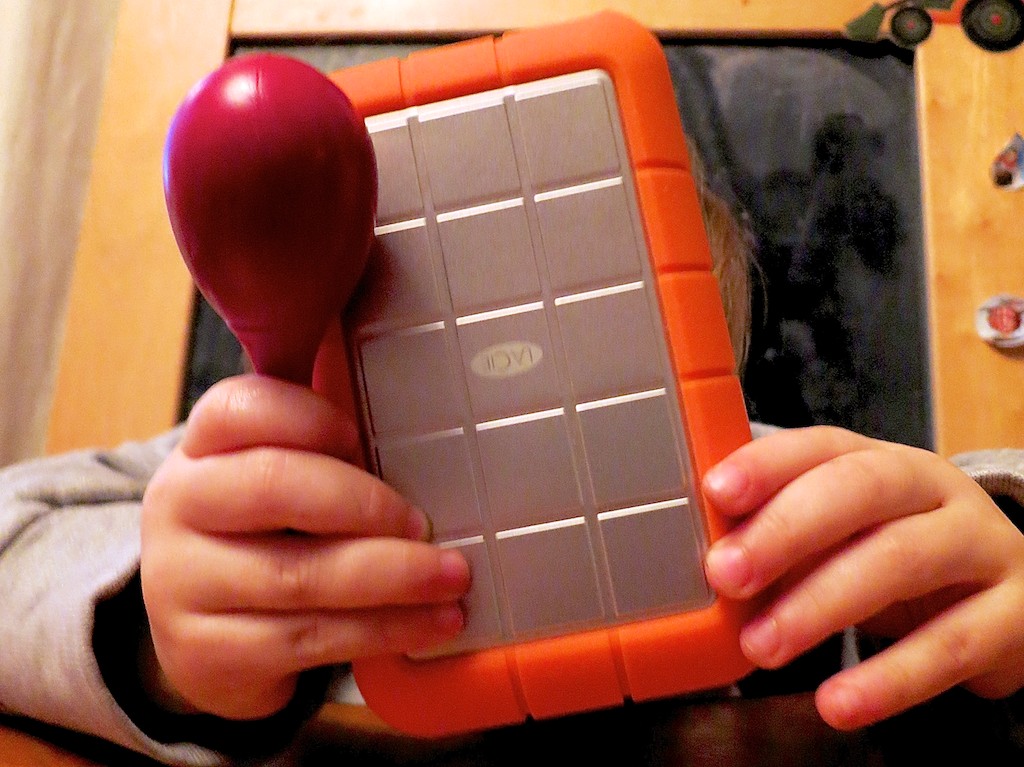
LaCie Rugged with Rattle

Even if you have faith your external hard drives can withstand the forces of fate, they’ll eventually buckle under the load of all those home videos you’re shooting.

#2
There’s No Question. USB 3.0 Rocks!

The Choice

Thunderbolt is great. But USB 3.0 is just fine. Both blow FireWire (R.I.P.) away.

#3
Build Your Home TV Studio for $44

My favorite piece for this home-grown tech solution is the $2.99 teleprompter system for your iPad!


#4

That Bad Photo You Took May Be Your Best Yet

The Eye

You may not know it, but some of your best photos are slipping through the cracks. Maybe they first struck you as flawed, or you didn’t recognize their hidden value. Time to recognize your ugly ducklings!

#5
Find Your Neighbors on Nextdoor.com

Nextdoor enters the neighborhood

You can create your own virtual neighborhood based on your real one.
Talk about two worlds colliding!

#6
It’s Time to Buy LED Bulbs

Passing the Torch to Cree

The price is right for this Cree LED bulb. Convert!!

#7
Transcode Your Camera Videos to Windows Media Files
with 
Flip4Mac

When you want to email your child’s birthday party video to grandma, you’ll need the power of Flip4Mac. Then, she’ll be able to watch the magic
candle-blowing moment on her PC.

#8
Create a Shared iCal Calendar for Your Family

Connected and Happy iPhones

Missing a family commitment can be a thing of the past if your family iPhones share a calendar.

#9
Video on Instagram Gives You Your 15 Seconds of Fame

Watching a Blade of Grass Grow

If you can’t muster up 15-seconds worth viewing, you might like Vine instead.
They only offer you six seconds. If that gets too complicated, try taking a photo, and call it a day…

#10
Strap Your Smartphone into Your Car while It’s Doing GPS Duty

iPhone navigating in cup holder

Don’t let another road trip go by with your smartphone sliding about as its GPS app shouts out turn-by-turn directions from the car floor. Mount it onto your dash!

#11
Buy a Nest Learning Thermostat

My Nest and Me

How’s your 1950’s-era thermostat handling the extreme weather? Did you forget to adjust it before you left home today? Wish it were smarter? Well, now it can be…

#12
If You Buy an HD iTunes Movie, You Also Get the SD Version for Free

Movies for the Road

You just need to know how to ask for it. And why would you want the SD copy? Ask your bloated iPhone…

#13
BlackBerry is Toast

BlackBerry on the Floor

You don’t need me to tell you this news, but I really want you to read my little poem about this former giant.


Happy New Year!

Well, there you have it.
Feel free to add your own favorite tech tips from 2013.

(Yes, even I am not a Tech Jedi yet…)

Finally, thank you for visiting At Home with Tech over the past 12 months.
I hope my posts have been of some assistance or at least a bit of amusement.

I look forward to working through a few more of the universe’s many
tech mysteries with you in 2014…

Nanu! Nanu!

Give your Computer the Gift of Updated Software

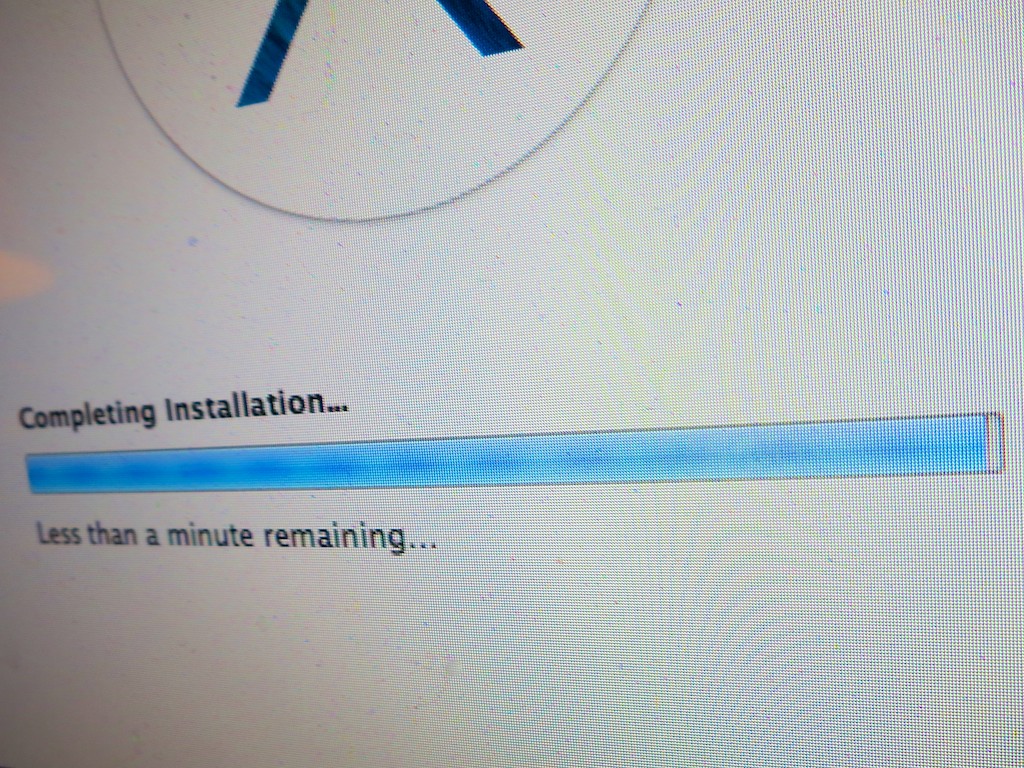
“Less than a minute remaining” is the most excruciating message ever invented by software developers. I think the phrase actually makes time slow down. In this moment, your Mavericks OS X upgrade is so close… yet still so far away. Here are three recommended steps to help you get your computer to the finish line…

“Less than a minute remaining” is the most excruciating message ever invented by software developers. I think the phrase actually makes time slow down. In this moment, your Mavericks OS X upgrade is so close… yet still so far away. Here are three recommended steps to help you get your computer to the finish line…

There’s a battle waging deep within your mind.
You may not be aware of it, but subconsciously… it’s always there.

To Update or Not to Update…
Almost every day it seems, your computer prompts you to update its software arsenal.

Some are small updates.
Others are game changers.

But you’ve always got a choice to make.
And the opportunity to update to the latest and greatest carries both a blessing and a curse.

Advantage: Your computer should work better than ever.
You’ve got the best chance for all your software to play nicely on your desktop if every piece is up to date. You generally tend to have problems when you run into ‘compatibility’ issues.

Risk: Your computer ‘blows up.’
Face it… you’re doing brain surgery on your computer.
Sometimes it’s minor.
Occasionally, you’re updating the whole operating system.
Either way, you’re messing with your computer’s noggin.

“It’s Amazing How Productive Doing Nothing Can Be.”
You’ve probably wandered about this thought matrix before:
If it ‘ain’t’ broke, why fix it?
(The above quote from TRON: Legacy says it all.)

And to be frank, the fear of update glitches causing catastrophic computer failure regularly prevents me from going for the update.

And who really ever has ‘the time’ to handle that stressful moment when your computer suddenly goes dark?
(To reduce those odds, it’s always wise to wait a few weeks after significant software updates come out. Let the ‘early adopters’ identify the bugs…)

But sticking your head in the digital sand only works for so long before you realize you’re two operating systems back, and you’ve been fooling yourself that your computer isn’t sluggish.

You can delay your software updates… but only for so long.
The alternative is ultimately computer obsolesce.

Usually something compels you to finally take the plunge on the big software updates.

Finding my Inner Maverick to Upgrade to Mavericks
For me, my Mavericks moment arrived rather suddenly when I tried to update my sluggish Aperture photo editing software, but couldn’t because it required the power of Mavericks.

It was time to welcome in OS X 10.9.
(Buckle up!)

The Saturday Morning Gauntlet
If you’ve got a few spare hours over a weekend to be your computer’s wingman, it’s the perfect opportunity to face this gauntlet together.
(Just make sure an Apple Store is within rescue distance…)

And you’re going to want to nurse your computer through its brain surgery.
So it didn’t hurt when I became housebound this past weekend due to the season’s first snowstorm.

Three Steps to Prepare Your Computer for its Software Update

There are a variety of websites offering step-by-step instructions on how to prepare for an OS upgrade such as.

While they provide an exhaustive list on every step possible to ensure success, it can all become a bit overwhelming.
The complex series of precautions add fuel to the argument of doing nothing at all.

Honestly, I found it too daunting a process to follow every safety suggestion.
(I hope that didn’t anger the tech gods.)

That said, here are three steps I always follow:

  1. Upgrade all your current software via the Software Update utility before taking any big leaps forward.
    (It’s the last time you will use it. In Mavericks, updates are done via the Apple App Store.)
  2. Back everything up on your computer. (Yes, this always bears repeating.)
    I use Time Machine locally with an external hard drive and Backblaze to the Cloud.
  3. Then do some system maintenance in Disk Utility.
    Click on Repair Disk Permissions and Verify Disk to make sure your Mac is healthy enough for its upcoming operation.

Diary of a Nervous Tech Blogger
11:46am: The upgrade begins. Download Mavericks from the App Store.
(Note: I’m working with a 2010 iMac with 2.93 GHz Intel Core i7 processor and 4 GB of RAM.)

12:34pm: Return after snowball fight in my driveway with my three-year-old son. (He wins.)

12:42pm: Official installation begins. Looks like a 44-minute process…
(Go have lunch with the family.)

1:42pm: “Less than one minute remains.”

1:52pm: “Less than one minute remains.”

1:55pm: Look for paper bag to hyperventilate into.

1:59pm: Computer takes pity and moves on to the next screen.

2:15pm: Installation completes. iMac reboots and proudly display’s its new ocean world.
(Apparently ‘galaxies’ are so yesterday.)

2:18pm: Computer complains that I’m missing Java and asks if I want to download the latest version.

“Yes, please.”

2:20pm: Check for more recent software updates for Mavericks.
Only find updates for Mail and iBooks.

2:25pm: Try printing a photo.
-WARNING-
Uh oh! Suddenly, my printer permissions are installed incorrectly!
iMac politely asks if I’d like to fix them.

“Yes, please.”

2:45pm: Successfully upgrade to Aperture 3.5.1.

3:00pm: Blood pressure returns to normal.

The Perfect Gift for the Pseudo Sentient
I’m proud to report that Mavericks has been humming along just fine.
And yes, Aperture does seem to act a little zippier now.
I’d label this little weekend tech project a success.

Half way through the upgrade, I did wonder how my blog post would fare if I had to spend the rest of the weekend trying to breathe life back into my iMac.
Not sure what it would say if my 100th post didn’t make it to the finish line.
(I know life would somehow go on…)

So in this holiday season of giving, why not give a little love to the most important pseudo-sentient entity in your life.

In all the excitement of celebration, just be careful not to spill your cup of Joe on it!