At Home with Tech

Unlock the power of all your technology and learn how to master your photography, computers and smartphone.

Category: family

Essential Tech I Use and Why
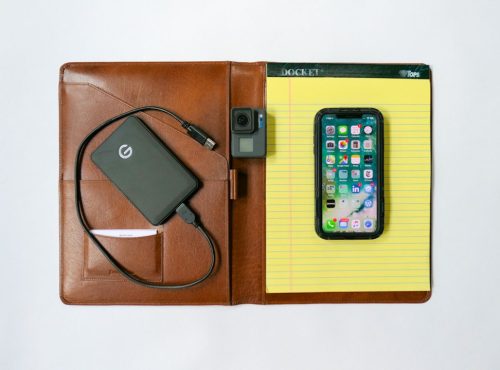
Here’s my list of ten technology purchases I’ve made that creates my foundation for living and working in today’s digital world.

I see myself as an everyman (person) who successfully uses his tech (usually) throughout most days in life. I’ve done my research and also have a decent track record on my specific gear choices. While I’m hardly an authority… I’d like to think I offer an informed point of view.

There is also an ever-increasing amount of choice out there, and figuring it all out can be a complete time suck. The ‘best choice’ is an elusive and always-changing equation. So, my strategy has always been to find what works (at a competitive price where possible) and stick to brands that hold up over time.

Most of all: Keep it simple…

If you think that reading about the essential tech I’ve chosen (or covet) for myself might be useful towards your own tech-selection process, then I’ve got a little list to share…

Ten Technology Choices to Help Get You through Your Day

1.  Smartphone

I upgraded from my old iPhone 6 Plus and finally convinced myself there was no need to supersize it to 512GB. So far so good…

2.  iPhone XS Max Case

It’s tough and looks like it comes from the alternate universe in the TV series, “Fringe.”

Plus, I like saying it’s made with Kevlar.
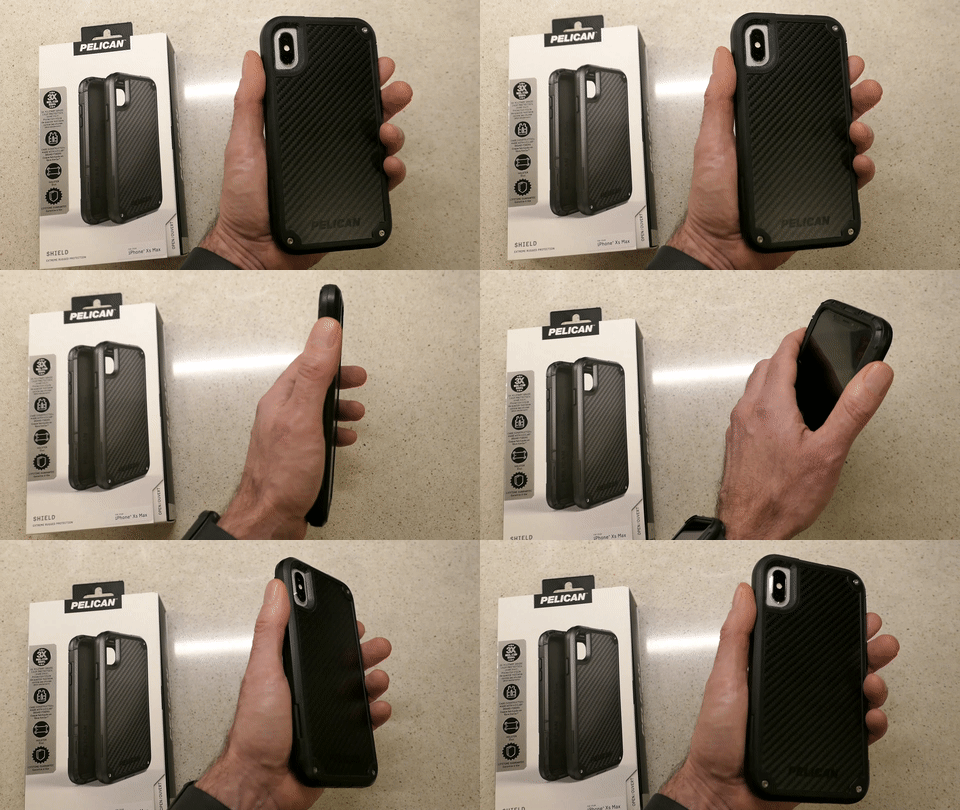
Holding My Pelican Shield Case for iPhone XS Max

Enough said.

$41.73 on Amazon Prime

3.  Watch

After three years of self-control, I couldn’t stand not trying one of these out. It was an instant success… Not only have I been loving my Apple Watch, it’s also focused me on ‘getting my steps in.’



And now, I don’t have to think about what watch I’m going to wear tomorrow!

4.  Computer

I began using Macs fifteen years ago due to the advanced multimedia applications, and I never looked back.

Do I feel the need to upgrade to the 2019 model?
Nope. Not yet… I’m doing fine with what I have.

5.  Back-Up Drive for your Computer

I’m a big fan of G-Technology Drives (now owned by Western Digital).

The G-Technology 4TB G-Drive USB 3.0 goes for $129.95 on Amazon Prime.
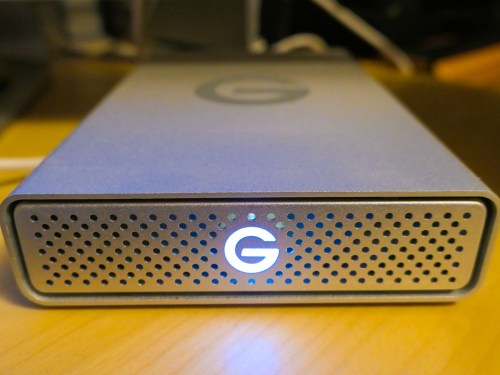
It’s what I use for my iMac’s Time Machine backups…

6.  Portable Back-Up Drives

  • G-Drive Mobile USB-C

Yes, I’m sticking with G-Technology again…
My go-to choice is the G-Drive Mobile USB-C.

I always grin and shake my head at how digital-storage pricing continues to drop…

7.  Cloud Backup

You do have a cloud backup plan in addition to your local backups, right?

I’ve been using Backblaze after CrashPlan broke up with me.

Offsite backup should always be a part of your strategy…

8.  Premium Point-and-Shoot Camera

Compact cameras that use 1-inch-type sensors can capture better photos than your smartphone…especially in low light.

Being able to freeze that July 4th fireworks moment is priceless!

Yes, these premium compact cameras are expensive, but if you’re serious about capturing great photos without blur and don’t want to carry around a big DSLR, this is the camera category for you…

I use Panasonic’s Lumix DMC-LX10. It’s a couple of years old, but still on the market and now at a discount…
$497.99 on Amazon Prime
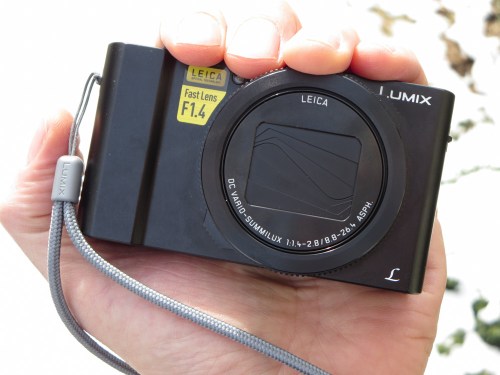
I enjoy using my LX10, but If you’d like to know the camera I really covet, and what I’d buy today…
It’s the Sony DSC-RX100 VA… $898 on Amazon Prime.
(No… not the newer VI model. That’s because even though the VA has a smaller zoom, it‘s got a faster lens that can better capture action in low light.)
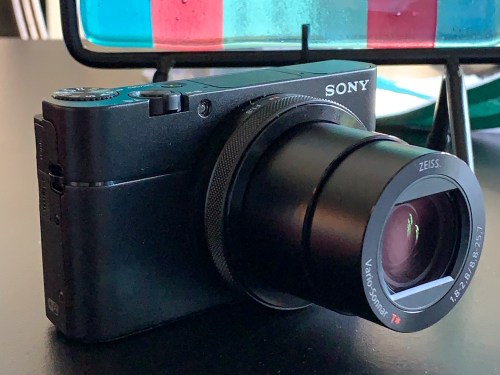
This is my friend’s new Sony DSC-RX100 VA.

The RX100 series has always seemed to set the gold standard for this category. Yes, it’s expensive, but I think it’s worth it.

9.  Action Camera

I picked up a GoPro last year as a family vacation camera, and I found that it really can enhance your vacation’s fun. A GoPro is small, durable and waterproof… so you can take it to the beach without worrying about a grain of sand crippling a retractable zoom lens. Plus you can snap great underwater shots!

It’s also incredibly fun to use during pool time!

The GoPro HERO7 Black is $343.68 on Amazon Prime.

10.  Wireless Mesh Router

When I replaced my old Apple AirPort Extreme WiFi router, I went with the two-unit mesh WiFi system made by Netgear Orbi.
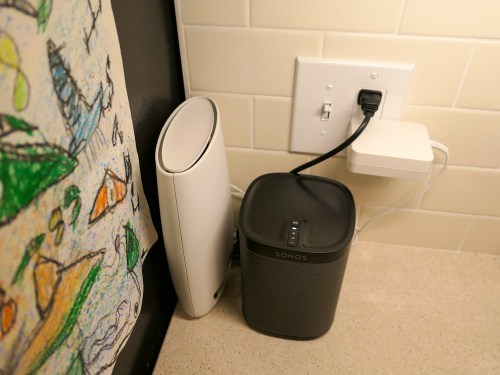
The Orbi RBK50 (next to my Sonos speaker) costs $279.79 on Amazon Prime.

Mesh WiFi is a game changer… bringing new meaning to the idea of whole-house WiFi.
(I highly recommend it.)

If It Fits Your Budget…
I imagine some of you might be questioning whether all of this gear appropriately belongs on an ‘essential’ list.

While it would certainly be difficult today to operate without a smartphone or computer… does anyone really need the always more-expensive devices made by Apple? Of course not.

But I would also add that there’s value in working within one digital ecosystem. And not that you couldn’t also do that with other brands… but, hey… Apple’s always been a good bet… Period.

And no, you don’t specifically need home WiFi or a GoPro to survive, but I think it’s fair to say they’ve contributed to maintaining a level of digital homeostasis in my life.

That’s a fragile equation and always worth acknowledging… and enjoying when you can.

4 Ways to Choose the Best Portable Power Bank for your iPhone

If you’re looking to pick up extra portable charging power for your iPhone, there are several important factors to consider. Here’s what to pay attention to…

Lately, my wife has been borrowing my little Anker Astro portable power bank for her iPhone. It’s clear her aging device now needs the ongoing battery support to get through certain hi-use days.

So, I decided to pick up another portable charger for myself. No big deal… right? Especially because I thought these batteries have become so cheap you can probably find them at the bottom of a Cracker Jack box.

Not true…
And to complicate matters, the countless choices out there are mind numbing…

Power Pricing Game
And I was shocked to find the price points from my favorite brands were $30-$50. But upon closer inspection, that’s due to the greater power capacities on the portable power bank market today.

You can easily get yourself 12,000-20,000mAh of portable power.

But do you need that much…?

Tip #1
Don’t Bring Along More Power Than You Require
My iPhone XS Max only needs 3,174mAh to totally recharge.

A little travel boost is really all I wanted. So, focusing on the smaller 6,700mAh category is more than enough to carry about for this particular purpose.

And I immediately identified a couple of good choices…

Same Price… Larger Capacity and Size
And after doing a little more research, I realized you can even up the capacity of the battery without really affecting the price…

Just be aware that these batteries are going to be bigger and heavier…

Tip #2
You’ll Likely Need to Provide Your Own Lighting Cable Solution
But then, I discovered a little secret in the portable power industry…
Most power banks don’t include the Lightning cable to actually power an iPhone. (That requires a separate purchase!)

So, you’ve got to spend more money for the cable!
Whoa!

For example, the 1-foot Anker Powerline II Lightning Cable is
$10.99 on Amazon Prime.

Too Good to Be True?
But I did locate one option from POWERADD that graciously packaged an included Lightning cable:

In fact, the clever design of this unit only requires the one cable… for both charging up and dispensing power.

Great, right?

And it’s got 12,000mAh!
(and 2 outputs)

All this for $26.99… Is this a dream?
So, where’s the catch?

Well… lots of Amazon reviewers have complained about the allegedly short life span for this model.

Hmmm…
My search continued…

Tip #3
Make Sure a Built-In Lighting Cable will Fit through your iPhone Case
Some manufacturers offer a design that includes an attached fold-out Lightning cable.
That’s thoughtful!

I found one choice from Jackery…

This external battery charger has a short built-in Lightning cable, which is simply awesome.

That is… unless you use a thick iPhone case like I do, which will likely prevent the Lightning plug from fitting.
(I’m happily using my Pelican case… so I’m going to pass on this option.)

Tip #4
Consider a Power Bank with a Built-In AC Plug
Then, I came upon a slightly different product category with a design that offers an integrated foldable power plug… so you don’t need to worry about having access to a separate wall charger.

Now, that’s certainly a nice bonus and an unexpected value-add.
(And yes, you’ve still got to buy your own Lightning cable.)

I found these two choices:

  • Anker PowerCore Fusion, Portable Charger 5000mAh with Dual USB Wall Charger, Foldable Plug
    $25.97 on Amazon Prime
  • RAVPower 6,700mAh Power Bank with Dual USB Wall Charger (Model RP-PB125)
    $23.99 on Amazon Prime
    (Each power port provides a full 2.4A.)

My Solution
So where does all of this leave us…?

I really liked the RAVPower 6,700mAh External Battery Pack with Dual USB Wall Charger plus integrated foldable A.C. plug. And the price was right…

Click.

So, that just left getting another Lightning cable…
And I finally came to the conclusion this additional purchase was inevitable.

If you also need to go that route, I suggest getting a short cable, which is simpler to use when you’re tethering the RAVPower battery to your iPhone while using it in the field.

AmazonBasics has a 4” Lightning to USB A Cable for $5.99.

Or you can go with the premium cable option for $2 more…
AmazonBasics Advanced Collection 4” Lightning to USB A Cable… $7.99.

I spent the extra couple of bucks.

Click.

Be Prepared
You should always carry around a little portable power to support your smartphone for ‘emergencies.’ If that unit can recharge itself without needing a separate power block and also easily supply some juice to your other devices, I’d say that’s a smart purchase!

RAVPower Power Bank Wall Charger + 4” Lightning to USB A Cable
= happy human.

Done.

How to Fix Your Piper Computer Kit’s Corrupted Software

My son brought his new Piper to life, but its software quickly began glitching. So, it was time to help keep the learning experience on track. That means figuring out how to reflash the Raspberry Pi’s OS onto the MicroSD Card. (what?) Here’s what I did…

A few weeks back I proudly bought my nine year old a Piper Computer Kit for his birthday. I was so excited for him… He would build his very own computer, powered by a Raspberry Pi and then learn programming and other computer skills through a Piper-specific Minecraft StoryMode interface…

I felt it was the best birthday gift a dad could give his kid… ever!
(Okay, maybe I got a little too excited.)

The truth is all my boy really wanted was a big stack of Pokémon cards.

Pokémon cards!?

Come on… I was about to give the young Lester the tools to create a virtual universe if he desired… and all he wanted… were some glittery cards.
(Clearly, I don’t understand the Pokémon phenomenon.)

So, of course, we got him the cards… too. And during the next few days, our boy was fully immersed in his Pokémon world.

The Piper Computer Kit sat unopened in the corner.
(Sniff)

…Cue the tumbleweed shot.

Then…

The next Saturday morning at breakfast, he turned to me and said with a big smile,
“Let’s build my computer!”

Finally!
We were on…

The Piper’s Stormy Maiden Voyage
He opened up the massive blueprints, spread them out on the floor, and began constructing the Piper with the intensity of engineers racing to build the spaceship in the 1951 sci-fi movie, “When Worlds Collide.”

In little more than a couple of hours, we had a heartbeat.

He activated the Piper’s Minecraft ‘Story Mode’, and before I knew it, he was testing circuits faster than you can say, “Scotty, I need warp speed!”

It was just glorious.

And then suddenly, it all just… stopped. Minecraft had crashed, and we were just staring at the desktop.

My son turned and looked at me.

Frack.

I suggested he double click on the icon to get back into the teaching game.
Nothing.

Hmmm….

Then, I took the next logical step… I checked for any software updates and downloaded those.
Still nothing.

The computer itself was still seemingly working okay… but we couldn’t get back into the Piper Minecraft teaching program…

Piper, we have a problem!

Time to Reinstall the Software
My son was still feeling pretty pumped about building his Piper, but understandably a bit deflated by this glitch. He powered down his creation, and I pledged to do some research to find a fix…

The next day, I emailed Piper customer service asking for a little support…

After sharing my details, the prognosis came back that somehow the software on the Piper’s microSD card had gotten corrupted, and I needed to “reflash” the SD card.

Huh?
(Reflashing the card means reinstalling the Raspberry Pi’s operating system image back onto the card.)

Okay… So how do you do that…?

How to Reflash the SD Card
Taylor, from Piper Customer Care emailed me links to the Raspberry Pi software and instructions on how to reflash the SD card.

Beyond the obvious need to first download the image of the operating system, there were three other key steps…

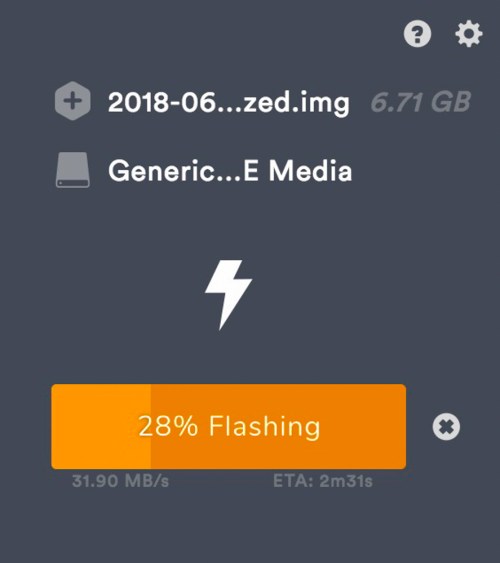
  1. I also had to download Etcher, which is a graphical SD card writing app that flashes OS images onto SD cards.
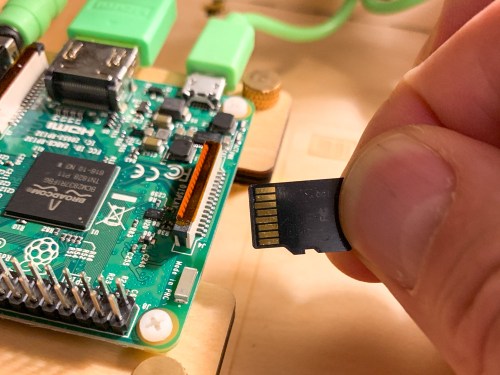
  2. I needed to remove the MicroSD card from its Raspberry Pi slot, slip it into a larger SD card adapter (which I happen to have from my GoPro kit) and then insert that into my iMac’s SD card reader.
  3. When it was time to find the downloaded Raspberry Pi operating system image in the Etcher interface, I first needed to drag it from my ‘Downloads’ to my iMac’s desktop. After that, it was easy to locate.

Then, you click on ‘Flash,’ and you’re on your way!

Within five minutes, the operation was compete, and I reinserted the MicroSD card back into the Raspberry Pi.

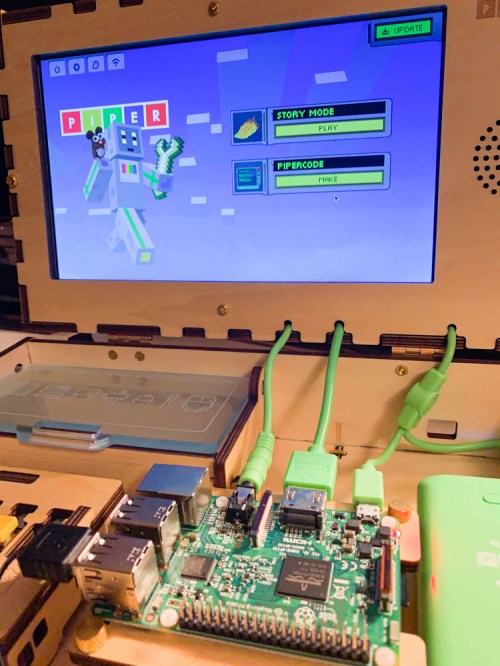
I powered up the Piper, and BAM!

It was all working again…!

A Computer Kit May Require Some Hands-On Maintenance
So, even though the Piper was now fully functional, part of me still wondered how much of a problem it was that I had to reinstall the operating system.

Shouldn’t a new computer not crash after 20 minutes of use?

On the other hand, I had to remind myself that I was working with a $300 computer kit centered around a $40 Raspberry Pi motherboard… not a $2,000 iMac. The rules are a little different!

And isn’t the entire idea behind a build-your-own computer that sometimes you’re going to have to roll up your sleeves and get your hands dirty?

At the end of the day, reflashing the SD card was super simple, and our Piper works like new again.

If my son were a little older, I would have had him do all the reflashing work. That would have been an excellent project for him!
(I just wanted to make sure I flashed the SD card and not my iMac’s hard drive.)

Taylor from Customer Care was super responsive and even offered to mail me a replacement SD card. I’ve got to say that’s pretty good support…

Thank You, Piper!
So, what have we learned from all of this…?

There’s often a fine line between worrying that you’ve made a bad technology purchase and feeling helpless to fix the problem… and taking control to find a solution and making the repair yourself.

It just takes the right point of view…

That’s a lesson children of all ages can learn… and one that I’m really happy my Piper experience has reinforced in my own life.

Play on!